FAQs and Q&A
Create and edit Q&A
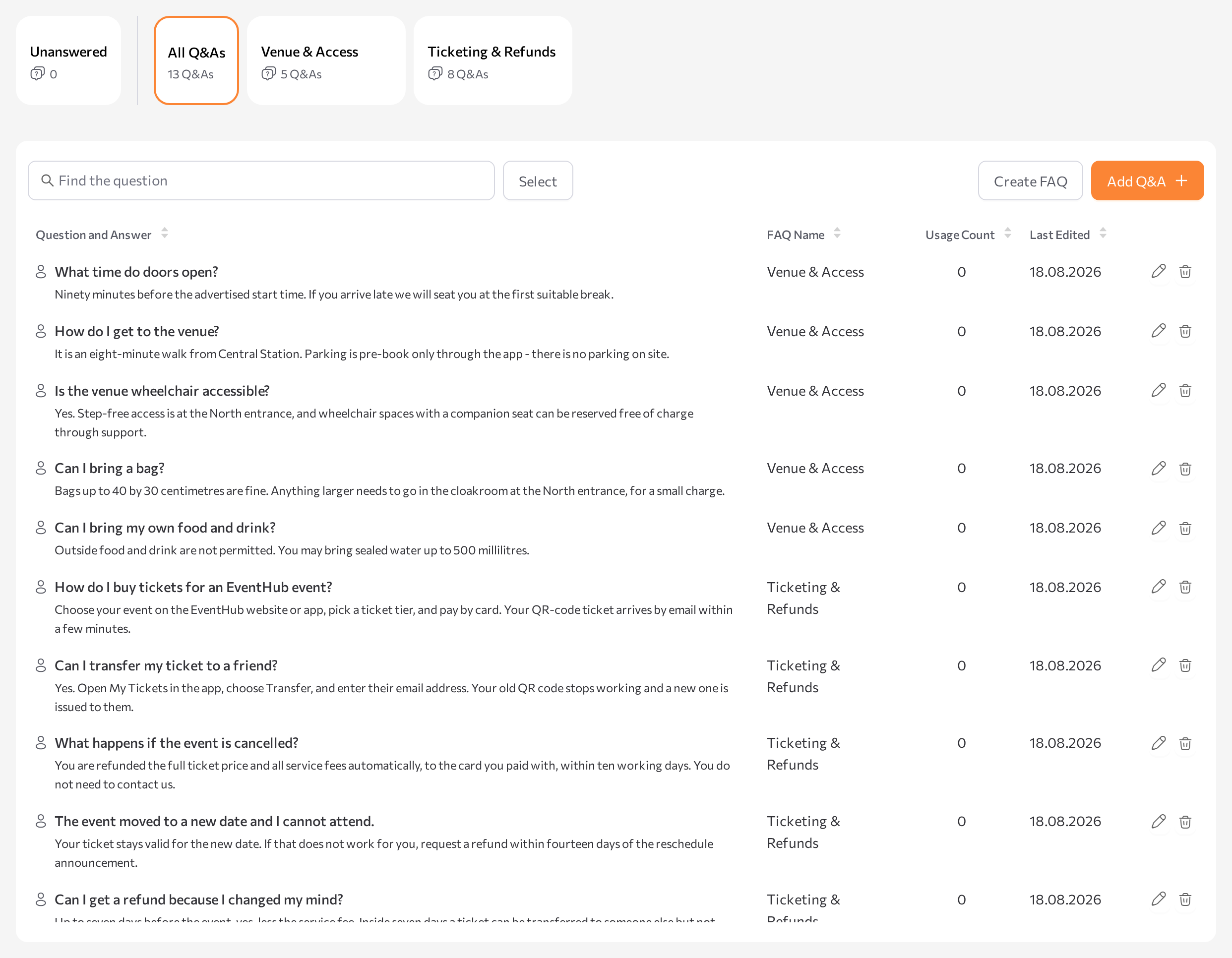
On the FAQs tab, knowledge lives in FAQs — named collections of question-and-answer (Q&A) pairs. When a customer asks something similar to a stored question, the agent answers with the wording you approved. Group Q&As any way that suits you: by topic, by product, or by agent.
Note the naming: the tab and the collections are called FAQs, while the individual entries inside them are called Q&As.
Create a FAQ
- Open the FAQs tab and click Create FAQ.
- Keep the Create Manually tab selected.
- Enter a FAQ name. Names must be unique — otherwise you'll see A FAQ with this name already exists.
- Optionally select Connected agents to connect the FAQ right away.
- Click Create.
The new FAQ appears as a card at the top of the tab, next to the built-in Unanswered and All Q&As cards.
Add a Q&A pair
-
On the FAQs tab, click Add Q&A.
-
In the FAQ dropdown, choose the FAQ for the pair. You can also create a new FAQ from the same window.
-
Enter the Question and the Answer, for example:
Question: How long does delivery take?
Answer: Standard delivery takes 3–5 business days. You receive a tracking link by email once the order ships. -
Click Add.
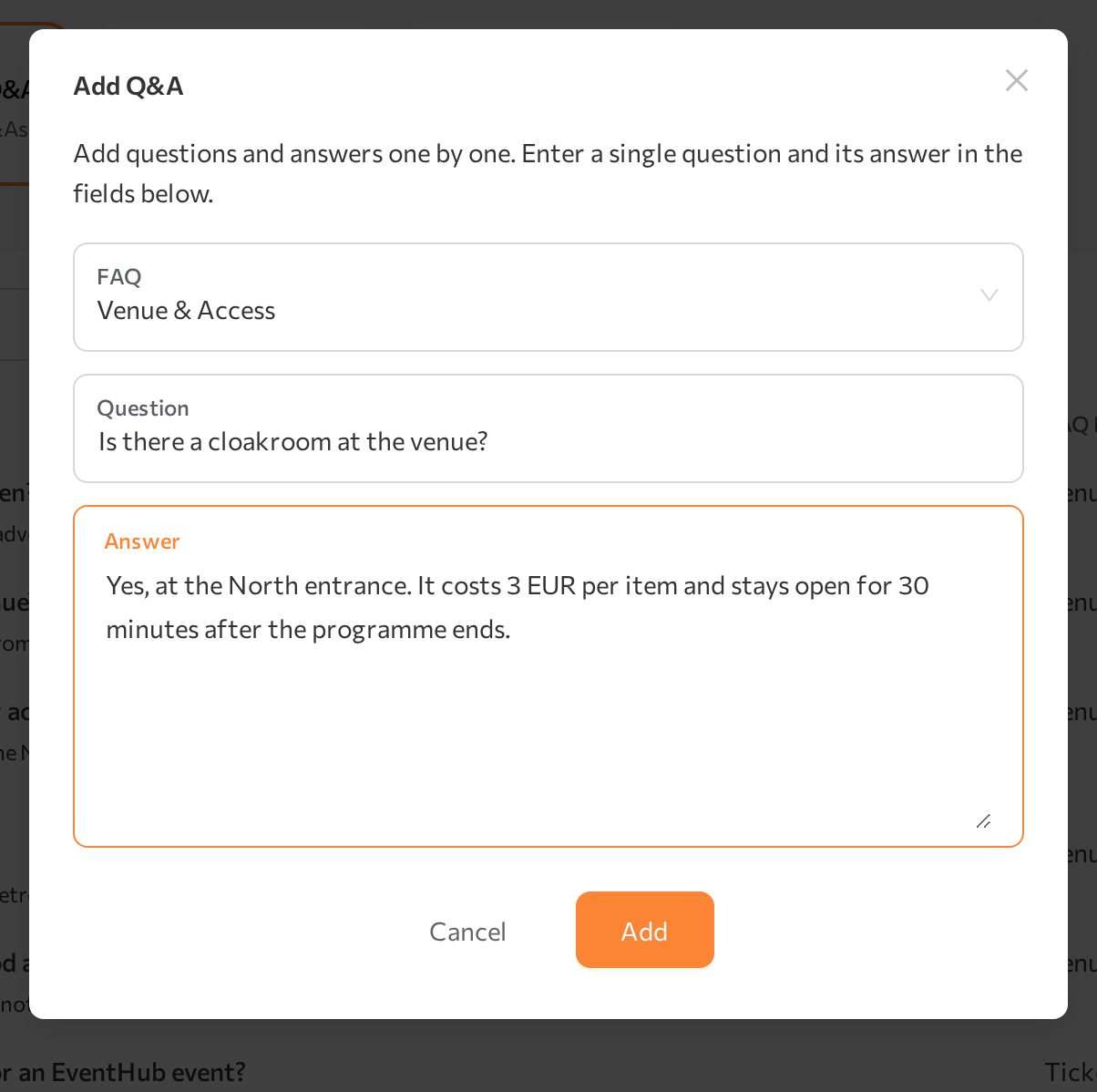
The pair appears in the FAQ's table. Once the FAQ is connected to an agent and indexed, the agent uses the pair in its answers and the pair's Usage Count starts growing.
Generate Q&A from a file
Instead of typing pairs one by one, upload a document and let Flametree extract question-and-answer pairs from it. For best results, structure the document as question-and-answer pairs.
- Open the FAQs tab, click Create FAQ, and switch to the Auto-generate from File tab.
- Optionally select Connected agents.
- Drag your document into the upload area (Drag & Drop File Here or Click to Select File) or click to browse. You can upload one file at a time, up to 100 MB, in PDF, DOCX, TXT, MD, XLSX, CSV, or HTML format.
- Click Create.
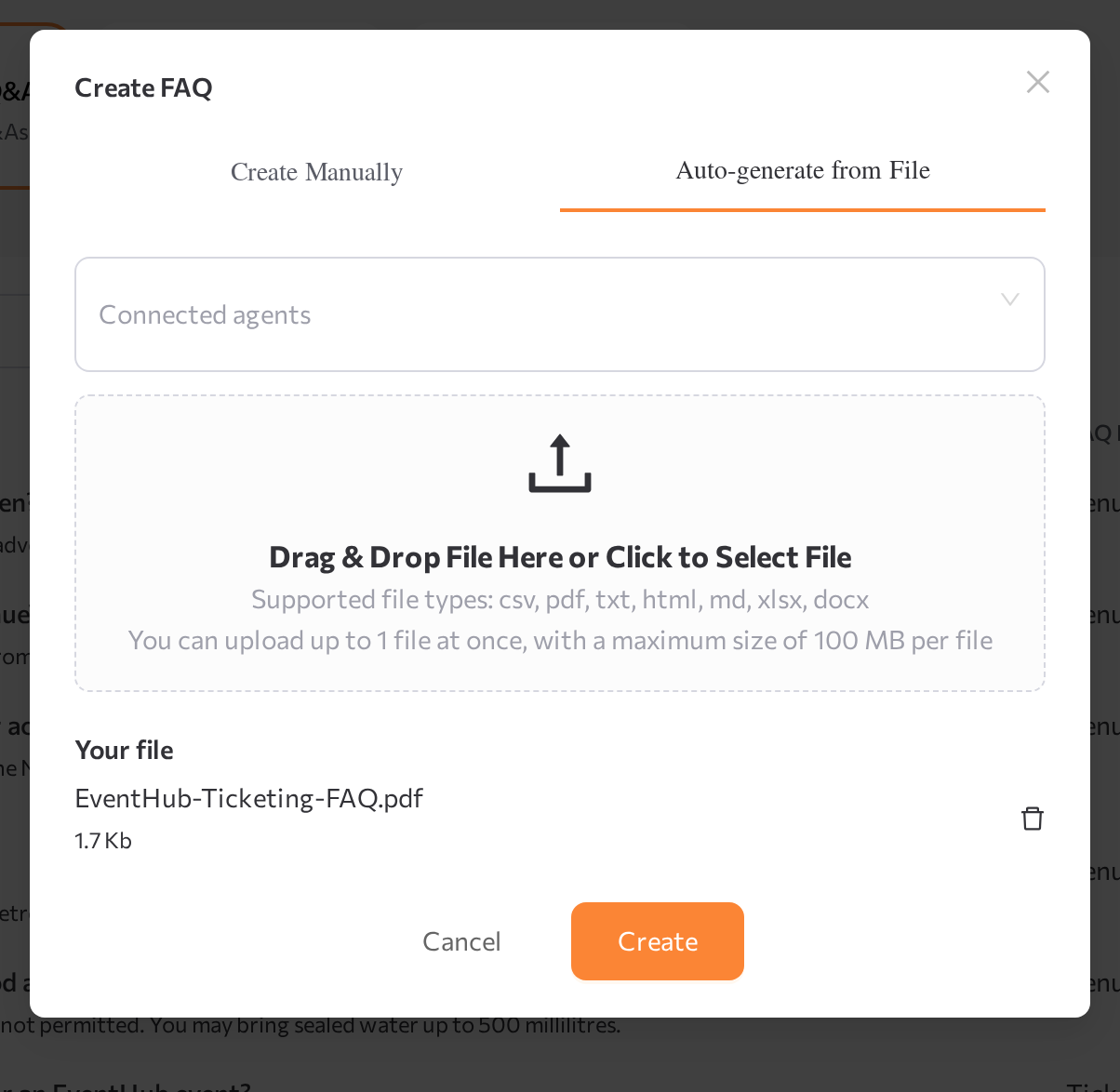
A new FAQ named after the uploaded file appears and starts indexing. When extraction finishes, the portal shows FAQs imported successfully and the extracted pairs appear in the FAQ's table. To rename the FAQ, open its Edit FAQ window.
Edit and delete Q&As
Select a FAQ card to see its pairs, or All Q&As to see every pair in the tenant. The Q&A table shows:
- Question and Answer — the pair text.
- FAQ Name — the FAQ the pair belongs to. A pair belongs to exactly one FAQ.
- Usage Count — how many times the question was used in answers. Sort by this column to find pairs that work — and pairs that never fire.
- Last Edited — when the pair last changed.
Use the row actions to change a pair in the Edit Q&A window or to delete it — deletion asks you to confirm Delete Question and Answer.
To rename a FAQ or change which agents it is connected to, open the card's edit action — the Edit FAQ window. Deleting a FAQ removes all Q&As inside it; the confirmation warns: Delete this FAQ? All Q&As inside will be permanently removed.
Manage unanswered questions
Questions that agents could not answer from their connected sources are collected in the Unanswered list. Review it regularly — it shows which knowledge is missing and lets you turn each gap into a new Q&A in one step.
- Open the FAQs tab.
- Select the Unanswered card. The card shows the number of open questions.
The table lists each question with Unanswered Question (what the customer asked), Agent Source (the agent that could not answer), and Date Reported.
Turn a question into a Q&A
- Click the question text or its Edit action. The Unanswered questions window opens with the note This question couldn't be answered using your current sources. Add an answer to improve future responses.
- Choose the FAQ to add the pair to.
- The Question field is pre-filled and read-only — type the Answer.
- Click Add Q&A.
The question moves out of the Unanswered list and becomes a regular Q&A pair in the chosen FAQ, with a link to the original session preserved. The next time a customer asks something similar, the agent answers with your wording.
Each row offers two more actions:
- Watch the session — opens the conversation where the question was asked in a new browser tab. See Sessions.
- Delete — permanently removes the question, for example spam or off-topic entries. Select multiple rows to delete in bulk.
Open Watch the session before writing the answer — the surrounding conversation often shows what the customer actually meant.
Related pages
- Knowledge Sources overview
- Connect sources to agents
- Sessions — review the conversation behind an unanswered question