Create an Agent with a Wizard

The wizard creates a working AI agent in Flametree from a ready-made template. You answer a few questions about your business, optionally upload knowledge files, and the wizard generates a configured inbound agent. No coding is required, and the whole setup takes about 15 minutes.

Use the wizard when you want a quick start from a template. If you prefer full control over every setting from the beginning, create the agent on the Agents screen instead and configure it in Simple mode or Advanced mode.

Wizard templates

Each template produces an agent for a specific scenario and channel. The exact list depends on your deployment — these flows are typically available:

  • Website AI Sales — a sales agent for your website. It engages visitors, answers questions about your products and services, and captures lead details. This template is covered step by step in the walkthrough below.
  • Telegram AI Sales — the same sales setup for customers who write to you in Telegram.
  • Creator AI Twin — an agent that communicates with your audience in your personal style through a Telegram bot.

How the flows differ

Setup focusWebsite AI SalesTelegram AI SalesCreator AI Twin
Identity and contextBusiness context — your company, products, servicesBusiness context — your company, products, servicesPersonal profile — who you are, what you do
Knowledge base formatsPDFPDFAudio, video, PDF
Conversation resultsCustomer details to collect, plus a lead emailCustomer details to collect, plus a lead email
ChannelWebTelegram botTelegram bot
Where to testPlaygroundPlayground or TelegramPlayground or Telegram

Before you start

  • You are signed in to the portal with a role that allows creating agents — see Roles and permissions. The Create with wizard button is hidden if your role does not allow it or if no wizard templates are installed for your deployment.
  • For Telegram-based templates: a Telegram bot token from @BotFather.
  • Optional, for Website AI Sales: your website URL and a PDF file with FAQs or product information.

Start the wizard

  1. In the left menu, go to AI AGENTS > Agents.
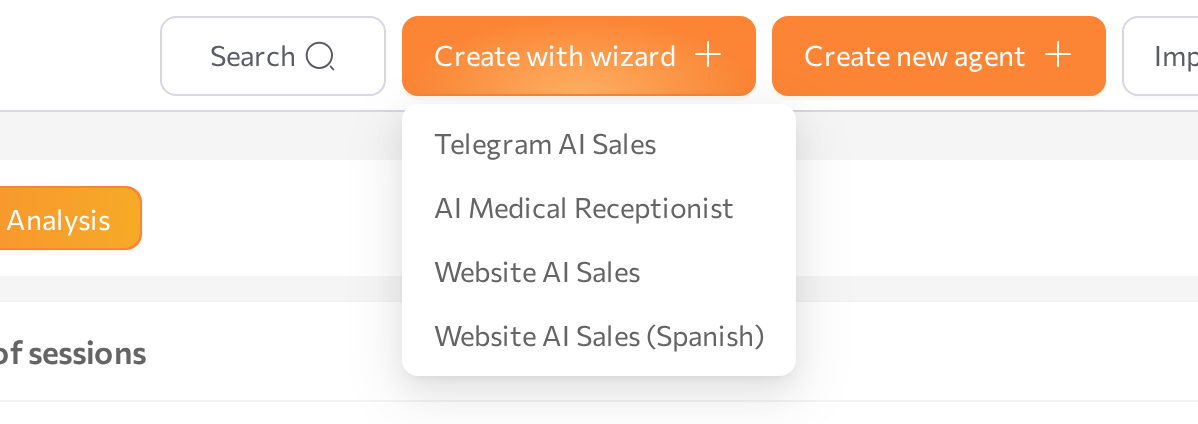
  2. Click Create with wizard in the upper-right corner and select a template from the dropdown.
  3. The wizard intro page opens with a short description of what the agent will do. Click Start.
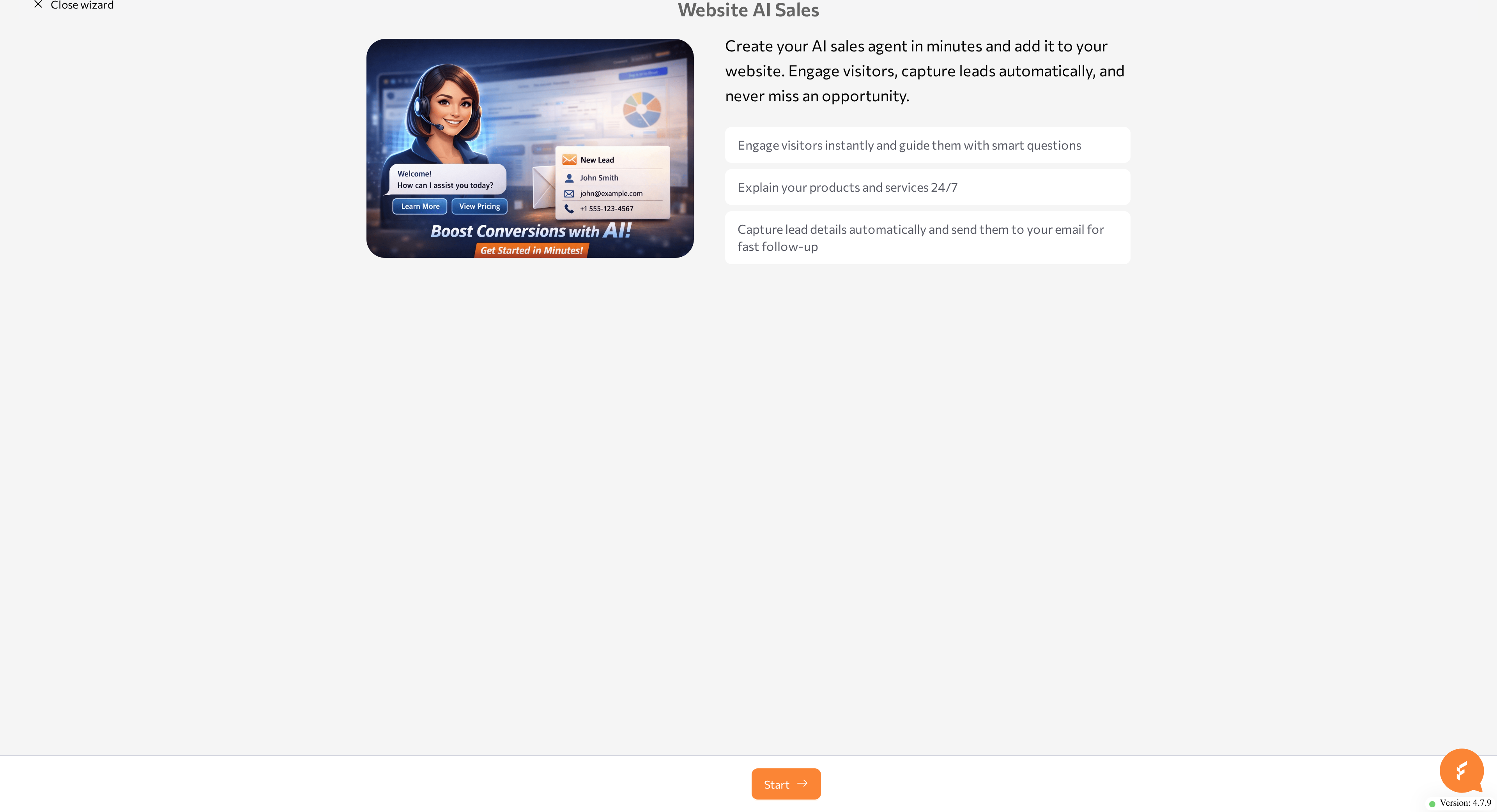
Every template uses the same controls:

  • Next moves to the next step. The button reads Skip when the current step is optional and empty.
  • Previous step returns to the previous step. Your entries are kept.
  • The stepper dots at the top show your progress. Click an earlier dot to jump back to that step.
  • Close wizard exits to the Agents list. If you have unsaved changes, the portal asks you to confirm: You have unsaved changes. Are you sure you want to leave?

All templates also end the same way: a Handling your data stage that generates the agent configuration, then a Review configuration page where you check and edit the result before creating the agent.

note

Required fields are marked in the form. If you try to continue with an empty required field, the wizard shows Field is required.

Website AI Sales walkthrough

The steps below follow the Website AI Sales template.

tip

Type your own content at each step, or copy the examples from this page to try the wizard with sample data.

Step 1: Choose your AI agent's name

Enter the agent's name in the AI Agent name field — for example, "Emma" or "WebSales Pro". This field is required. The agent uses the name to introduce itself to customers, and the name appears in the agent list.

Click Next.

Step 2: Information about your business

Tell the agent what your business does. Both fields are optional, but the more context you give, the better the agent's answers:

  • Website URL — a link to your website. The wizard reviews the site content and adds it to the agent as a website knowledge source, so the agent stays grounded in your real offering.
  • Tell us about your business — a free-text description of your products, services, and how you work.

Example description:

I provide professional wardrobe analysis and styling services to help people
build a functional, cohesive, and comfortable wardrobe that fits their lifestyle.

My work focuses on understanding the client's daily routine, preferences, body
proportions, and goals. Instead of following trends, I help identify what truly
works for each person and how to combine existing items effectively.

The service includes a detailed wardrobe review, practical recommendations on
what to keep, what to remove, and what is missing, as well as guidance on
creating versatile outfits.

Click Next (the button reads Skip if you leave both fields empty).

Step 3: Personalize Your AI Agent

Define how the agent should sound in the Personalize your AI agent field. The field is required and comes prefilled with a starting point you can edit:

AI Agent tone of voice: Friendly
Greeting language: English
Starting phrase: "Hi! How can I help you?"

Describe the tone of voice, the greeting language, and, if you want one, a starting phrase.

tip

Not sure about the starting phrase? Leave the default — the wizard composes a welcome message for you, and you can edit it on the review page.

Click Next.

Step 4: AI Agent Knowledge Base

Upload FAQs or product information so the agent can answer customer questions accurately. This step is optional.

  1. Click Choose PDF file.
  2. Click Click to upload file and select a PDF from your device, or drag and drop the file into the upload area.
  3. Wait for the upload to finish. While the file is uploading, the portal shows Upload in progress. Please wait until your files finish uploading.

You can add one PDF file in this step; to replace it, delete the uploaded file and add another. The maximum file size is 4 GB.

Click Next (or Skip if you have nothing to upload).

Step 5: Conversation Results

Choose which customer details the agent should save after each chat. The following toggles are all on by default — switch off the ones you do not need:

  • Name
  • Email
  • Phone
  • Topic of conversation
  • User needs
  • Tone

Then enter the Email address to receive leads — the address where collected lead details are sent. This field is required.

note

After launch, the collected values also appear with each conversation in Sessions, in the session results.

Click Review.

Step 6: Review and create

The wizard first shows Handling your data while it generates the agent configuration. This can take a couple of minutes; status messages such as "Shaping Agent Identity" and "Scanning Knowledge Base" mark the progress.

On the Review configuration page, check the generated settings. You can edit each of them directly:

  • Agent name
  • Welcome message
  • Identity
  • Speech style
  • Task

If you uploaded a file or provided a website URL, the Sources section lists the agent's knowledge sources. To change the knowledge base or any earlier answer, click Back to wizard.

When the settings look right, click Create AI-agent. The agent is created and its page opens, where you can review and refine the configuration. On a mobile device, the Playground opens instead, with the new agent preselected.

If you return to the Agents list while creation is still in progress, the agent shows the Creating status until it is ready — see Agent statuses.

warning

If creation fails, the agent appears in the Agents list with the Error status. Check your answers — for example, the lead email address — and run the wizard again.

Telegram AI Sales and Creator AI Twin

Telegram AI Sales mirrors the Website AI Sales steps — business information, personalization, a PDF knowledge base, and conversation results — and adds a step that connects your Telegram bot using a token from @BotFather. After creation, test the agent in the Playground or directly in Telegram. To manage Telegram connections later, see Telegram.

Creator AI Twin builds an agent that communicates in your personal style. Instead of business context, you describe a personal profile — who you are and what you do — and build the knowledge base from audio, video, and PDF files. The finished agent talks to your audience through a Telegram bot.

After the wizard

The wizard creates an inbound agent from your answers. From here, continue on the agent's page:

  1. Test the agent in the Playground: chat with it to check its answers and tone, and confirm it collects the details you selected in the Conversation Results step.
  2. Refine the configuration in Simple mode — edit the generated instructions, add FAQs, expand the knowledge sources, and adjust the conversation results.
  3. Put the agent in front of customers. For a website agent, enable the Web widget on the agent's page — see Web Widget. For Telegram-based agents, see Telegram.
  4. Once real conversations start, review them in Sessions — collected lead details appear as session results.

Common issues

  • There is no Create with wizard button. Either your role does not allow creating agents, or no wizard templates are installed for your deployment. Contact your administrator.
  • The Review button stays disabled. A file is still uploading — wait until the upload message disappears, then continue.
  • Validation fails during Handling your data. The wizard shows the error details. Click Back to wizard, correct the input, and try again.
  • Creation fails. The agent appears in the Agents list with the Error status. Check your answers — for example, the lead email address — and run the wizard again.
  • The agent gives generic answers. Add more detail to the business description, provide your website URL, or upload a richer PDF, then update the agent's knowledge sources on its page.

Was this article helpful?