
Knowledge Sources

Knowledge Sources is the shared knowledge library of your tenant: you create a source once — a FAQ, a plain text, a website, a file, or a YouTube video — and connect it to any number of AI agents. Agents search their connected sources before generating a response, and when you update a source, every connected agent uses the new content.

To open the library, go to AI Agents > Knowledge Sources in the left menu. The page itself is titled Sources.
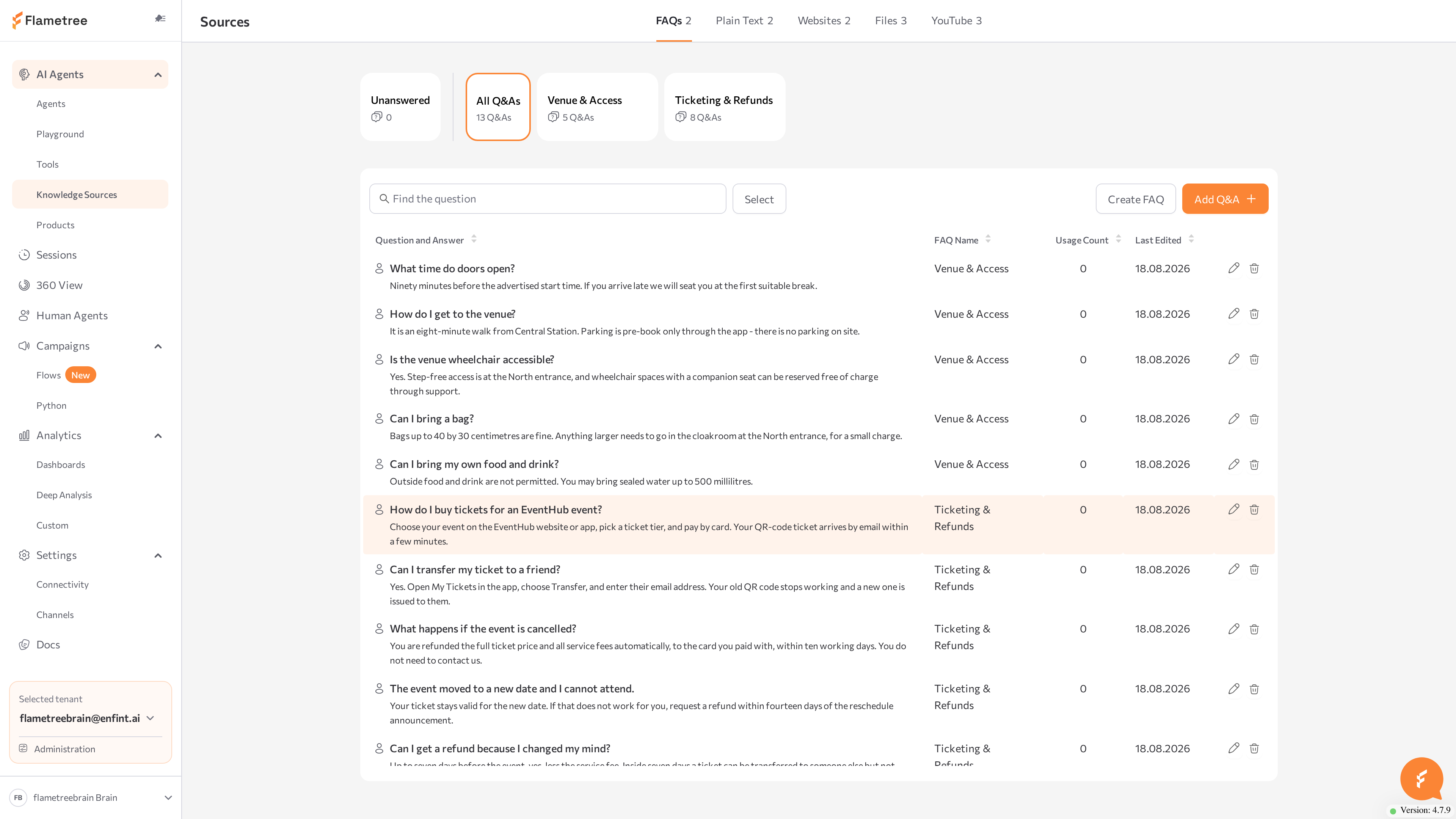
Use this page to:

  • Give agents reference knowledge to answer customer questions.
  • Update knowledge in one place for all agents that share it.
  • See which sources are connected to which agents, and which are unused.
  • Review questions your agents could not answer and turn them into new Q&As.

The library shows every source in the tenant. Each agent also has its own Knowledge Sources tab in Simple mode, which shows only what is connected to that agent — see Create an Agent in Simple Mode. You can connect and disconnect sources from either side.

Before you start

  • You are signed in to the portal with a role that can edit agents — what you can do on this page depends on your role.
  • You have content ready to add: approved answers, text to paste, public URLs, documents, or public YouTube links.
  • To connect sources to an agent, the agent must exist and have been saved at least once — see Agents.

Source types

Each source type has its own tab. The number next to a tab shows how many sources of that type exist in your tenant — for FAQs, the number of FAQs.

TabWhat it holdsBest forLimits
FAQsQuestion-and-answer (Q&A) pairs grouped into named FAQsPredictable, repeated questions that need an exact, approved answer
Plain TextA named block of free-form textPolicies, facts, and short instructions you can paste directly50,000 characters per source
WebsitesLinks to public web pagesContent that already lives online: landing pages, help centers, blog postsPublic URLs only
FilesUploaded documentsExisting documents you don't want to retypePDF, DOCX, TXT, MD, XLSX, CSV, HTML; 100 MB per file
YouTubePublic YouTube videos or channels, transcribed automaticallyLectures, demos, training videosDuration limited per deployment

All source tables share the same core columns: Status, Usage Count (how many times the source was used in agent answers), Connected Agents (or Not connected), and a date column — Last Edited, Last Editing, Last Updated, Uploaded, or Added, depending on the type.

Create and edit Q&A

On the FAQs tab, knowledge lives in FAQs — named collections of question-and-answer (Q&A) pairs. When a customer asks something similar to a stored question, the agent answers with the wording you approved. Group Q&As any way that suits you: by topic, by product, or by agent.

Note the naming: the tab and the collections are called FAQs, while the individual entries inside them are called Q&As.

Create a FAQ

  1. Open the FAQs tab and click Create FAQ.
  2. Keep the Create Manually tab selected.
  3. Enter a FAQ name. Names must be unique — otherwise you'll see A FAQ with this name already exists.
  4. Optionally select Connected agents to connect the FAQ right away.
  5. Click Create.

The new FAQ appears as a card at the top of the tab, next to the built-in Unanswered and All Q&As cards.

Add a Q&A pair

  1. On the FAQs tab, click Add Q&A.

  2. In the FAQ dropdown, choose the FAQ for the pair. You can also create a new FAQ from the same window.

  3. Enter the Question and the Answer, for example:

    Question: How long does delivery take?
    Answer: Standard delivery takes 3–5 business days. You receive a tracking link by email once the order ships.
  4. Click Add.

The pair appears in the FAQ's table. Once the FAQ is connected to an agent and indexed, the agent uses the pair in its answers and the pair's Usage Count starts growing.

Generate Q&A from a file

Instead of typing pairs one by one, upload a document and let Flametree extract question-and-answer pairs from it. For best results, structure the document as question-and-answer pairs.

  1. Open the FAQs tab, click Create FAQ, and switch to the Auto-generate from File tab.
  2. Optionally select Connected agents.
  3. Drag your document into the upload area (Drag & Drop File Here or Click to Select File) or click to browse. You can upload one file at a time, up to 100 MB, in PDF, DOCX, TXT, MD, XLSX, CSV, or HTML format.
  4. Click Create.

A new FAQ named after the uploaded file appears and starts indexing. When extraction finishes, the portal shows FAQs imported successfully and the extracted pairs appear in the FAQ's table. To rename the FAQ, open its Edit FAQ window.

Edit and delete Q&As

Select a FAQ card to see its pairs, or All Q&As to see every pair in the tenant. The Q&A table shows:

  • Question and Answer — the pair text.
  • FAQ Name — the FAQ the pair belongs to. A pair belongs to exactly one FAQ.
  • Usage Count — how many times the question was used in answers. Sort by this column to find pairs that work — and pairs that never fire.
  • Last Edited — when the pair last changed.

Use the row actions to change a pair in the Edit Q&A window or to delete it — deletion asks you to confirm Delete Question and Answer.

To rename a FAQ or change which agents it is connected to, open the card's edit action — the Edit FAQ window. Deleting a FAQ removes all Q&As inside it; the confirmation warns: Delete this FAQ? All Q&As inside will be permanently removed.

Manage unanswered questions

Questions that agents could not answer from their connected sources are collected in the Unanswered list. Review it regularly — it shows which knowledge is missing and lets you turn each gap into a new Q&A in one step.

  1. Open the FAQs tab.
  2. Select the Unanswered card. The card shows the number of open questions.

The table lists each question with Unanswered Question (what the customer asked), Agent Source (the agent that could not answer), and Date Reported.

Turn a question into a Q&A

  1. Click the question text or its Edit action. The Unanswered questions window opens with the note This question couldn't be answered using your current sources. Add an answer to improve future responses.
  2. Choose the FAQ to add the pair to.
  3. The Question field is pre-filled and read-only — type the Answer.
  4. Click Add Q&A.

The question moves out of the Unanswered list and becomes a regular Q&A pair in the chosen FAQ, with a link to the original session preserved. The next time a customer asks something similar, the agent answers with your wording.

Each row offers two more actions:

  • Watch the session — opens the conversation where the question was asked in a new browser tab. See Sessions.
  • Delete — permanently removes the question, for example spam or off-topic entries. Select multiple rows to delete in bulk.
tip

Open Watch the session before writing the answer — the surrounding conversation often shows what the customer actually meant.

Plain text sources

Plain Text sources are named blocks of text the agent searches when answering — policies, facts, and short instructions that are yours to paste and don't live in a document or on a website.

Create a text

  1. Open the Plain Text tab and click Create new text.
  2. In the Add Plain Text window, optionally select Connected agents — you can also connect the text later.
  3. Enter a Title (up to 255 characters).
  4. Paste or type the Text. The limit is 50,000 characters per source — longer text shows Text exceeds the 50,000 character limit. Upload as File instead.
  5. Click Add.

The new text appears in the Plain Text table.

Edit and re-index a text

The table shows each text's title, Status, Usage Count, Connected Agents, and Last Editing date. Use the row actions to view a text, change it in the Edit Plain Text window, index it, or delete it.

When you edit a text, its status changes to Modified. Click Index to re-index it so agents use the new version.

Website sources

Website sources point agents at public web pages — landing pages, help centers, blog posts. Flametree extracts the text behind the link, and connected agents use it as reference in conversations.

Add a website

  1. Open the Websites tab and click Add new website.
  2. In the Add Website window, optionally select Connected agents.
  3. Enter the Website link. The page must be publicly accessible — no login required — and the URL must start with http:// or https://; otherwise you'll see Enter a valid URL starting with http:// or https://.
  4. Click Add.

The website appears in the Websites table and indexing starts automatically.

Parsing with llms.txt

llms.txt is a convention that lets website owners publish an AI-friendly index of their site. When indexing a website source, Flametree checks for these files first and uses them to extract content faster and more accurately than full crawling:

  • If the site has an llms.txt file, it is used to determine which pages to parse instead of crawling the whole website.
  • If the site has an llms-full.txt file, only the content of that file is used and the website itself is not crawled.
  • If neither file is present, the page is fetched the regular way.

Websites added on this page use llms.txt automatically — the Add Website window has no setting for it. The Prefer llms.txt for website parsing checkbox, enabled by default, appears only in the legacy Knowledge Bases website form.

tip

If you control the website you are indexing, publishing an llms.txt file is the easiest way to improve answer quality from website sources.

Keep website content current

The table shows each source's page title and link, Status, Usage Count, Connected Agents, and Last Updated date. To change the Title, the Website link, or Connected agents, open the row's Edit Website window and click Save.

Website sources are not re-fetched automatically. When the page content changes, click Index to fetch the current version.

File sources

File sources are documents you upload — PDFs, Word documents, spreadsheets, text notes. Flametree extracts the text, and connected agents use it as reference.

note

Don't upload FAQ-style documents here. Use Create FAQ > Auto-generate from File on the FAQs tab instead, so the content becomes structured Q&A pairs.

Upload documents

  1. Open the Files tab and click Add new file.
  2. In the Add File window, optionally select Connected agents.
  3. Drag documents into the upload area (Drag & Drop Files Here or Click to Select Files) or click to browse. You can add several files at once. Supported formats: PDF, DOCX, TXT, MD, XLSX, CSV, HTML — up to 100 MB per file.
  4. Click Add.

The files appear in the Files table.

Manage files

The table shows each source's File name and File type plus its Status, Usage Count, Connected agents, and Uploaded date. Each row offers these actions:

  • View — opens the View File window with the text extracted from the document. Check it to see what the agent actually reads.
  • Edit — opens Edit File to change the title or connected agents.
  • Download — saves the original file to your computer.
  • Index — re-processes the file, for example after an Error.
  • Delete — removes the file from the library and from every connected agent.

YouTube sources

YouTube sources give agents the transcribed content of public YouTube videos — product demos, lectures, training material. Flametree transcribes each video and indexes the transcript.

Add a video or channel

  1. Open the YouTube tab and click Add new video.
  2. In the Add YouTube Video window, optionally select Connected agents.
  3. Paste a link to a YouTube video or channel into Paste your link.
    • A channel link lists the channel's videos. Filter the list with All, Videos, or Shorts and pick the videos to add.
    • Each video must be public and within the duration limit. The dialog rejects videos over 3 hours (This video exceeds the 3-hour limit and cannot be added.); your deployment may enforce a stricter limit during indexing — if a long video ends in Error, use a shorter one.
  4. Click Add.

The videos appear in the YouTube table with their Video name, Video Type, Status, Usage Count, Connected Agents, and Added date.

Review and refresh transcripts

The row's View action opens a preview with the embedded video, its description, and an expandable Transcript section — read it to see exactly what the agent knows. The Edit Video window changes the title or connected agents, and Index re-fetches the transcript, for example after an Error.

Connect and disconnect sources from agents

A source affects an agent's answers only after you connect it to that agent. Connections work from both sides: from the source in this library, or from the agent's page.

Connect when you create or edit a source

Every add and edit window in the library has a Connected agents field — select agents there to connect the source. The Connected Agents column in each table shows where a source is used; Not connected means it is not used by any agent yet.

Connecting a source does not copy it: edit the source once and the change applies to every agent it is connected to.

Connect from the agent page

  1. Open the agent and go to its Knowledge Sources tab in Simple mode. The sub-tabs Core, FAQs, Plain Text, Websites, Files, and YouTube show how many sources of each type are connected. (Core lives only on the agent page — it is not part of this library.)
  2. Open the sub-tab for the source type and click the manage button — the Manage FAQs, Manage Texts, Manage Websites, Manage Files, or Manage Videos window opens.
  3. Use the All / Connected / Not connected filter tabs and the search box to find sources.
  4. Click Connect next to a source to attach it, or Disconnect to detach it, then save your selection.

If nothing is connected yet, the empty sub-tab offers a Connect button that opens the same window. You can also create new sources directly from the agent's sub-tabs — they are connected to the agent automatically and appear in this library as well.

On the agent page, each sub-tab lists only the sources connected to that agent, and Usage Count counts that agent's usage only. On the Knowledge Sources page, Usage Count is the total across all agents.

Set the Vector Search mode for FAQs

In the Manage FAQs window, each connected FAQ has a Vector Search toggle that controls how the agent uses it:

  • Enabled (Search) — the agent retrieves only the most relevant Q&As through semantic search when needed. Works for FAQs of any size, and usage is tracked.
  • Disabled (Prompt) — the entire FAQ is included in the agent's prompt, so the agent sees every pair on every reply. Faster and guarantees exact wording, but usage is not tracked. Best for small FAQs.

Changes apply to new sessions. If you rely on the Usage Count column to see which Q&As fire, keep Vector Search enabled — with it disabled, usage is not tracked.

Disconnect vs delete

  • Disconnect (agent page) — removes the source from this agent only. The source stays in the library and in other agents; the confirmation states that the source will be disconnected from this agent, not deleted.
  • Delete (Knowledge Sources page) — removes the source from the library and from every agent it was connected to.

Check statuses and re-index

A connected source is used only once it is indexed. Every source shows a Status badge:

StatusMeaning
PendingSaved and queued for indexing.
IndexingThe content is being processed. Click Stop indexing to interrupt.
ReadyIndexed and available to connected agents.
ModifiedChanged since the last indexing. Click Index to re-index.
ErrorIndexing failed. Hover over the badge for the error message, then click Index to retry.
note

You don't need to restart an agent after changing knowledge. Once a source is indexed and Ready, connected agents use the updated content.

Legacy Knowledge Bases

Agents created before Knowledge Sources may still use a legacy Knowledge Base. It keeps working, but the shared library, usage tracking, and unanswered questions are available only in Knowledge Sources. To move over, see the Knowledge Sources migration guide.

Common issues

  • An agent ignores a connected source. Check that the source's status is Ready — re-index if it shows Modified or Error — and that the source is connected to that specific agent. For FAQs, also check the Vector Search setting in the Manage FAQs window.
  • You can't create a FAQ with the name you want. A FAQ with this name already exists — FAQ names are unique. Pick a different name, or edit the existing FAQ.
  • Your text doesn't fit in a Plain Text source. The limit is 50,000 characters. Split the text into several sources, or save it as a document and upload it on the Files tab.
  • A file upload is rejected. Check the format (PDF, DOCX, TXT, MD, XLSX, CSV, HTML) and the size (under 100 MB).
  • Auto-generate finds few or wrong pairs. Restructure the document into explicit question-and-answer pairs and upload it again. If you see This file has already been uploaded, a FAQ named after this file already exists — rename the file or edit the existing FAQ.
  • A source is stuck on Modified. Re-indexing after an edit is manual — click Index on the source.
  • A website source shows Error. Pages that require a login or block automated access can't be fetched. Fix access, then click Index.
  • Answers use an outdated version of a web page. Website sources are not re-fetched automatically — click Index after the page changes.
  • A YouTube source shows Error. Private, age-restricted, or region-locked videos can't be transcribed. Hover over the badge for details, fix the issue or pick another video, then click Index.

Was this article helpful?