Call Analytics
A Call Analytics agent analyzes recorded calls instead of chatting with customers live. You upload an audio recording, and Flametree transcribes it, separates the speakers, and extracts the data fields you configured — the call becomes a regular session with a readable transcript and structured results.
Use it to:
- Run quality control over call-center conversations.
- Extract structured data (topics, outcomes, contact details) from existing recordings.
- Compare how human operators and AI agents handle similar conversations.
How it works
- You import an audio file and pick a Call Analytics agent to process it.
- The platform transcribes the recording and labels the speakers — the customer and the operator. Two-party calls work best.
- The transcript is saved as a text session, message by message.
- The agent extracts the fields defined in its conversation results configuration.
- The session is closed, and the extracted values appear in its session results.
The agent never sends messages to anyone — it only reads. It has no channels to attach, and it does not appear in the Playground agent list.
Before you start
- You need a role that allows creating agents and a role that allows importing sessions — if a button is disabled, ask your administrator.
- Processing uses a language model and a transcription model. A new agent gets your tenant's default language model automatically; the transcription connection is usually preconfigured for your tenant. If imports fail with a model error, check Settings > Connectivity or contact your administrator.
- You are signed in to the portal.
Create a Call Analytics agent
- Go to AI Agents > Agents.
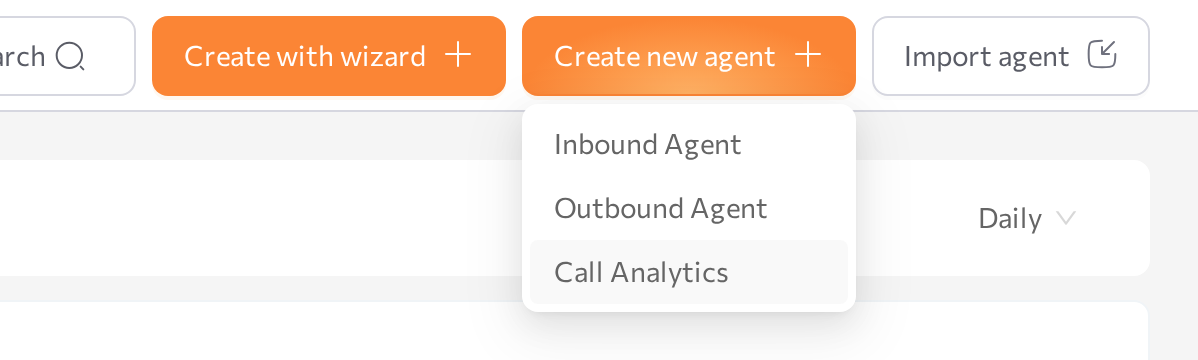
- Click Create new agent and select Call Analytics — the third option in the dropdown, after Inbound Agent and Outbound Agent.
- In the Create new Call Analytics window, enter a name in the Agent name field.
- Click Create.
The agent appears in the list with the type Call Analytics, and the portal opens its configuration page. The general creation flow is described in Agents.
Define what the agent extracts
The extracted data is driven by the agent's conversation results configuration — one extracted value per configured field, applied to every imported call.
- Open the agent and switch to the Conversation Results tab.
- Toggle on the standard fields you need and add custom fields for anything specific to your calls — for example "Call outcome", "Complaint reason", or "Promised follow-up date".
- Click Save.
Field configuration works the same as for conversational agents — see Conversation results in Simple mode.
For values you plan to count or chart, prefer Match to options fields with a fixed list of values — free-text answers vary from call to call and are harder to aggregate.
Import call recordings
Recordings are imported from the Sessions screen, one file at a time.
- Go to Sessions in the left menu.
- In the page header, click Import session.
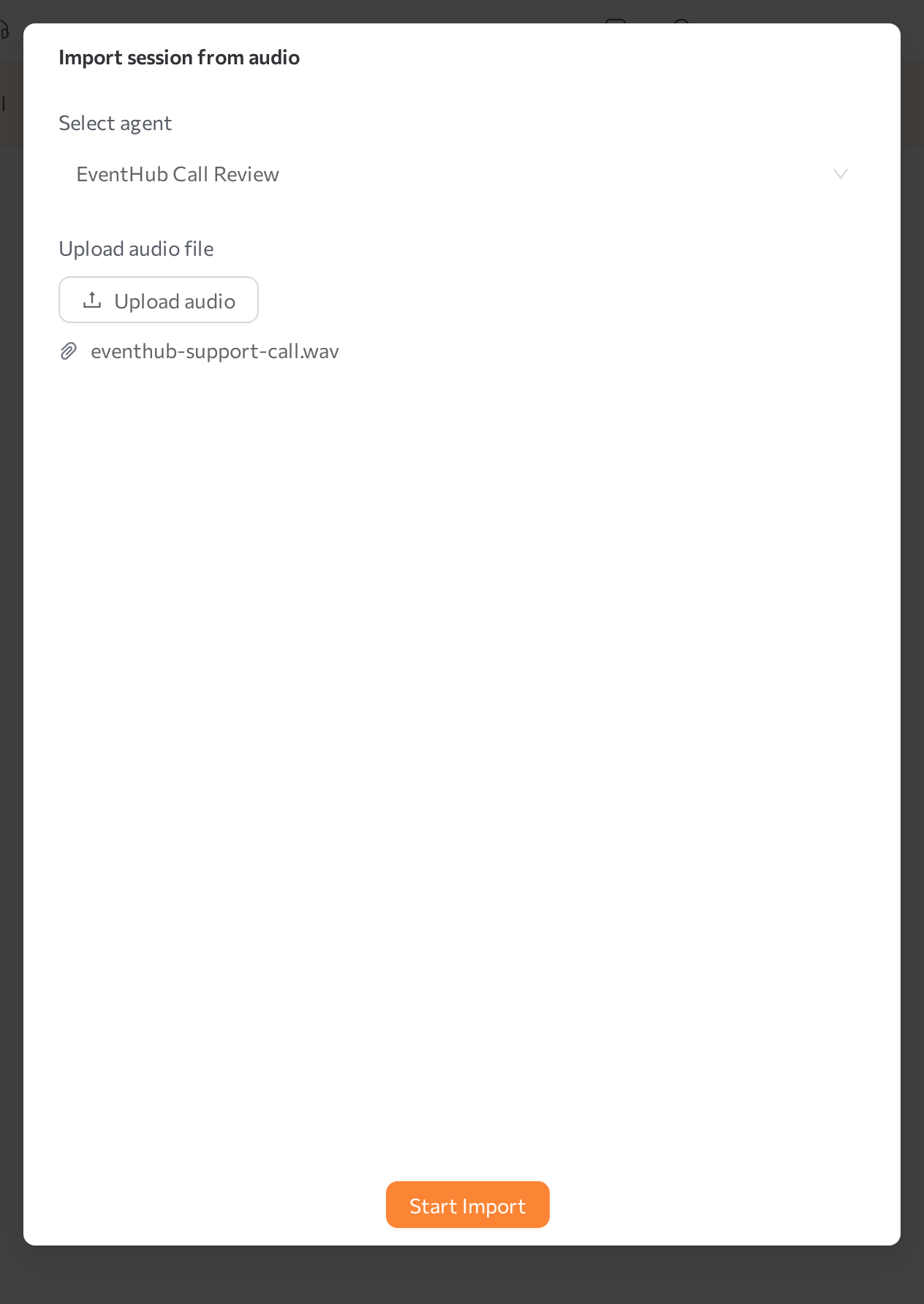
- In the Import session from audio dialog, pick your agent in the Select agent field. Only Call Analytics agents are listed.
- Click Upload audio and choose the recording — a standard audio format such as MP3 or WAV.
- Click Start Import. The portal confirms with Session import started.
Repeat the steps for each recording. The agent does not have to be running — processing happens in the platform.
Review the results
Processing runs in the background and takes a while, depending on the length of the recording. When it finishes, the imported call appears in Sessions as a finished session owned by your Call Analytics agent:
- Chat — the full transcript, split into messages by speaker, in the same chat view used for live conversations.
- Session results — the extracted field values, in the Parameters & results panel on the right.
Imported sessions are attributed to the portal user who uploaded the recording, so filter by the agent to find all imported calls in one place. From a session you can jump to the linked profile in 360 View with Open in 360.
Common issues
- The Import session button is disabled. Your role does not allow importing sessions. Ask your administrator.
- Your agent is missing from the Select agent list. The dialog lists Call Analytics agents only. A regular inbound or outbound agent cannot process imported audio — create a Call Analytics agent first.
- "Failed to import session. Please try again." The upload did not go through. Check your connection and that the file is a valid audio recording, then retry.
- The chat looks empty right after the import. The recording is still being transcribed. Wait a moment and reopen the session.
- The session results contain an import error instead of your fields. Processing failed — most often because a language model or transcription connection is missing or misconfigured. Check Settings > Connectivity or contact your administrator, then import the file again.
- Extracted values are empty or wrong. Review the field descriptions on the Conversation Results tab — the agent extracts only what the fields describe. Recording quality also matters: noisy audio or more than two speakers reduce transcription accuracy.
- The agent is not available in Playground. This is expected — Call Analytics agents do not chat, so there is nothing to test in a live conversation.
Related pages
- Agents — create, start, and manage agents
- Simple mode — configure conversation results fields
- Sessions — find imported sessions and read transcripts and results
- 360 View — profiles and session history in one place
- Settings > Connectivity — model connections used during processing