Tools
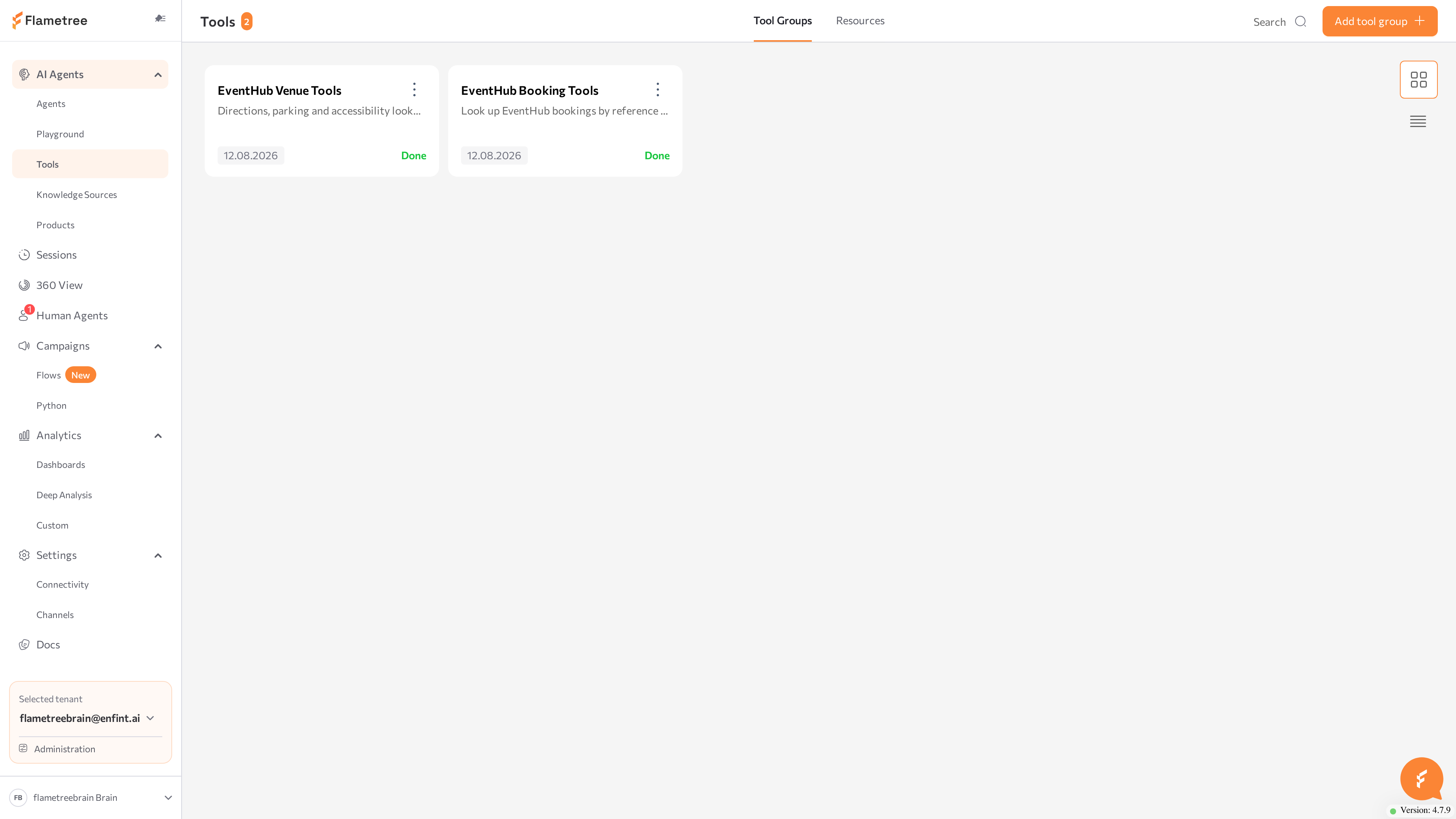
The Tools screen manages the custom actions your AI agents can perform during a conversation — looking up an order, creating a support ticket, posting a lead to your CRM. Open it from AI Agents > Tools in the left menu.
Tools are packaged in tool groups. A tool group is one YAML definition file plus the code files it references — usually Python implementations and, when needed, a requirements.txt with third-party packages. One group can provide several related tools, and the same group can be attached to several agents.
A group can also contain skills — functions that run automatically at fixed points in a conversation (for example, when a session starts), instead of being called by the agent while it composes a reply.
You don't need tool groups for standard capabilities: answering from knowledge sources, collecting conversation results, and human handoff are built into Flametree. Create a tool group when an agent must work with your own systems.
Writing the YAML definition and the Python implementation is a developer task. This page covers the portal screens for managing tool groups; the full definition format — parameters, implementation bindings, skill triggers, and the built-in system tools — is in the Tool configuration reference.
Before you start
- You are signed in to the portal with a role that includes tool permissions — without them, the Add tool group button and editing are disabled. See Roles and permissions.
- You have the tool files prepared: a YAML definition and the code files it lists as dependencies.
- Tool groups are attached to agents in Advanced mode, so the agent-side steps below happen on the agent page with Advanced mode switched on.
Find your way around
The page header shows the Tools title with the number of groups, a search field (Enter name or description), and the Add tool group button. The screen has two tabs:
- Tool Groups — the tool groups of your tenant.
- Resources — the shared file storage where dependency files live.
On the Tool Groups tab, switch between Cards view and Table view with the toggle in the corner. Click a card or a table row to open the tool group page.
Tool Groups table columns
| Column | Description |
|---|---|
| Tool group | Group name and description. |
| Tools | The tools and skills the group provides, taken from the definition file. The first four are listed — click the link below them to expand. |
| Agents | The agents the group is attached to. Click an agent name to open its page. |
| Created / Modified | Date and time in your tenant timezone. Sortable. |
| Status | Processing status of the group — see below. |
Columns have filter icons for narrowing the table, and the menu button at the end of each row contains Delete. Deleting a group here removes it from all agents it is linked to — the portal asks for confirmation first.
Tool group statuses
| Status | Meaning |
|---|---|
| Progress | The uploaded definition is being processed. |
| Done | The group is processed and its tools are ready to use. |
| Incomplete | A dependency file listed in the definition has not been uploaded yet. Upload the missing files on the tool group page. |
| Error | Processing failed. Open the group and check the definition file. |
Create a tool group
- In the page header, click Add tool group. The Create Tool Group dialog opens.
- Under Upload YAML File, click Upload file and choose your definition file (
.yamlor.yml). The Name and Description fields fill in from the file'snameanddescriptionand become locked. Alternatively, skip the upload and enter Name and Description manually. - Click Save. The message Tool group created successfully! appears, and the tool group page opens.
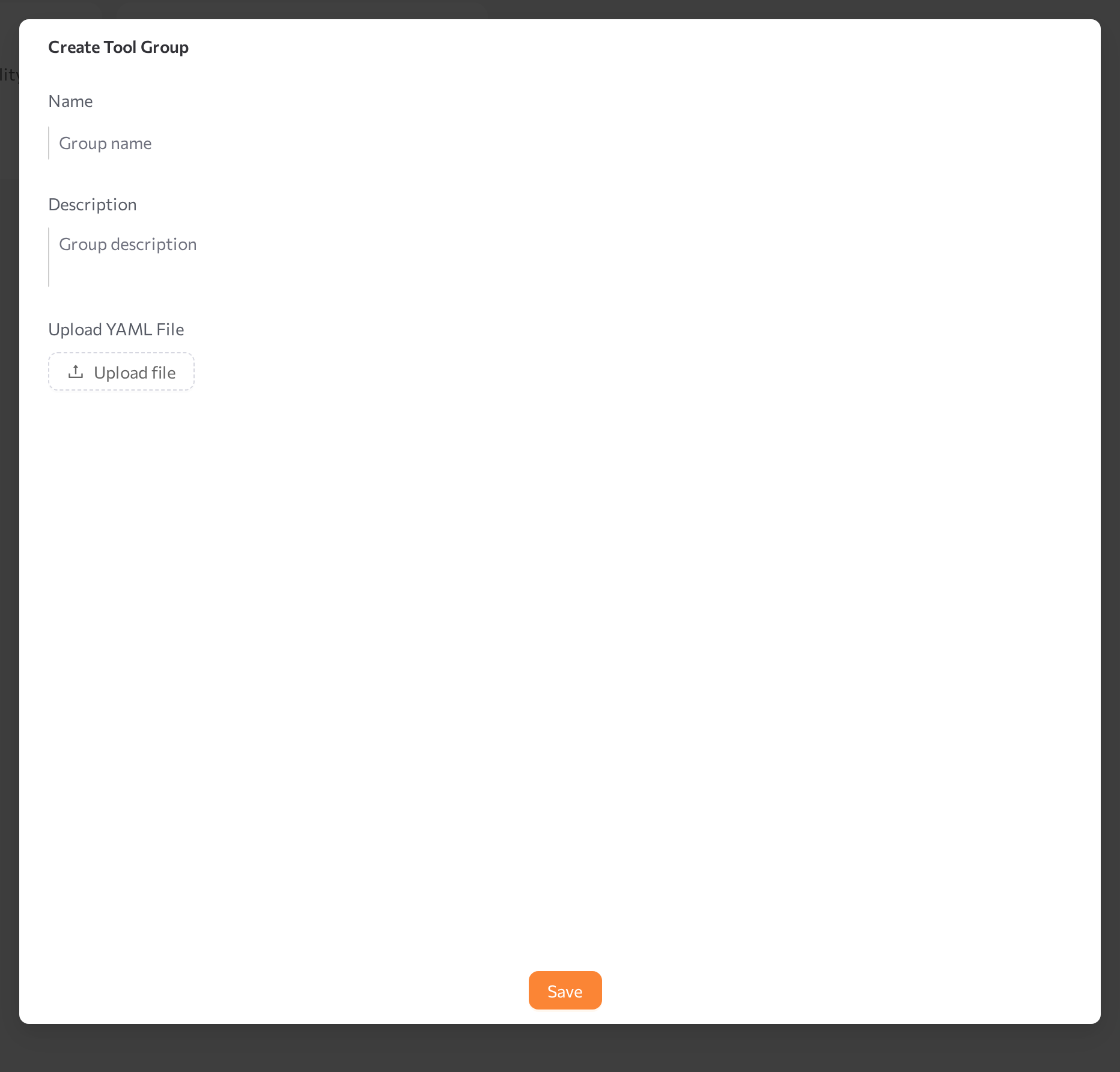
The group name must be unique — otherwise the dialog shows This tool group name already exists!. Only the definition file is uploaded here; you add Python and other files on the tool group page afterward.
A minimal definition looks like this:
kind: Plugin
name: CRM Integration
description: Tools for posting leads to the corporate CRM
dependencies:
  - submodules/crm_logic.py
  - requirements.txt
tools:
  - kind: Tool
    object_name: PostLeadToCRM
    name: post_lead
    description: Sends client contact details to the corporate CRM system.
    implementation: crm_logic.post_lead
    parameters:
      - name: client_name
        type: string
        description: Name of the client
      - name: client_email
        type: string
        description: Email of the client
dependencieslists the files the group needs — the implementation code and, if the code uses third-party packages, arequirements.txt. Listed packages are installed automatically.- Each entry under
toolsdescribes one tool: what it does and which parameters it takes. Skills are described the same way withkind: Skill.
Upload or edit tool files
The tool group page is where you complete and maintain the group's files. It has the Code editor in the center and a collapsible Information panel with the group description and the Files list. The header shows the status indicator, the group name, the Modified and Created dates, and the Save button; the menu next to Save contains Delete tool group.
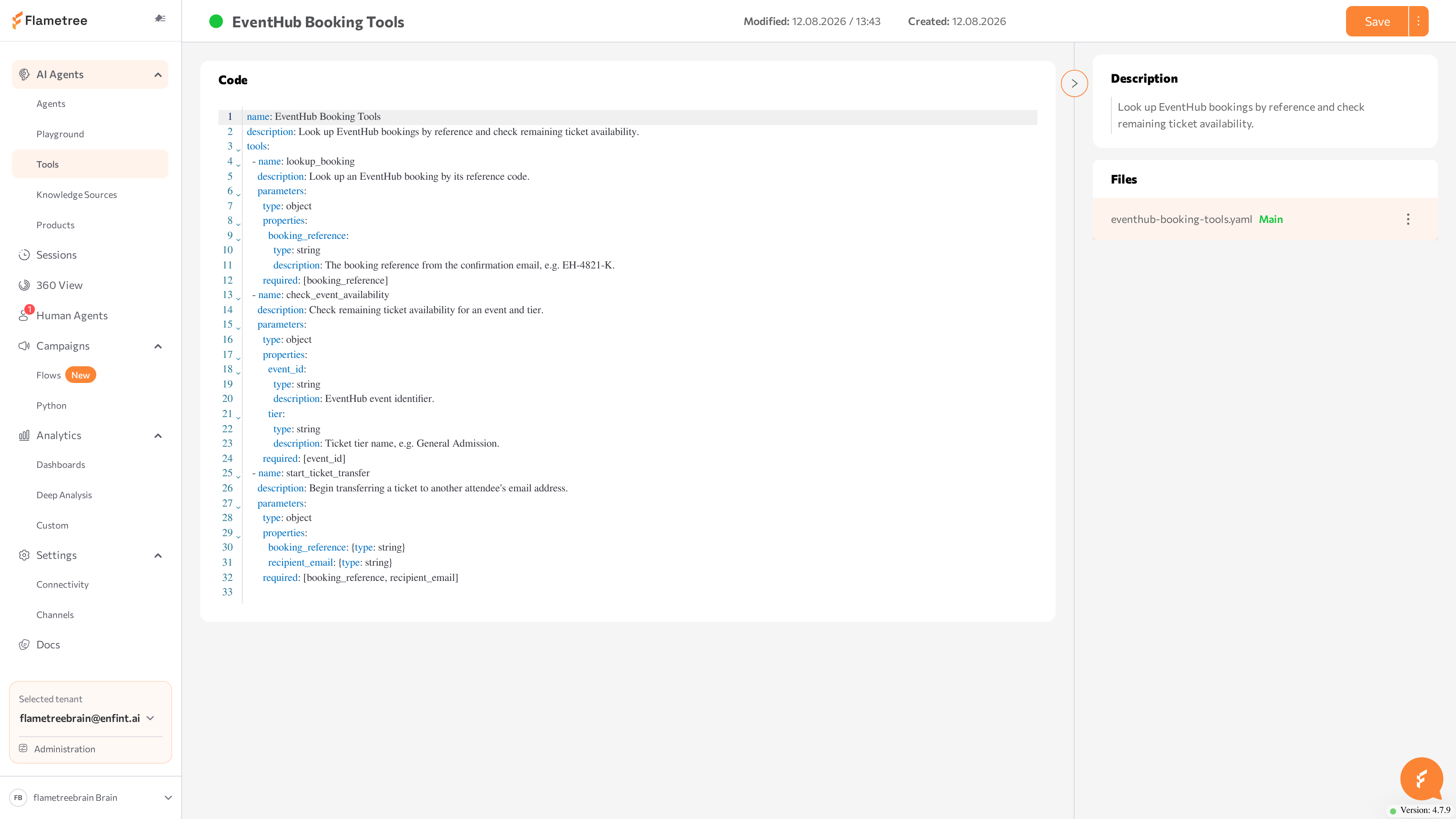
The Files list contains:
- The definition file, marked Main.
- Every file listed under
dependenciesin the definition. A dependency that has not been uploaded yet appears in red, and selecting it shows the warning File not found. Please, upload a file for this dependency.
Upload a dependency file
- In Files, click the menu button on the file row.
- Click Upload file — or Replace file if the file already exists — and choose the file from disk.
- Wait for the confirmation message. The file is stored in the shared storage shown on the Resources tab.
Edit a file in the portal
- In Files, click the file. Its content opens in the Code editor.
- Make your changes. YAML, Python, Markdown, HTML, JSON, Jinja, CSV, and plain-text files are editable; for other types the editor shows This file type is not supported for editing.
- Click Save. The confirmation Tool group and edited files updated successfully! appears.
Replace the definition file
- In Files, click the menu button on the Main file row.
- Click Replace file and choose the new YAML file. The file must contain
nameanddescription— the group name and description update from it.
The replacement is applied immediately — you don't need to click Save.
You can also Download file from any uploaded file's menu, and Remove file (dependencies only, with confirmation).
Browse the Resources tab
The Resources tab shows the tenant-wide file storage as a directory tree. Dependency files of all tool groups live here — a definition's dependencies entries are matched against paths in this storage.
- Select a folder, then use New folder to create a subfolder or New file to upload a file into it.
- Select an item and use Delete to remove it or Download to save a file to disk.
- Use the search field (Enter file name) to find a file, and click a file to view its content in the File content panel.
Deleting a file that a tool group depends on makes the file missing in that group — the group's tools can fail until you upload it again.
Attach a tool group to an agent
An agent can call a tool only after the tool's group is attached to it. Attaching happens on the agent page in Advanced mode.
- Open the agent from AI Agents > Agents and switch on Advanced mode.
- Scroll to the Tool Groups section.
- Click Add tool group. A dialog opens with all tool groups of your tenant — search by name, description, or label.
- Select the check boxes of the groups you want and click Apply.
- Click Save on the agent page.
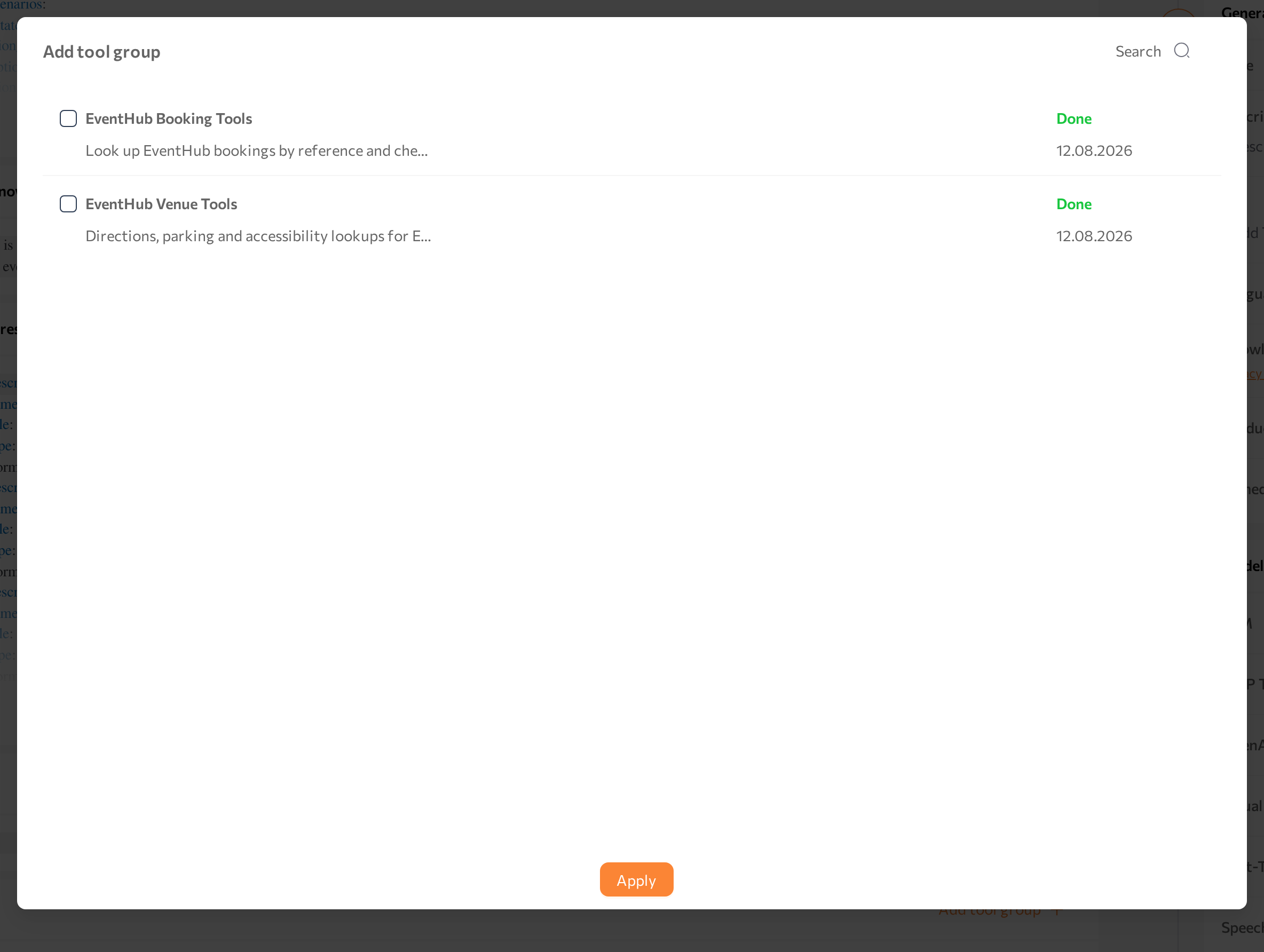
The section lists the attached groups with their tools, status, and creation date. To detach a group, open the row menu and click Delete — this removes the group from this agent only, not from the portal.
Attaching a group authorizes the agent to use it, but each tool runs only where the agent's workflow allows it: add the tool's name under available_tools in every workflow state where the agent may call it, and explain in the state instructions when to use it. Skills run automatically at the points configured in the group's definition. See Advanced mode.
Test tools in the Playground
Test a tool in a safe chat before customers reach it.
- Make sure the agent is saved and running.
- Open the Playground and select the agent.
- Send a message the tool should handle — for example, ask about an order if the tool looks up orders — and check the reply for the tool's result.
- To confirm what happened behind the reply, open the test session in Sessions and click Logs: System Logs record tool and skill calls, and Trace Logs show how the model chose its actions.
Common issues
- The Add tool group button is disabled. Your role doesn't include tool permissions — ask your administrator. See Roles and permissions.
- The upload is rejected with "Only YAML files can be uploaded!" The create dialog and the Main file row accept only the definition file. Upload Python and other files as dependencies on the tool group page.
- The dialog shows "Uploaded YAML file must have name and description. Please, upload a valid YAML file". Add top-level
nameanddescriptionfields to the definition file and upload it again. - A file in the Files list is red. The definition lists a dependency that hasn't been uploaded. Open the file's row menu and click Upload file.
- The group status is Error. Open the group and check the definition file for mistakes — for example, invalid YAML or wrong field names. Fix the file and save, or replace the Main file with a corrected version.
- The agent page has no Tool Groups section. Not every agent type supports tool groups — the section appears for most, but not all, agent types.
- The agent never calls the tool. Check, in order: the group is attached and the agent is saved; the tool's name is listed in
available_toolsof the workflow state the conversation is in (names are case-sensitive); the state instructions describe when to use the tool. If the agent was running while you changed the group, stop it and start it again. Then read the Trace Logs of a test session to see what the model considered. - The tool is called but fails. Open the session's System Logs to see the error, then check the Python implementation and confirm that all dependency files are uploaded.
Related pages
- Advanced mode — the agent page where tool groups are attached and the workflow is configured
- Agents — create and manage agents
- Playground — test an agent without connecting a channel
- Sessions — read system and trace logs for tool and skill calls
- Knowledge Sources — give agents content to answer from, without tools
- Tool configuration reference — the full YAML definition file format
- Roles and permissions — who can create, edit, and attach tool groups