Website sources
Website sources point agents at public web pages — landing pages, help centers, blog posts. Flametree extracts the text behind the link, and connected agents use it as reference in conversations.
Add a website
- Open the Websites tab and click Add new website.
- In the Add Website window, optionally select Connected agents.
- Enter the Website link. The page must be publicly accessible — no login required — and the URL must start with
http://orhttps://; otherwise you'll see Enter a valid URL starting with http:// or https://. - Click Add.
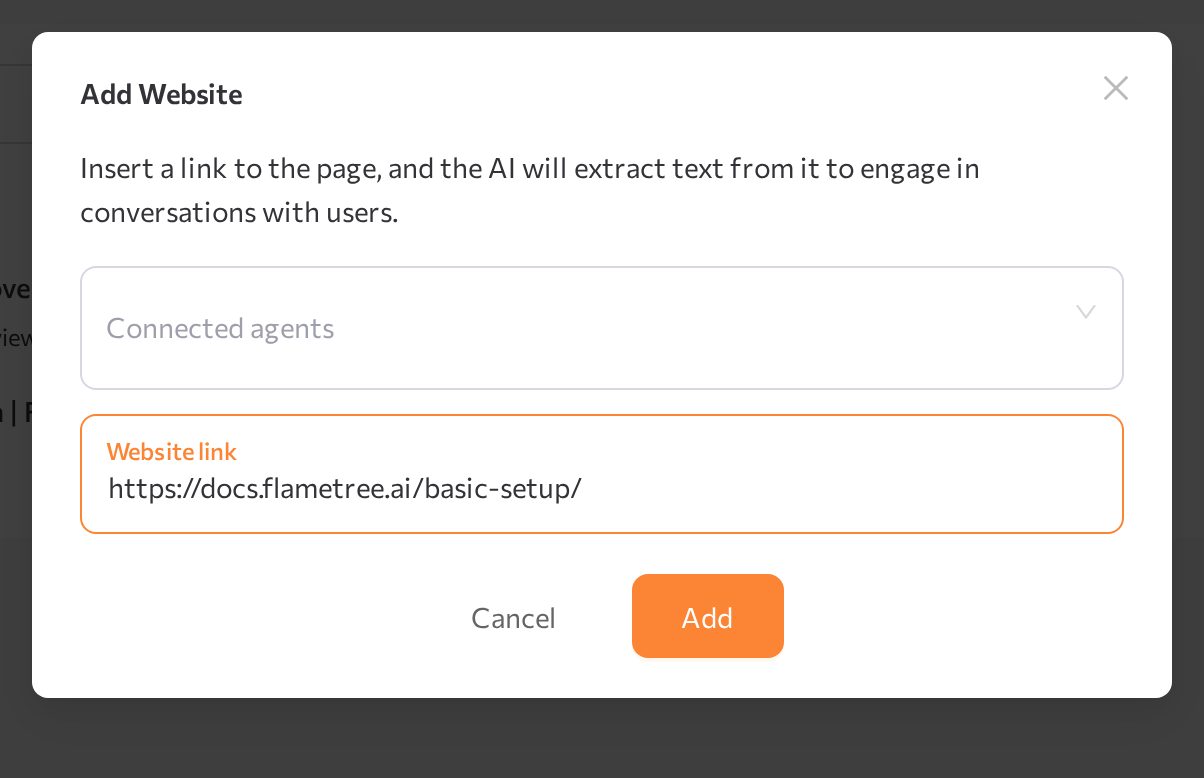
The website appears in the Websites table and indexing starts automatically.
Parsing with llms.txt
llms.txt is a convention that lets website owners publish an AI-friendly index of their site. When indexing a website source, Flametree checks for these files first and uses them to extract content faster and more accurately than full crawling:
- If the site has an
llms.txtfile, it is used to determine which pages to parse instead of crawling the whole website. - If the site has an
llms-full.txtfile, only the content of that file is used and the website itself is not crawled. - If neither file is present, the page is fetched the regular way.
Websites added on this page use llms.txt automatically — the Add Website window has no setting for it. The Prefer llms.txt for website parsing checkbox, enabled by default, appears only in the legacy Knowledge Bases website form.
If you control the website you are indexing, publishing an llms.txt file is the easiest way to improve answer quality from website sources.
Keep website content current
The table shows each source's page title and link, Status, Usage Count, Connected Agents, and Last Updated date. To change the Title, the Website link, or Connected agents, open the row's Edit Website window and click Save.
Website sources are not re-fetched automatically. When the page content changes, click Index to fetch the current version.