Products
A product catalog gives an AI agent a structured list of what you sell. With a catalog connected, the agent recommends products that match what the customer asks for, answers questions about them, and shares prices and purchase links — all from data you keep in one table.
Use product catalogs to:
- Let a sales agent suggest the right product and share its purchase link.
- Answer pricing and availability questions from one maintained table.
- Switch offers on and off without editing the agent's instructions.
Catalogs hold structured offers — name, price, link. For free-form reference content, such as documentation or FAQs, use Knowledge Sources instead.
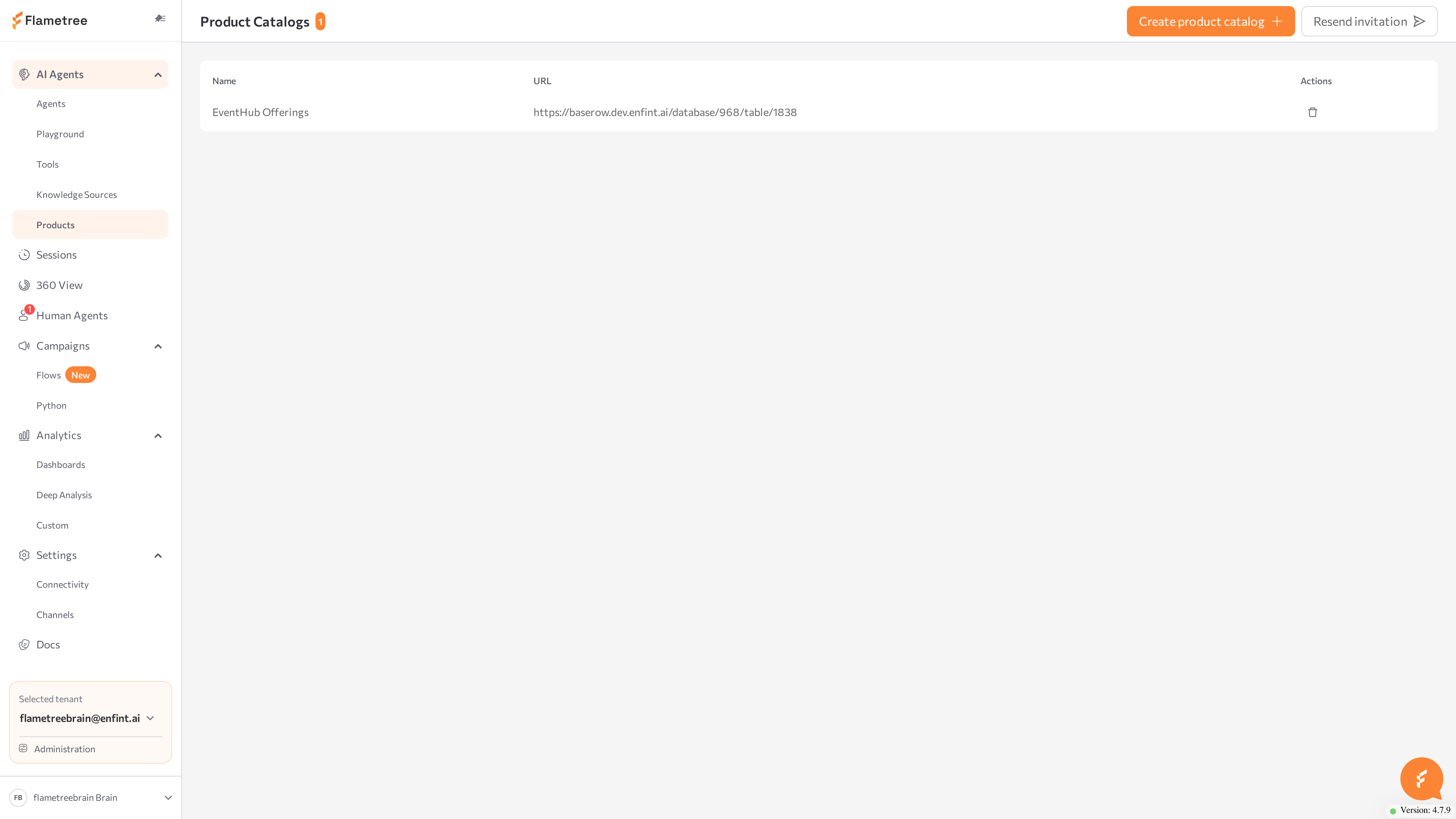
You manage catalogs on the Products screen, open from AI Agents > Products in the left menu. The menu item appears only if your deployment enables product catalogs. The screen itself is titled Product Catalogs.
Catalog contents live in an online database service that opens in a separate browser tab — this page calls it the catalog editor. You create and delete catalogs in the Flametree portal, and you add and edit the products themselves in the catalog editor.
Before you start
- You are signed in to the portal with a role that includes the Products section — see Roles and permissions.
- You can read email sent to your portal account address — the catalog editor invitation goes there.
Create a product catalog
- Go to AI Agents > Products.
- Click Create product catalog.
- In the Create New Catalog dialog, enter a Catalog Name and click Save.
The portal confirms with Catalog created successfully, and the catalog appears in the table:
- Name — the catalog name.
- URL — the link that opens the catalog in the catalog editor.
- Actions — the delete action.
Each new catalog starts with one example product in the first row so you can see the expected format. Replace it with your own products.
Catalog names must be unique. If you enter a name that an existing catalog already uses, the portal shows Failed to create catalog — pick a different name.
Get access to the catalog editor
The first time you open the Products screen, an invitation to the catalog workspace is sent to your portal account email address. Each portal user gets a personal invitation. Accept it once — after that, catalog links open directly.
- In the catalogs table, click the catalog's URL. The catalog editor opens in a new browser tab.
- Sign in to the catalog editor, or create an account. Use the same email address as your portal account — the invitation is issued to that address.
- Accept the workspace invitation, either from the invitation email or from the editor's start page.
After you accept, the workspace shows the ProductCatalogs database with a table for each of your catalogs.
If the invitation did not arrive:
- On the Products screen, click Resend invitation. The portal confirms with Invitation sent successfully, please check your email.
- Check your inbox and spam folder.
- If the portal reports that your account is already a member of the workspace, you already have access — open the catalog URL and sign in.
Add or edit products
Open the catalog from its URL and fill in one row per product:
| Field | Description |
|---|---|
| Name | The product name shown to customers. Keep it short and descriptive. |
| Brief Description | A 2–3 sentence summary. The agent uses it to decide which product fits the conversation, so make it clear and benefit-focused. |
| Description | The full details: what's included, who it is for, what problems it solves, how it works, key benefits, and specifications. |
| Category | The product category — for example, Manual, Webinar, or Course. |
| Price | The price or pricing description — for example, $29 one-time or from $10/month. Explain complex pricing in Description. |
| Link | The URL where the product can be bought or viewed. |
| Active | Whether the product is available to the agent (True/False). The agent only offers active products. |
An example of a complete entry:
| Field | Value |
|---|---|
| Name | Productivity Masterclass |
| Brief Description | A 2-hour live webinar to boost your daily productivity |
| Description | This live webinar covers proven productivity techniques, tools, and mental frameworks to help professionals achieve more in less time. Suitable for freelancers, managers, and entrepreneurs |
| Category | Webinar |
| Price | $29 one-time |
| Link | https://example.com/productivity |
| Active | True |
Product changes apply on their own — you do not need to restart the agent. The agent reads the catalog when a conversation starts, so new sessions use the updated data.
- Group similar products into categories — it helps the agent recommend the right one.
- Keep the catalog focused — about 20 products at most works well. The agent works with the name and brief description of every active product at once, so a long unfocused list dilutes its recommendations.
- Set Active to False to hide seasonal or discontinued products instead of deleting the rows.
Connect a catalog to an agent
An agent uses one product catalog at a time. You connect it on the agent page in Advanced mode:
- Go to AI Agents > Agents and open the agent.
- If the agent page shows Simple mode, switch the Advanced mode toggle in the upper-right corner.
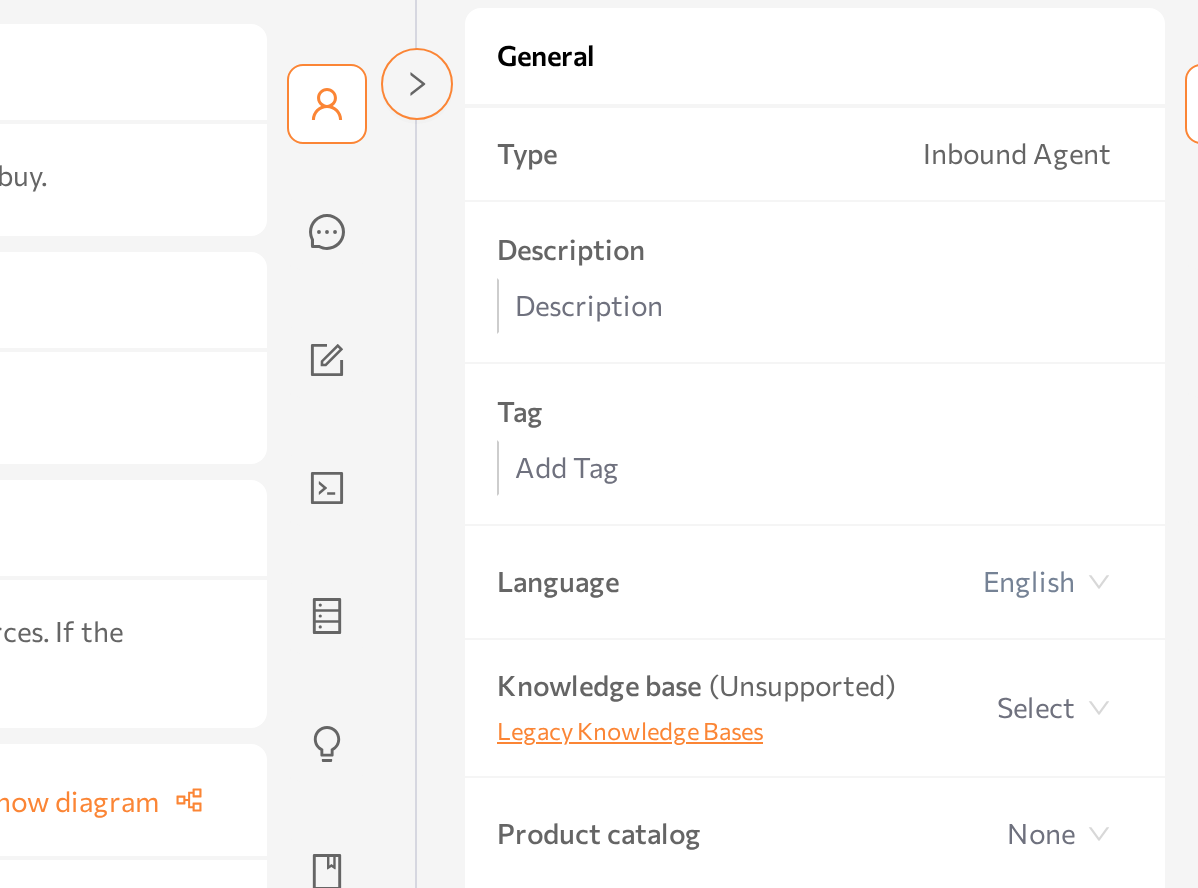
- In the Settings panel, find the General card.
- In Product catalog, select your catalog. The field shows None while no catalog is connected. Add new catalog at the bottom of the list opens the Products screen in a new tab with the create dialog already open.
- Click Save.
- If the agent was running, restart it so it picks up the new connection: click Stop agent, wait for the Stopped status, then click Start agent.
To disconnect a catalog, clear the Product catalog field, save, and restart the agent the same way.
Some wizard templates draft a catalog for you from your product descriptions: the wizard's review page shows a Product catalog section where you edit, add, or remove the proposed products before the agent is created. The wizard then creates the catalog and connects it to the new agent automatically.
How the agent uses product data
- When a conversation starts, the agent loads an overview of all active products in the connected catalog — each product's name and brief description.
- When the conversation turns to a specific product, the agent retrieves that product's full record — description, category, price, and link — and answers from it.
- Products with Active set to False are skipped entirely.
Steer this behavior with the agent's task instructions — for example, when to bring up products, how many to suggest, and how persistent to be. Write this in the Task section of the agent page in Advanced mode.
To check the result, talk to the agent in the Playground and ask about your products, then review real conversations in Sessions.
Delete a catalog
- Go to AI Agents > Products.
- In the catalog's row, click the delete icon in the Actions column.
- Confirm Are you sure you want to delete this catalog? with Yes.
The portal confirms with Catalog deleted successfully. Deleting a catalog removes its products permanently and disconnects it from any agent that used it.
Common issues
- The Products item is missing from the menu. Product catalogs are not enabled for your deployment, or your role does not include the section — see Roles and permissions.
- The Create product catalog or Resend invitation button is inactive. Your role does not allow the action. Ask your administrator.
- No invitation email arrived. Click Resend invitation on the Products screen and check your spam folder. If you are already signed in to the catalog editor, sign out and back in to refresh its invitation list. If the portal reports you are already a member of the workspace, you already have access — open the catalog URL and sign in.
- The catalog editor shows no workspace or denies access. You are signed in to the editor with a different email address. Sign out of the editor and sign in with the same address you use for the portal.
- The agent never mentions products. Check that the catalog is selected in Product catalog on the agent page and the agent was saved and restarted after connecting. Then check that the products are marked Active, and that the agent's workflow includes product tools.
- The agent quotes outdated prices or descriptions. Update the product row in the catalog editor. A conversation that is already running keeps the product overview it loaded at its start — check the change in a new conversation.
Related pages
- Agents — create, start, and stop agents
- Advanced mode — the agent page where you connect a catalog
- Wizard — templates that can draft a catalog and connect it for you
- Tools — add product tools to a custom workflow
- Playground — test how the agent offers products
- Knowledge Sources — free-form reference content for agents
- Roles and permissions — who sees the Products section