Create an Agent in Simple Mode
Simple mode is the default, form-based way to configure an AI agent in Flametree: what it says, what it knows, where it talks to customers, and what data it collects. You can build a working agent here without writing prompts or code, and test every change in the built-in Playground panel.
If you need multi-step workflows, custom prompts, or tools, switch to Advanced mode with the Advanced mode toggle in the upper-right corner of the agent page. If you have unsaved changes when you switch, you can choose Save and switch, Switch without saving, or Cancel.
Some changes made in Advanced mode (for example, a custom workflow) cannot be displayed back in Simple mode. In that case parts of the Simple mode UI become read-only or unavailable — the affected sections below explain how to proceed.
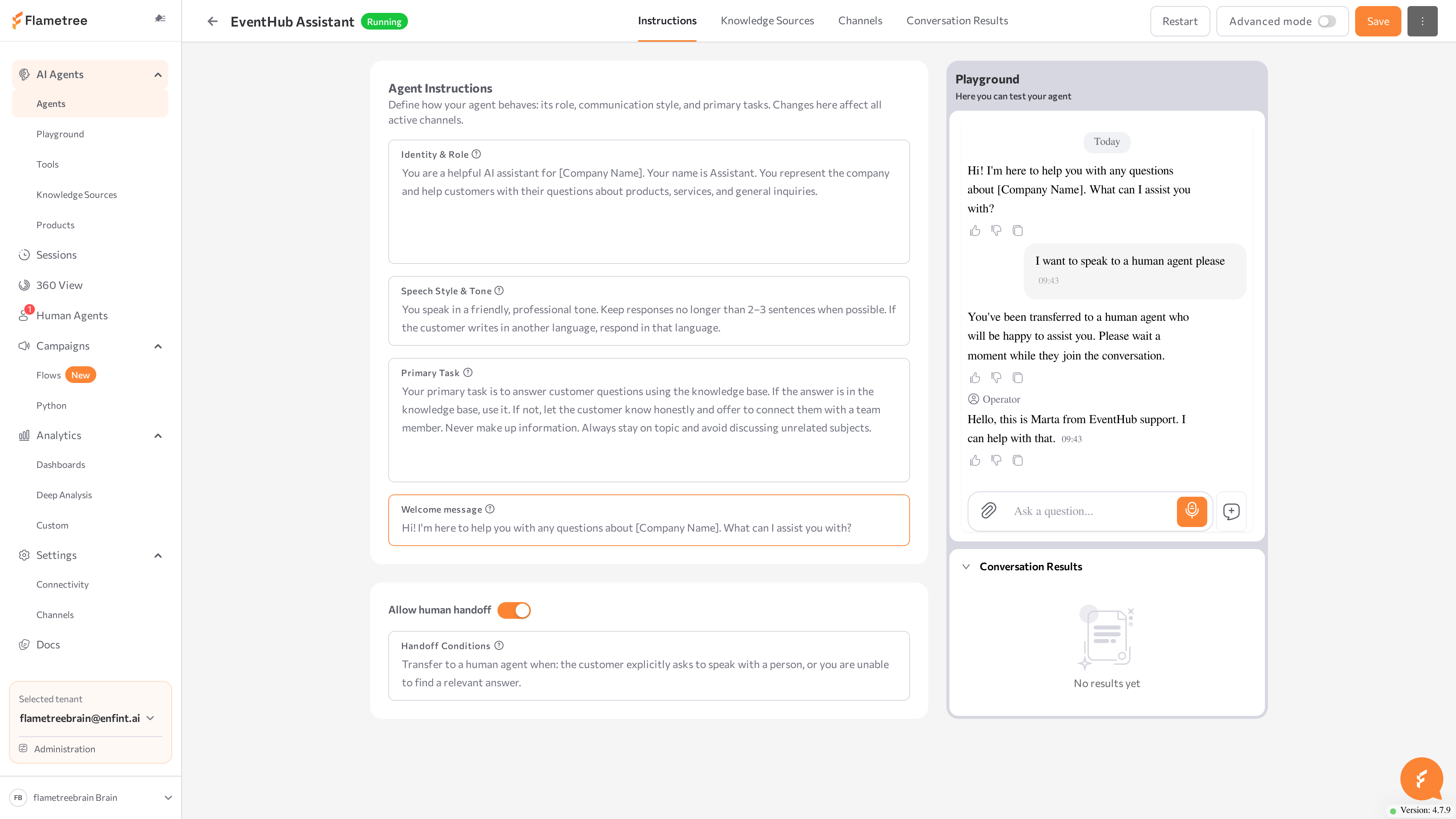
The agent page has four tabs on the left and the Playground panel on the right:
| Tab | What you configure |
|---|---|
| Instructions | Who the agent is, how it speaks, its primary task, the welcome message, and human handoff. |
| Knowledge Sources | The content the agent uses to answer questions: core information, FAQs, plain text, websites, files, YouTube videos. |
| Channels | Where the agent talks to customers: web widget, Telegram, WhatsApp. |
| Conversation Results | The data the agent captures from each conversation. |
Click Save in the upper-right corner after you change any tab. Saving applies the changes to the live agent on all connected channels.
Before you start
- You are signed in to the portal with a role that can edit agents.
- An agent exists, or you create one first — see Agents. Open it from AI Agents > Agents.
- In the normal flow all four tabs are available right away. If the Knowledge Sources or Channels tab shows a Save the agent to enable… message instead, click Save once and continue.
Instructions tab
The Instructions tab defines how your agent behaves: its role, communication style, and primary tasks. Changes here affect all active channels.
Hover over the ? icon next to each field for a short description of what to write there.
Identity & Role (required)
Define who the agent is — its name, the organization it represents, and its professional role. This shapes how the agent introduces itself. Keep it to identity only: tone and tasks have their own fields.
You are Ted, a helpful AI assistant for EventHub. EventHub organizes online events such as webinars, workshops, and educational sessions.
You help people learn about upcoming events and register for them.
Speech Style & Tone (required)
Set the agent's tone, formality, response length, and language behavior. Cover: tone (formal, friendly, expert, neutral), allowances (slang, emojis), supported languages, and what to do if the customer switches languages.
Use a friendly and professional tone. Always introduce yourself.
Keep responses short — 1–2 sentences when possible.
Always reply in the same language as the customer.
Explicitly state which languages the agent should use. If you don't, it may default to English.
Primary Task (required)
Describe what the agent should do in conversations — its goals, boundaries, and how to handle questions outside its scope. A good task definition includes the main outcome, the business context, constraints, and what counts as success. Don't write a step-by-step conversation script here.
Your main task is to help customers register for events.
Guide them through the registration process, ask for the required details, and confirm their registration.
If a question is outside event registration, politely redirect the conversation back to the event.
In addition to name and email, also ask for the phone, and preferred date of the event.
Welcome message (optional)
The first message the customer sees when a conversation starts. Keep it short and inviting.
Hello! I can help you register for our upcoming events.
Would you like to see what events are available?
Allow human handoff
Turn on Allow human handoff to let the agent pass a conversation to a human agent.
- Switch Allow human handoff on.
- In Handoff Conditions, describe when the agent should stop and pass the conversation to a human. You can combine multiple triggers — for example: "Transfer to a human agent when the customer asks for one, or when the customer is upset."
- Click Save.
When the conditions are met during a conversation, the session is routed to the Human Agents workspace.
Human handoff is unavailable if the agent's workflow was modified in Advanced mode. To enable the toggle again, the workflow must contain a default process with a default state set as the initial state.
Knowledge Sources tab
The Knowledge Sources tab defines what your agent knows. This content is searched before the agent generates a response. Connect at least one knowledge source so the agent can answer questions about your business. This section covers connecting sources to an agent; for the tenant-wide source library and source management in depth, see Knowledge Sources.
The tab contains six sub-tabs. The number next to a sub-tab shows how many sources of that type are connected to this agent.
- Core — Information the agent always considers, checked before any other source. Lives only on the agent page.
- FAQs — Question-and-answer pairs the agent uses as ready-made answers. Best for predictable, repeated questions.
- Plain Text — Free-form reference text, searched in relevant chunks. Limit: 50,000 characters per source.
- Websites — Links to public web pages. The agent extracts and uses their content.
- Files — Uploaded documents: PDF, DOCX, TXT, MD, XLSX, CSV, HTML. Limit: 100 MB per file.
- YouTube — Links to public YouTube videos or channels. The agent uses the transcripts.
Add core information
- Open the Core sub-tab.
- Enter the facts the agent should always consider when responding — short, stable, high-priority information.
- Click Save.
EventHub hosts short online learning events such as webinars and workshops.
Events usually last 60–90 minutes and are held online via Zoom. Each event has a limited number of seats (100 participants).
Registration requires name and email address. After registration, participants receive a confirmation email with the event link.
Participation in events is free, but registration is required.
Keep Core short — it is part of every reply. Put longer content into Plain Text or Files, where it is retrieved only when relevant.
Connect an existing source
Knowledge sources are shared across your tenant. If sources of a given type already exist, the empty sub-tab offers a Connect button (for example, Connect FAQ, Connect text, Connect website, Connect file, Connect video).
- Open the sub-tab and click the Connect button (or Manage if sources are already connected).
- In the window that opens, search, or filter by All, Connected, or Not connected.
- Toggle the sources you want this agent to use.
- Save your selection.
Connecting a source does not copy it: edit the source once and the change applies to every agent it is connected to.
For each connected FAQ you can choose how the agent uses it:
- Enabled (Search) — the agent retrieves only the most relevant Q&As when needed. Works for any size. Usage is tracked.
- Disabled (Prompt) — the agent sees all Q&As at once. Faster, but usage is not tracked. Best for small collections.
Changes apply to new sessions.
Create a new source from the agent page
If no source of the type exists yet, or you want a new one, use the create button on the sub-tab: Create FAQ, Create new text, Add new website, Add new file, or Add new video. Sources created here are automatically connected to the agent and also appear in the tenant-wide library at AI Agents > Knowledge Sources.
Example Q&A pairs you can add to an FAQ for a first test:
Question: What happens if an event is already full?
Answer: If an event reaches the limit of 100 participants, you can join the waiting list. If a spot becomes available, you will receive an email invitation to register.
Question: What if I register but cannot attend the event?
Answer: If you cannot attend the live session, you will automatically receive a recording of the event by email within 24 hours.
Check source statuses
Each source shows a status badge:
| Status | Meaning |
|---|---|
| Ready | Indexed and in use by the agent. |
| Indexing | Content is being processed. You can stop indexing with the stop action. |
| Pending | Queued for indexing. |
| Modified | The source has changed. Re-index to bring the agent up to date. |
| Error | Indexing failed. Hover over the badge to see the error message. |
Use the Index action (refresh icon) on a source to re-index it manually.
You don't have to restart the agent after adding or editing a source. Changes apply once the source is indexed and Ready.
If this agent uses a knowledge base that was modified in Advanced mode, the tab shows Unsupported Knowledge Base and editing here is disabled. Configure it on the knowledge base page instead, or migrate it — see the Knowledge Sources migration guide.
Channels tab
The Channels tab attaches channels to this specific agent and configures them: which platforms the agent talks on, and whether each channel is running. In Simple mode you can attach Web-widget, Telegram, and WhatsApp. When you attach a messaging channel here, you enter its credentials (such as a bot token) directly on this tab — the resulting connection then also appears in Settings > Channels, where all channel connections are monitored and managed.
Channels attached in Simple mode handle inbound conversations: when a customer writes first, the agent replies. Outbound conversations, where the agent writes first, are configured through Campaigns.
Attach a channel
- On the Channels tab, click the button for the channel you want: WhatsApp, Web-widget, or Telegram.
- A channel row appears. Expand it and complete the channel form — for messaging channels this is where you enter the credentials, such as the Telegram bot token. Click Apply. This creates the channel connection; you can monitor and edit it later in Settings > Channels.
- Click Save in the upper-right corner of the page.
The channel row shows a status badge: RUNNING, STOPPED, STARTING, STOPPING, or ERROR. Use the Start / Stop button on the row to control the channel, and Delete to detach it from the agent. When the row shows RUNNING, writing to the agent on that channel gets a reply that follows your Instructions.
A messaging channel (one Telegram bot, one WhatsApp number) can serve only one inbound agent at a time. If the channel is already in use, the portal shows which agent uses it.
On this tab, a Telegram channel's bot token is locked once the channel is created. To change it, edit the connection in Settings > Channels by pasting a new token over the masked value — or delete the channel here and create a new one.
Set up the Web widget and demo page
The Web-widget channel embeds a chat on your website. The widget is documented under Settings > Channels > Web Widget, but you configure it here, on the agent page. Expand the Web-widget row to set:
- Settings — Tooltip text (the invitation bubble next to the button) and Allow voice messages.
- Appearance — Choose an existing icon or Create a custom icon, Floating button size (40–150 px), Button color, and Icon color.
Then:
- Click Apply to save the widget settings.
- Click Copy HTML code and paste the snippet into your site's HTML.
- Click Open demo page to try the widget on a hosted demo page — no website changes needed. The demo opens in a new browser tab.
Use the demo page to show the agent to stakeholders before embedding the widget on your real site.
Conversation Results tab
The Conversation Results tab defines what information your agent captures from conversations automatically. The agent recognizes this data as it appears in the conversation — it won't ask for it directly unless you instruct it to in the Instructions tab. Use conversation results to qualify leads, route follow-ups, and analyze sessions.
Turn on Standard Information fields
Toggle on the predefined fields you want to collect:
| Field | What the agent captures |
|---|---|
| Name | The customer's name. |
| The customer's email address. | |
| Phone | The customer's contact phone number. |
| Topic | The main subject of the conversation — for example, "product return" or "pricing inquiry". |
| User Needs | What the customer is trying to accomplish — for example, "get a refund" or "fix a login issue". |
| Tone | The overall emotional tone: positive, negative, or neutral. |
Add a custom field
- Click Add something else.
- In the What Should the Agent Find Out? window, fill in:
- What to look for — the field name, for instance "Budget", "Company name", "Preferred date".
- How to recognize it — a description that tells the agent what to capture, for instance "The customer's approximate budget when mentioned in conversation".
- Choose how the value is captured:
- Match to options — the agent captures only values from the list you specify in Options. Use this when you expect a limited set of answers, for example Request type: New application, Support, Complaint.
- Any value — the agent captures whatever the customer provides. Use this for open-ended inputs such as names, locations, or free-text answers.
- Click Add field.
- Click Save on the agent page to apply the changes.
To change a field later, use the edit (pencil) and delete (bin) icons on the field row. Deleting asks for confirmation.
If a value must end up in a report or an integration with exact spelling, prefer Match to options — free-text answers vary ("about 1k", "1000-ish") and are harder to aggregate.
Collected results appear in two places:
- Playground — while you test, the Conversation Results panel under the chat fills in live as the agent recognizes data.
- 360 View — after a session ends, the session's results show all collected field values. See 360 View.
Test in the Playground panel
The Playground panel sits on the right side of the agent page in Simple mode. Use it to chat with your agent exactly as a customer would — check the tone, the answers, and the data it collects — without connecting any channel. For testing any agent on a full page, see Playground.
Start a test session
- Configure the agent tabs (at minimum, the Instructions tab).
- Click Save. The agent starts (or restarts) and the panel opens a fresh chat session.
- Type a message in the chat and check the reply.
The panel tells you when the agent isn't ready to chat:
| Panel state | What it means | What to do |
|---|---|---|
| "Save your agent to chat with it" | The agent has never been saved. | Click Save. |
| "Agent is not running. Start the agent to test it in the playground." | The agent is stopped. | Click Run agent. |
| "Please wait until the agent is started/created/stopped" | The agent is changing state. | Wait a few seconds. |
| "Unsaved changes. Save to apply — this will update the live agent on all channels." | You edited the configuration. | Click Save changes to test the new version. |
| "Agent has an error..." | The agent failed to start. | Open the agent configuration and fix the reported errors. |
Check answers and collected results
Test against what you configured:
- Instructions — does the agent introduce itself correctly, keep the right tone, stay on task, and open with your welcome message?
- Knowledge Sources — ask questions your sources should answer, and at least one question they should not, to see how the agent handles unknowns.
- Human handoff — trigger your handoff conditions and confirm the agent offers to transfer.
- Conversation Results — the block under the chat shows "No results yet" until the agent recognizes data. Mention a name, an email, or one of your custom-field values and watch the block fill in live.
Retest after saving changes
When you change any tab, the panel dims with the Unsaved changes overlay — the chat still runs the previously saved version. Click Save changes: the agent restarts automatically and the panel starts a new test session, so every test runs against the saved configuration.
Saving updates the live agent on all connected channels, not only the Playground.
Common issues
- The Knowledge Sources or Channels tab shows "Save the agent to enable…". The agent hasn't been saved yet — click Save once and the tab becomes available. In the normal create flow this doesn't happen.
- The Playground chat ignores your latest edits. You're chatting with the previously saved version — click Save changes first.
- Save is blocked. Identity & Role, Speech Style & Tone, and Primary Task are required fields on the Instructions tab.
- The agent answers in the wrong language. Add an explicit language rule to Speech Style & Tone.
- The agent doesn't use new knowledge content. Check the source status — wait for Ready, or re-index if it shows Modified or Error.
- A channel shows ERROR. Open Settings > Channels to check the channel's credentials and error message.
- A conversation result field never fills in. Improve How to recognize it — describe the data the way customers actually phrase it. If the agent should actively ask for the data, add that to Primary Task on the Instructions tab.
Related pages
- Agents — create and manage agents
- Advanced mode — workflows, custom prompts, and tools
- Knowledge Sources — the tenant-wide source library
- Playground — full-page playground for testing any agent
- Settings > Channels — connect and manage reusable channel connections
- Human Agents — the workspace that receives handoffs
- 360 View — review collected conversation results per session