Playground
The Playground is the built-in testing environment in Flametree where you chat with an AI agent exactly as a customer would — same answers, same buttons, same formatting — without affecting real customers. Open it from AI Agents > Playground in the left menu.
The same Playground is also embedded as a panel on the agent page in Simple mode, so you can test while you configure — see Simple mode. Use the standalone page when you want to switch between agents quickly, test an agent without opening its configuration, or watch the collected session data side by side with the chat.
Find your way around
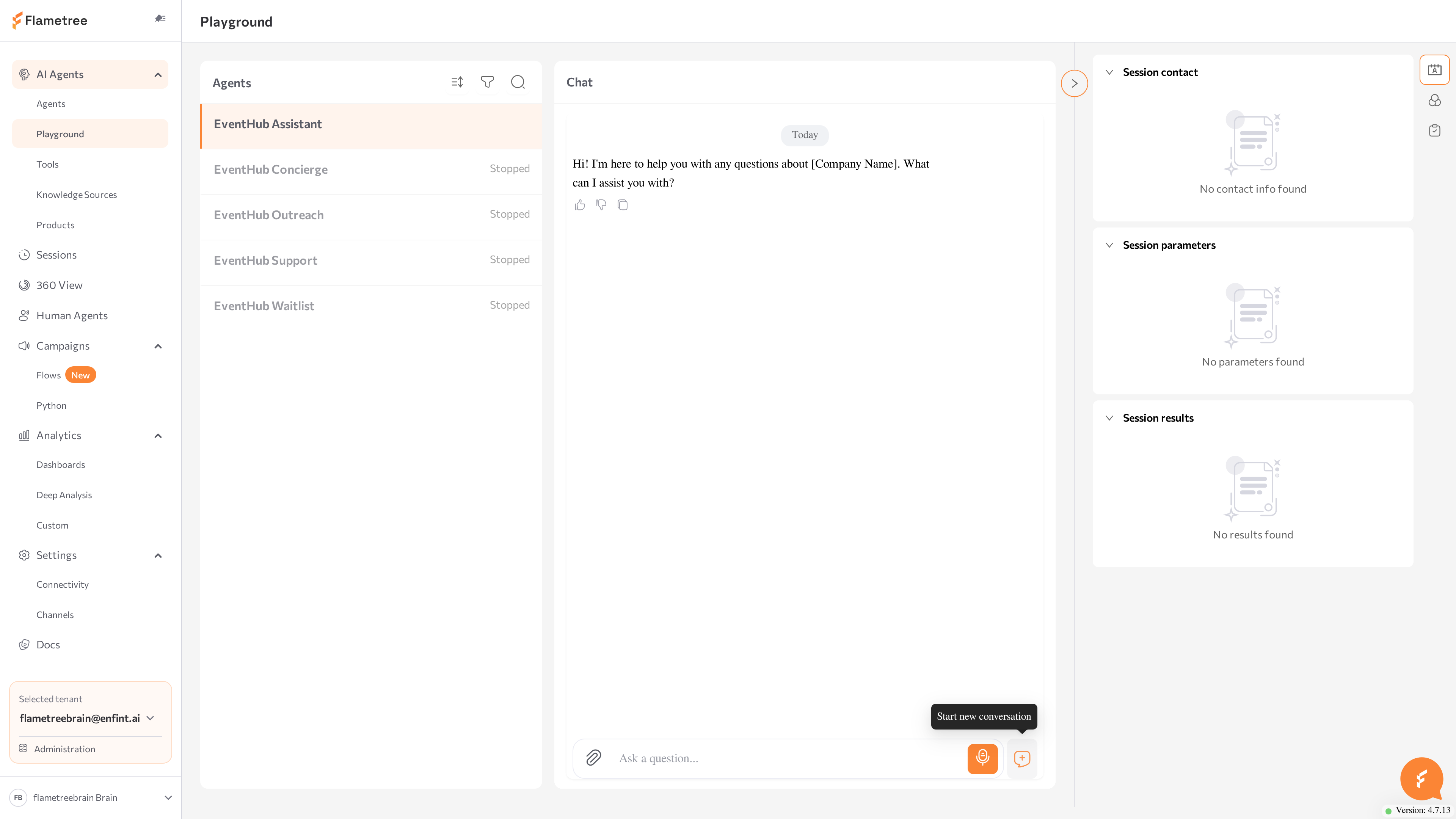
The page has three areas:
- Agents — the list of your agents on the left. Click an agent to test it.
- Chat — the conversation area in the middle. It is the same chat widget customers see on the web channel, so messages, option buttons, and formatting behave as in production.
- Parameters & results — a collapsible panel on the right with three tabs:
- Contact info — the name, email, and phone the agent has captured in this session.
- Parameters — the session parameters of the current test session.
- Results — the Conversation Results the agent has collected so far.
Use the Playground to check, in a safe environment:
- how the agent follows its instructions and keeps its tone,
- whether answers from connected knowledge sources are correct,
- whether Conversation Results are captured correctly,
- whether the agent hands over to a human at the right moment.
The full three-panel layout is available in the desktop browser. On mobile, the portal shows a simplified Playground.
Before you start
- You are signed in to the portal. What you can see and start depends on your role.
- At least one agent exists in AI Agents > Agents. If you have none, create one with the wizard — see Agents.
- The agent you want to test must be running. You can start a stopped agent directly from the Playground.
Choose an agent
The Agents panel lists the agents in your tenant. Each entry shows the agent's name, type, and current status. Running agents are listed first (alphabetically), followed by all other agents, so the agents you can test immediately are at the top.
- Go to AI Agents > Playground.
- In the Agents panel, click the agent you want to test.
- The chat area opens for that agent. If the agent is running, you can start typing right away.
Selecting a different agent switches the chat to that agent. If a test session already exists for an agent, it is reopened when you return. Otherwise, a new test session is created automatically.
Archived agents aren't listed in the Agents panel, so you can't select one here. To test an archived agent, restore it first — see Archive an agent. The Playground panel on the agent's own page behaves differently: it stays reachable and shows Agent archived over the chat, with a Restore button.
To find an agent in a longer list, use the controls in the Agents panel header:
- Search — click the search icon and type part of the agent name. Click a result to jump to it.
- Sort — click the sort icon to cycle alphabetical sorting: ascending, descending, then back to the default order.
- Filter — click the filter icon to show only agents in selected statuses: Error, Running, Starting, Stopped, Stopping, Creating.
What you can do depends on the agent's status:
| Status | What to do |
|---|---|
| Running | Chat with the agent immediately. |
| Stopped | Select the agent and click Run agent in the chat area. |
| Starting / Stopping | Wait for the transition to finish. |
| Creating | Wait — you receive an email when the agent is ready. |
| Error | Open the agent configuration and fix the reported errors. |
Call Analytics agents do not appear in the Playground list. They analyze recorded calls and do not hold live conversations, so there is nothing to chat with.
Start a conversation
In the Playground you chat with the agent as if you were a customer on the web channel. Messages are sent under your portal user name.
- Select an agent in the Agents panel. With no agent selected, the chat area shows "Select a running agent to start a conversation".
- If the agent is stopped, the chat area shows "To start conversation with agent, you need to run agent first". Click Run agent and wait until the agent is running.
- Type your message in the Type your message field and press Enter or click the send button.
- Continue the conversation: answer the agent's questions, click option buttons if the agent offers them, and try the requests your customers actually make.
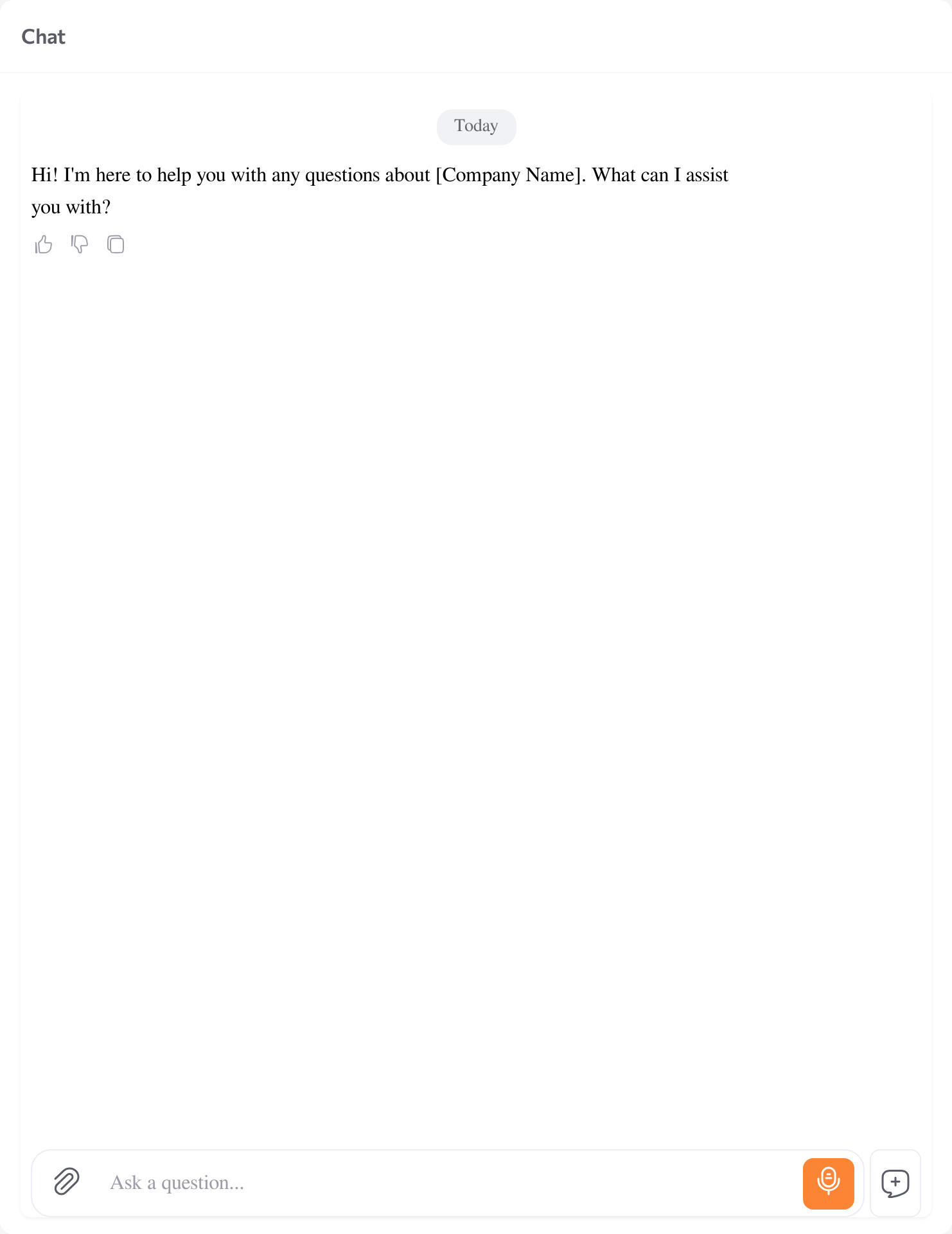
The agent replies in the chat exactly as it would in the production web widget, and the Parameters & results panel fills in as the agent captures data. The test conversation is recorded as a session, so you can review it later in Sessions.
Start over
Click Start a new session in the chat to discard the current test conversation. The agent greets you again from the beginning, with a clean session state and empty results. Use it to re-test the conversation opening, repeat a scenario after a configuration change, or reset collected results between test runs.
After you change the agent configuration, save the agent — saving applies the changes and restarts the agent. Then click Start a new session so your test runs against the updated configuration.
Send voice messages
If the agent has a Speech-To-Text model configured, you can record and send voice messages from the chat input. If it does not, the chat shows the warning "This agent does not have Speech-To-Text integration".
Use realistic test scenarios
A quick "does it answer" check tells you little. Play a different customer in each test run and watch how consistently the agent applies its instructions and tone. Run each scenario in its own session — click Start a new session between runs so earlier context does not influence the next one.
Work through the scenarios in this order:
- Happy path — a cooperative customer with a clear, complete request. Confirm the core conversation works before you move to the hard cases.
- Ambiguous input — unclear or partial requests, such as "it doesn't work" or "how much?". Watch whether the agent asks for the missing details or guesses.
- Hostile input — an aggressive or frustrated customer. The agent should keep its configured tone and hand over when its handoff conditions are met.
- Failure handling — requests the agent cannot fulfill, such as questions outside its knowledge sources. The agent should offer a safe fallback, not an invented answer.
When you interpret the results, keep two things in mind:
- The Playground shows the web-channel experience. The chat is the same widget customers see on the web channel, so formatting and option buttons match the web widget exactly. Other channels display messages according to their own capabilities, so run a short final check on each channel attached to the agent before launch.
- You test under your own identity. Messages are sent under your portal user name, and each test conversation is recorded as a session. Compare runs in Sessions to confirm that a configuration change improved the behavior.
Test knowledge answers
Check that the agent answers correctly from its connected knowledge sources — and behaves safely when it does not know the answer. Before testing, make sure the sources are connected to this agent and fully indexed; answers are incomplete while a source is still indexing.
- Prepare 5–10 real customer questions your sources should answer. Take them from your FAQ content, support tickets, or website.
- Ask each question in the chat. For every answer, check accuracy (matches the source content), completeness (key facts such as prices, conditions, steps), and tone (follows the agent's identity and style).
- Ask 2–3 questions that are not covered by any source. The agent should admit it does not know, offer an alternative, or hand the conversation over — not invent an answer.
- Ask the same question with different wording — synonyms, typos, another language if relevant — to confirm the agent finds the answer regardless of phrasing.
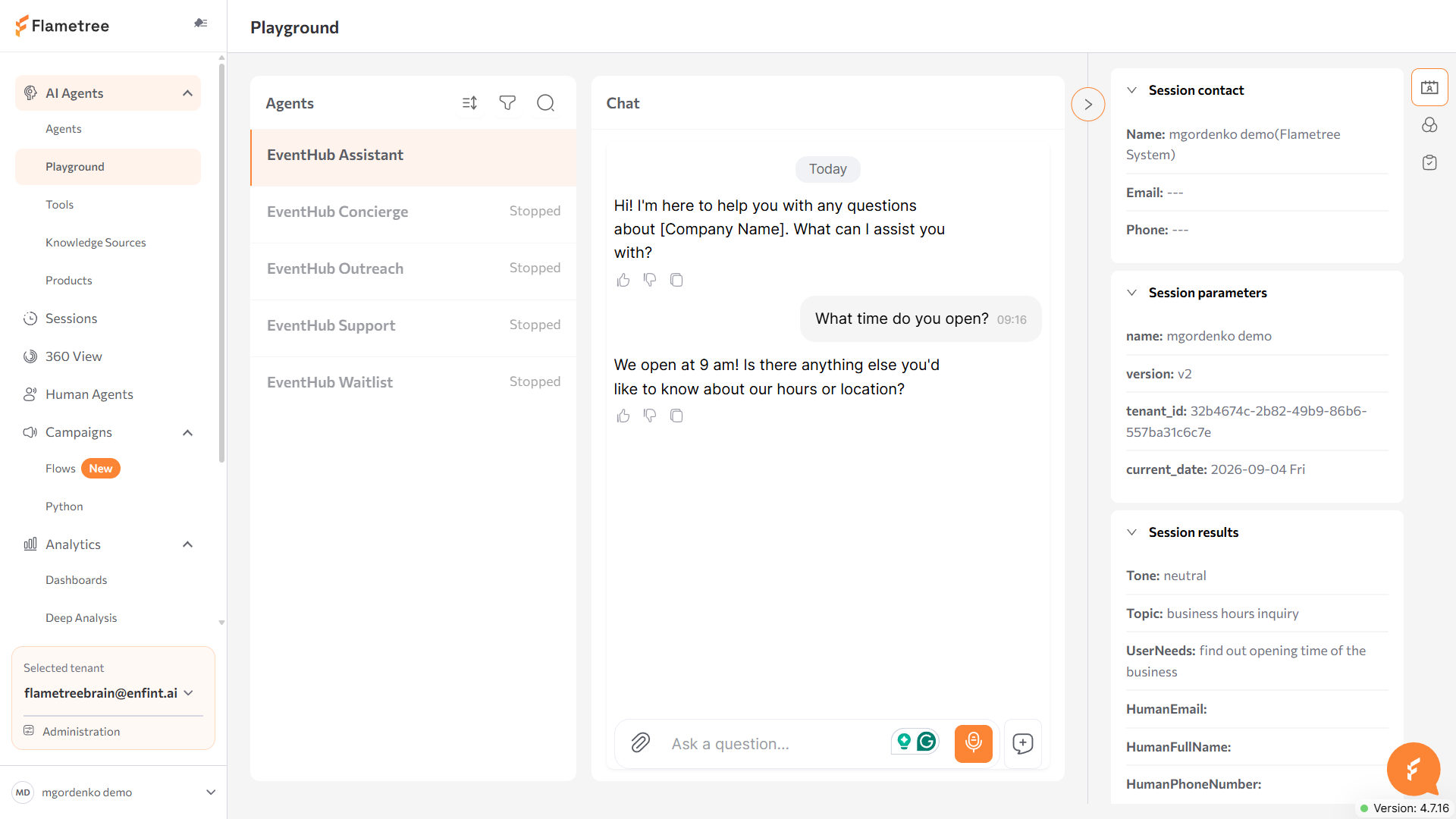
Questions the agent could not answer are collected as unanswered questions, so you can review them later and turn them into new Q&A entries — see Knowledge Sources.
Test one topic per session — click Start a new session between topics so earlier context does not influence the answers. Keep a checklist of question → expected answer and re-run it after every content change.
Test conversation results
Conversation Results are the data fields the agent collects during a conversation — for example a name, a budget, or a preferred callback time. The Playground shows them filling in live, so you can verify your data collection before going to production. Configure the fields first on the agent's Conversation Results tab — see Simple mode.
- Open the Parameters & results panel and switch to the Results tab.
- Click Start a new session to begin with empty results.
- Lead a conversation in which you naturally provide the data the agent should collect, phrased the way a real customer would phrase it.
- Watch the Results tab: each configured field should fill in with the value extracted from your messages. Fields not collected yet stay empty.
- Check the Contact info tab: if the agent captures contact details, your Name, Email, and Phone appear there (empty values show as dashes).
- Try edge cases: correct a value later in the conversation ("Actually, my budget is 2000") and confirm the field updates to the latest value; refuse to give a value and check the agent reacts according to its instructions; provide values in unusual formats (spelled-out numbers, mixed languages).
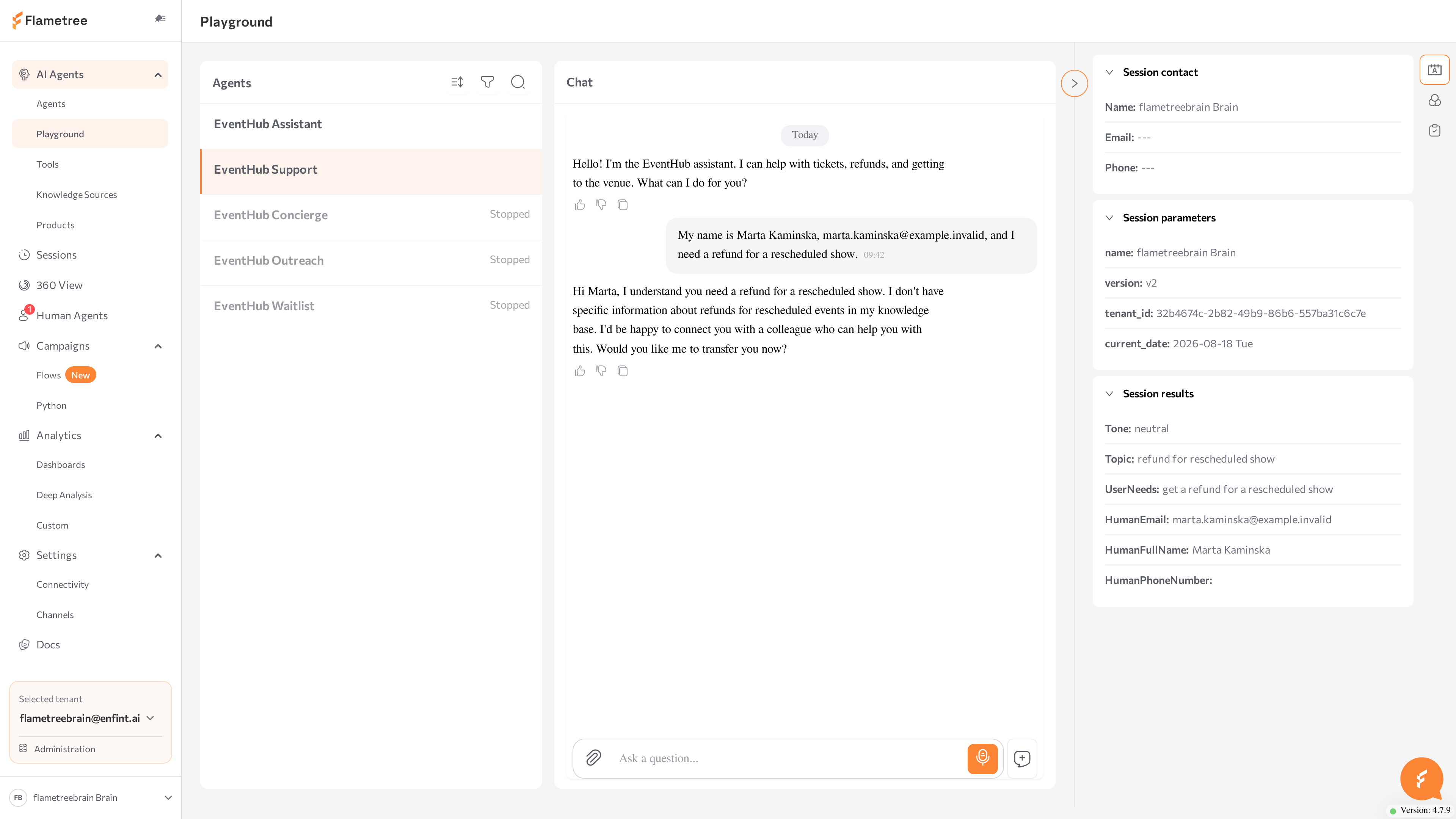
After the session ends, the same results are available with the full session details in Sessions and 360 View.
Test handoff behavior
If the agent is configured to hand conversations over to a human, test the handoff end to end before going live: the trigger, the customer experience, and the operator experience. A handoff can be triggered by the agent when its handoff conditions are met, by the customer asking for a human, or manually from the Sessions page with Hand over to the operator.
Before you test, make sure:
- Human handoff is enabled for the agent, with handoff conditions defined — see Simple mode.
- A second user with access to the Human Agents workspace is available to play the operator side. Use a second browser or account so you can see both sides at once.
Then:
- In the Playground, click Start a new session.
- Drive the conversation into the handoff condition. The most universal test: write "I want to talk to a human", or trigger the specific condition you configured (for example, an unresolved complaint).
- Check the customer side (the Playground chat): the agent acknowledges the handoff according to its instructions, and the AI stops answering your next messages.
- As the operator, open Human Agents. The handed-over session appears in the chat list with the full conversation history and the collected Summary, Parameters, and Results in the side panel.
- Send a reply as the operator, then confirm it appears in the Playground chat. Operator messages are marked with an operator icon, so you can tell them apart from AI answers.
- As the operator, resolve the session when you are done — the portal asks you to confirm.
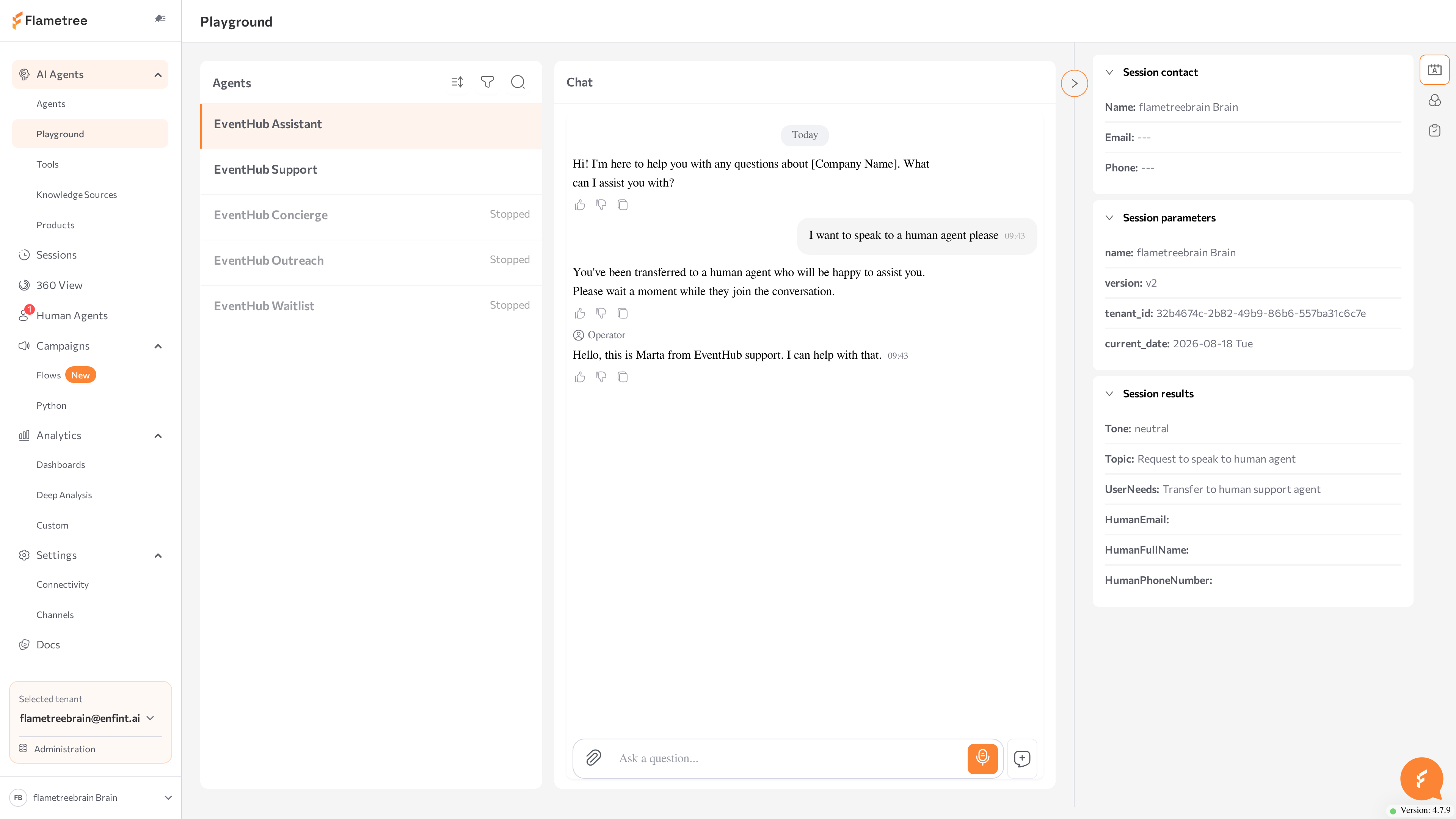
Beyond the happy path, also check:
- No premature handoff — ask ordinary questions and confirm the agent does not escalate when it should answer itself.
- Handoff with collected data — provide contact details before escalating and verify the operator sees them in Results.
- Manual handover — open the active test session in Sessions and use Hand over to the operator to confirm the manual path works too.
Common issues
- The agent is not in the list. Check that it exists in AI Agents > Agents, that it is not a Call Analytics agent, and that no status filter is active in the Agents panel.
- "To start conversation with agent, you need to run agent first." The agent is stopped — click Run agent.
- "Please wait while the AI agent is being created/started." The agent is still starting. You don't have to stay on this screen — for newly created agents you receive an email when the agent is ready.
- "Agent has an error. Please navigate to the agent configuration page on the AI Agents tab and fix the errors." The agent failed to start. Click Open agent configuration, fix the reported errors, save, and return to the Playground.
- The agent answers with outdated behavior. You may have unsaved configuration changes. Open the agent, save it (this restarts the agent), then click Start a new session.
- The agent stops replying. It may have no working language model — for example, the LLM connection it uses was deleted or is failing its health check. Check the connection status in Connectivity, then check the Models card in the agent configuration — an agent does not run without an LLM. See Advanced mode.
- The agent doesn't use its knowledge. Confirm the source is connected to this specific agent and indexing has finished, then re-test in a new session.
- A new or edited source isn't reflected in answers. A connected source is used only once its status is Ready — wait while it shows Pending or Indexing, and click Index on a Modified source. See Knowledge Sources.
- "This agent does not have Speech-To-Text integration." Voice messages need a Speech-To-Text model. Create the connection in Connectivity if it doesn't exist, then select it in the agent's Models card — see Advanced mode.
- The Results tab shows "No results found". The session hasn't produced results yet — provide the data the agent should collect, or improve the field descriptions on the Conversation Results tab so they state clearly when each field should be filled.
- The agent never hands over. The handoff condition isn't reachable from your test phrasing, or handoff isn't enabled for this agent — check the configuration, not only the wording of your test message.
- The handed-over session doesn't appear for the operator. Check that the operator user has access to this agent's sessions. "Session is already handled by an operator" means another operator already took it.
Related pages
- Simple mode — configure the agent and test in the embedded Playground panel
- Agents — create and manage agents
- Knowledge Sources — the content behind knowledge answers
- Connectivity — the model connections an agent needs to run
- Sessions — review recorded test and production sessions
- Human Agents — the workspace that receives handoffs
- 360 View — collected conversation results per session