Create an Agent in Advanced Mode
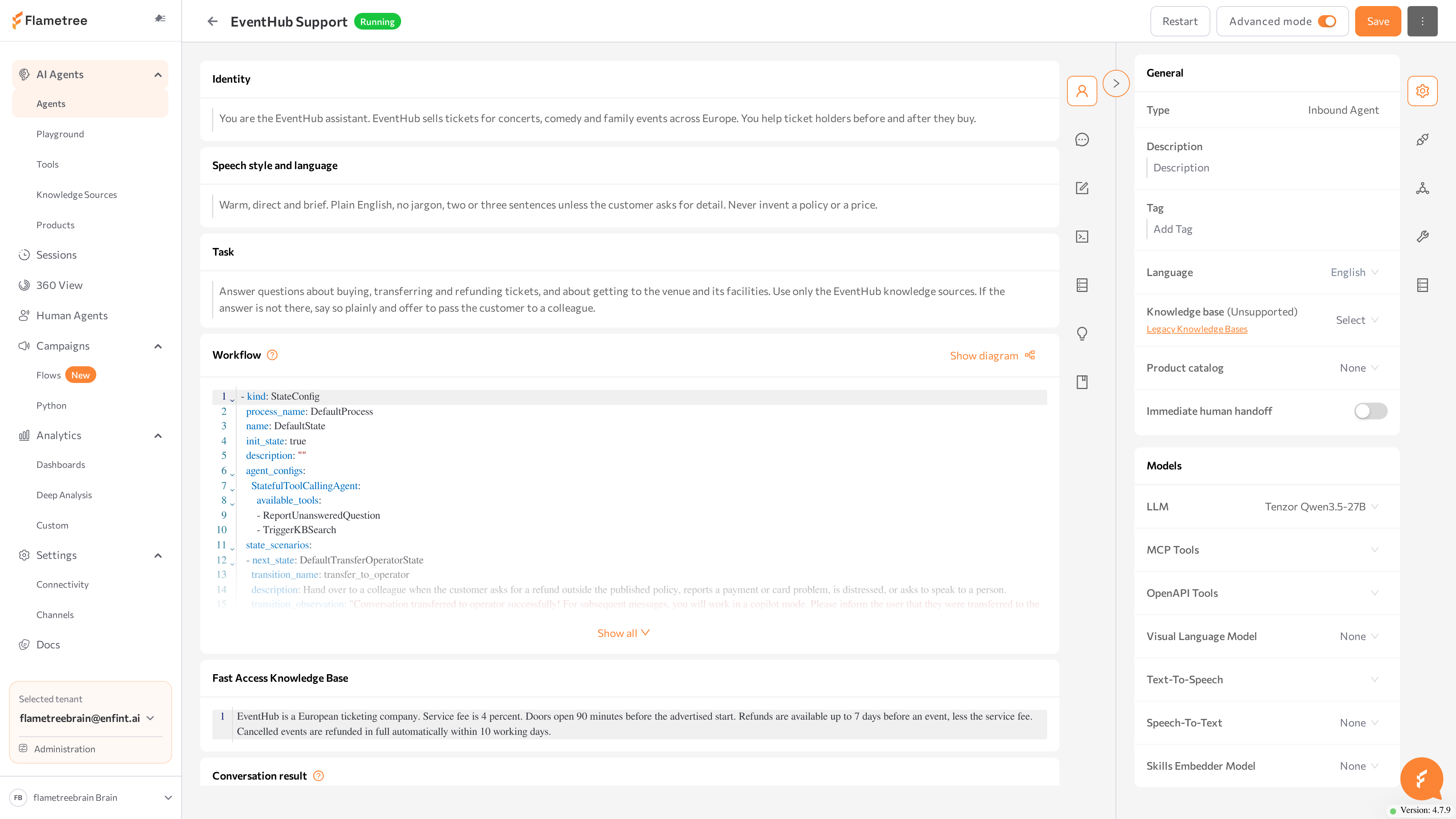
Advanced mode is the full-control view of the agent page in Flametree. Instead of the four guided tabs of Simple mode, you edit the agent's configuration directly: the raw prompt sections, a state-based workflow in YAML, the conversation result schema, attached tools, AI models, channels, and runtime settings.
Use Advanced mode when you need:
- A multi-step conversation flow with controlled states and transitions.
- Tools — actions the agent can perform beyond replying, such as calling your systems.
- A specific LLM, or speech models for a voice agent.
- Settings Simple mode does not expose: session limits, environment variables, webhooks, and more.
Both modes configure the same agent. You can switch between them at any time with the Advanced mode toggle in the upper-right corner of the agent page.
Before you start
- You are signed in to the portal with a role that can edit agents.
- An agent exists — see Agents. This page describes an Inbound Agent; other agent types show a subset of the same sections (for example, a Call Analytics agent has only the Conversation result section).
- An LLM connection exists in Settings > Connectivity — without a selected LLM the agent cannot run.
In Advanced mode, saving does not restart the agent. After you click Save, restart the agent yourself: click Stop agent, wait for Stopped, then click Start agent. There is no separate restart action. Until you restart, the live agent keeps running with its previous configuration.
Switch between modes
- Open the agent from AI Agents > Agents.
- Click the Advanced mode toggle in the upper-right corner. The same toggle switches back to Simple mode.
If you have unsaved changes, a Switch to advanced mode (or Switch to simple mode) dialog warns that changes cannot be carried over without saving. Choose Save and switch, Switch without saving (your edits are discarded), or Cancel.
Some configurations made in Advanced mode — most commonly a custom workflow — cannot be displayed back in Simple mode. The affected Simple mode sections become read-only or unavailable, while the agent itself keeps working. See Simple mode for how each section behaves.
Find your way around
The page has two scrollable columns, each with a vertical icon bar for jumping between sections. The right column is the collapsible Settings panel — click its label to collapse or expand it.
The main column contains the prompt and logic sections:
| Section | What you configure |
|---|---|
| Identity | Who the agent is: name, role, and organization. |
| Speech style and language | Tone, formality, and the languages the agent uses. |
| Task | The agent's objective and boundaries. |
| Workflow | The conversation flow as YAML states and transitions. |
| Fast Access Knowledge Base | Markdown reference content included in the agent's prompt. |
| Conversation result | The data fields the agent collects, defined in YAML. |
| Analytics | The deep analysis configuration for this agent's sessions. |
| Tool Groups | The tool groups attached to this agent. |
The Settings panel on the right contains:
| Card | What you configure |
|---|---|
| General | Read-only agent type, plus Description, Tag, Language, the legacy Knowledge base selector, Product catalog, and the Immediate human handoff switch. |
| Models | The LLM and other model connections the agent uses. |
| Web widget | The chat widget for your website. |
| Communication channels | The channel connections attached to this agent. |
| Advanced | Agent ID and token, default operator, session limits, Show RAG sources, environment variables, push notifications, and Copilot working hours. |
| Database | A database connection for agents that query SQL data. |
The page header shows the agent name and status tag and holds the Advanced mode toggle, the Start agent / Stop agent button, the Save button, and a three-dot menu with Rename, Playground (while the agent is running), Show Logs, Show reports, Delete, Export agent, and Copy agent.
Unlike Simple mode, Advanced mode has no built-in test chat on the page. Test the agent on the Playground page instead.
Write the agent prompts
Three text sections define the agent's persona. Keep each section to its own concern — overlapping instructions are a common cause of inconsistent behavior:
| Section | Answers | Does not belong here |
|---|---|---|
| Identity | Who is the agent? | Tone of voice, tasks |
| Speech style and language | How does it communicate? | Role, conversation logic |
| Task | What must it achieve? | Step-by-step flow — that is the workflow |
Identity
The agent's name or persona, professional role, and the organization it represents.
Your name is John. You are a digital consultant at Example Inc., specializing in product and service inquiries.
Speech style and language
Tone, formality, allowances (slang, emojis), supported languages, and what to do when the customer switches languages.
You speak clearly, politely, and professionally. Avoid unnecessary jargon.
Detect the language used by the customer (for example, English, French, Spanish) and respond in that language.
If the customer switches language mid-conversation, adapt accordingly.
State explicitly which languages the agent should use. If you don't, it may default to English.
Task
The primary objective, the business context, operational constraints, and what counts as success. Don't turn the task into a conversation script — sequencing belongs in the workflow.
Your main task is to assist customers with product-related questions, collect contact information if needed, and suggest a time for a call.
Your actions are restricted to the tools listed in the Available Tools section. You are not allowed to perform any other actions.
Welcome message
The opening message of a conversation is not a prompt section in Advanced mode. It is stored in the START_PHRASE environment variable — see Set environment variables. In Simple mode, the same value is edited as the Welcome message field.
Configure the workflow
The Workflow section defines the conversation flow as a state machine in YAML. Each state is one phase of the conversation with its own instructions and tools; the agent operates in exactly one state at a time and moves between states through transitions.
New agents come with a default workflow that supports the Simple mode features. Customize the workflow when you need:
- A strict multi-step process — for example, verify identity before discussing an account.
- Different instructions or tools at different stages of the conversation.
- Controlled escalation paths, such as a transfer to a human after repeated failures.
Fewer states make the agent more flexible; more states make it more predictable. Start with one or two states and add more only when needed.
The ? icon in the Workflow section header opens the formatting reference for the YAML syntax.
Define states
Each state is one list item in the YAML:
- process_name: SupportProcess
name: Greeting
kind: StateConfig
init_state: true
description: |
- Greet the human
- Ask how you can help
- Determine human intent
available_tools:
SingleStatefulOutboundAgent:
- SendChatMessage
state_scenarios:
- next_state: Answer
transition_name: human_question_received
description: "human asks a question"
- process_name: SupportProcess
name: Answer
kind: StateConfig
final_state: true
description: |
- Answer the human's question
- Ask if additional help is needed
- End the conversation
available_tools:
SingleStatefulOutboundAgent:
- SendChatMessage
- FinishSession
| Field | What it does | Required |
|---|---|---|
process_name | Groups related states into a process. Usually one workflow contains one process. | Yes |
name | Unique state name. Use descriptive names such as Verification or Collection. | Yes |
kind | Always StateConfig. | Yes |
init_state | Marks the starting state. | Starting state only |
final_state | Marks a state where the conversation can end. | Optional |
description | The instructions the agent follows in this state: steps, guidelines, and example dialogues. | Yes |
available_tools | The tools the agent can use in this state. | Yes |
A workflow must contain exactly one state with init_state: true. For text agents, include SendChatMessage in available_tools — without it the agent cannot send messages to customers.
A good description has three parts: numbered steps to follow, important guidelines (including limitations), and example dialogues for both successful and problematic turns. Avoid conflicting instructions, and give each state one clear goal.
Define transitions
Transitions in state_scenarios describe when the agent moves to another state:
state_scenarios:
- next_state: Collection
transition_name: verify_identity
description: "Move to collection after confirming identity"
- next_state: ScheduleReminder
transition_name: begin_schedule_reminder
description: "Schedule a reminder if human is busy"
| Field | What it does | Required |
|---|---|---|
next_state | The state to move to. Must reference an existing state name. | Yes |
transition_name | A name for the transition — it appears in trace logs and helps you debug the flow. | Yes |
description | The condition that triggers this transition. | Yes |
attached_tools | Additional tools available during the transition. | No |
transition_observation | A note recorded about the outcome of the transition. | No |
Make conditions distinct: if two transitions can apply in the same situation, the agent may pick the wrong one or loop between states. Include a fallback transition for unclear replies and an escalation path for customers who ask for a person.
Preview the workflow as a diagram
To check the structure visually:
- In the Workflow section header, click Show diagram.
- Select Simple for a compact diagram or Extended for a more detailed one.
- The diagram opens in a window — drag to pan and scroll to zoom.
- Click Export as SVG to download the diagram.
Test workflow changes
- Click Save.
- Restart the agent: Stop agent, wait for Stopped, then Start agent.
- Open the Playground and walk through your scenarios: the main path, an off-topic question, and each transition.
- If a transition misfires, open the session's trace logs from Sessions and search for the
transition_nameto see what the model received and decided.
Define conversation results
The Conversation result section defines, in YAML, which data the agent extracts from each conversation — names, contact details, intents, or any custom fields. The agent fills the fields from what the customer says; it does not ask for the data unless your task or workflow tells it to.
- field_description: The name of the human
field_name: HumanFullName
field_title: Name
field_type: str
kind: FormInfoField
- field_description: Human's contact phone number
field_name: HumanPhoneNumber
field_title: Phone
kind: FormInfoField
- field_name: Budget
field_description: When human speaks about budget
field_type: Literal['500', '1000', '2000']
kind: FormInfoField
| Parameter | Purpose |
|---|---|
field_name | Internal field identifier used in configuration, logic, and integrations. |
field_description | What the agent should collect — describe it the way customers phrase it. |
field_title | Optional human-readable label shown in the interface and reports. |
field_type | Expected value type, such as str, or Literal[...] for a fixed set of allowed values. |
kind | Always FormInfoField. |
Use a Literal type when the value must come from a fixed list — free-text answers vary and are harder to aggregate. The ? icon in the section header opens the formatting reference.
Collected values appear as session results in three places: the Parameters & results panel on the Sessions screen, the customer's profile in 360 View, and the Results tab in the Playground while you test.
This is the same data that Simple mode edits as toggles and custom fields on its Conversation Results tab — Advanced mode exposes the underlying YAML.
Set up deep analysis
The Analytics section holds the agent's deep analysis configuration — a YAML definition of LLM-based metrics that are calculated over the agent's sessions on a schedule, such as customer satisfaction or issue resolution. The current calculation status is shown next to the section title.
The section header has three actions:
- Recalculate — saves the configuration and recalculates all sessions from scratch.
- Continue calculation — saves the configuration and processes sessions not yet analyzed.
- Stop — stops a calculation in progress.
Configuration syntax, metric design, and the resulting dashboards are covered in Deep Analysis.
Attach tools
Tools let the agent act: send notifications, transfer to an operator, call external systems. Tools are grouped into tool groups, which you create and manage on the Tools page and attach to agents here.
- Scroll to the Tool Groups section at the bottom of the main column.
- Click Add tool group. A window lists the tool groups in your tenant — search by name, description, or label.
- Check the groups you want and click Apply.
- Click Save, then restart the agent.
Each attached group shows its name, description, the tools it contains, its status, and its creation date. To detach a group, open the three-dot menu on its row and click Delete — this removes the group from the agent without deleting it from the tenant.
Attaching a group makes its tools available to the agent; to let the agent use a tool in a particular state, also list the tool's name under that state's available_tools in the workflow.
Add knowledge
Fast Access Knowledge Base
The Fast Access Knowledge Base section holds Markdown content that is included in the agent's prompt, so the agent always has it available without searching. Use it for short, high-priority content — for example, a compact FAQ:
## Can I return a product?
Yes, you can return or exchange a product within 14 days if it remains in its original condition and packaging.
Because this content is part of every prompt, keep it short. Put larger content into Knowledge Sources, where it is retrieved only when relevant.
Knowledge Sources
The shared Knowledge Sources library (FAQs, plain text, websites, files, YouTube) is connected to the agent on the Knowledge Sources tab in Simple mode — switch the Advanced mode toggle off, connect the sources, and switch back. For the agent to search the connected sources, the workflow states where it answers questions must include the TriggerKBSearch tool; add ReportUnansweredQuestion to log questions the sources could not answer.
Legacy knowledge bases
The Knowledge base selector in the General card attaches a legacy knowledge base and is marked (Unsupported). Existing agents that use one keep working, but new agents should use Knowledge Sources instead — the legacy system is deprecated and does not receive new features. To move an agent off a legacy knowledge base, follow the Knowledge Sources migration guide.
Select AI models
The Models card in the Settings panel selects which model connections the agent uses. The connections themselves are created in Settings > Connectivity.
- In the Settings panel, scroll to Models.
- In the LLM row, select the language model connection. This is the model that generates the agent's replies.
- Select connections in the other rows your agent needs (see the table below).
- Click Save, then restart the agent.
| Row | When you need it |
|---|---|
| LLM | Always — the agent does not run without it. |
| Text-To-Speech | Voice agents: converts the agent's replies to speech. You can select more than one connection. |
| Speech-To-Text | Voice agents: converts the caller's speech to text. |
| Visual Language Model | A model that combines visual understanding with text — select it when the agent must handle images. |
| MCP Tools | Tools provided by MCP servers. You can select more than one connection. |
| OpenAPI Tools | HTTP tools created from an OpenAPI specification. You can select more than one connection. |
| Skills Embedder Model | An embedding model that converts text to vectors. |
The set of rows depends on the agent type — for example, a Call Analytics agent has a Transcription model row instead of the speech models.
Attach a product catalog
If your agent sells or recommends products, attach a product catalog so it can answer from your product data.
- In the General card, find the Product catalog row.
- Select a catalog from the list, or click Add new catalog to create one — the catalogs page opens in a new browser tab.
- Click Save, then restart the agent.
Catalogs are created and managed on the Products page.
Attach channels
In Advanced mode, the agent's channels live in two cards of the Settings panel: Web widget and Communication channels. Channel connections — bot tokens, numbers, mail accounts — are created and managed in Settings > Channels; the agent page only attaches existing connections to this agent.
Attach a messaging or voice channel
- Create and start the channel connection in Settings > Channels, if it does not exist yet.
- On the agent page, scroll to Communication channels and click Add. The menu lists your channel types — Telegram, WhatsApp, Email (IMAP/SMTP), Sip, and others, depending on what is connected in your tenant.
- Select the channel type. A block appears listing every connection of that type; check the connections to attach to this agent.
- For each attached connection, set the Inbound switch: when it is on, the agent answers incoming messages on that connection. The switch is available only for connections you have checked.
- Click Save, then restart the agent.
A connection can serve only one inbound agent at a time — one Telegram bot or one WhatsApp number answers as exactly one agent. Outbound conversations, where the agent writes first, are started from Campaigns.
The Add menu also lists legacy integrations configured per agent. They are hidden unless you turn on Show deprecated at the top of the menu and are marked DEPRECATED — use channel connections from Settings > Channels for new setups. An attached integration row can show a link icon that opens the Integration URLs window with values such as webhook addresses.
To detach a channel type from the agent, click the cross icon on its block (Delete channel). This detaches the connections from this agent; the connections themselves remain in Settings > Channels.
Set up the web widget
The Web widget card enables the chat widget on your website. Turn the Web widget switch on, then configure Display name, Show floating chat button, Primary color, the icon URLs, and Floating button size. The Html code row shows the embed snippet with a copy button, and the Open demo page button opens a hosted demo page to try the widget without touching your site. The widget itself is documented under Settings > Channels > Web Widget.
Adjust advanced settings
The Advanced card collects the agent's runtime settings.
Agent ID and token
The first two rows are the agent's ID and its API token. The token is masked — click the eye icon to reveal it; both rows have a copy button. Use them to call the agent through the API: the ID identifies the agent, and the token goes into the Authorization: Bearer header.
The token grants API access to the agent. Share it only with systems that need it.
Operators, limits, and sources
| Setting | What it does |
|---|---|
| Default operator | The portal users that this agent's handed-over sessions are assigned to by default. Type to search by name. |
| Max opened sessions | The maximum number of simultaneously open sessions (minimum 1). For voice agents this limits parallel calls. |
| Daily session limit | Caps how many sessions the agent starts per day. When the limit is reached, new session starts are blocked. |
| Show RAG sources | When on, replies based on knowledge search include the sources the answer came from. |
Set environment variables
Environment variables fine-tune optional behaviors — greeting phrases, session timeouts, channel-specific options — without changing the main configuration.
- In the Advanced card, click the + button next to Set Environment Variables.
- In the Set Environment Variables window, click Add variable and fill in Key and Value. For example, the key
START_PHRASEwith the valueHello! How can I help you today?sets the agent's welcome message. - Check Secret to mask the value. A value saved as secret cannot be revealed again in the portal — to change it, enter a new value.
- Click Save in the window, then Save on the agent page, and restart the agent. Variable changes take effect only after a restart.
Set push notification configuration
The agent can send webhook notifications to your system when selected events occur.
- Click the + button next to Set push notification configuration.
- In the Push Notification Configuration window, turn Enabled on and enter the URL to call.
- Under Headers, add the HTTP headers your endpoint requires (name, value, optional Secret). Click Add Header for more rows.
- In Events, select at least one event to be notified about.
- Click Save in the window, then Save on the agent page.
Copilot working hours
Copilot working hours defines a weekly schedule for the agent's copilot work — the mode in which the agent drafts replies for human agents instead of answering customers directly (see Human Agents). For each day of the week, click + to add one or more time ranges with a start and end time; use the delete icon to remove a range.
Common issues
- The agent still behaves the old way after saving. Advanced mode does not restart the agent on save. Click Stop agent, wait for Stopped, then Start agent.
- The agent does not start or cannot begin conversations. Check that the workflow has exactly one state with
init_state: trueand that an LLM is selected in Models. Then check the logs from the three-dot menu (Show Logs). - The agent stops replying in one state. That state's
available_toolsis probably missingSendChatMessage, which text agents need to send messages. - The agent repeats the same message. Two transitions overlap, or the flow loops between similar states without an exit condition. Make transition descriptions distinct and add a fallback transition.
- An attached tool is never used. The tool group is attached, but the tool is not listed in
available_toolsof the state where you expect it. - An environment variable has no effect. Variable changes require a restart — and a secret value cannot be unmasked, only replaced.
- The Language select in the General card is disabled. It shows "To choose an agent language, please select a translator integration first." — add a translator connection in Settings > Connectivity.
- Simple mode sections are read-only after your edits. Expected: configurations such as a custom workflow cannot be displayed in Simple mode. Continue editing in Advanced mode.
- The Inbound switch on a channel is disabled. Check the connection's checkbox first — the switch applies only to attached connections.
Related pages
- Simple mode — the guided view of the same agent
- Agents — create, start, stop, and export agents
- Playground — test the agent without connecting a channel
- Tools — create and manage tool groups
- Knowledge Sources — the shared knowledge library
- Settings > Connectivity — LLM and model connections
- Settings > Channels — channel connections the agent attaches
- Deep Analysis — metrics calculated from the Analytics section
- Sessions — review conversations, results, and trace logs