Agents
The Agents screen is the home screen of the Flametree portal. It lists every AI agent in your tenant with its type and status, and it is where you create, start, stop, and manage agents. To open it, go to AI Agents > Agents in the left menu.
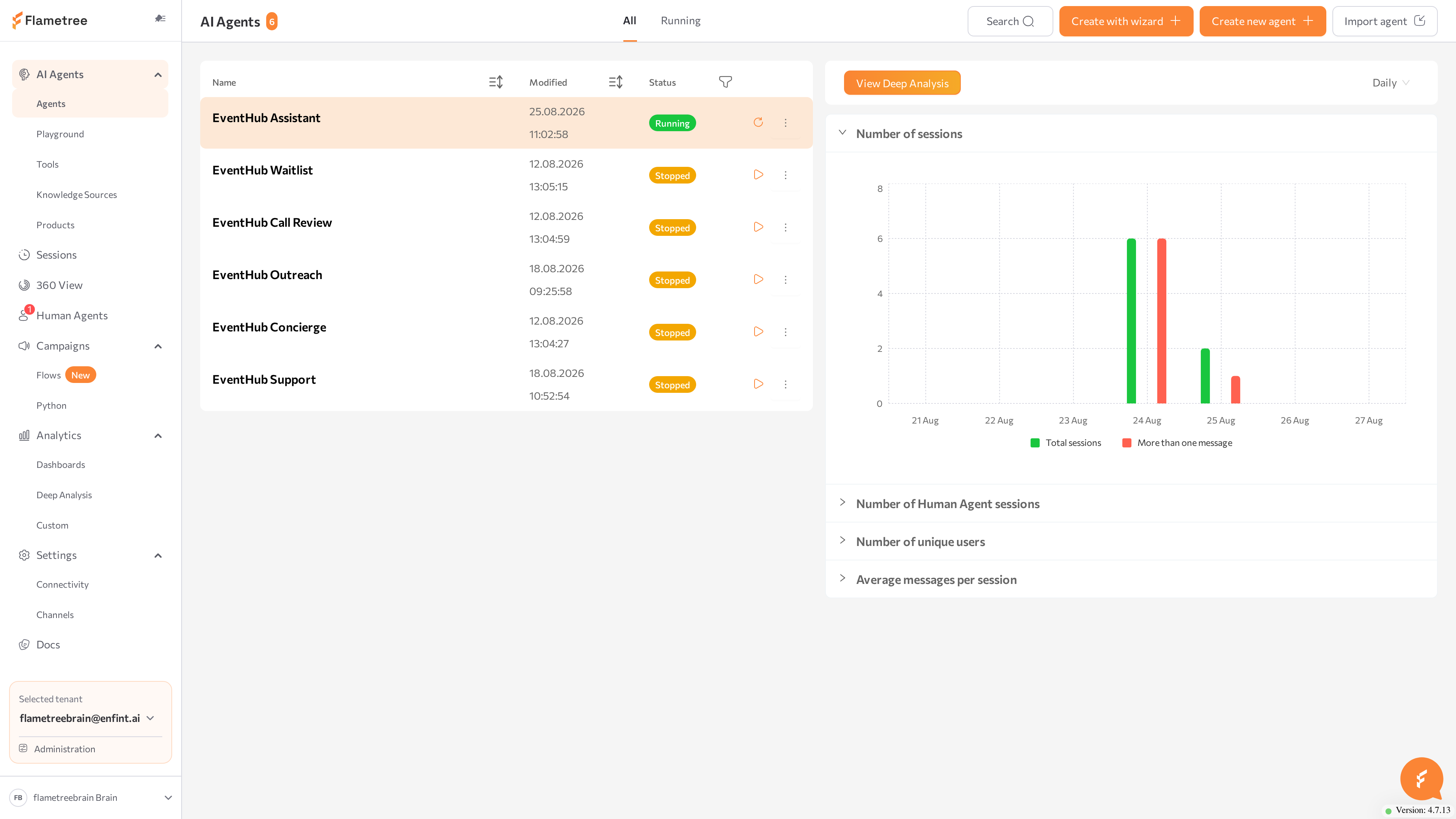
What the Agents screen shows
The page header contains:
- The Agents title with a counter showing how many agents match your current filters out of the total.
- Two tabs: All and Running. The Running tab shows only agents that are currently running. Your tab choice is remembered for your next visit.
- A search field (Enter name or description) that filters the list as you type.
- Action buttons: Create with wizard, Create new agent, and Import agent.
- A three-dot menu with Import agent and Archived agents. Archived agents opens the list of agents that have been taken out of daily rotation — see Archive an agent.
The Create with wizard button appears only when wizards are available in your tenant. Buttons your role does not allow are disabled — contact your administrator if you need access.
The list shows active agents only. Archived agents are not in it and are not covered by its search.
Each row in the table is one agent:
| Column | Description |
|---|---|
| Name | Agent name with its description below. Sortable. |
| Type | Short form of the agent type, for example "Inbound" or "Call Analytics". Filterable. |
| Modified | Date and time of the last change. Sortable. |
| Status | Current run status (see below). Filterable. |
| (actions) | A start/stop button and a three-dot menu with more actions. |
Click a row once to select the agent — the analytics panel on the right switches to it. Double-click a row to open the agent configuration page.
Agent statuses
| Status | Meaning |
|---|---|
| Stopped | The agent is not running. Customers cannot talk to it. New agents start in this status. |
| Starting | The agent is launching. Wait until it becomes Running. |
| Running | The agent is live and answers in its attached channels and in Playground. |
| Stopping | The agent is shutting down. Actions are disabled until it reaches Stopped. |
| Error | The agent failed to start or crashed. Check its logs — see View agent logs. |
| Creating | The agent is still being created and is not ready yet. |
| Archiving | The agent is being moved to the archive. Archive and restore actions are unavailable until it finishes — see Archive an agent. |
Use the filter icons in the Type and Status columns to narrow the list, or switch to the Running tab for a quick status filter.
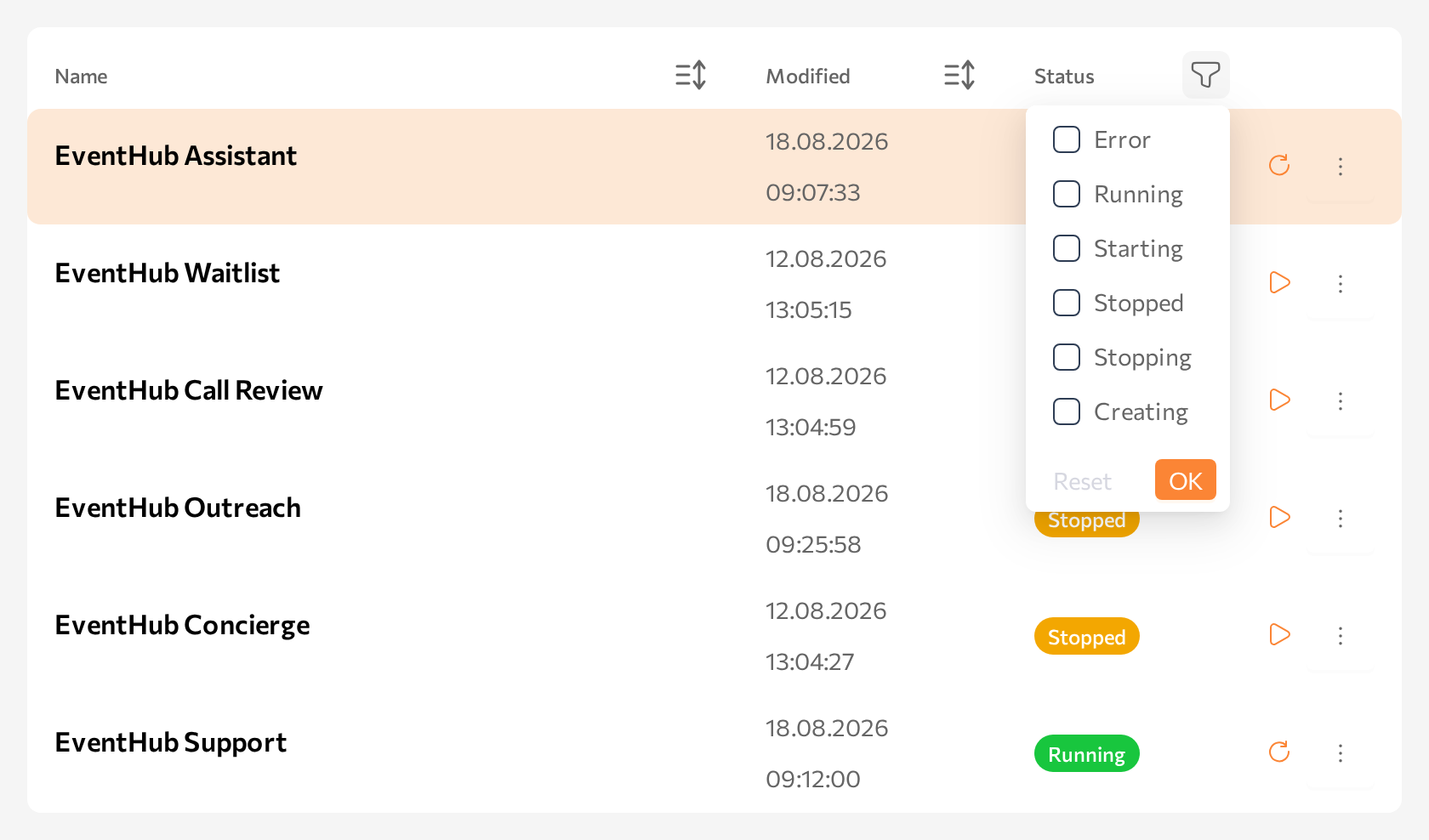
Usage analytics panel
The right side of the screen shows usage analytics for the selected agent: a period selector and collapsible charts for Number of sessions, Number of Human Agent sessions, Number of unique users, and Average messages per session. The View Deep Analysis button opens Analytics > Deep Analysis pre-filtered for this agent. If the agent has no sessions yet, the panel shows No data available.
The panel header shows the name of the selected agent, so you always know whose numbers you are reading. Switch the period selector between Daily, Weekly, and Monthly to change the time range the charts cover; chart dates follow your tenant timezone. Number of sessions is expanded by default — click a chart title to expand or collapse it. Use the panel for a quick health check, for example whether sessions dropped after a change; for segmentation by channel, topic, or result, switch to Deep Analysis.
Create an agent
Before you start
- You need a role that allows creating agents. If the Create new agent button is disabled, ask your administrator.
- Your tenant needs a default LLM integration. New tenants get one automatically; if it was removed, agent creation fails with an "LLM default integration not found" error. Add one in Settings > Connectivity.
If you want a guided setup instead of a blank agent, click Create with wizard and pick a wizard. See Create an Agent with a Wizard.
Steps
-
Go to AI Agents > Agents.
-
Click Create new agent in the upper-right corner.
-
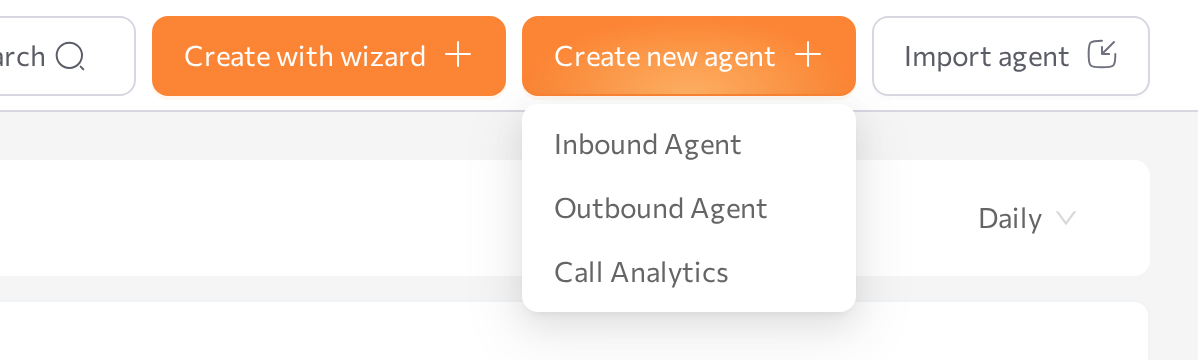
Select a type from the dropdown:
Type Use it when Inbound Agent Customers write first. The agent answers incoming messages on your website widget, WhatsApp, Telegram, email, and other channels. Outbound Agent The agent writes first. Use it for outreach started from campaigns or from 360 View. Call Analytics You do not chat with this agent. It analyzes imported recorded calls and extracts results. -
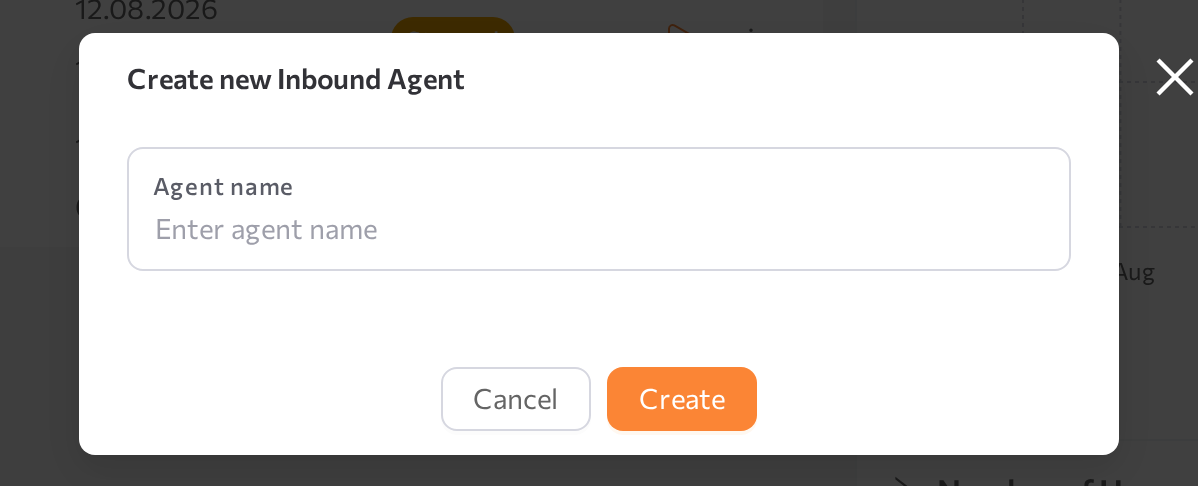
In the Create new Inbound Agent (or Outbound Agent / Call Analytics) window, enter a name in the Agent name field. If you leave it empty, the portal shows "Please enter agent name". Pick a name your team will recognize in lists and analytics — for example "Website support EN" rather than "Test 3".
-
Click Create.
Expected result:
- The agent is created with default instructions and appears in the agent list with status Stopped.
- The portal opens the agent page on its General tab, alongside Knowledge, Capabilities, Channels, Workflow, and Settings. See Configure an agent.
You do not need to configure everything at once. A typical first pass: fill in the General tab, add a knowledge source on the Knowledge tab, then click Save changes. See Configure an agent.
Agents created before this page existed keep opening in Simple mode or Advanced mode instead — the agent page shows a Legacy badge for these. See Move a legacy agent to the current page to bring one forward.
Start and stop an agent
An agent only answers customers while it is Running. You can start or stop an agent from two places:
- Agents list: each row shows a play/stop button while the agent is Running or Stopped; the row's three-dot menu has the same action.
- Agent page: the button next to the Advanced mode toggle in the upper-right corner.
The button label depends on the current status:
| Current status | Button | What it does |
|---|---|---|
| Stopped | Start agent | Launches the agent. |
| Running | Stop agent | Shuts the agent down. |
| Starting | Force stop agent | Aborts a hanging start. |
| Error | Force stop agent | Resets the agent so you can fix the problem and start again. |
| Stopping | (disabled) | Wait until the agent reaches Stopped. |
Start an agent
- Go to AI Agents > Agents.
- Find your agent and click the play button in its row (or open the three-dot menu and select Start agent).
- Confirm in the popup by clicking Yes.
- Wait until the status changes from Starting to Running.
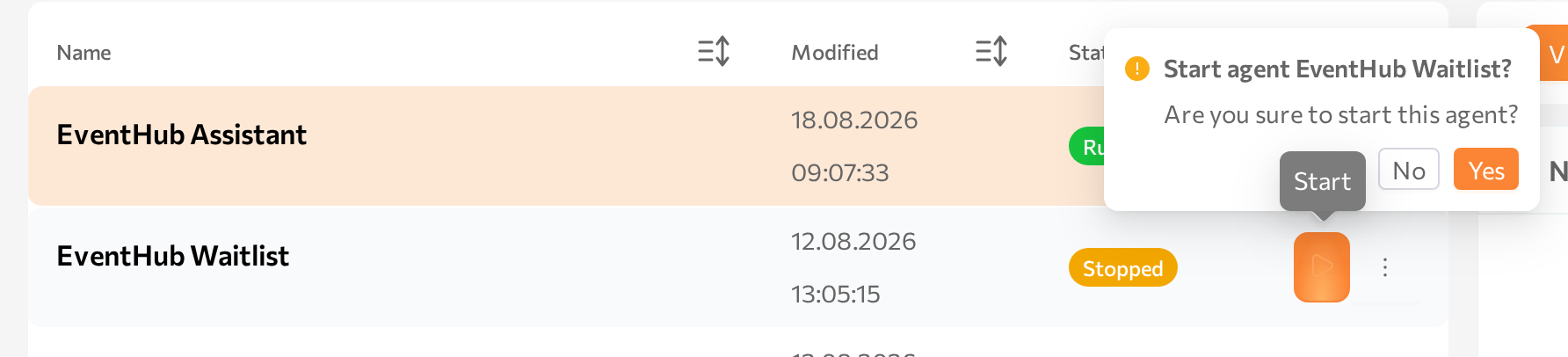
Expected result: the agent answers in Playground and in the channels attached on its Channels tab. The channels themselves must also be running — channel connections are managed in Settings > Channels, while the agent's Channels tab attaches them to that specific agent.
If the status changes to Error, see View agent logs.
Stop an agent
- Click the stop button in the agent row (or select Stop agent in the three-dot menu, or use the button on the agent page).
- Confirm with Yes.
- The status changes to Stopping and then Stopped.
While an agent is stopped, it does not respond anywhere, including Playground.
Restart after configuration changes
Restart behavior depends on which agent page you're on:
- The current agent page (General/Knowledge/Capabilities/Channels/Workflow/Settings tabs): the header shows a Restart required badge when a running agent has unapplied changes, next to a Restart button. Some tabs (Capabilities, Workflow) apply each change immediately and only ever ask for a restart; others (General, Knowledge, Channels, Settings) also show an Unsaved changes badge and a Save changes button first. See Configure an agent.
- Simple mode: click Save. The portal saves your changes and automatically restarts the agent (and starts any of its attached channels that were stopped or in error). You can retest right away.
- Advanced mode: after saving, click Restart to apply the changes. Restarting runs in the background and aims to keep the agent answering active conversations while it restarts — the confirmation dialog notes that the agent may still be briefly unavailable during the process. If you need a full stop instead, use Stop agent (three-dot menu), then Start agent.
Restarting an agent also restarts its attached channels that need it.
If you change instructions, workflow, or models and the agent still behaves the old way, a missing restart is the most common cause.
If you start or stop an agent from its configuration page while you have unsaved edits, the portal asks: "You have unsaved changes. Are you sure you want to toggle status?" Confirm to proceed without saving, or cancel and click Save first.
View agent logs
When an agent shows the Error status or behaves unexpectedly in a channel, the agent logs are the first place to look.
- Open the three-dot menu in the agent's row and select Show Logs. (The same item is available in the three-dot menu on the agent page.)
- The Logs for <agent name> agent window opens.
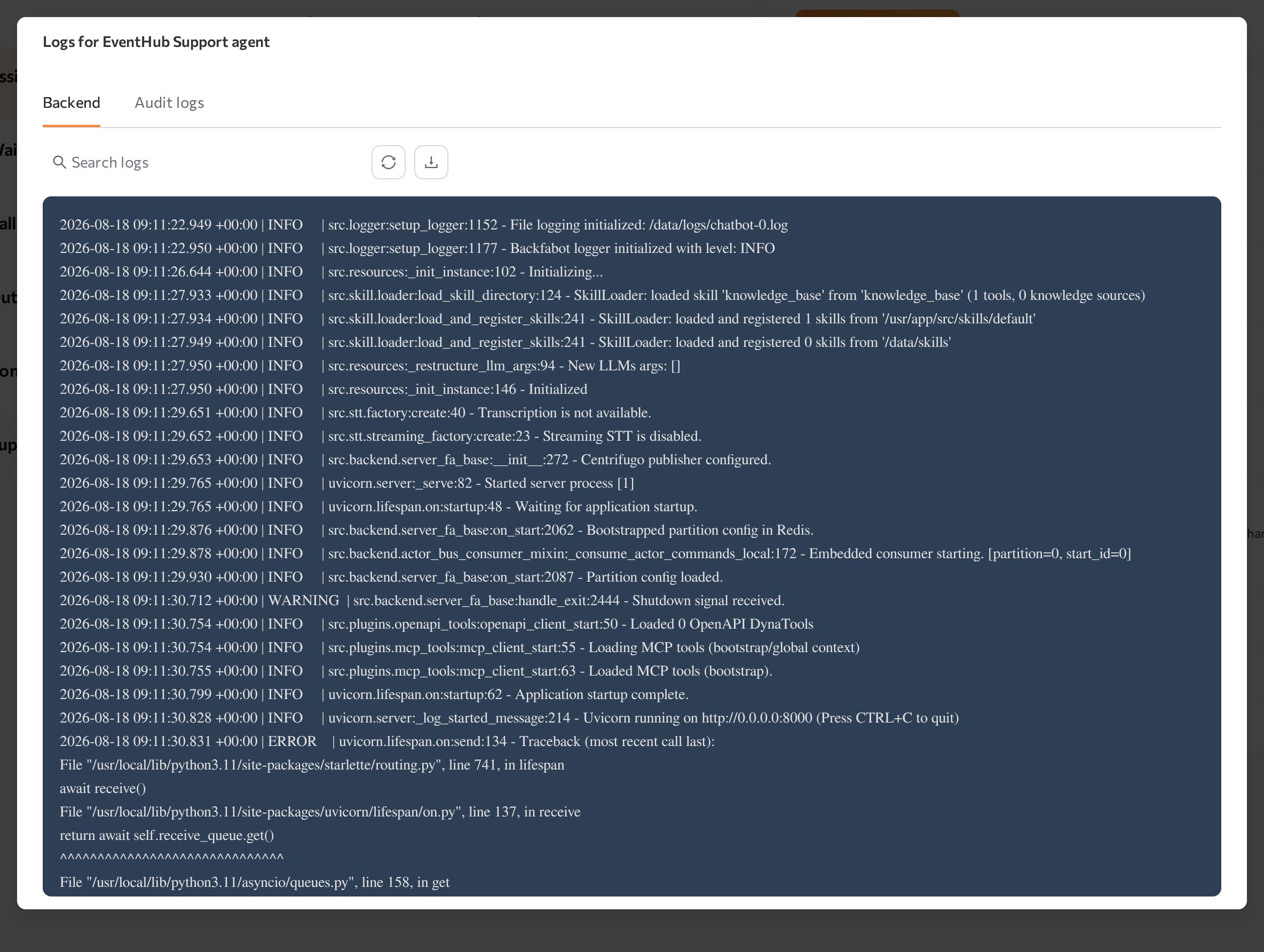
The window shows one tab per component that produced log entries:
- Backend — the agent engine itself: startup, configuration loading, LLM calls, tool errors. Start here for startup problems.
- One tab per connected channel service — for example Telegram, Whatsapp, Facebook, Intercom, Sip, Twilio, or email. Check these when the agent runs but a specific channel does not deliver messages.
- Audit logs — a history of actions on the agent: who started, stopped, or changed it, with timestamps and details. Use it to answer "what changed before it broke".
Tabs appear only when that component has log entries. If nothing was logged yet, the window shows No logs found.
Inside the log view:
- Search logs — type a term in the search field. Matches are highlighted; use the < and > buttons to jump between matches.
- Refresh logs — reloads the log output. Use it while the agent is starting to follow progress.
- Copy logs — copies the visible log to the clipboard, useful for sharing with support.
To diagnose a startup error: start the agent, wait for Error (if it is stuck in Starting, click Force stop agent first), open Show Logs, select the Backend tab, and search for error around the failure time. Fix the cause, then start the agent again.
For problems inside a specific conversation (wrong answers, missing collected results), use the session-level view in Sessions instead — agent logs cover the agent process, not individual dialogs.
Other row actions
The three-dot menu on each row also contains:
- View agent — opens the agent configuration page (same as double-clicking the row).
- Playground — opens the agent in Playground. Available only while the agent is Running.
- Show reports — opens summary reports for the agent.
- Copy agent — creates a duplicate of the agent in the same tenant. The copy appears in the list with status Stopped. See Copy an agent.
- Export agent — see below.
- Archive — takes the agent out of this list without deleting it. See Archive an agent.
There's no delete action here. Deleting an agent is done from the Archived agents window, after the agent has been archived — see Delete an agent permanently.
To rename an agent, use the three-dot menu on the agent page — renaming is not available from the list. See Rename an agent.
Export agent and Import agent (in the page header) together move an agent between tenants or environments — see Export and import an agent.
Rename an agent
- Double-click the agent's row to open its page.
- Open the three-dot menu in the upper-right corner and select Rename.
- In the Rename Agent window, enter the new name in the Agent name field. Agent names must be unique in the tenant — if the name is already taken, the portal shows "This agent name is already exists!".
- Click Rename.
The page header and the agent list show the new name.
Copy an agent
Use Copy agent to duplicate an agent in the same tenant — for example, to try changes safely or to use a tuned agent as a template.
- Open the three-dot menu in the agent's row (or on the agent page) and select Copy agent.
- The portal creates the copy without a confirmation dialog and opens its configuration page.
The copy:
- Is named after the original with a number appended, for example "Website support EN(1)". Rename it before going live.
- Appears in the list with status Stopped and no session history.
- Contains the agent's configuration: instructions, workflow, knowledge sources, Q&A entries, tools, integrations, environment variables, and attached channels.
The copy lists the same channels on its Channels tab, but incoming messages keep going to the original agent — a messaging channel serves only one inbound agent at a time. Review the copy's Channels tab before using it live.
Export and import an agent
Export agent and Import agent move an agent between tenants or environments — for example, from a test tenant to production. Exporting downloads a ZIP archive and generates a secret key; importing requires both.
Export an agent
-
Open the three-dot menu in the agent's row (or on the agent page) and select Export agent.
-
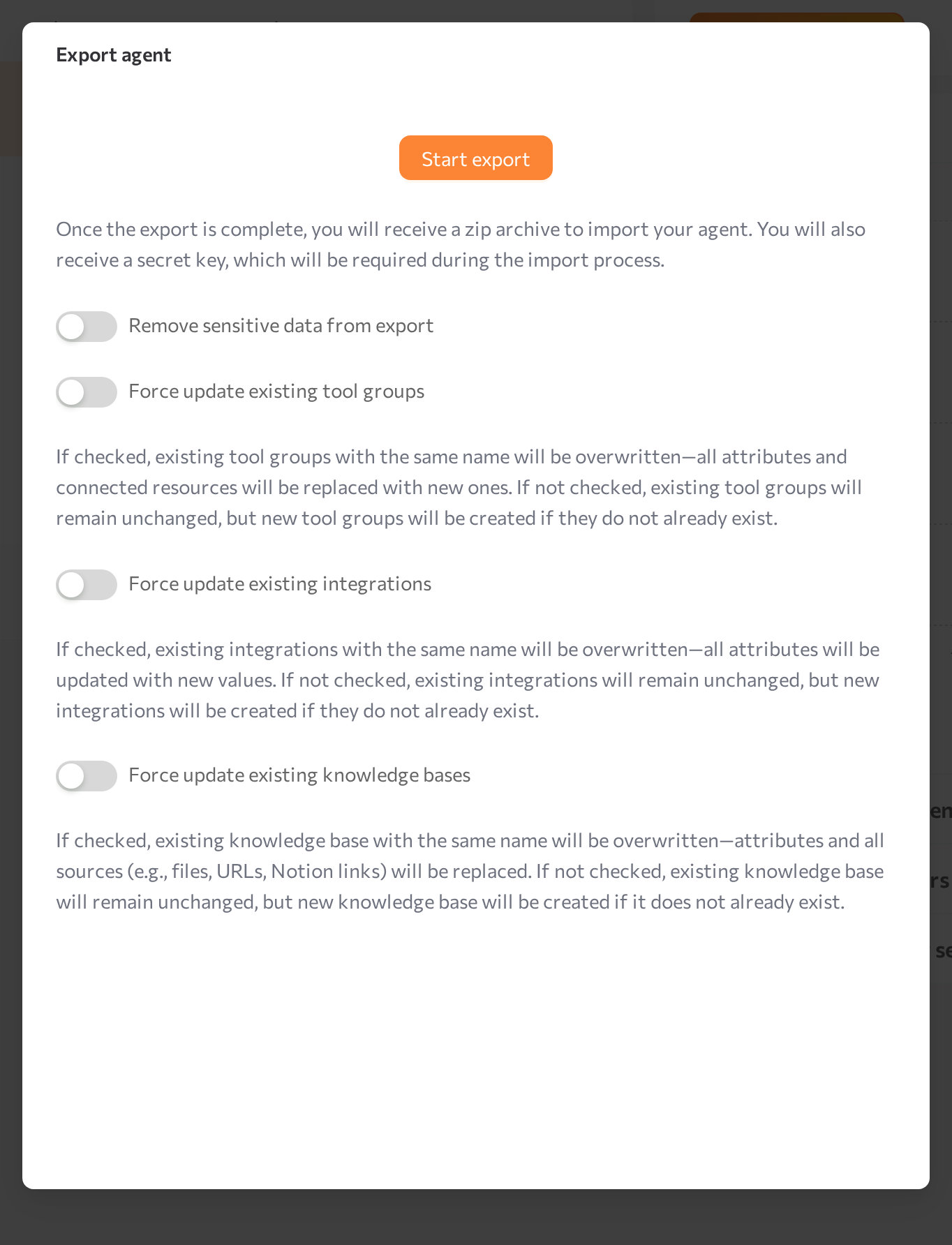
In the Export agent window, set the options:
Option What it does Remove sensitive data from export Strips secret values, such as API keys and tokens, from the archive. Enter them again after the import. Force update existing tool groups During import, tool groups with the same name are overwritten. When off, existing tool groups stay unchanged and only missing ones are created. Force update existing integrations The same logic for integrations. Force update existing knowledge bases The same logic for knowledge bases, including their sources. -
Click Start export and keep the window open until the export finishes.
-
The archive downloads automatically as
<agent name>-agent-export.zip, and the window shows your secret key. Click Copy to clipboard and store the key — the import does not work without it. -
Click Close.
Import an agent
- In the target tenant, go to AI Agents > Agents and click Import agent.
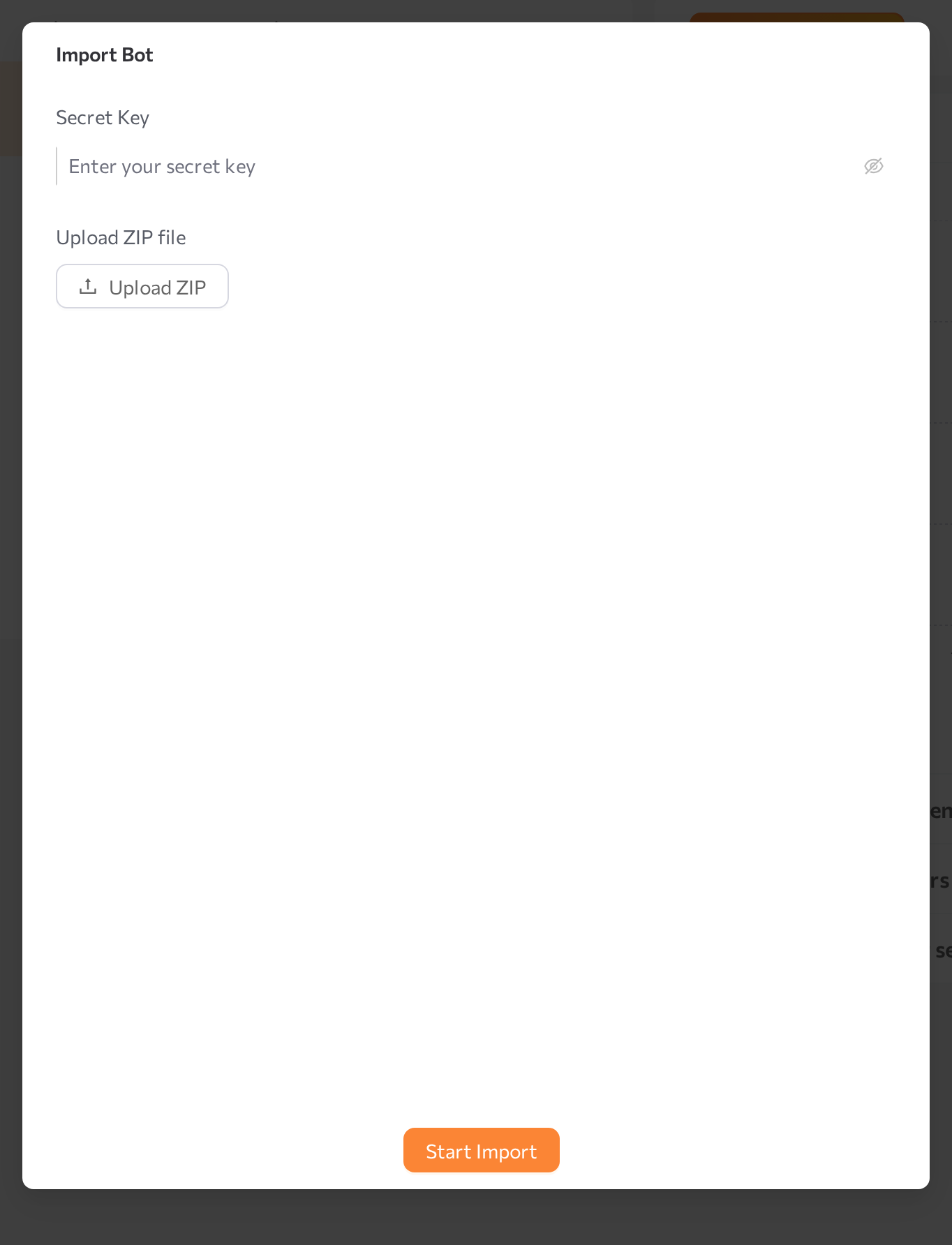
- In the Import Bot window, paste the key from the export into Secret Key.
- Click Upload ZIP and select the exported archive. Only ZIP files are accepted.
- Click Start Import.
Expected result: the portal confirms with "Bot imported successfully!", and the agent appears in the list with status Stopped. The import also creates or updates the tool groups, integrations, and knowledge bases the agent uses, following the options chosen at export. Review the configuration — and re-enter any credentials removed by Remove sensitive data from export — before starting the agent.
Common issues
- Create new agent is disabled — your role does not allow creating agents, or the list failed to load. Refresh the page or contact your administrator.
- Creation fails with an LLM integration error — the tenant has no default LLM integration. Add one in Settings > Connectivity and try again.
- Status goes to Error right after start — open Show Logs and check the Backend tab.
- Agent stuck in Starting — click Force stop agent, check the logs, then start again.
- The agent still behaves the old way after a config change — the agent was not restarted. Save in Simple mode (auto-restarts) or click Restart in Advanced mode.
- Start/stop button is disabled — the agent is Stopping, or your role does not allow launch actions.
- The logs window shows No logs found — the agent has not been started yet. Start it and click Refresh logs.
- Import fails with "Failed to import bot. Please try again." — the secret key does not match the archive, or the file is not an agent export. Check the key from the export window and upload the original ZIP file.
- A copied agent does not receive customer messages — copied channel attachments leave incoming traffic with the original agent. See Copy an agent.
- I can't find a way to delete an agent — delete is in the Archived agents window, not in the row menu. Archive the agent first. See Archive an agent.
- An agent is missing from the list — it may have been archived. Open Archived agents from the three-dot menu in the page header.
Related pages
- Create an Agent with a Wizard
- Configure an agent — the current agent page: General, Knowledge, Capabilities, Channels, Workflow, and Settings
- Archive an agent — take an agent out of the list, restore it, or delete it
- Simple mode — for agents still on the earlier page
- Advanced mode — for agents still on the earlier page
- Playground
- Settings > Channels
- Sessions
- Analytics > Deep Analysis