Twilio voice
The Twilio channel connects a Flametree agent to a phone number for voice calls. Customers dial your Twilio number, the agent answers and holds a spoken conversation, and the call appears in Sessions as a text conversation like any other channel. The agent can also place outbound calls, using the same number as the caller ID.
Twilio provides the speech side of the call: its built-in speech recognition transcribes the caller, and its text-to-speech voices read out the agent's replies. Unlike the SIP channel, you do not connect separate Speech-To-Text and Text-To-Speech models in Connectivity — no speech connections are needed for this channel.
Use this channel to:
- Run an inbound phone line that an agent answers.
- Place outbound calls to customers.
- Add voice without your own telephony or speech infrastructure — Twilio hosts the number and the speech models.
This channel works only with Twilio. To connect your own PBX, a VoIP provider, or another SIP server, use the SIP channel instead.
Before you start
- A Twilio account with access to the Twilio Console.
- A Twilio phone number with voice capability. If you do not have one yet, buy it in the Twilio Console.
- Your Account SID and Auth Token — both are shown on the Twilio Console dashboard.
- You are signed in to the portal with an account that can edit settings.
There is nothing to configure on the Twilio side beyond the account and the number: the channel registers the number's voice webhook in Twilio on its own, as described below.
Anyone who has the Account SID and Auth Token controls your Twilio account, including its phone numbers and balance. Store the token like a password. If it leaks, regenerate it in the Twilio Console — then paste the new value into the channel connection, because the old one stops working.
Connect Twilio
Create the channel connection in Settings > Channels. The connection holds the Twilio credentials and is then attached to an agent.
-
Go to Settings > Channels.
-
Select Twilio in the channel list and click Add. The New connector form opens on the right.
-
Fill in the form:
Field Required Notes Name Yes An internal name shown across the portal — pick something that identifies the number or its purpose. Description No Internal reference. Account SID Yes The identifier of your Twilio account, from the Twilio Console dashboard. Auth Token Yes The secret token shown next to the Account SID. Stored as a secret and displayed masked. Phone number Yes The Twilio phone number for this channel, in E.164 format (for example, +14155550123). It receives inbound calls and is the caller ID for outbound calls.Voice model No The Twilio text-to-speech voice used for the agent's replies (for example, Polly.Salli). Leave it empty to usePolly.Salli.Speech model No The Twilio speech recognition model that transcribes the caller (for example, googlev2_telephony). Leave it empty to usegooglev2_telephony.Region No Twilio region code that defines where API and media servers are hosted (for example, us1,ie1,au1).Edge No Twilio edge location — the network entry point closest to your infrastructure (for example, sydney,dublin,frankfurt). -
Click Save.
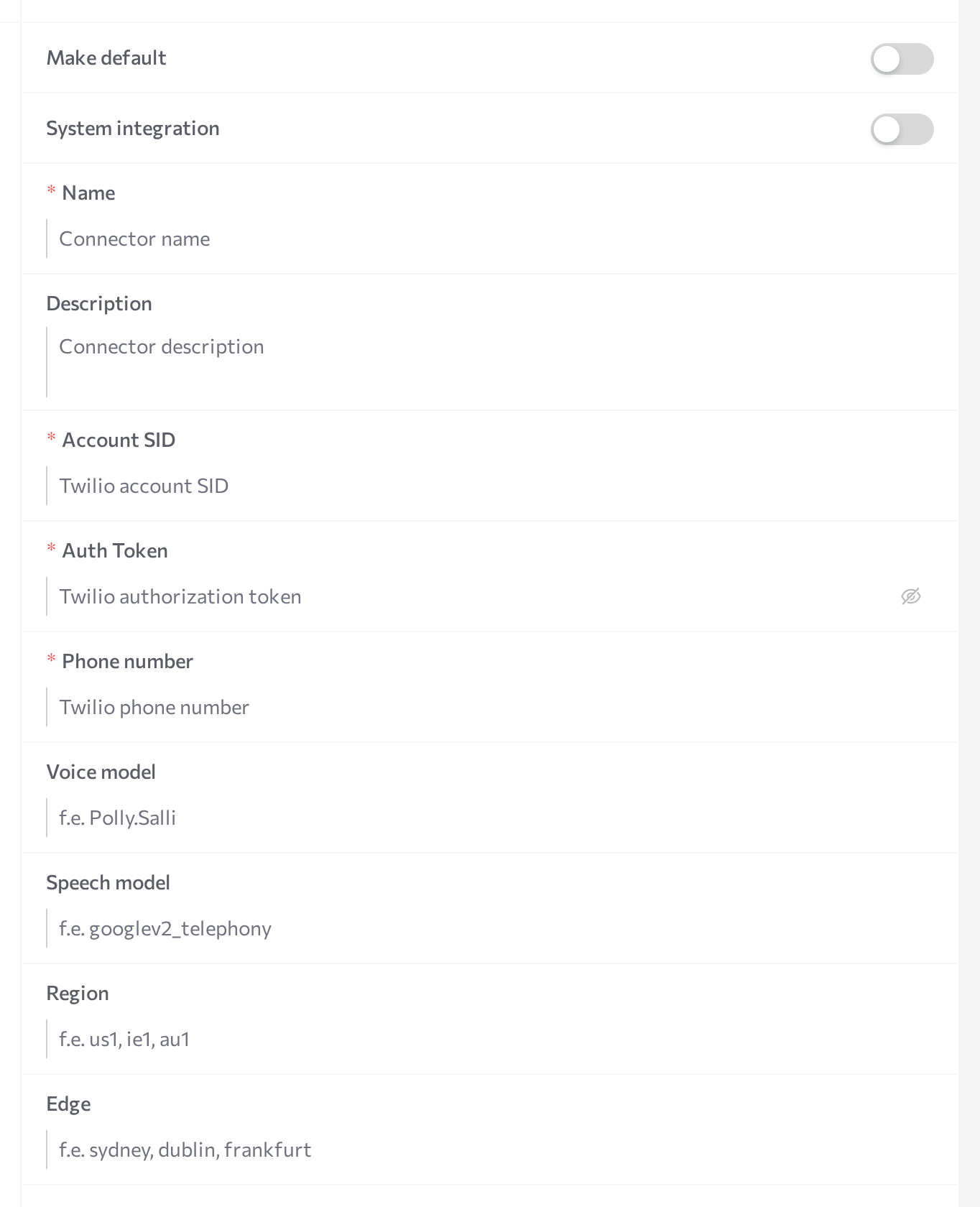
Both are optional — left empty, Twilio uses its default infrastructure (us1 / ashburn). To reduce call latency, pick the Twilio region and edge location closest to your infrastructure. Other voices and recognition models for the two model fields are listed in Twilio's text-to-speech and speech recognition documentation.
Unlike most channel types, a Twilio connection has no Start/Stop buttons of its own in Settings > Channels — it starts and stops together with each agent it is attached to. Saving the form is all you do here; the channel goes live in the next step.
Edit or delete the connection
You can change the connection later, including the credentials:
- In Settings > Channels, select the connection in the list. The Details panel opens.
- Change the fields you need — Auth Token displays masked; paste the new value over it.
- Click Save.
- Restart every agent that uses the connection (Stop agent, then Start agent). Because the channel runs with the agent, changes take effect only after the restart.
To delete the connection, click the delete button at the bottom of the form and confirm Delete the integration?.
Deleting the connection, or stopping the agent it is attached to, takes the phone line offline: customers cannot reach an agent on that number until the connection is attached to a running agent again.
Attach to an agent
The connection does nothing on its own — attach it to the agent that should handle the calls.
- Open AI Agents and select the agent.
- Find the Communication channels card and click Add.
- Pick Twilio from the dropdown and tick the checkbox next to your connection.
- Enable the Inbound switch so the agent answers incoming calls. With Inbound off, the agent can only place outbound calls.
- Save the agent, then restart it (Stop agent, then Start agent).
When the agent starts, the channel authenticates with your Twilio account, finds the phone number in it, and points the number's voice webhook at Flametree. From that moment, calls to the number reach this agent — there is no webhook to configure in the Twilio Console.
Registering the webhook replaces whatever voice configuration the number had in Twilio before. Keep the number dedicated to this channel: if something else reconfigures the number in the Twilio Console, calls stop reaching the agent until the agent is restarted.
Only one agent handles inbound calls per connection — the portal rejects a second inbound attachment. To run several inbound voice agents, create a separate connection with its own phone number for each.
The agent's Max opened sessions setting limits how many calls run in parallel — see Advanced mode.
How calls work
When a customer calls the number:
- Twilio passes the call to Flametree, and the agent answers with its greeting. The greeting comes from the agent's configuration, not from the channel.
- Twilio transcribes the caller's speech with the Speech model and reads the agent's replies out loud with the Voice model.
- The caller can interrupt the agent mid-reply — the reply stops, and the agent processes the new input. To keep pauses short, the channel starts preparing the answer while the caller is still finishing a sentence.
- When the call ends, the session closes, and the transcript stays in Sessions.
Outbound calls work the same way once the call is answered; a call that is not answered — busy, failed, or timed out — also closes its session.
The channel carries voice calls only — it does not send or receive SMS.
Test with a call
- Check that the agent is running.
- Call the Twilio number from any phone.
- The agent answers and opens with its greeting. Talk to it the way a customer would — you can speak over the agent, and it stops to take the new input.
- Hang up — the session closes. Open Sessions and confirm the call appears there with the Twilio channel icon, transcribed message by message.
For the capability comparison with other channels, see Supported channels.
Common issues
- Calls to the number do not reach the agent. The webhook registration at agent startup failed: the Account SID or Auth Token is wrong, or the Phone number does not match a number in the Twilio account. Open the agent's logs (three-dot menu > Show Logs, then the Twilio tab) for the error message, fix the connection, click Save, and restart the agent.
- The logs report that the phone number was not found. Enter the number in E.164 format with the leading plus sign, exactly as the Twilio Console lists it, and check that it belongs to the account whose Account SID you entered.
- The call connects but the agent does not answer. The connection is not attached to the agent, Inbound is off, or the agent was not restarted after attaching. Confirm the agent is running.
- Calls stopped reaching the agent after changes in the Twilio Console. The number's voice webhook was reconfigured outside Flametree. Restart the agent to register the webhook again, and keep the number dedicated to this channel.
- You cannot enable Inbound for the number on a second agent. Expected — one agent handles inbound calls per connection. Create a separate connection with its own number for the other agent.
- The agent's voice does not match the conversation language. The text-to-speech voice is fixed per connection. Set Voice model to a Twilio voice for your language, click Save, and restart the agent.
- Long pauses before the agent speaks. If your deployment is far from Twilio's default US infrastructure, set Region and Edge to the closest locations, click Save, and restart the agent.
Related pages
- Channels overview — add, edit, and attach channel connections
- SIP — voice calls through your own SIP trunk or VoIP provider
- Connectivity — speech model connections, used by SIP voice agents but not by this channel
- Agents — start and stop agents and read agent logs
- Supported channels — capability comparison across channels
- Sessions — read call transcripts