Bird
The Bird channel connects a Flametree agent to WhatsApp through Bird, a communication platform that registers and manages WhatsApp Business numbers for you. Customers write to the WhatsApp number registered in Bird, the agent answers, and every conversation appears in Sessions like any other channel.
Use this channel to:
- Run WhatsApp without a SIM card or your own Meta Business setup — Bird registers the number and manages the relationship with Meta.
- Deploy virtual WhatsApp numbers and manage them centrally in the Bird console.
- Keep an alternative to the direct WhatsApp channel when you already work with Bird.
Bird itself aggregates several communication channels, but the Flametree Bird channel processes WhatsApp messaging. In Settings > Channels the channel type is named Bird; some other parts of the portal label it Bird Api Service — for example, the channel type filter in Sessions.
Before you start
- A Bird account with administrator access to your organization and workspace. Sign in at app.bird.com.
- A WhatsApp Business number registered and active in Bird. To register one, open Developer > WhatsApp > WhatsApp Setup in the Bird console and follow Bird's registration process — see Bird's own documentation at docs.bird.com for details.
- An account in the portal with permission to edit settings.
Connect Bird
Create an access key in Bird
The connection authenticates with a Bird access key. Create one and give it the permissions the channel needs:
-
In the Bird console, go to Settings > Security > Access Keys, create a new access key, and assign it a role.
-
Go to Settings > Security > Access Policies and make sure the policy applied to the key allows these URLs (replace
<client_organization_id>with your organization ID):/organizations/<client_organization_id>/workspaces/*/*
/workspaces/*/channels/*/messages/*
/organizations/<client_organization_id>/workspaces/*/webhook-subscriptions/*
/workspaces/*/channels/*/messages
/workspaces/*/projects/*/channel-templates/*
/workspaces/*/messages/*/media/*The asterisk (
*) means access to all items at that level (for example, all workspaces or all messages). Keep it as is — do not replace it.
The access key must cover all listed permissions. In particular, the channel manages webhook subscriptions on startup — a key that can send messages but cannot manage webhook subscriptions fails the startup check, and the channel does not start.
Bird's console layout changes over time; if a setting has moved, search Bird's documentation for the current location.
Collect the connection values
| Value | Where to find it in the Bird console |
|---|---|
| Organization ID, Organization name | Settings > Organization |
| Workspace ID | Settings > Workspaces |
| Channel ID | Developer > WhatsApp > WhatsApp Setup |
| Sender address | Developer > WhatsApp > WhatsApp Setup — open the number and copy the identifier from the page URL, the segment after whatsapp:1/ |
| Access key | The key you created under Settings > Security > Access Keys |
Create the connection
-
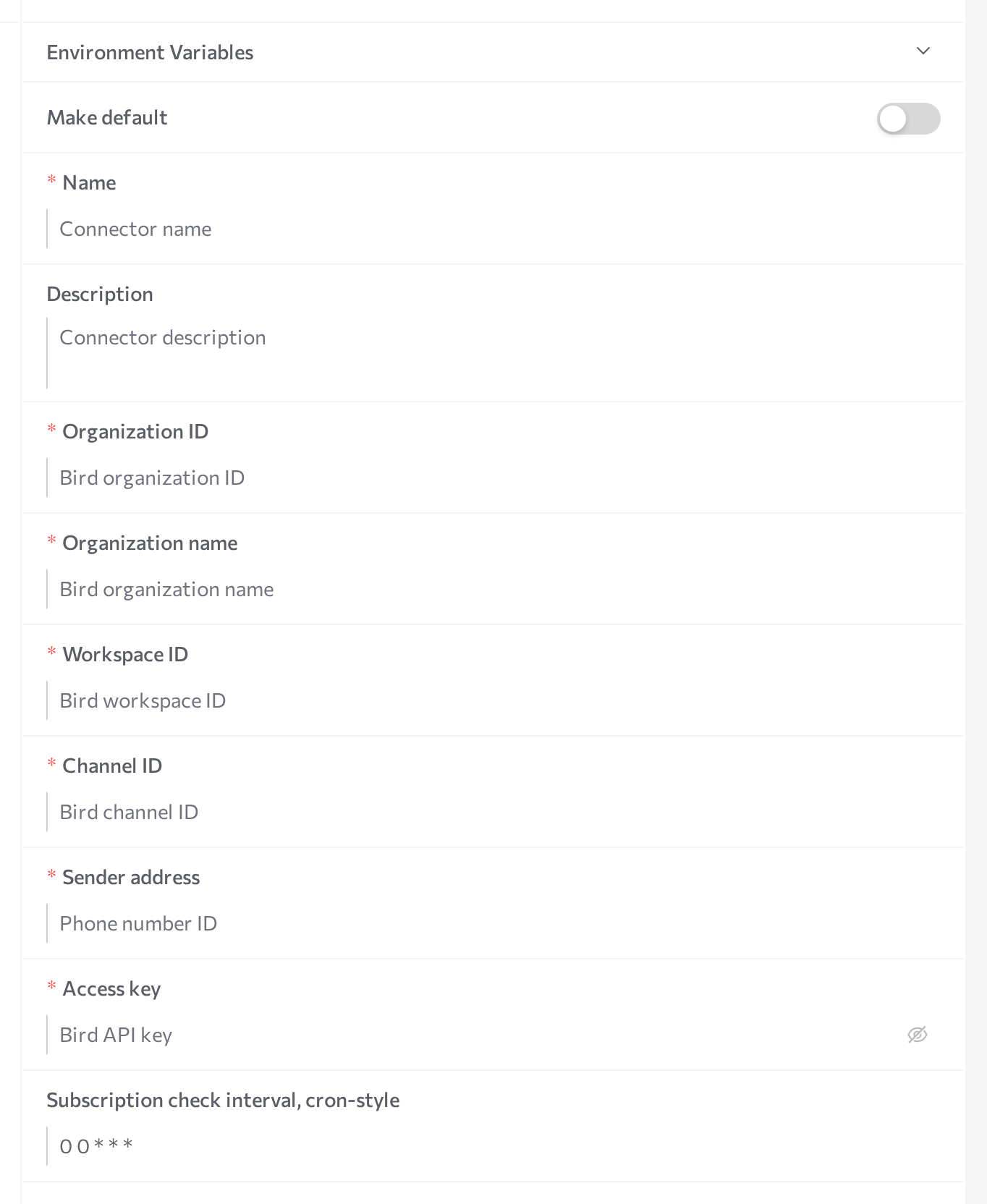
Go to Settings > Channels, select Bird in the channel list, and click Add. The New connector form opens on the right.
-
Fill in the form:
Field Required Description Name Yes An internal name shown across the portal. Description No Internal reference. Organization ID Yes Your Bird organization ID. Organization name Yes Your Bird organization name. Workspace ID Yes The Bird workspace that holds the WhatsApp channel. Channel ID Yes The ID of the WhatsApp channel in Bird. Sender address Yes The phone number ID of the WhatsApp number registered in Bird — an identifier, not the phone number itself. Access key Yes The Bird API key. Stored as a secret and displayed masked. Subscription check interval, cron-style No How often the channel renews its webhook subscriptions in Bird, as a cron expression. The default 0 0 * * *renews them daily at midnight. -
Click Save.
-
Click Start in the panel header.
The status dot turns purple (STARTING), then green (RUNNING). On startup the channel validates the configuration with a Bird API call — if a required value is missing or the access key is rejected, the status turns red (ERROR); hover over the dot for the message and click Logs for details.
You do not configure webhooks in the Bird console. When the channel starts, it registers webhook subscriptions for WhatsApp inbound messages, outbound delivery updates, and interactions, scoped to your Channel ID — and renews them on the schedule set in Subscription check interval, cron-style.
For the general mechanics of the screen — status dots, Logs, editing credentials, stopping and restarting — see the Channels overview.
Attach to an agent
A running channel does nothing on its own — attach the connection to the agent that should answer the number's messages.
- Open AI Agents and select the agent.
- Find the Communication channels card and click Add.
- Pick Bird from the dropdown and tick the checkbox next to your connection.
- Enable the Inbound switch so the agent answers incoming messages. With Inbound off, the agent can only send outbound messages through the channel.
- Save the agent, then restart it (Stop agent, then Start agent).
Only one agent should handle inbound traffic from a WhatsApp number — otherwise several agents would answer the same customer message. A connection serves the single number identified by its Channel ID and Sender address; to put another inbound agent on Bird, register another number and create a separate connection for it.
Test the channel
- From any WhatsApp account, send a message to the number registered in Bird and check that the agent replies according to its instructions.
- Open Sessions in the portal and confirm the conversation appears there. In the session filters, the channel type is labeled Bird Api Service.
- Confirm the messages also appear in the Bird console — if they do not, re-check the Channel ID and the webhook subscriptions in Bird.
Supported content on this channel: text, images, and voice messages — voice messages are transcribed when speech-to-text is configured for the agent. Voice and video calls are not supported. See Supported channels for the full capability comparison.
When an agent reply offers answer options, the channel sends up to three of them as WhatsApp reply buttons; button text longer than 25 characters is shortened. With more than three options, the reply is sent as a WhatsApp list instead. The option a customer picks arrives as their reply.
Templates and the 24-hour window
Because messages travel over WhatsApp, WhatsApp's messaging rules apply: when your business writes first, or more than 24 hours have passed since the customer's last message, the message must be a pre-approved template. For Bird connections, you create templates and get them approved in the Bird platform; the portal lists the approved templates from your Bird workspace when you pick one — for example, in a campaign that sends outbound WhatsApp messages through this channel.
For how the portal handles templates and the 24-hour window in conversations, see the WhatsApp page — the rules are the same.
Delivery status
The channel receives Bird's status callbacks for every outbound message. In the session chat, messages show a delivery status icon — Sent, Delivered, or Read. If Bird reports that a message failed, the message is marked failed and the conversation is closed.
Common issues
- The channel goes to ERROR on Start. A required field is empty, or the access key is invalid or lacks permissions — the startup check lists webhook subscriptions in Bird, so a key that only allows sending messages is not enough. Click Logs for the exact message, fix the field or the access policy in Bird, click Save, then Start.
- The channel is RUNNING but the agent does not reply. The connection is not attached to the agent, Inbound is off, or the agent was not restarted after attaching. Also confirm that Organization ID, Workspace ID, Channel ID, and Sender address match the values in the Bird console.
- Messages reach the agent but do not appear in Bird, or the other way around. The webhook subscriptions or the Channel ID are wrong — check both in the Bird console, then restart the channel (Stop, wait for STOPPED, then Start) so it re-creates its subscriptions.
- Templates do not load and the error mentions "Bird API access forbidden". The access key cannot list the projects that hold your channel templates. Extend the key's access policy in Bird to cover the workspace's projects and channel templates, then restart the channel.
- You cannot enable Inbound for the connection on a second agent. Expected — one agent handles inbound traffic per connection. Register another number in Bird and create a separate connection for the other agent.
- Voice messages get no reply. Configure a speech-to-text model for the agent so it can process audio.
Related pages
- Channels overview — create, start, stop, and monitor channel connections
- WhatsApp — the direct Meta WhatsApp Business API channel, including templates and the 24-hour window
- Infobip — another third-party messaging platform
- Deprecated channels — the legacy Bird integration type and how to move off it
- Supported channels — capability comparison across channels
- Campaigns — outbound messaging at scale
- Sessions — monitor the channel's conversations