Infobip
The Infobip channel connects a Flametree agent to customers over SMS through Infobip, a global messaging platform. Customers text your number, the agent answers, and every conversation appears in Sessions like any other channel. The integration uses Infobip's SMS API with an API key from your Infobip account.
Use this channel to:
- Reach customers who have no messaging app — SMS works on any mobile phone.
- Run an inbound SMS line that answers questions and collects data.
- Send outbound SMS from campaign flows with the Infobip Communication step.
The channel carries plain text only — see SMS behavior and limits.
Setting up Infobip has three parts: collect the credentials in the Infobip web interface, add them as a channel connection in Settings > Channels, and attach the connection to an agent. For two-way conversations, you also forward Infobip's incoming messages to the connection's webhook.
Before you start
- An active Infobip account with SMS enabled. Sign in at portal.infobip.com.
- A registered SMS sender — a phone number or an alphanumeric name set up in your Infobip account. If customers should be able to reply, use a phone number that can receive SMS.
- An account in the portal with permission to edit settings.
Connect Infobip
Get your Infobip credentials
Collect three values from the Infobip web interface:
| Value | Where to find it |
|---|---|
| API key | Create or copy an API key on the API keys page of the Infobip web interface. |
| Base URL | Shown together with your API key. Each account gets its own URL in the format xxxxx.api.infobip.com. |
| Sender | The phone number or alphanumeric name registered for SMS in your account. |
Infobip's interface changes over time — if you cannot find a value, see the Infobip API documentation.
Anyone who has the key can send SMS at your account's expense. Store it like a password, and rotate it if it leaks.
Create the connection
-
Go to Settings > Channels.
-
Select Infobip in the channel list and click Add. The New connector form opens on the right.
-
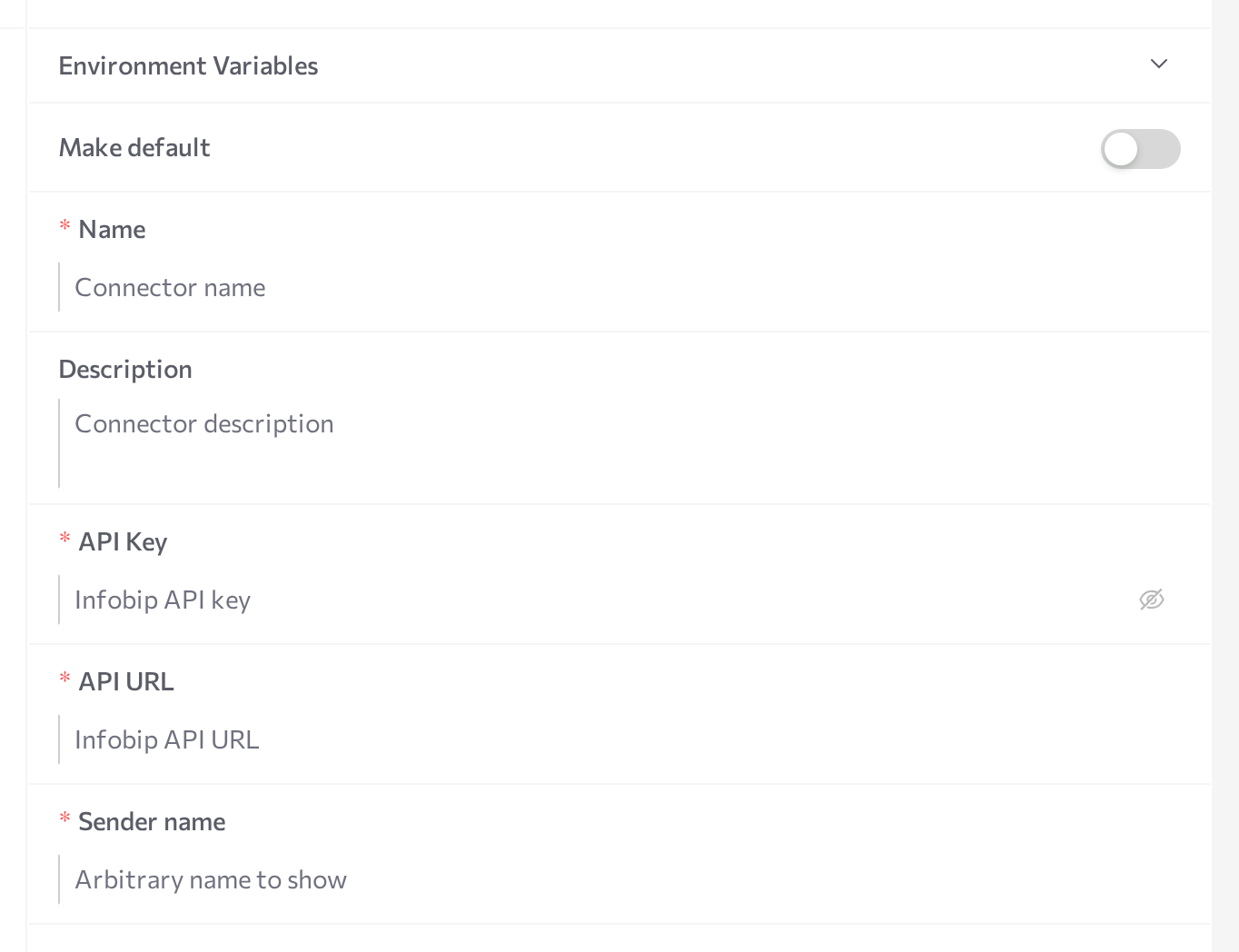
Fill in the form:
Field Required Notes Name Yes An internal name shown across the portal. Description No Internal reference. API Key Yes The Infobip API key. Paste the key value itself, without any prefix. Stored as a secret and displayed masked. API URL Yes Your account's base URL, for example xxxxx.api.infobip.com. You can omithttps://— it is added automatically.Sender name Yes The sender shown on outbound SMS: a phone number or an alphanumeric name (for example, YourBrand). It must be set up in your Infobip account; support for alphanumeric senders depends on country and carrier. -
Click Save.
-
Click Start in the panel header.
The status dot turns purple (STARTING), then green (RUNNING). On startup the channel checks that all three values are set and calls the Infobip API to validate the key and URL — if validation fails, the status turns red (ERROR); hover over the dot for the message and click Logs for details.
To change credentials later, select the connection, paste the new value over the masked API Key (or edit the other fields), click Save, then restart the channel: Stop, wait for STOPPED, then Start.
Set up incoming SMS
Outbound messages and delivery reports work as soon as the channel is running. For customers to write to the agent, Infobip must forward incoming messages to the connection's webhook:
-
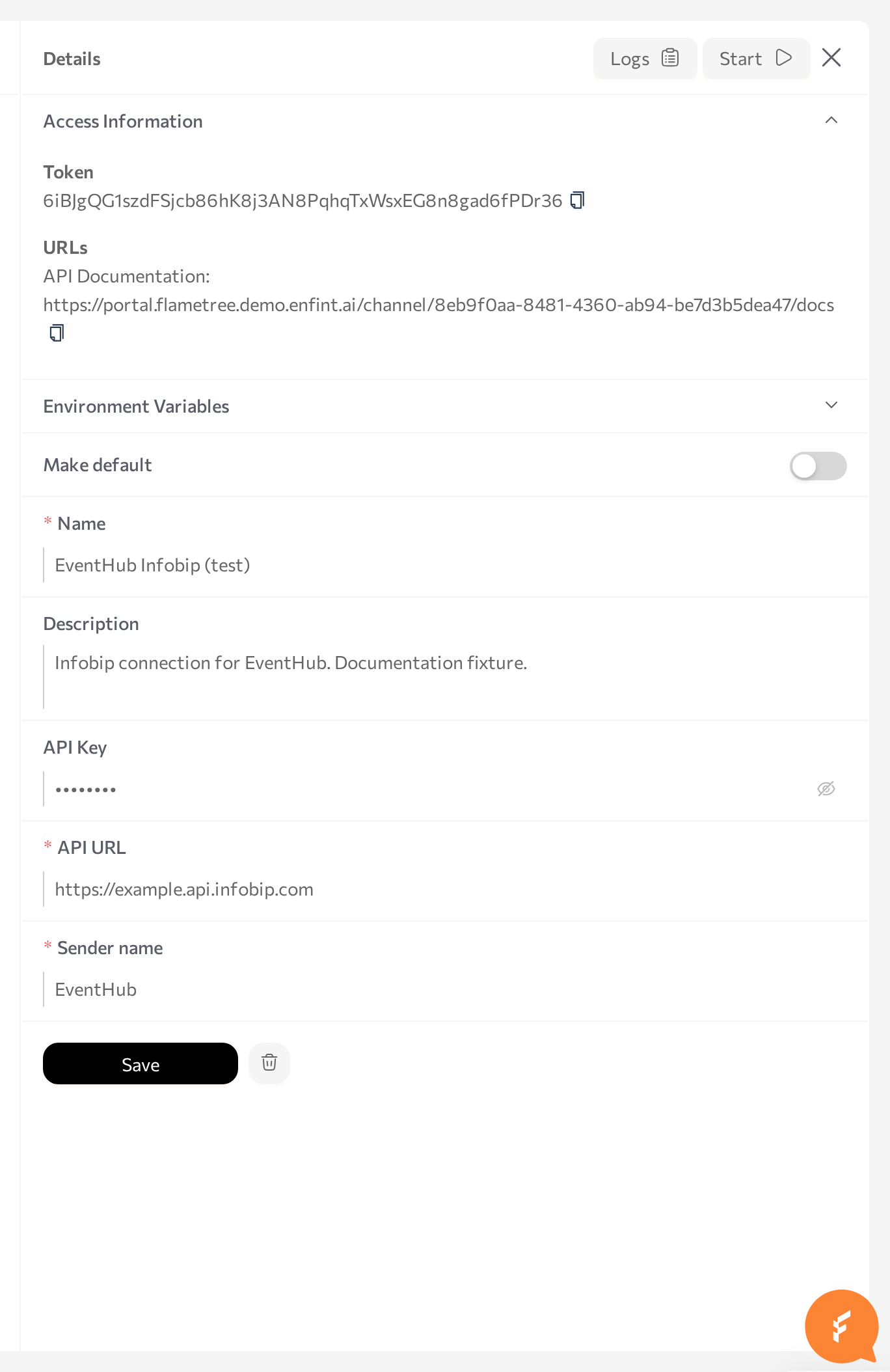
In Settings > Channels, select the connection and expand Access Information. Copy the API Documentation URL and replace the trailing
/docswith/webhook/sms. The result looks like:https://<your portal host>/channel/<connection-id>/webhook/sms -
In the Infobip web interface, configure your inbound number to forward received messages to that URL over HTTP. See Infobip's documentation on receiving SMS for the current steps.
Attach to an agent
A running channel does nothing on its own — attach the connection to the agent that should answer the messages.
- Open AI Agents and select the agent.
- Find the Communication channels card and click Add.
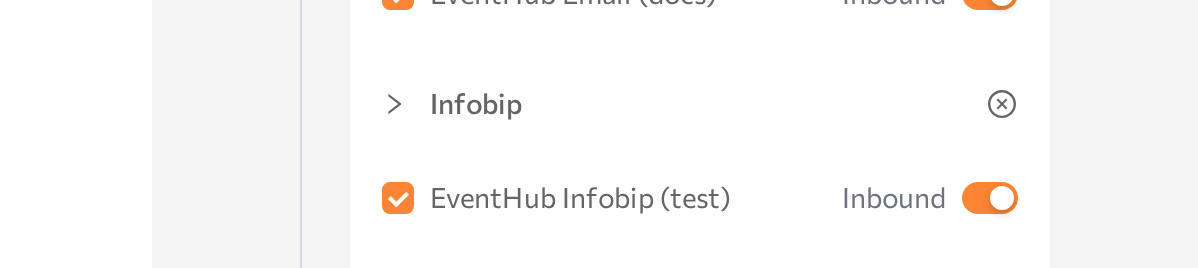
- Pick Infobip from the dropdown and tick the checkbox next to your connection.
- Enable the Inbound switch so the agent answers incoming SMS. With Inbound off, the agent can only send outbound messages through the channel — for example, from campaigns.
- Save the agent, then restart it (Stop agent, then Start agent).
Only one agent can handle inbound traffic per connection — the portal rejects a second inbound attachment. To run several inbound SMS agents, create a separate connection with its own sender for each.
Test the channel
- From a mobile phone, send an SMS to your inbound Infobip number.
- Check that the agent replies. The reply arrives from the Sender name set in the connection.
- Open Sessions in the portal and confirm the conversation appears there with the Infobip channel type. The contact is keyed to the customer's phone number.
If the message gets no reply, see Common issues.
SMS behavior and limits
-
Text only. The channel sends and receives plain text. Images, documents, and voice messages are not supported in either direction — see Supported channels for the capability comparison.
-
Message length. Outbound messages longer than 1600 characters are truncated and end with
.... Keep agent replies short. -
Phone number format. Recipient numbers must contain digits only, in international format. The leading
+is optional — it is added automatically when missing. Numbers with spaces, dashes, or parentheses are rejected, and the message is not sent.Works Does not work +1234567890,1234567890123-456-7890,(123) 456-7890 -
Link shortening and click tracking. Links in outbound messages are shortened and click-tracked through Infobip. Click events appear in the channel Logs. To use your own short domain registered with Infobip, open the connection's Environment Variables section, add a variable named
INFOBIP_SHORT_DOMAINwith the domain as the value, click Save, then restart the channel. -
Delivery reports. The channel requests a delivery report for every message it sends. When Infobip confirms delivery, the message status updates in the session.
-
Costs. Every SMS is billed by Infobip. Monitor usage and your account balance in the Infobip web interface.
Common issues
- The channel goes to ERROR on Start. A required field is empty, or the API Key or API URL is wrong — the startup check calls the Infobip API and fails. Click Logs for the exact error, fix the fields, click Save, then Start.
- Outbound SMS are not sent. Check the recipient's number format (digits only, international format). Then verify in the Infobip web interface that the Sender name is set up for SMS and that your account has balance.
- Incoming SMS get no reply. Most often Infobip does not forward incoming messages to the webhook URL — re-check Set up incoming SMS. Also confirm the connection shows RUNNING, the connection is attached to the agent with Inbound on, and the agent was restarted after attaching.
- Replies arrive cut off with
...at the end. The reply exceeded 1600 characters and was truncated. Adjust the agent's instructions so it answers briefly. - Customers do not receive replies from your number. If the sender is an alphanumeric name, delivery depends on country and carrier, and customers cannot text it back. Use a phone number that can receive SMS as the sender for two-way conversations.
Related pages
- Channels overview — create, start, stop, and monitor channel connections
- Bird — WhatsApp through the Bird platform, another aggregator channel
- Campaigns — outbound SMS at scale with the Infobip Communication step
- Sessions — read SMS conversations
- Supported channels — capability comparison across channels