Web Widget
The Web Widget embeds a Flametree agent into any website as a chat window, with real-time messaging, voice input and playback, file attachments, and configurable appearance.
The Web Widget is documented here under Settings > Channels so you can find it next to the other channels, but it is not created on that screen. You enable the widget, set its appearance, and copy the embed code on the agent's page — there are no external credentials to manage.
Before you start
- A configured agent in the AI Agents section.
- Access to edit your website's HTML (or the custom-code block of your website builder).
Get the embed code
The embed code is generated per agent on the agent's page.
- Open AI Agents and select your agent.
- Find the Web widget section and switch it on.
- Configure the built-in options: Display name, Show floating chat button, Primary color, Voice over, Tooltip text, Allow voice messages, the floating button icon (Choose an existing icon or Create a custom icon, with Button color and Icon color), and Floating button size.
- Click Apply (or save the agent).
- In the Html code controls, click the view icon to preview the Widget Html code, or use the copy icon / Copy HTML code to copy the snippet.
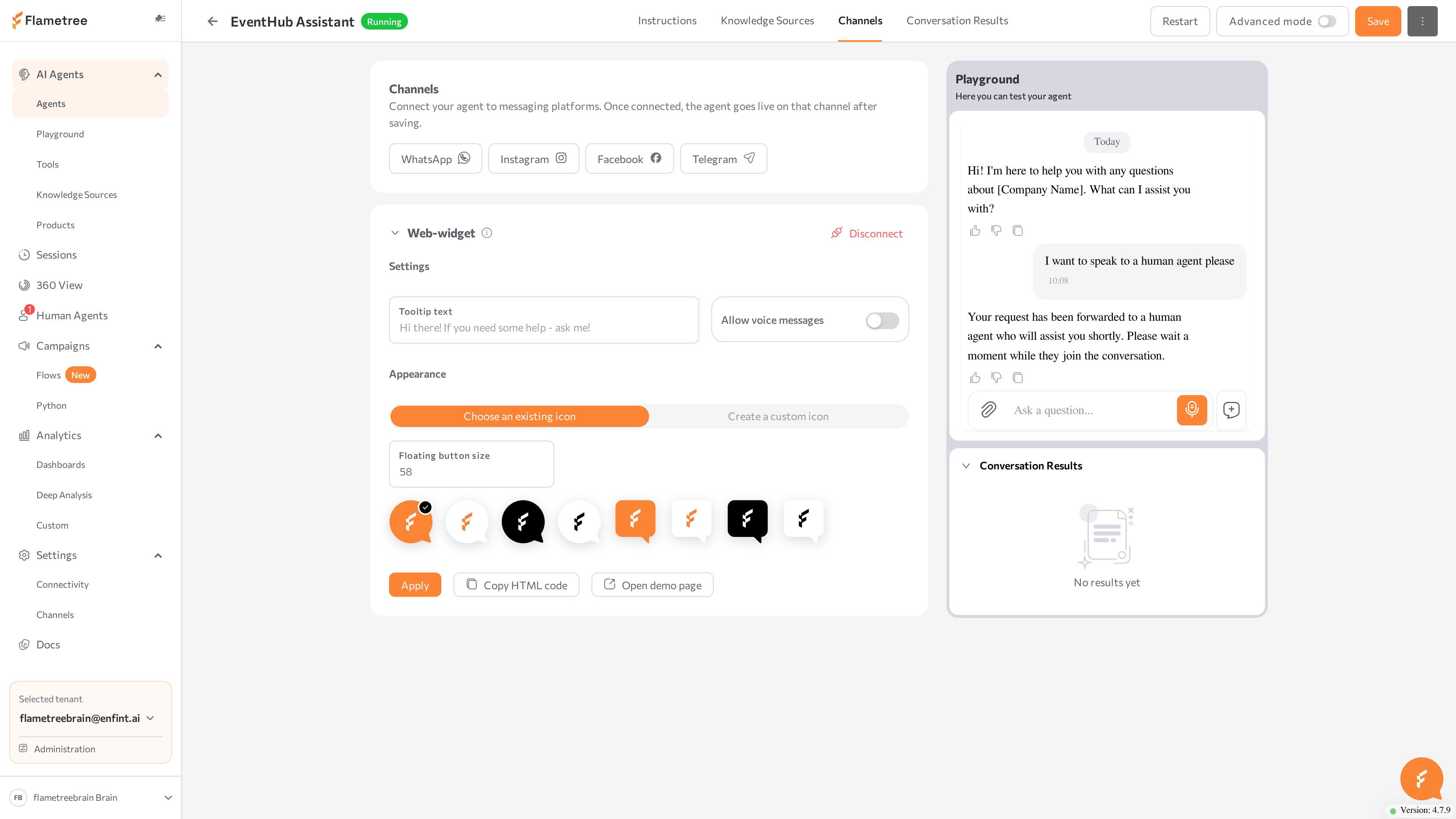
Click Open demo page next to the Html code controls to test the widget on a hosted demo page — no changes to your site required.
Add the widget to your site
- Paste the copied snippet immediately before the closing
</body>tag of your page. - For website builders (Tilda, Webflow, Wix, WordPress), paste it into the custom HTML/script block instead.
- Reload the page. The floating button or embedded chat should appear.
The snippet contains a container element, the widget script, and an initialization call:
<div id="chat-widget"></div>
<script src="https://<your-portal-host>/public-storage/widget/bot-chat-widget.umd.js"></script>
<script>
  BotChatWidget.createBotChat({
    botRoute: 'https://<your-portal-host>/<agent-route>',
    authorizationToken: '<token>',
    elementId: 'chat-widget',
    isFloatingBtn: true,
    version: 'v2',
  });
</script>
If isFloatingBtn is false, set a fixed height on the container, for example <div id="chat-widget" style="height: 600px"></div>. Without it the container grows with each message instead of scrolling.
Choose floating or embedded mode
| Mode | Setting | Use case |
|---|---|---|
| Floating | isFloatingBtn: true | A button in the page corner that opens a chat window on top of the page. Typical for support and helpdesk. |
| Embedded | isFloatingBtn: false (default) | The chat fills the container element. Typical for dedicated chat pages. |
Configuration options
All options are passed as properties of the object given to BotChatWidget.createBotChat({ ... }). The generated snippet already contains the required ones; add the rest as needed. For the full list of parameters with types and defaults — appearance, the floating button, voice playback, sessions, and customer context — see Widget configuration.
Example configurations
A branded floating support button:
<div id="chat-widget"></div>
<script src="https://<your-portal-host>/public-storage/widget/bot-chat-widget.umd.js"></script>
<script>
  BotChatWidget.createBotChat({
    botRoute: 'https://<your-portal-host>/<agent-route>',
    authorizationToken: '<token>',
    elementId: 'chat-widget',
    version: 'v2',
    isFloatingBtn: true,
    primaryColor: '#0a7d4f',
    headerTitle: 'Support',
    tooltipText: 'Questions? Chat with us',
    floatingBtnSize: 64,
    openByDefault: true,
    openByDefaultDelay: 5000,
  });
</script>
An embedded chat on a dedicated page, tied to the logged-in customer:
<div id="chat-widget" style="height: 600px"></div>
<script src="https://<your-portal-host>/public-storage/widget/bot-chat-widget.umd.js"></script>
<script>
  BotChatWidget.createBotChat({
    botRoute: 'https://<your-portal-host>/<agent-route>',
    authorizationToken: '<token>',
    elementId: 'chat-widget',
    version: 'v2',
    isFloatingBtn: false,
    theme: 'dark',
    userId: 'customer-12345',
    userName: 'Maria Lopez',
    email: 'maria@example.com',
    kwargs: {
      plan: 'pro',
      _authToken: '<session-token>',
    },
  });
</script>
Choose an operation mode
The version and multiAgent parameters decide whether conversations carry over between visits:
| Mode | Settings | Behavior |
|---|---|---|
| Standard | version: 'v1' | A new session on every page load; no history retrieval. |
| Session management | version: 'v2', multiAgent: false | The widget looks up the customer's active sessions by userId and continues the matching one; otherwise it creates a new session. |
| Multi-agent | version: 'v2', multiAgent: true | Shows all of the customer's active sessions and an agent selection screen; the customer can switch between agents. |
To tie a session to a known person so it carries over, pass the customer's userId (and optionally userName, email, and phone) at initialization, as in the embedded example above. If you do not pass a userId, the widget keeps an anonymous identity per browser. See Customer context and user identity.
Advanced integration
For developer-facing details, see Widget configuration:
- Control methods — open the chat, jump to a session, update session variables, or start a new session from your own page, for example to open the chat from a "Chat with us" button. See Control methods.
- Custom events — the agent can push events over the widget's connection to fire conversion or analytics events in Google Analytics or the Meta Pixel. See Custom events.
- Message listeners — observe raw chat message events with the
messageListenersoption.
Test the integration
- Click Open demo page on the agent page and verify the widget looks and behaves as expected.
- Reload your own site and check that the floating button or embedded chat appears.
- Send a test message and verify the agent responds.
- If you pass
userId, reload the page inv2mode and confirm the conversation continues instead of starting over.
Common issues
- The widget does not appear — check the browser console for script errors and confirm the container element ID matches
elementId. - The widget appears but the agent never replies — confirm the agent is running and that
botRouteandauthorizationTokenmatch the snippet generated for this agent. Re-copy the snippet if in doubt. - The embedded widget keeps growing taller — set a fixed height on the container element (see the warning above).
- Voice input or playback fails — the site must be served over HTTPS, the browser must have microphone permission, and speech-to-text must be configured on the agent.
- Sessions do not continue across visits — use
version: 'v2'and pass a stableuserId; anonymous identities are stored per browser and reset when site data is cleared.
Related pages
- Widget configuration — full parameter, method, and event reference
- Channels overview
- AI Agents
- Sessions