Channels
Settings > Channels is where you connect Flametree to the outside world: messaging apps, email, and voice providers. The portal page is titled Communication Channels. Channel connections created here are reusable — you configure credentials and run the channel once in Settings, then attach the connection to one or more agents from each agent's page.
Use this screen when you need to:
- Connect a new channel (for example, a WhatsApp number or a Telegram bot).
- Update credentials such as tokens or passwords.
- Start, stop, or troubleshoot a channel.
- See at a glance which channels are running.
Settings > Channels manages the connections themselves: credentials, lifecycle, status. An agent's channels section attaches a connection to that specific agent. In Simple mode, attaching WhatsApp or Telegram on the agent's Channels tab also collects the credentials inline — the resulting connection then appears in this list and is managed here afterward. The one exception is the Web Widget: it is documented here under Settings > Channels, but you configure it entirely on the agent's page, and it never appears in the Settings > Channels list.
Find your way around
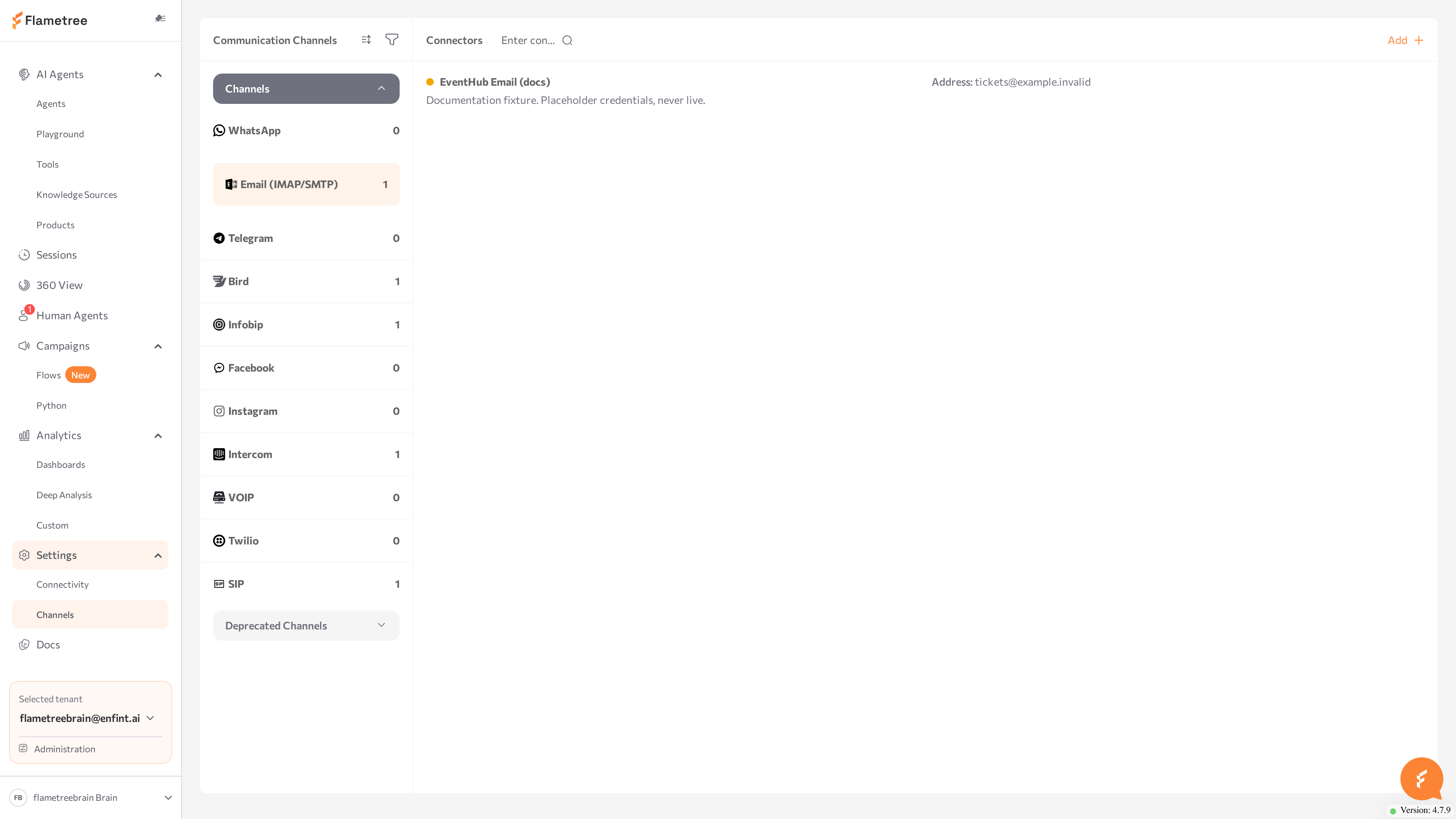
The screen has three parts:
- Channel list — all channel connections in your tenant, grouped into Channels and Deprecated Channels. Use the search box to filter by name and the sort control to order the list alphabetically.
- Add — select a channel type and click Add to open the New connector form.
- Details panel — opens on the right when you select a connection. It shows the configuration form plus the Logs and Start/Stop buttons.
Supported channel types
| Channel | What it connects |
|---|---|
| The official Meta WhatsApp Business API, using a verified business phone number. Supports multiple phone numbers in one connection. | |
| Telegram | A Telegram bot created with @BotFather. |
| Email (IMAP/SMTP) | Standard mail servers. Supports multiple mail accounts in one connection. |
| An Instagram business account managed through Meta. | |
| Facebook Messenger for a Meta business account. | |
| Infobip | SMS and messaging through the Infobip platform. |
| Bird | Messaging through the Bird platform. |
| Intercom | Conversations from an Intercom workspace. |
| SIP | Inbound and outbound voice calls over SIP. |
| Twilio | Inbound and outbound voice calls through Twilio. |
Each channel type has a dedicated setup page — open it from the table. The Web Widget is configured on the agent's page rather than here, and Mobile push is not created from this screen — its page explains where push fits.
Legacy channel types appear in a separate Deprecated Channels group in the list, with a DEPRECATED suffix in the type name. They still work, but plan a migration to the current channel type — see Deprecated channels.
Before you start
- You need an account with permission to edit settings.
- Have the credentials from the external platform ready to paste (token, phone number ID, mail server password, and so on).
Add a channel
- Go to Settings > Channels.
- Select the channel type in the list (for example, WhatsApp) and click Add.
- The New connector panel opens on the right. Fill in:
- Name (required) — an internal name shown across the portal.
- Description (optional) — internal reference.
- The channel-specific fields (tokens, IDs, servers).
- Click Save.
- Click Start in the panel header.
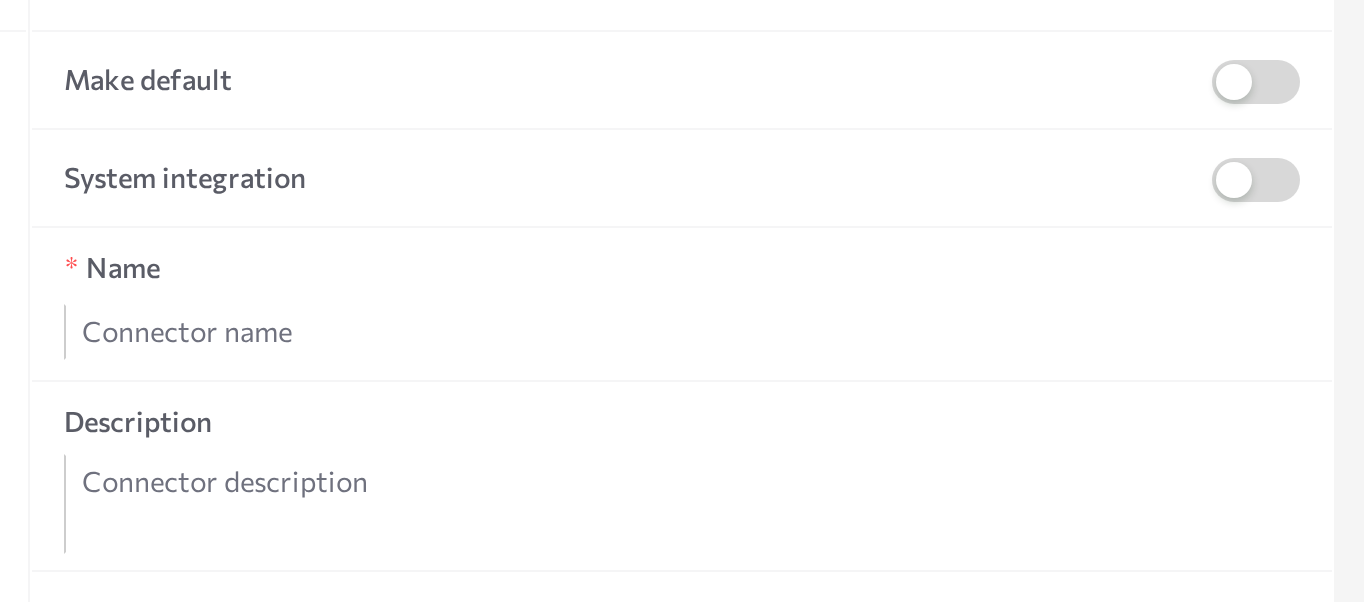
The status dot next to the connection turns purple (STARTING), then green (RUNNING).
For WhatsApp, Instagram, and Facebook the panel shows an Advanced mode switch. Advanced mode is the manual form where you paste credentials yourself. With Advanced mode off, you sign in with your Meta account instead of entering credentials by hand. If the switch is disabled with the message "Meta App ID and App Secret are not configured on the server", use Advanced mode.
Edit or delete a connection
- Select the connection in the list. The Details panel opens.
- Change the fields you need. Secret fields (tokens, passwords) display masked; type a new value to replace them.
- Click Save.
- Restart the channel so your changes take effect: click Stop, wait for STOPPED, then click Start.
To delete a connection, click the delete button at the bottom of the form and confirm Delete the integration?.
Some channels also accept advanced, channel-specific options through the environment variables section of the form: add a variable name and value, click Save, then restart the channel. The channel pages list the supported variables — for example, Email, Infobip, and Telegram.
Start, stop, and monitor channels
The Start/Stop button is in the top-right of the Details panel, next to Logs. (SIP and Twilio connections don't have these buttons — they run with the agent.)
- Start — launches the channel. Available when the channel is stopped.
- Stop — shuts the channel down. Customers can no longer reach agents through it.
- To restart a channel, click Stop, then Start — there is no separate restart button.
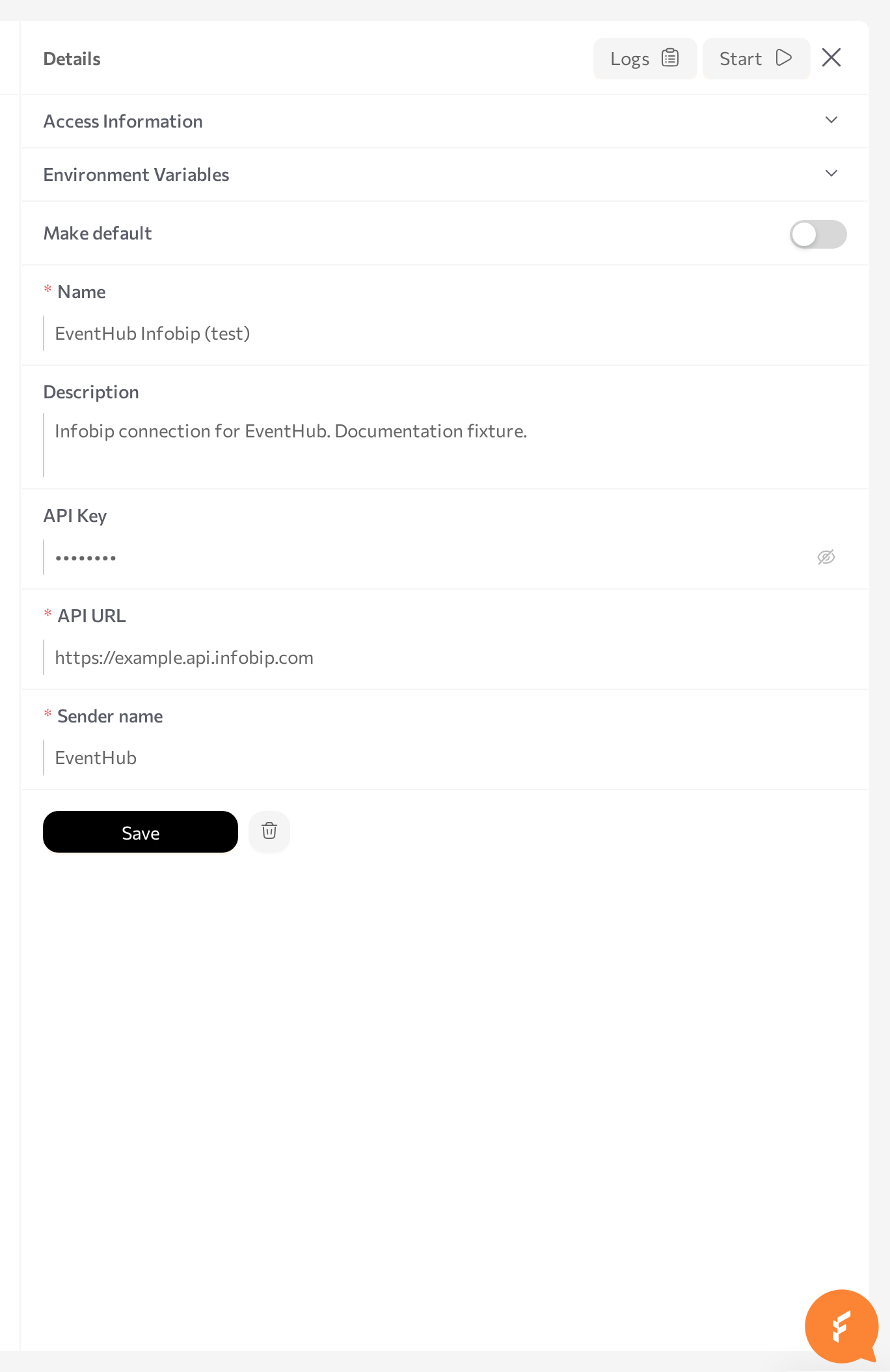
Each connection in the list shows a colored status dot. Hover over it to read the status message.
| Status | Color | Meaning |
|---|---|---|
| RUNNING | Green | The channel is active and processing messages. |
| STOPPED | Blue | The channel is configured but not running. |
| STARTING / STOPPING | Purple | A transition is in progress. Wait for it to finish. |
| ERROR | Red | The channel failed. Hover over the dot for the error message and check Logs. |
For details, open the connection and click Logs. The log window shows recent channel output — the first place to look when messages stop flowing.
Connect a channel to an agent
Channels do nothing on their own — attach them to an agent:
- Open AI Agents and select the agent.
- Find the Communication channels card and click Add.
- Pick the channel type from the dropdown. Toggle Show deprecated to include legacy types.
- Tick the checkbox next to the specific connection you want to attach.
- Enable the Inbound switch if this agent should answer incoming messages on that channel.
- Save the agent, then restart it (Stop agent, then Start agent).
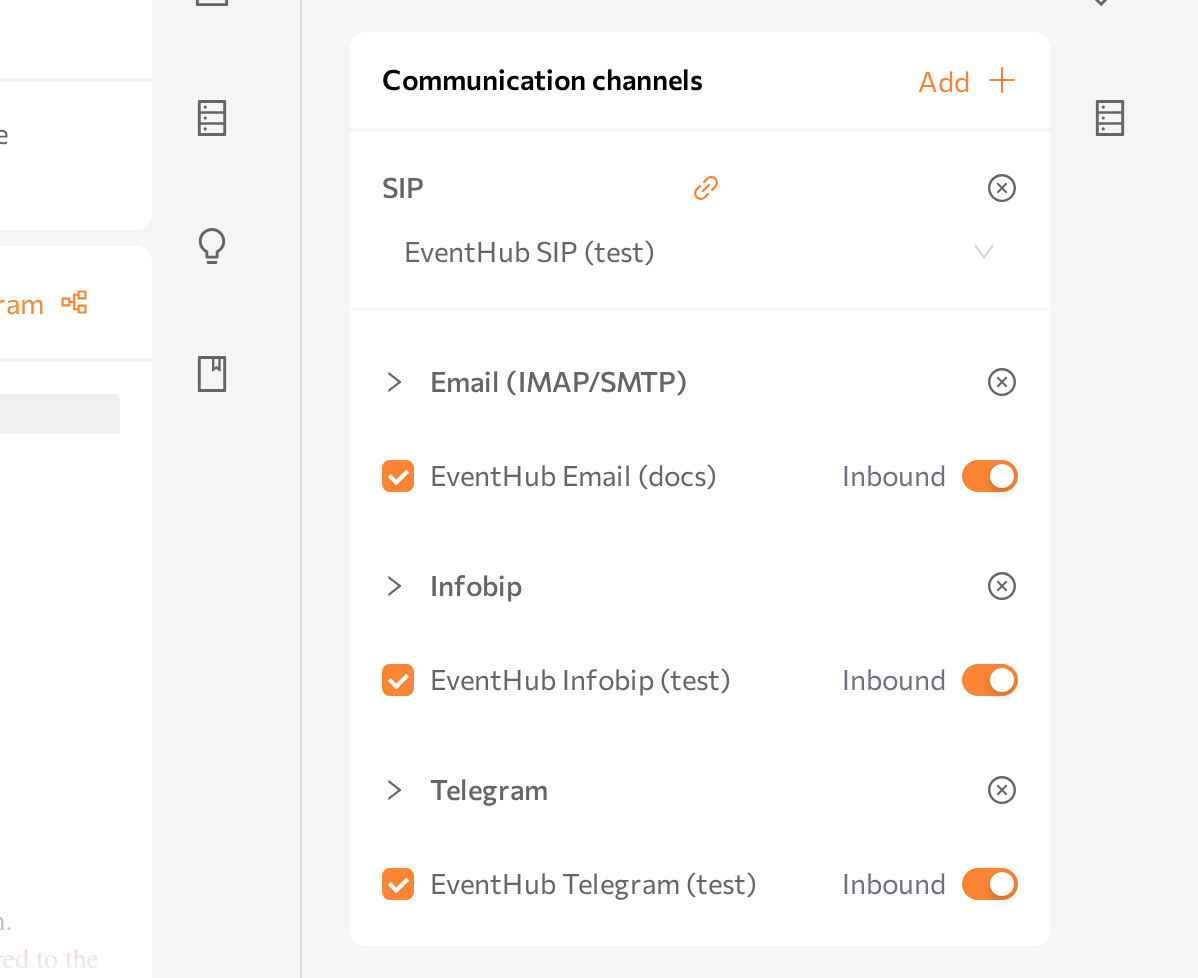
For the rest of the agent's configuration, see Create an agent in simple mode.
Inbound routing
The Inbound switch controls whether an agent receives incoming messages from a channel:
- Inbound on — the agent answers new incoming messages on this channel.
- Inbound off — the agent can only send outbound messages through the channel (for example, in campaigns).
Attach a channel as inbound to only one agent. If several agents listen to the same number or bot, each would try to answer the same customer message.
For Telegram, WhatsApp, Email (IMAP/SMTP), Facebook, Intercom, Bird, SIP, and Twilio, give each inbound agent its own connection — a separate bot, number, or mailbox. The portal rejects a second inbound attachment to the same connection.
Multi-account connections
Channel types that support multiple accounts in one connection (WhatsApp with multiple phone number IDs, Email with multiple mail accounts) show a question-mark hint in the panel header. Enter each account's credentials separated by commas — for example, login1,login2 in one field and password1,password2 in the next.
Keep the order consistent across fields: the first value of each field belongs to account 1, the second to account 2, and so on.
Common issues
- Channel goes to ERROR right after Start — credentials are wrong or expired. Open the connection, click Logs, fix the fields, Save, and start again.
- Channel runs but the agent does not reply — the channel is not attached to the agent, or Inbound is off, or the agent was not restarted after attaching the channel.
- Changes don't apply — restart the channel (and the agent) after saving.
- Channel appears under Deprecated Channels — it still works, but plan a migration to the current channel type.
Related pages
- Web Widget — configured on the agent's page, documented here for discoverability.
- Create an agent in simple mode — including the agent's channels section.
- Connectivity — LLMs, speech, and other service connections used by agents.