Telegram
The Telegram channel connects a Flametree agent to a Telegram bot. Customers write to the bot in Telegram, the agent answers, and every conversation appears in Sessions like any other channel. The integration uses the Telegram Bot API with a token issued by Telegram's official @BotFather bot.
Use this channel to:
- Offer support in a messenger your customers already have installed.
- Run an inbound bot that answers questions, collects data, and hands over to a human agent when needed.
- Give an outbound agent a channel to message customers who already talk to your bot.
Setting up Telegram has three parts: create the bot in Telegram, add the bot token as a channel connection in Settings > Channels, and attach the connection to an agent.
Before you start
- The Telegram app (mobile, desktop, or web) — you need it to talk to @BotFather and to test your bot.
- You are signed in to the portal with an account that can edit settings.
- A bot token from @BotFather. If you do not have a bot yet, create one as described below.
Create the bot and get the token
If you do not have a bot yet, create one with @BotFather, Telegram's bot for managing bots.
- In Telegram, open @BotFather and send
/start. - Send
/newbotand follow the wizard:- Bot name — the display name customers see in the chat (for example, "My Company Support").
- Username — the bot's unique handle, used to find the bot in search. It must end with
bot(for example,mycompany_support_bot).
- BotFather replies with a token in the format
123456789:AAH...XYZ. Copy it — this is the value you paste into the channel form.
If the bot already exists, find its token in @BotFather under /mybots.
Anyone who has the token controls the bot. Store it like a password. If the token leaks, revoke it in @BotFather with /mybots — and note that revoking it also disconnects the existing channel connection (see Common issues).
You can customize the bot at any time with BotFather commands such as /setuserpic (avatar), /setdescription (the text shown before the first message), and /setcommands (the command menu). These changes do not affect the channel connection.
Connect Telegram
Create the channel connection in Settings > Channels. The connection holds the bot token and runs independently of any agent.
-
Go to Settings > Channels.
-
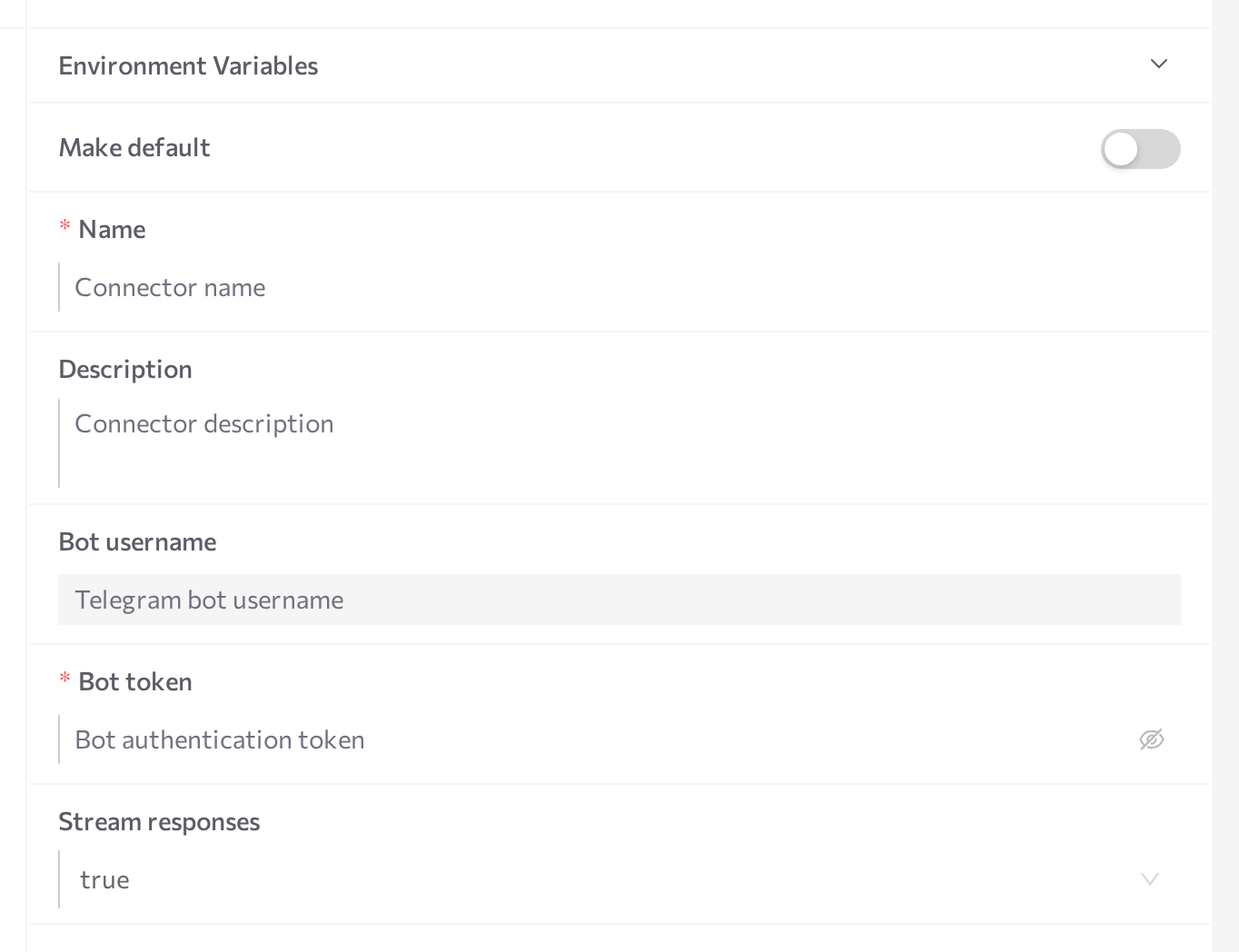
Select Telegram in the channel list and click Add. The New connector form opens on the right.
-
Fill in the form:
Field Required Notes Name Yes An internal name shown across the portal — pick something that identifies the bot. Description No Internal reference. Bot token Yes The token from @BotFather. Stored as a secret and displayed masked. Bot username — Read-only — displays the bot's Telegram username. You do not type it in. Stream responses No On by default. The bot shows replies as they are generated instead of waiting for the complete message. -
Click Save.
-
Click Start in the panel header.
The status dot turns purple (STARTING), then green (RUNNING). On startup the channel validates the token with Telegram — if the token is invalid, the status turns red (ERROR); hover over the dot for the message and click Logs for details.
In Simple mode you can also attach Telegram directly on the agent's Channels tab and enter the bot token there. The resulting connection then appears in Settings > Channels, where it is monitored and managed like any other.
Edit or delete the connection
You can change the connection later, including the Bot token — it displays masked; paste the new token over the masked value to replace it.
- In Settings > Channels, select the connection in the list. The Details panel opens.
- Change the fields you need and click Save.
- Restart the channel so the changes take effect: click Stop, wait for STOPPED, then click Start.
To delete the connection, click the delete button at the bottom of the form and confirm Delete the integration?.
Stopping or deleting the connection takes the bot offline: customers can no longer reach the agent through Telegram until a connection for that bot is running again.
Attach to an agent
A running channel does nothing on its own — attach the connection to the agent that should answer the bot's messages.
- Open AI Agents and select the agent.
- Find the Communication channels card and click Add.
- Pick Telegram from the dropdown and tick the checkbox next to your connection.
- Enable the Inbound switch so the agent answers incoming messages. With Inbound off, the agent can only send outbound messages through the channel.
- Save the agent, then restart it (Stop agent, then Start agent).
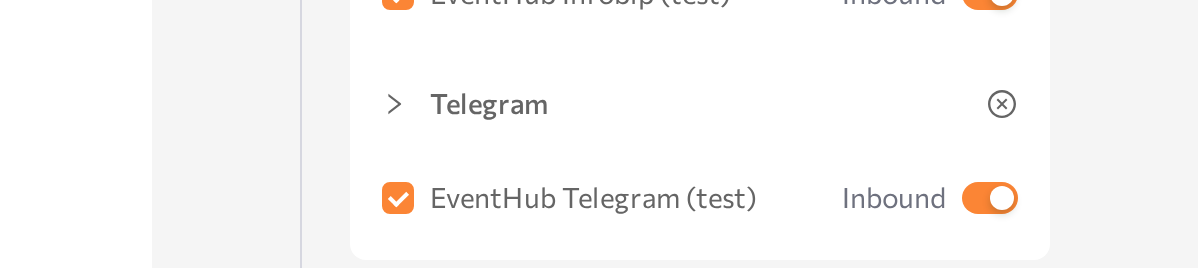
After the restart, new messages sent to the bot open sessions for this agent.
Only one agent should handle inbound traffic from a bot — otherwise several agents would answer the same customer message. To put several inbound agents on Telegram, create a separate bot and a separate connection for each.
Test the bot
- In Telegram, search for your bot's username and open the chat.
- Send
/start, then a text message, and check that the agent replies according to its instructions. With Stream responses on, the reply builds up progressively while the agent generates it. - Send a voice message — if speech-to-text is configured for the agent, the agent understands it and a transcription appears in the conversation.
- Open Sessions in the portal and confirm the conversation appears there with the Telegram channel icon.
Telegram marks bot accounts with a BOT label and shows no online status — that is normal and does not indicate a problem.
Supported content on this channel: text, voice messages with transcription, and images. Documents and calls are not supported — see Supported channels for the full capability comparison.
Advanced options
The connection accepts additional settings as environment variables: select the connection, add the variable name and value in the Environment Variables section of the form, click Save, then restart the channel (Stop, then Start).
| Variable | What it does | Default |
|---|---|---|
TG_TRANSPORT | Switches the channel to the MTProto transport (see below) instead of the Bot API. Set to mtproto. | botapi |
TG_API_ID | The numeric API ID from a Telegram app registered at my.telegram.org. Required when TG_TRANSPORT is mtproto. | Not set |
TG_API_HASH | The API hash from the same Telegram app registration. Required when TG_TRANSPORT is mtproto. | Not set |
TG_MTPROXY_SERVER / TG_MTPROXY_PORT / TG_MTPROXY_SECRET | Route the MTProto connection through an MTProto proxy instead of connecting to Telegram directly. All three are required together — if any is missing, the channel connects to Telegram directly. | Not set |
MTProto transport
By default the channel talks to Telegram over the Bot API and registers a webhook. Setting TG_TRANSPORT=mtproto switches it to an MTProto connection instead, still signed in with the same bot token (bot-token login, not a user account) — no webhook is registered, and the channel keeps a persistent connection to Telegram open.
Use the MTProto transport when a deployment cannot reach Telegram's Bot API directly, optionally routing the connection through an MTProto proxy with TG_MTPROXY_SERVER, TG_MTPROXY_PORT, and TG_MTPROXY_SECRET. Text messages and streamed replies work the same way as on the default Bot API transport. The proxy path is not yet confirmed against a real MTProto proxy, and voice messages, other media, and inline buttons have not yet been verified on this transport.
Common issues
- The channel goes to ERROR on Start. The token is invalid — a typo, extra spaces, or a token that was revoked. Click Logs for the error message and check the token in @BotFather (
/mybots). Paste the correct token over the masked value in the connection, click Save, then Start. - The channel fails to start after setting
TG_TRANSPORT=mtproto.TG_API_IDandTG_API_HASHare also required for the MTProto transport — add both in the Environment Variables section, Save, then Start. - The bot receives messages but the agent stays silent. The connection is not attached to the agent, Inbound is off, or the agent was not restarted after attaching. Also confirm the channel status is RUNNING in Settings > Channels.
- The bot stopped responding after you regenerated the token in @BotFather. Regenerating revokes the token saved in the connection. Open the connection, paste the new token over the masked value, click Save, then restart the channel (Stop, wait for STOPPED, then Start).
- You cannot enable Inbound for the bot on a second agent. Expected — one agent handles inbound traffic per bot. Create a separate bot and connection for the other agent.
- Voice messages get no reply. Configure a speech-to-text model for the agent so it can process audio.
- Customers report the bot is offline. Check the connection in Settings > Channels — if it shows STOPPED, click Start; if it shows ERROR, check Logs.
Related pages
- Channels overview — create, start, stop, and monitor channel connections
- WhatsApp — connect agents to WhatsApp
- Web Widget — embed an agent on your website
- Simple mode — attach channels from the agent's Channels tab
- Supported channels — capability comparison across channels
- Sessions — monitor the bot's conversations