SIP voice
The SIP channel connects Flametree agents to telephony over SIP (Session Initiation Protocol). Customers dial your phone number and talk to the agent in a live voice conversation, and agents place outbound calls — for example, from a campaign flow. The channel works with standard SIP infrastructure: a corporate PBX such as Asterisk, a VoIP provider, or any other SIP server the platform can register with.
Use this channel to:
- Run a voice agent that answers calls to your support or sales number.
- Call customers automatically with the Voice Communication step in campaign flows.
- Keep your existing telephony — the platform joins it as one more SIP endpoint.
The SIP channel brings the call itself; the speech is handled by the agent. The agent converts the caller's speech to text and its replies to audio with the Speech-To-Text and Text-To-Speech connections attached to it — set those up before the first call. If your telephony runs on Twilio, also consider the dedicated Twilio channel, which uses Twilio's built-in speech models instead.
Setting up SIP has three parts: get a SIP account from your provider, add its credentials as a channel connection in Settings > Channels, and attach the connection to a voice-capable agent.
Before you start
-
A SIP account the platform can register as — see Get your SIP account details below.
-
An account in the portal with permission to edit settings.
-
Speech model connections for the agent:
- A Speech-To-Text connection — transcribes what the caller says.
- A Text-To-Speech connection — turns the agent's replies into speech.
Create both in Settings > Connectivity, then select them in the Models card of the agent's page — see Advanced mode. Without them, the agent cannot hear or speak.
Connect SIP
Get your SIP account details
The platform connects to your telephony as a regular SIP endpoint: it registers with your SIP server using a username and password, like a softphone or a desk phone would. Ask your telephony team or VoIP provider for:
- The SIP domain — the address of the SIP server, for example,
sip.example.com. - The account username and password.
- A separate authentication login, if your provider uses one that differs from the username.
For inbound calls, also have the provider route a phone number to that SIP account, so that calls to the number reach the agent. How you do this depends on the provider — in a PBX it is typically an inbound route or extension setting; with a VoIP provider it is the number-to-account mapping in their portal.
Anyone with the SIP password can register as your account and make calls billed to you. Store it like any other password.
Create the connection
Create the channel connection in Settings > Channels. The connection holds the SIP credentials and is then attached to an agent.
-
Go to Settings > Channels.
-
Select SIP in the channel list and click Add. The New connector form opens on the right.
-
Fill in the form:
Field Required Description Name Yes An internal name shown across the portal. Description No Internal reference. Domain Yes The SIP server domain — for example, sip.example.com.User Yes The SIP account username. Password Yes The SIP account password. Stored as a secret and displayed masked. Login No The authentication login, only if your provider uses one that differs from User. Leave empty to authenticate as User. Stored as a secret. Caller ID No The caller phone number presented on outbound calls, where your provider supports setting it. -
Click Save.
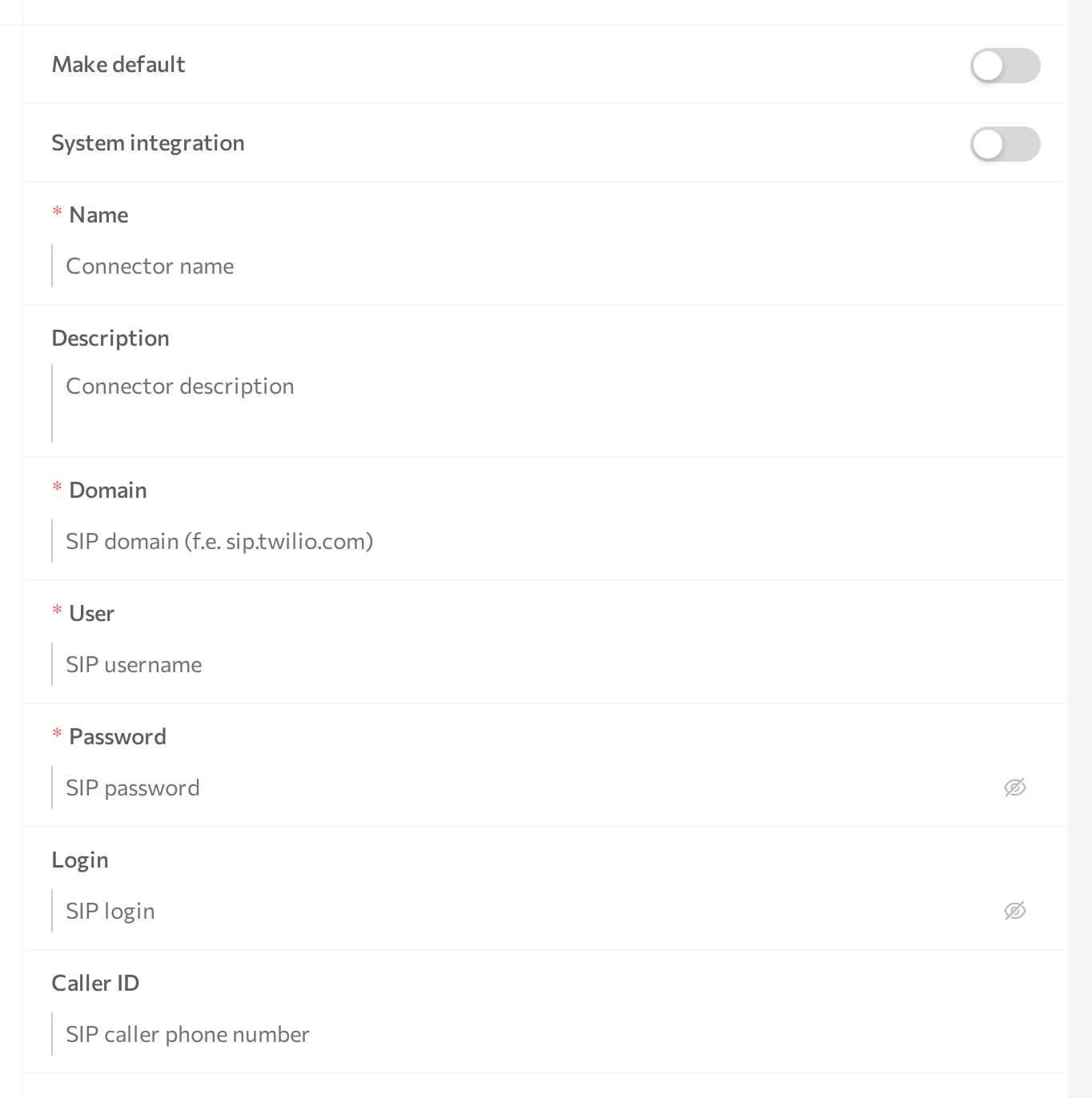
A SIP connection has no Start/Stop buttons of its own in Settings > Channels — it starts and stops together with each agent it is attached to. Saving the form is all you do here; the channel goes live when an attached agent starts.
For the general mechanics of the screen — adding and editing connections — see the Channels overview.
Edit or delete the connection
You can change the connection later — for example, after the provider resets the account password. Password and Login display masked; paste the new value over the masked one to replace it.
- In Settings > Channels, select the connection in the list. The Details panel opens.
- Change the fields you need and click Save.
- Restart every agent that uses the connection (Stop agent, then Start agent). Because the channel runs with the agent, changes take effect only after the restart.
- Check the agent's logs (three-dot menu > Show Logs) to confirm the channel registered again.
To delete the connection, click the delete button at the bottom of the form and confirm Delete the integration?.
Deleting the connection, or stopping the agent it is attached to, takes the number offline: the SIP registration ends, and customers cannot reach the agent until the connection is attached to a running agent again.
Attach to an agent
The connection does nothing on its own — attach it to the agent that should handle the calls.
- Open AI Agents and select the agent.
- Check the Models card: the agent needs Speech-To-Text and Text-To-Speech connections to hold a conversation — see Advanced mode.
- Find the Communication channels card and click Add.
- Pick SIP from the dropdown and tick the checkbox next to your connection.
- Enable the Inbound switch so the agent answers incoming calls. With Inbound off, the agent can only place outbound calls through the channel — for example, in campaigns.
- Save the agent, then restart it (Stop agent, then Start agent).
When the agent starts, the channel registers with your SIP server using the connection's credentials. From that moment, calls to the number routed to that SIP account reach this agent. Registration errors — a wrong password or an unreachable domain — appear in the agent's logs (three-dot menu > Show Logs).
Only one agent should answer inbound calls per connection — otherwise several agents would pick up the same call. To run several inbound voice agents, create a separate SIP account and a separate connection for each.
The agent's Max opened sessions setting limits how many calls it handles at the same time — see Advanced mode.
How calls work
Inbound calls
When a customer dials the number routed to your SIP account, the channel answers the call automatically and opens a session for the attached inbound agent. If the agent is configured to open with a greeting phrase, the caller hears it right after the call connects; otherwise the agent waits for the caller to speak first.
Outbound calls
Outbound calls are started by the platform:
- Campaign flows — the Voice Communication step dials each participant's phone number through a voice agent. See Flows for the step's configuration.
- API — start a call through the API.
The channel dials the number, and the conversation starts when the customer picks up — with the agent's greeting phrase first, if one is configured. If the call does not connect, the platform records how it ended — for example, busy, declined, no answer, or a network error.
During the call
- The agent detects when the caller starts and stops speaking and replies after a natural pause.
- The caller can interrupt the agent mid-sentence: the agent stops speaking and listens.
- If the caller stays silent after the agent finishes speaking — 60 seconds by default — the channel ends the call.
- The audio codec is negotiated with your SIP server; wideband codecs (Opus, G.722) are preferred by default. Media is sent as unencrypted RTP — the channel does not use SRTP.
Every call becomes a session in Sessions: the conversation appears as a transcript, and the call recording is available from the download button under the chat.
Test a call
- Check that the agent is running, and look for a successful SIP registration message in its logs (three-dot menu > Show Logs).
- From any phone, call the number routed to the SIP account. The agent answers; if a greeting phrase is configured, you hear it first.
- Talk to the agent and check that it replies according to its instructions. Interrupt it mid-sentence — it should stop and listen.
- Hang up, then open Sessions in the portal and find the call: the transcript appears in the chat panel (it can take a moment to process), and the recording is available from the download button under the chat.
To test outbound calls, build a minimal campaign flow with a Voice Communication step and a participant list that contains your own phone number.
Common issues
- Calls never arrive. Registration with the SIP server may have failed: open the agent's logs (three-dot menu > Show Logs) and look for registration errors — a failed registration means wrong User, Login, or Password; a registration timeout means the Domain is wrong or SIP traffic from the platform cannot reach the server. Also confirm with your provider that the phone number is routed to this SIP account.
- The agent answers but stays silent, or does not react to speech. The agent is missing its speech models. Check that Text-To-Speech and Speech-To-Text connections are selected in the agent's Models card and configured in Settings > Connectivity, then restart the agent.
- Calls reach the channel but no agent picks up the conversation. The connection is not attached to the agent, Inbound is off, or the agent was not restarted after attaching. Check the agent's status in AI Agents.
- Registration succeeds but calls fail to establish. The SIP server and the platform could not agree on media. Check with your provider that the account offers a codec the platform accepts (Opus and G.722 are preferred) and does not require SRTP — the channel sends media as unencrypted RTP.
- Calls end on their own during pauses. Expected: when the caller says nothing after the agent finishes speaking — 60 seconds by default — the channel hangs up.
- You cannot enable Inbound for the connection on a second agent. Expected — one agent answers inbound calls per connection. Create a separate SIP account and connection for the other agent.
Related pages
- Channels overview — add, edit, and attach channel connections
- Twilio — voice calls through Twilio with built-in speech models
- Connectivity — create the Speech-To-Text and Text-To-Speech connections
- Advanced mode — attach speech models and channels to an agent
- Campaigns — outbound calls at scale with the Voice Communication step
- Sessions — call transcripts and recordings
- Supported channels — capability comparison across channels