The Email channel connects a Flametree agent to one or more mailboxes over the standard IMAP and SMTP protocols, so it works with any common mail provider — Gmail, Microsoft 365, Yahoo, or your own mail server. The channel checks the inbox for new email; the agent answers in the same thread, and every exchange appears in Sessions like any other channel. In the channel list, the type is named Email (IMAP/SMTP).
Use this channel to:
- Turn a support mailbox (for example,
support@yourcompany.com) into an inbox an agent answers around the clock. - Send outbound email from campaign flows and from 360 View.
- Serve several mailboxes — sales, support, billing — through one connection.
Setting up email has three parts: prepare the mailbox and collect the server settings, add them as a channel connection in Settings > Channels, and attach the connection to an agent.
Before you start
- An account in the portal with permission to edit settings.
- A mailbox with IMAP and SMTP access. Use a dedicated mailbox for the agent rather than a shared inbox people also read — the channel only picks up unread email, so a person opening a message first hides it from the agent.
- The sign-in credentials: the account password, an app password, or OAuth credentials.
- The mail server settings, listed below.
Prepare the mailbox
- Check that IMAP access is enabled. Hosted providers expose this in the mailbox settings; for a company mail server, ask your administrator for the server names and ports.
- Create an app password if the account uses 2-step verification. Most providers reject the regular account password for IMAP and SMTP sign-in when 2-step verification is on. Search your provider's help for "app passwords" — for example, Google Account Help or Microsoft account security — generate one, and use it as the channel password.
Collect the server settings
Save these values from your email provider:
| Value | Description | Example |
|---|---|---|
| Address | The full email address | support@yourcompany.com |
| Password | The account or app password | — |
| IMAP Server and port | Incoming mail server | imap.gmail.com, port 993 |
| SMTP server and port | Outgoing mail server | smtp.gmail.com, port 587 |
Ready-made settings for popular providers:
| Provider | IMAP server | IMAP port | SMTP server | SMTP port |
|---|---|---|---|---|
| Gmail / Google Workspace | imap.gmail.com | 993 | smtp.gmail.com | 587 |
| Outlook / Microsoft 365 | outlook.office365.com | 993 | smtp.office365.com | 587 |
| Yahoo | imap.mail.yahoo.com | 993 | smtp.mail.yahoo.com | 587 |
The IMAP connection always uses SSL — keep port 993 unless your provider requires another SSL port. For SMTP, the channel picks the encryption that matches the port: 587 for STARTTLS or 465 for SSL.
Connect email
Create the channel connection in Settings > Channels. The connection holds the mailbox credentials and runs independently of any agent.
-
Go to Settings > Channels.
-
Select Email (IMAP/SMTP) in the channel list and click Add. The New connector form opens on the right.
-
Fill in the form:
Field Required Notes Name Yes An internal name shown across the portal. Description No Internal reference. Address Yes The mailbox the agent receives and sends from. Enter several addresses separated by commas to serve several mailboxes. Password Unless OAuth is on The account or app password. Stored as a secret and displayed masked. IMAP Server Yes Incoming mail server, for example imap.gmail.com.IMAP Port Yes Defaults to 993(SSL).SMTP server Yes Outgoing mail server, for example smtp.gmail.com.SMTP Port Yes Defaults to 587(STARTTLS). Use465for SSL.Enable OAUTH No Off ( false) by default. Switches the whole connection to OAuth sign-in.OAUTH refresh token OAuth only One refresh token per mailbox. Stored as a secret. OAUTH token URI No The token endpoint of your OAuth provider. When empty, Google's endpoint https://oauth2.googleapis.com/tokenis used.OAUTH client ID OAuth only The OAuth client ID from your provider's console. OAUTH client secret OAuth only The OAuth client secret. Stored as a secret. Inbox check interval [env CHECK_INTERVAL] No Seconds between inbox checks. Defaults to 15. One value for the whole connection — if you enter several values, the smallest is used. -
Click Save.
-
Click Start in the panel header.
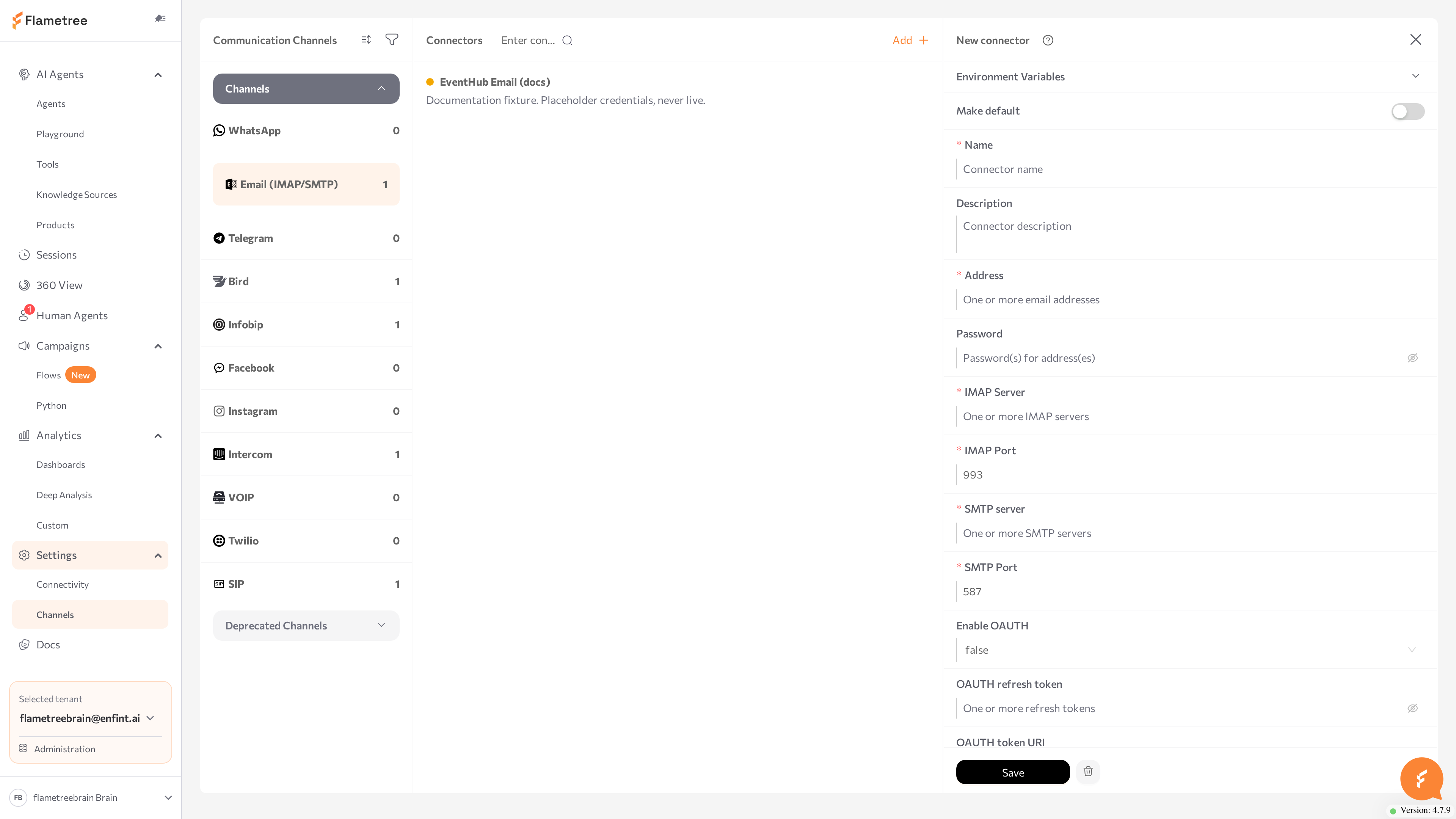
The status dot turns purple (STARTING), then green (RUNNING). On startup the channel signs in to every mailbox over both IMAP and SMTP — if any mailbox fails, the status turns red (ERROR); hover over the dot for the message and click Logs for details.
To change credentials later, select the connection, paste the new values over the masked ones, click Save, and restart the channel: click Stop, wait for STOPPED, then click Start. For the general mechanics of the screen — status dots, Logs, editing, deleting — see the Channels overview.
The older direct Microsoft Exchange integration is legacy: it appears in the Deprecated Channels group with a DEPRECATED suffix and is replaced by this channel type — Microsoft 365 mailboxes connect with the Outlook server settings above. See Deprecated channels.
Use OAuth instead of a password
For providers that support OAuth 2.0 for mail clients, the connection can sign in with a refresh token instead of a password:
- In your provider's console (for example, the Google Cloud console), create an OAuth client and obtain a refresh token, the client ID, and the client secret for the mailbox.
- In the channel form, set Enable OAUTH to
trueand fill in OAUTH refresh token, OAUTH client ID, and OAUTH client secret. Set OAUTH token URI to your provider's token endpoint — leave it empty for Google. - Leave Password empty, then Save and start the channel.
The channel exchanges the refresh token for access tokens on its own and repeats the exchange when a token expires.
OAuth applies to the whole connection: when Enable OAUTH is on, every mailbox in the connection needs its own OAuth credentials — you cannot mix password and OAuth mailboxes in one connection.
Connect several mailboxes
One connection can serve several mailboxes. Enter comma-separated values in Address and the related fields — for example, sales@yourcompany.com, support@yourcompany.com — and keep the order consistent: the first value of each field belongs to mailbox 1, the second to mailbox 2, and so on. If a field has fewer values than there are addresses, the last value repeats — so two mailboxes on the same server need the server name only once. See Multi-account connections for the general convention.
Conversations stick to one mailbox each:
- When a customer writes to one of your addresses, the agent answers from that address.
- When the agent writes first, outbound conversations rotate through the mailboxes, and after the first email each customer keeps the same sender address.
Attach to an agent
A running channel does nothing on its own — attach the connection to the agent that should answer the mailbox.
- Open AI Agents and select the agent.
- Find the Communication channels card and click Add.
- Pick Email (IMAP/SMTP) from the dropdown and tick the checkbox next to your connection.
- Enable the Inbound switch so the agent answers incoming email. With Inbound off, the agent can only send outbound email through the channel — for example, in campaigns.
- Save the agent, then restart it (Stop agent, then Start agent).
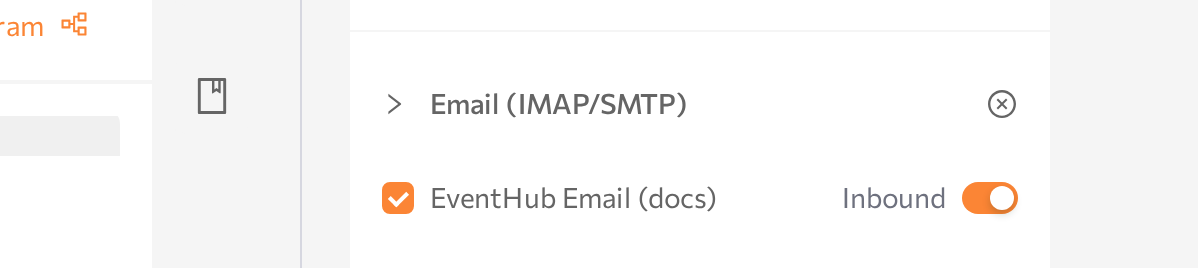
After the restart, new email sent to the connected address opens sessions for this agent.
Only one agent should handle inbound traffic for a mailbox — otherwise several agents would answer the same customer email. To put several inbound agents on email, create a separate connection with its own mailbox for each.
Test the channel
- From a personal mail account, send an email to the connected address — any subject and a question the agent can answer.
- Wait for the reply. The channel picks the message up on its next inbox check (every 15 seconds by default), so allow the check interval plus the agent's response time. The reply arrives in the same thread with the subject prefixed
Re:. - Reply to the agent's email and check that the follow-up answer continues the thread.
- Open Sessions in the portal and confirm the whole exchange appears there as one conversation.
How email maps to sessions
- One session per customer address. The first email from a new address opens a session for the inbound agent. While that session stays open, every further email from the same address joins it — regardless of subject.
- Replies stay in the thread. The agent answers as a reply to the customer's email: the subject keeps the original text with a
Re:prefix, and the message carries the reply headers mail clients use to group threads. The customer sees one continuous conversation in their inbox; you see the same conversation as one session. - Only the new text reaches the agent. When a customer replies, the channel strips the quoted history of earlier messages and passes only the newly written part to the agent.
- Unread email only. The channel polls each mailbox on the inbox check interval and fetches messages that are still unread; fetched messages are marked as read in the mailbox. Email that a person or another mail client has already opened is not processed — the reason to give the agent a dedicated mailbox.
The agent can also write first. An Email Communication step in a campaign flow sends a templated email — subject and body — to each participant, and Start conversation in 360 View sends a one-off email to a single customer. Both open an outbound session on this channel.
Attachments
Files the customer attaches, including inline images, are passed to the agent together with the message text. Two kinds of files are skipped:
- Files larger than the inbound limit — 10 MB per file by default, adjustable with the
EMAIL_MAX_ATTACHMENT_BYTESvariable below. - Files that belong to the quoted or forwarded history of the thread rather than to the new message.
The agent can attach files to its outgoing email as well — images, audio, video, and documents.
Advanced options
The connection accepts additional settings as environment variables: select the connection, add the variable name and value in the environment variables section of the form, click Save, then restart the channel (Stop, then Start).
| Variable | What it does | Default |
|---|---|---|
EMAIL_NAME | Display name used in the From header, so the recipient sees a name next to the address (for example, Support <support@yourcompany.com>). | None |
IMAP_MAILBOX | The mailbox folder the channel reads. | INBOX |
MESSAGE_CONTENT_TYPE | Format of outgoing messages: text/plain or text/html. | text/plain |
SMTP_SIGNATURE | A signature appended to every outgoing email. Supports the {{ sender_name }} and {{ sender_email }} placeholders. | None |
EMAIL_MAX_ATTACHMENT_BYTES | Size limit for a single inbound attachment, in bytes. Larger files are skipped. Set 0 to remove the limit. | 10485760 (10 MB) |
EMAIL_NAME, IMAP_MAILBOX, and MESSAGE_CONTENT_TYPE take comma-separated values when the connection serves several mailboxes — same order as Address. The other variables apply to the whole connection.
Common issues
- The channel goes to ERROR on Start. On startup the channel signs in to every mailbox over both IMAP and SMTP, and one failing mailbox stops the whole connection. Click Logs — the error names the failing account and protocol. Check the server names, ports, address, and password, fix the fields, Save, then Start.
- Sign-in fails although the password is correct. The account uses 2-step verification, so the provider rejects the regular password for IMAP and SMTP. Create an app password and paste it into the Password field.
- The channel is RUNNING but the agent does not answer. The connection is not attached to the agent, Inbound is off, or the agent was not restarted after attaching. Check the agent's status in AI Agents as well.
- Some emails never get an answer. The channel processes unread email only. If a person or another tool opens a message first, it is marked as read and skipped. Move people off the agent's mailbox, or connect a dedicated address.
- Replies feel slow. The inbox is checked on an interval — every 15 seconds by default. Lower Inbox check interval [env CHECK_INTERVAL] for faster pickup, then Save and restart the channel.
- OAuth mailboxes fail validation. With Enable OAUTH on, every mailbox in the connection needs its refresh token, client ID, and client secret — password and OAuth mailboxes cannot share one connection. Split them into separate connections.
- An attachment did not reach the agent. The file is over the inbound limit (10 MB by default) or sits in the quoted history of the thread. Raise
EMAIL_MAX_ATTACHMENT_BYTESif you expect larger files. - You cannot enable Inbound for the mailbox on a second agent. Expected — one agent handles inbound traffic per connection. Create a separate connection with its own mailbox for the other agent.
Related pages
- Channels overview — create, start, stop, and monitor channel connections
- Deprecated channels — the legacy Microsoft Exchange and IMAP/SMTP integrations
- Campaigns — outbound email at scale with the Email Communication step
- 360 View — start an email conversation with a single customer
- Sessions — read email conversations alongside every other channel
- Supported channels — capability comparison across channels