Intercom
The Intercom channel routes conversations from an Intercom workspace to a Flametree agent. Customers keep writing where they already do — the Intercom Messenger or email handled by Intercom — and the agent replies as an Intercom teammate. Your human team keeps working in the Intercom Inbox: assigning a conversation to a teammate hands it over, and assigning it back to the agent's teammate returns it.
Use this channel to:
- Answer Intercom conversations with an AI agent while teammates keep their normal Intercom workflow.
- Hand conversations between the agent and your teammates by changing the assignee in Intercom.
- Run the agent in a draft mode where it posts internal notes for teammates instead of replying to customers.
Setting up Intercom has four parts: collect credentials in Intercom, create the channel connection in Settings > Channels, point an Intercom webhook at the connection, and attach the connection to an agent.
Before you start
- An Intercom workspace and access to its Developer Hub, where you create an app, its access token, and the webhook subscription.
- An Intercom teammate for the agent. The agent posts replies as this teammate, and assigning a conversation to this teammate hands it to the agent — so use a dedicated teammate rather than a person's account.
- You are signed in to the portal with an account that can edit settings.
Get your Intercom credentials
- In Intercom, open the Developer Hub and create an app for your workspace.
- From the app's Authentication page, copy the access token. The token must be allowed to read conversations and send replies.
- Note the ID of the teammate the agent acts as. Intercom's Admins API (
GET /admins) lists teammates with their IDs.
For the Intercom-side details, see Intercom's own developer documentation — the Developer Hub guides for apps, access tokens, and webhooks.
Connect Intercom
Create the connection
-
Go to Settings > Channels.
-
Select Intercom in the channel list and click Add. The New connector form opens on the right.
-
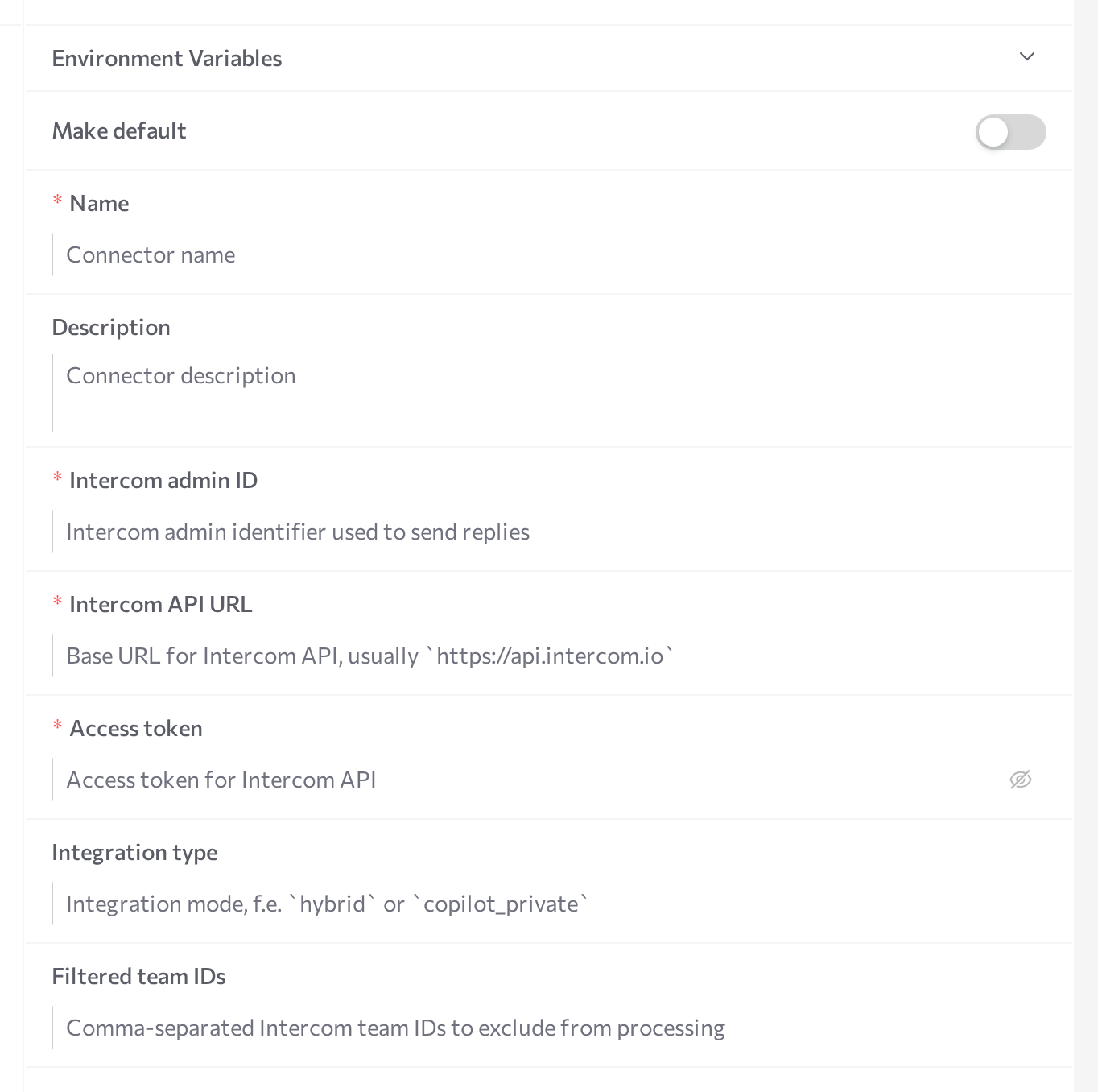
Fill in the form:
Field Required Notes Name Yes An internal name shown across the portal. Description No Internal reference. Intercom admin ID Yes The ID of the Intercom teammate the agent replies as. Assigning a conversation to this teammate hands it to the agent. Intercom API URL Yes The Intercom API base URL, usually https://api.intercom.io. If Intercom hosts your workspace in a regional data center, use the regional address from Intercom's documentation.Access token Yes The access token of your Developer Hub app. Stored as a secret and displayed masked. Integration type No How the agent posts replies. Leave empty for public replies; enter copilot_privateorhybridfor draft modes — see How the agent posts replies.Filtered team IDs No Comma-separated Intercom team IDs. The channel ignores customer messages in conversations assigned to these team inboxes. -
Click Save.
-
Click Start in the panel header. The status dot turns purple (STARTING), then green (RUNNING).
For the general mechanics of the screen — status dots, Logs, editing credentials, stopping and restarting — see the Channels overview.
Subscribe Intercom webhooks
Intercom pushes conversation events to the connection's webhook endpoint. Without this subscription, no messages reach the agent.
-
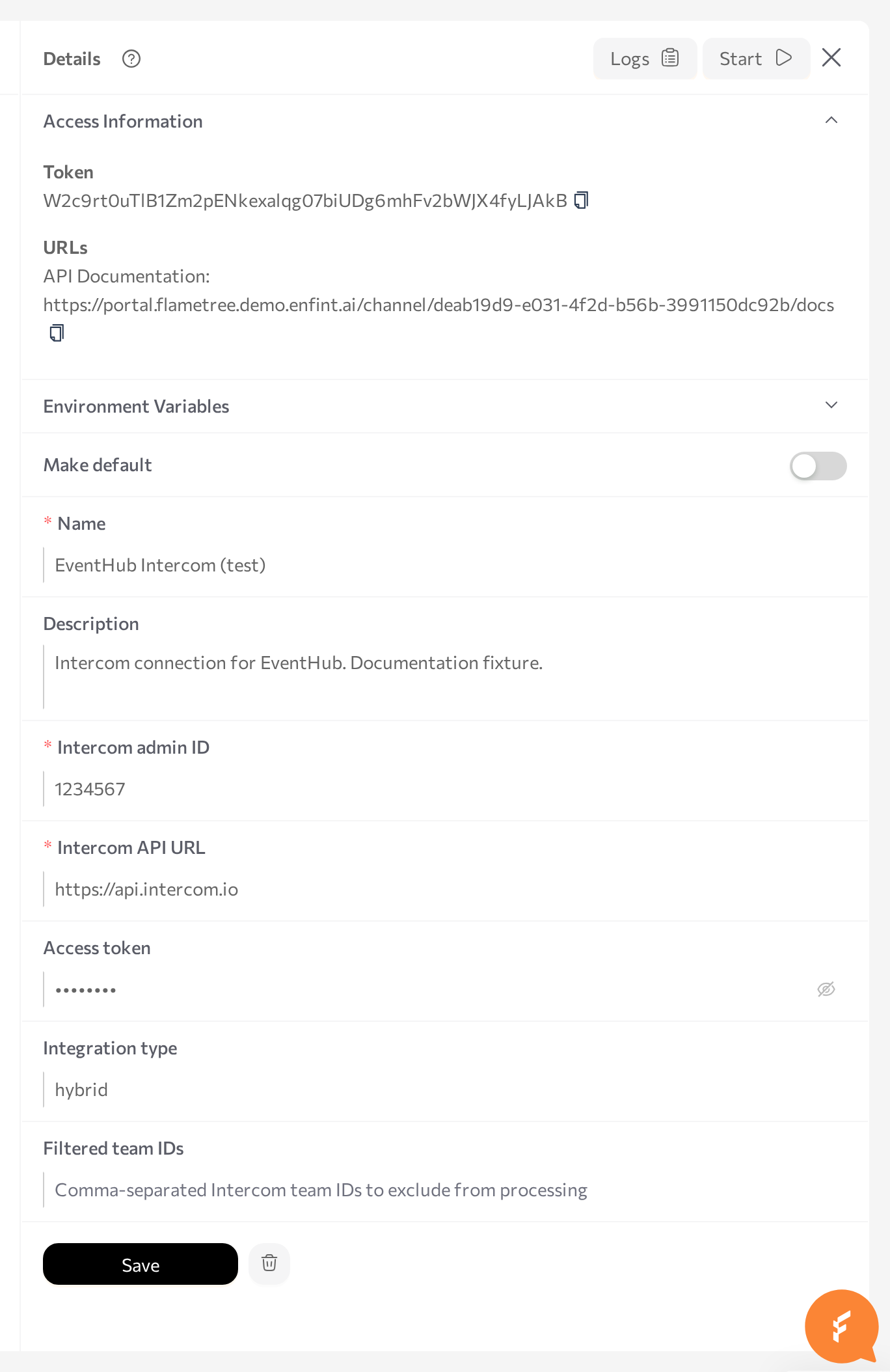
In Settings > Channels, select the connection and expand Access Information — under URLs, copy the API Documentation address — it has the form
https://<portal host>/channel/<connection ID>/docs. -
Replace the final
/docswith/webhook. This is the endpoint URL for Intercom. -
In your Developer Hub app, open the webhooks page, set the endpoint URL, and subscribe to the conversation topics:
Topic What it enables conversation.user.createdNew customer conversations reach the agent. conversation.user.repliedFollow-up customer messages reach the agent. conversation.admin.repliedTeammate replies are saved to the session history, so the agent keeps the context after a handoff. conversation.admin.assigned,conversation.admin.open.assignedAssignment changes hand conversations between the agent and your teammates. -
Use Intercom's webhook test to confirm the endpoint: while the connection is RUNNING, the channel acknowledges Intercom's ping event.
Attach to an agent
A running channel does nothing on its own — attach the connection to the agent that should answer the workspace's conversations.
- Open AI Agents and select the agent.
- Find the Communication channels card and click Add.
- Pick Intercom from the dropdown and tick the checkbox next to your connection.
- Enable the Inbound switch so the agent answers incoming conversations.
- Save the agent, then restart it (Stop agent, then Start agent).
Only one agent should handle inbound traffic for an Intercom workspace — the portal rejects a second inbound attachment to the same connection.
How the agent posts replies
The Integration type field controls whether customers see the agent's replies:
- Empty (default) — the agent posts public replies as the teammate from Intercom admin ID.
copilot_private— every agent reply becomes an internal note marked as a draft reply. Teammates see the draft in the Intercom Inbox; the customer sees nothing. Use this to pilot the agent on live traffic or to assist your team without customer-facing replies.hybrid— the agent posts draft notes during the hours you schedule and public replies the rest of the time. For example, drafts while your team is online and public replies overnight.
For hybrid, define the schedule in the Environment Variables section of the connection form: add a variable named AGENT_SCHEDULE whose value is a JSON object mapping weekdays (MON through SUN) to the hours of the day (0–23, the channel's server time) when the agent should post drafts:
{"MON": [9, 10, 11, 12, 13, 14, 15, 16, 17], "TUE": [9, 10, 11, 12, 13, 14, 15, 16, 17], "WED": [], "THU": [], "FRI": [], "SAT": [], "SUN": []}
Hours not listed are public-reply hours. After changing the field or the variable, click Save, then restart the channel (Stop, wait for STOPPED, then Start). If the schedule switches to draft hours while a public session is open, the channel closes that session on the next customer message and continues in a new one.
Hand off between the agent and teammates
Handoff is driven by the conversation's assignee in Intercom:
- Assigned to a teammate or team — the agent stops replying to the customer and instead posts each reply as an internal draft note for the assignee.
- Teammate replies are stored in the session history as operator messages, so the agent keeps the full context.
- Assigned to the agent's teammate (the Intercom admin ID) — the agent takes the conversation back and answers the next customer message publicly, in a new session.
- Unassigned — the agent's session ends. A later customer message starts a fresh session without the earlier context.
See also the Intercom note under Sessions: handover for this channel is controlled from Intercom, not from the portal.
Supported content
Customers can send text and images: the channel extracts images embedded in the message and passes them to the agent as attachments. Conversations that reach Intercom by email carry the email subject and the customer's address into the session. Other attachment types and calls are not supported.
Test the connection
- As a customer, start a conversation in your Intercom Messenger and send a message.
- Check that the agent's reply appears in the conversation, posted by the teammate from Intercom admin ID. With
copilot_private, look for the draft note in the Intercom Inbox instead. - Open Sessions in the portal and confirm the conversation appears there with the Intercom channel icon.
- In the Intercom Inbox, assign the conversation to yourself and reply — the agent switches to draft notes and your reply shows up in the session history. Assign the conversation back to the agent's teammate and confirm public replies resume.
Common issues
- No messages reach the agent. The webhook subscription is missing, points to the wrong URL (it must end with
/webhook), or lacks the customer message topics — or the connection is not RUNNING. Send Intercom's webhook test and check Logs. - The channel is RUNNING but replies fail. The access token is invalid or lacks conversation permissions, the Intercom API URL does not match your workspace's hosting region, or the Intercom admin ID does not match a teammate. Check Logs for failed Intercom requests, fix the field, click Save, then Stop and Start.
- The agent posts internal notes instead of answering the customer. Either Integration type is
copilot_private(orhybridduring draft hours), or the conversation is assigned to a teammate or team. Clear the field or assign the conversation to the agent's teammate. - The agent ignores conversations in one team inbox. The team's ID is listed in Filtered team IDs. Remove it, click Save, then restart the channel.
- The agent lost the conversation history. Unassigning the conversation in Intercom ends the agent's session; the next customer message starts a new session without the earlier context.
- You cannot enable Inbound for a second agent. Expected — one agent handles inbound traffic per connection.
Related pages
- Channels overview — create, start, stop, and monitor channel connections
- Sessions — read Intercom conversations and hand sessions over
- Supported channels — capability comparison across channels
- Email (IMAP/SMTP) — connect mailboxes directly instead of through Intercom
- Deprecated channels — the legacy per-agent Intercom integration