Flows

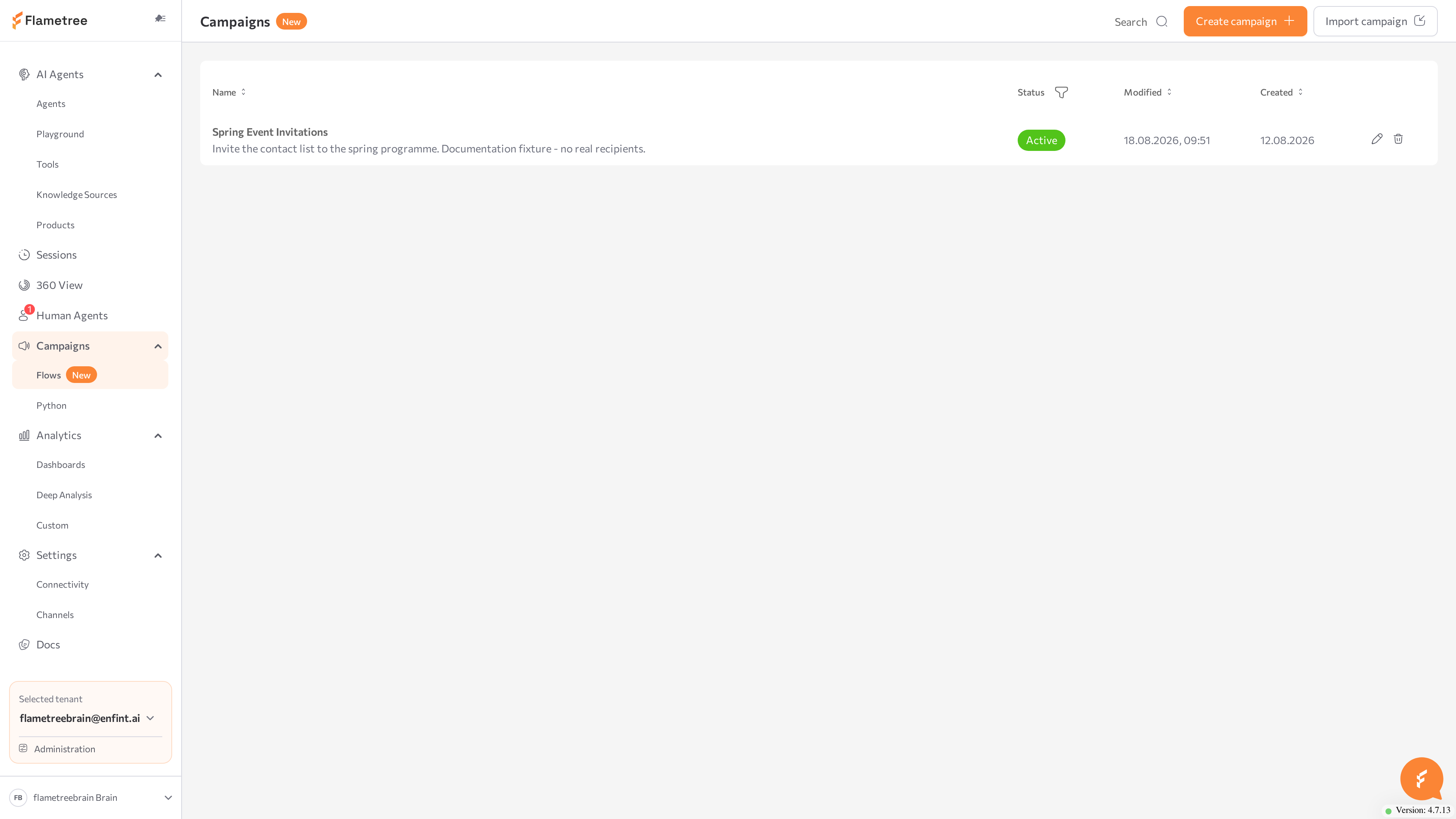
Campaign Flows reach many customers automatically across channels such as WhatsApp, Telegram, email, and voice. You define the audience as a list of participants, then build visual flows that decide who is contacted, when, on which channel, and what happens after each communication — open the screen from Campaigns > Flows in the left menu.

Use campaigns to:

  • Send outbound messages to thousands of customers without manual work.
  • Build multi-step sequences — for example, WhatsApp first, then a voice call if there is no reply.
  • React to customer behavior: replies, finished conversations, incoming sessions.
  • Track delivery and outcomes per participant.
note

This page covers the visual flow builder. For the code-based campaign system, see Python campaigns.

Before you start

  • At least one AI agent exists with the channel you want to use attached — see Agents and the Channels tab in Simple mode.
  • The channel connection is running in Settings > Channels. Campaigns send through the channels attached to your agents.
  • You are signed in to the portal with a role that allows managing campaigns.

How campaigns are organized

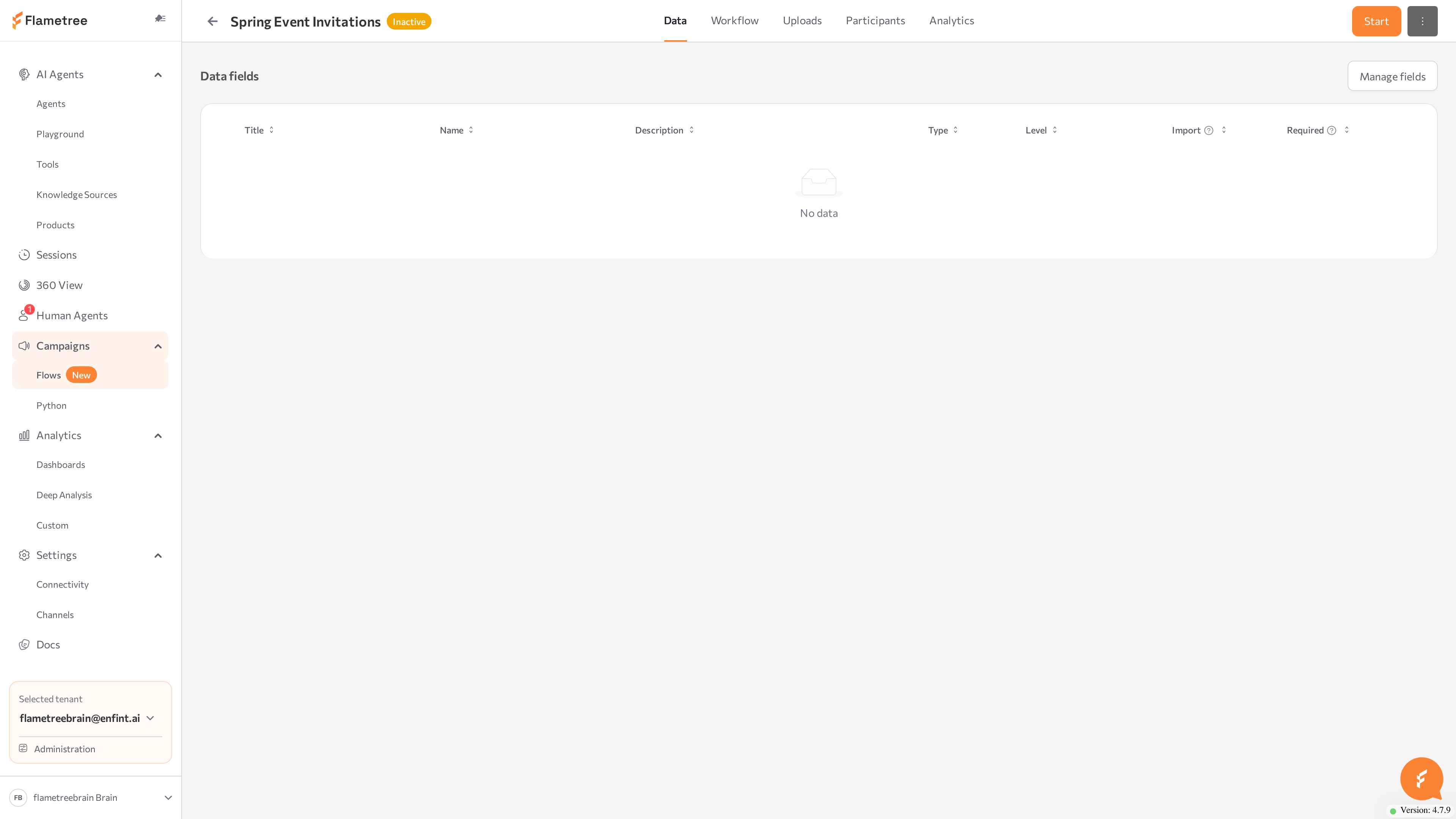
Open a campaign from the list to see five tabs:

TabWhat it does
DataDefines the participant fields: types, which ones can be imported, which are required.
WorkflowThe visual flow editor: triggers, conditions, and actions.
UploadsImports participants from CSV files and shows upload history and errors.
ParticipantsLists everyone enrolled in the campaign, with their field values and communications.
AnalyticsA dashboard with campaign performance and communication outcomes.

Every campaign has one of three statuses:

StatusMeaning
InactiveThe campaign is not processing events. Everything can be edited. New campaigns start here.
ActiveThe campaign is running: triggers fire and communications are scheduled. The active flow is read-only.
ErrorThe campaign hit an error. Hover over the status tag to read the message.

Only Inactive campaigns can be started, and only Active campaigns can be stopped.

A typical setup order:

  1. Create the campaign (name and description).
  2. Define fields on the Data tab.
  3. Build and activate a flow on the Workflow tab.
  4. Upload participants on the Uploads tab.
  5. Click Start and monitor the Participants and Analytics tabs.

Create a campaign

  1. In the left menu, go to Campaigns > Flows.
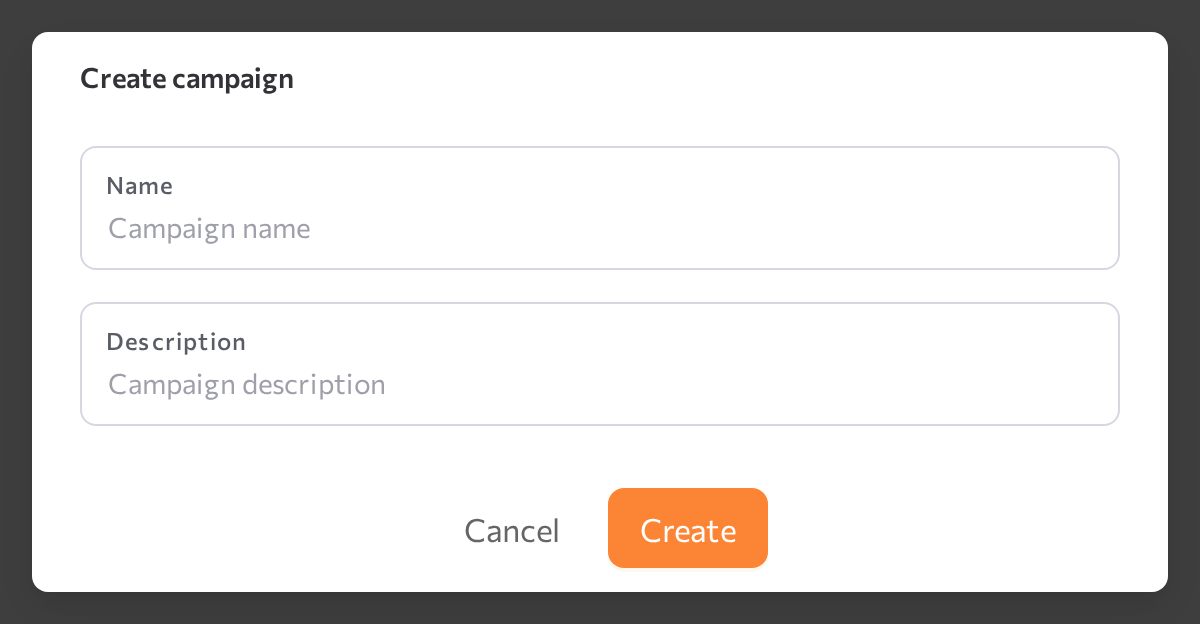
  2. Click Create campaign.
  3. In the Create campaign dialog, enter a Name (required, unique within your workspace) and an optional Description, shown under the name in the campaign list.
  4. Click Create.

The campaign appears in the list with status Inactive — nothing runs until you build a flow, activate it, and click Start. Double-click the row to open it.
In the campaign list you can:

  • Filter by name or description with the search box, and by status with the Status column filter.
  • Sort by the Modified and Created columns.
  • Edit a campaign to change its Name and Description.
  • Delete a campaign — the Delete Campaign dialog asks for confirmation, because deleting cannot be undone.

Data tab

The Data tab defines which fields each participant in this campaign has. These fields drive everything else: the CSV columns you can import, the properties you can check in flow conditions, and the values you can pass to agents.

Every field has a Level:

  • Customer Profile — fields that belong to the customer across the whole workspace, such as Name, Email, and Phone. They are shared with the customer's profile in 360 View and with other campaigns.
  • Participant — fields that exist only inside this campaign, such as a loan amount or a due date. Use these for campaign-specific data.

When you open the Data tab of a new campaign, the system Customer Profile fields are already there, with Import enabled and Required disabled.

Fields table

ColumnMeaning
TitleDisplay name shown across the portal.
NameTechnical name of the field.
DescriptionOptional free text.
TypeData type — see below.
LevelCustomer Profile or Participant.
ImportWhether this field can be imported from a file. Only checked fields are read from CSV uploads.
RequiredWhether this field is required. Rows missing a required field fail during upload.
  • Drag the handle at the left of a row to reorder fields. The order is used in the participant details view.
  • Unchecking Import automatically unchecks Required — a field cannot be required if it is not importable.
  • Rows with a lock icon are system fields: System field — cannot be edited or deleted.

Field types

Available types: string, integer, numeric, boolean, date, datetime, enumeration, email, phone.

  • email values are validated as email addresses during import.
  • phone values keep digits only.
  • enumeration values must be one of the field's allowed values.
  • The type controls which operators a Field Check condition offers and how uploaded values are validated.

Add a field

  1. Click Fields settings.
  2. In the Fields settings dialog, click Add field.
  3. Fill in Title and Name (both required), optionally a Description, and pick a Type. Fields created here have the Participant level.
  4. Save the new row and close the dialog. The field appears in the table on the Data tab.
tip

Settle on the field types before you upload data — the type decides how uploaded values are validated and which comparisons are available in conditions.

Workflow tab

The Workflow tab is the visual editor where you build the campaign logic. A campaign can contain several flows; each flow is a graph of trigger, condition, and action nodes connected on a canvas.

The screen has three areas:

  • Canvas (center) — drag nodes here and connect them.
  • Flows panel (top left) — the list of flows in this campaign.
  • Settings & Nodes panel (right) — the flow name, the Save button, and the node palette grouped into Triggers, Conditions, and Actions. When you click a configurable node, this panel shows its settings instead.

Manage flows

  • Click New flow in the Flows panel to create a flow with a default name. Rename it with the pencil icon next to the name in the right panel.
  • Click a flow in the list to open it on the canvas; drag rows to change the order.
  • Each flow shows a status badge — Active or Inactive. Only active flows process events while the campaign runs.
  • Use the menu on a flow row for Activate, Deactivate, and Delete (with a confirmation).

Build a flow

  1. Drag a node from the palette onto the canvas.
  2. Connect nodes by dragging from a node's output handle to the next node's input handle. Condition outputs are labeled Match and Else.
  3. Click a node to configure it in the right panel. Every panel has a Node name field; many also show a How it works hint.
  4. To remove a node or a connection, select it and press Delete or Backspace.

The editor saves automatically about three seconds after your last change; click Save in the Settings & Nodes panel to save immediately. Changes that would make an active flow invalid are not auto-saved — fix the validation errors first.

Activate a flow

A flow must pass validation before it can be activated. On Activate, Flametree checks that node settings are complete (Fill in required fields for: …) and that the structure is valid:

  • The flow has at least one trigger node.
  • Every trigger leads to at least one condition or action node.
  • The flow contains at least one action node.
  • The flow has no cycles.
  • Every branch, except the Else branch of a condition, ends in an action node.

Editing while the campaign runs

While the campaign status is Active, its active flow opens read-only: nodes cannot be added, edited, or removed, and Activate / Deactivate in the flow menu are disabled. Click Stop on the campaign to edit, then Start it again.

Triggers

Triggers are the entry points of a flow — green nodes that fire when something happens to a participant. When a trigger fires, the flow runs for that participant, following the connections from the trigger node.

A flow needs at least one trigger, and each trigger type can appear only once per flow — if it is already on the canvas, its palette entry is disabled. Triggers have no settings to fill in.

TriggerFires when
Participant CreatedA new participant is added to the campaign — by a file upload or through the API.
Participant UpdatedA participant's field values change.
Communication EndedA communication for the participant reaches a final status: Completed, NoResponse, Failed, Canceled, or Skipped.
Communication UpdatedA communication reaches an intermediate status: Started, Delivered, Read, or Replied.
Incoming SessionThe participant starts an inbound conversation with one of your agents.
From Another FlowA To Another Flow action in a different flow of this campaign sends the participant here.

Typical patterns:

  • Initial outreachParticipant Created → optional Field Check → a communication action: every uploaded contact gets the first message.
  • Follow-up chainCommunication EndedField Check on the outcome → the next communication.
  • Reaction to engagementCommunication UpdatedField Check → move the participant to another flow.
  • Stop on inbound contactIncoming SessionCancel Communications, so a customer who reaches out on their own stops receiving scheduled outreach.
tip

Use Communication Ended rather than Communication Updated for "what next" logic: Ended fires once per communication with the final outcome, while Updated can fire several times while the conversation is in progress.

Triggers fire only while both the campaign and the flow are Active.

Conditions

Conditions are yellow Field Check nodes. A Field Check compares one field against a value and routes the participant down one of two branches:

  • Match — the comparison is true.
  • Else — any other result. The Else branch may stay unconnected; participants that fall into an unconnected Else stop in this flow.

To configure a Field Check:

  1. Click the node on the canvas.
  2. Pick the Property to check. Properties are grouped by level: Customer Profile, Participant, and Communication Results — values produced by the participant's last communication.
  3. Pick the Operator. The list depends on the field type — see the table below.
  4. Enter the Value to compare against (not needed for is set / is not set).

The node name fills in automatically based on the chosen field; edit Node name to use your own label.

Operators by field type

Field typeOperators
integer, numericis set, is not set, is equal to, is not equal to, is less than, is greater than, is less than or equal to, is greater than or equal to, is between
string, email, phoneis set, is not set, is equal to, is not equal to, contains, starts with, ends with, in list
date, datetimeis set, is not set, is equal to, is before, is after, is on or before, is on or after
enumerationis set, is not set, is equal to, is not equal to, in list
booleanis set, is not set, is equal to, is not equal to

Is between asks for two values; in list accepts several values.

Compare against dynamic values

By default you type a static value, or pick one from a list for enumeration and boolean fields. To compare against something dynamic instead, click the button inside the value field:

  • Properties — pick another field of the same type, for example "amount paid is less than amount due".
  • Today — for date fields, optionally with a plus or minus offset.
  • Python expression — write a custom expression for advanced cases.

Actions

Actions are blue nodes — the steps that do something: send a message, start a call, update data, or move the participant. Every branch of a flow, except an unconnected Else, must end in an action. Click an action node to configure it in the right panel; required fields are checked when you activate the flow.

Communication actions

WhatsApp Communication, Telegram Communication, Email Communication, and Voice Communication schedule an outbound contact for the participant and create a communication record you can track on the Participants and Analytics tabs.

note

The Agent lists offer only agents that have a channel of the matching type attached. Connect the channel in Settings > Channels and attach it to the agent first.

Fields shared by the WhatsApp, Telegram, and Email actions:

  • Communication Name — a unique name for this communication; it appears in the participant's communications list. Required for Telegram and Email.
  • Agent — the AI agent that handles the conversation.
  • Agent Channel — which of the agent's channels to use. Inactive channels are marked in the list.
  • Communication Date and TimeUse Date and Time from: a date field or Today, with an optional plus or minus offset. This is the base date of the send.
  • Communication Hours — a From / To window in which sending is allowed, or Best time to contact to let Flametree pick the time.
  • Communication Duration — how many hours the communication stays open before it is closed.
  • Customer Context — fields whose values are passed to the agent as context about this customer.

Per channel:

  • WhatsApp Communication — click Set a template message (it becomes Change template once a template is chosen), pick an approved WhatsApp template, and map its variables to participant fields. Requires the agent, channel, template, base date, duration, and a time window (or Best time to contact).
  • Telegram Communication — optionally set the Start Phrase, the first message sent to open the conversation.
  • Email Communication — configure the Email Template with the subject and body of the message.
  • Voice Communication — starts an outbound call through a voice (SIP) agent. Set the Phone field that holds the number to dial, the SIP Server (required) and SIP Parameters (optional, in key=value;key=value format), and the schedule: Use Exact Date & Time, or Optimize Delivery Time with a base date and a Communication Hours window. Communication Duration works as above.

Control actions

  • Cancel Communications — cancels all planned and active communications for this participant and sets their status to Canceled. No parameters.
  • Update Field — sets participant field values. Add one or more Assignments: pick the Attribute, an Operation (set or reset), and for set a Value — a static value, another field, Today with an offset for dates, or a Python expression.
  • To Another Flow — moves the participant to a different flow of the same campaign. Pick the Target flow; that flow must contain a From Another Flow trigger.
  • Python Custom Action — runs a custom Python script as a flow step, for cases the built-in nodes don't cover.

Uploads tab

The Uploads tab adds participants to the campaign from a file, shows upload progress, and helps you investigate failed rows.

Prepare the file first:

  • Format: CSV — save Excel sheets as CSV first. One file at a time, up to 4 GB.
  • Column headers must match the fields defined on the Data tab.
  • Only fields with Import checked are read. Columns for required fields must be present and filled — rows missing them fail.
  • Values must match the field type: parseable dates, valid emails, enumeration values from the allowed list.

Upload participants

  1. Open the campaign and go to the Uploads tab.
  2. Click Upload data. While another upload is running, the button is disabled with Please wait for the current upload to finish.
  3. In the Upload Data dialog, drag your file into the drop zone or click it to browse.
  4. Click Upload.

The new upload appears at the top of the table with a progress indicator, and the tab header shows Last upload and Total participants processed.

ColumnMeaning
Upload IDUnique ID of the upload job.
Uploaded atFinish time, shown when processing completes.
ParticipantsTotal rows in the file, participants created, and existing participants updated.
StatusProcessing, Completed, or Failed. An upload is marked Failed if any row failed.

Row actions:

  • N Errors — appears when rows failed; downloads a report with the field, value, and error message for each failed row.
  • View participants from this upload — opens the Participants tab filtered by this upload's ID.
  • View upload details — opens Upload Details with full counters and a Download errors link.

Fix failed rows

Failed rows are skipped; all other rows are still imported. For each failed row, the errors report shows the row number, the offending field and value, and the reason — for example, a value that does not match the field type or a missing required field. Fix the rows in your source file and upload the corrected file again.

Participants tab

The Participants tab lists everyone enrolled in the campaign. Use it to verify uploads, inspect a participant's field values, and follow their communications into sessions.

ColumnMeaning
Name, Email, Phone, External IDKey identity fields. Sortable.
CommunicationsNumber of communications for this participant. Click the number to open the list.
Created at / Updated atWhen the participant was added and last changed. Sortable.
  • Click the arrow at the start of a row to expand it: Details shows all participant fields in the order set on the Data tab, and Results shows the Result and Result Date & Time of the latest communication.
  • Click the delete icon and confirm Delete participant? to remove a participant.
  • Open the Filter panel to filter by participant fields. Applied filters appear as chips above the table; remove a chip to drop that filter, or use Clear all. If you arrive from View participants from this upload, an Upload ID chip is already applied.
  • Click column headers to sort; sorting applies across all pages.

Review a participant's communications

Click the count in the Communications column to open the Communications dialog:

ColumnMeaning
NameThe communication name from the flow action.
StatusCurrent status. Hover to see the status message.
ChannelThe channel used.
Agent IDThe agent that handled it.
Scheduled at / Created atTiming of the attempt.
Go to sessionOpens the linked session in Sessions in a new tab once a conversation exists.

Communication statuses fall into three groups:

  • In progress: Planned, Started, Delivered, Read.
  • Successful: Replied, Completed.
  • Ended without success: NoResponse, Canceled, Skipped, Failed.

Final statuses — Completed, NoResponse, Failed, Canceled, Skipped — fire the Communication Ended trigger; the other statuses fire Communication Updated.

Analytics tab

The Analytics tab shows an interactive dashboard for this campaign. It opens pre-filtered to the current campaign, so the numbers reflect only its participants and communications. Use the filter controls at the top to narrow the period; for cross-campaign reporting, see Dashboards.

The dashboard tracks how the campaign progresses: participant totals, communication volume over time, and the breakdown of communication outcomes by status (the groups listed on the Participants tab).

Reading the numbers:

  • A large share of Planned communications usually means the campaign started recently or the Communication Hours window has not opened yet.
  • A growing Failed count usually points to a channel problem. Check the channel in Settings > Channels, and hover over the communication status on the Participants tab to read the error message.

Start and stop a campaign

A campaign processes triggers and sends communications only while it is Active. You control this with the Start / Stop button in the campaign header.
Start

  1. Open the campaign and make sure at least one flow is Active on the Workflow tab.
  2. Click Start in the header.

The status tag changes to Active. From this moment, triggers fire for new events, communications are scheduled and sent according to the flow actions, the active flow becomes read-only, and flows cannot be activated or deactivated until the campaign is stopped.

Stop

Click Stop in the header. The status returns to Inactive: no new triggers fire, no new communications are scheduled, and flows become editable again.

There is no separate pause action — Stop is also how you pause a campaign for editing. Click Start to resume.

warning

If the status tag shows Error, hover over it to read the message, fix the cause — often a channel or agent problem — then start the campaign again.

Rename, export, and delete

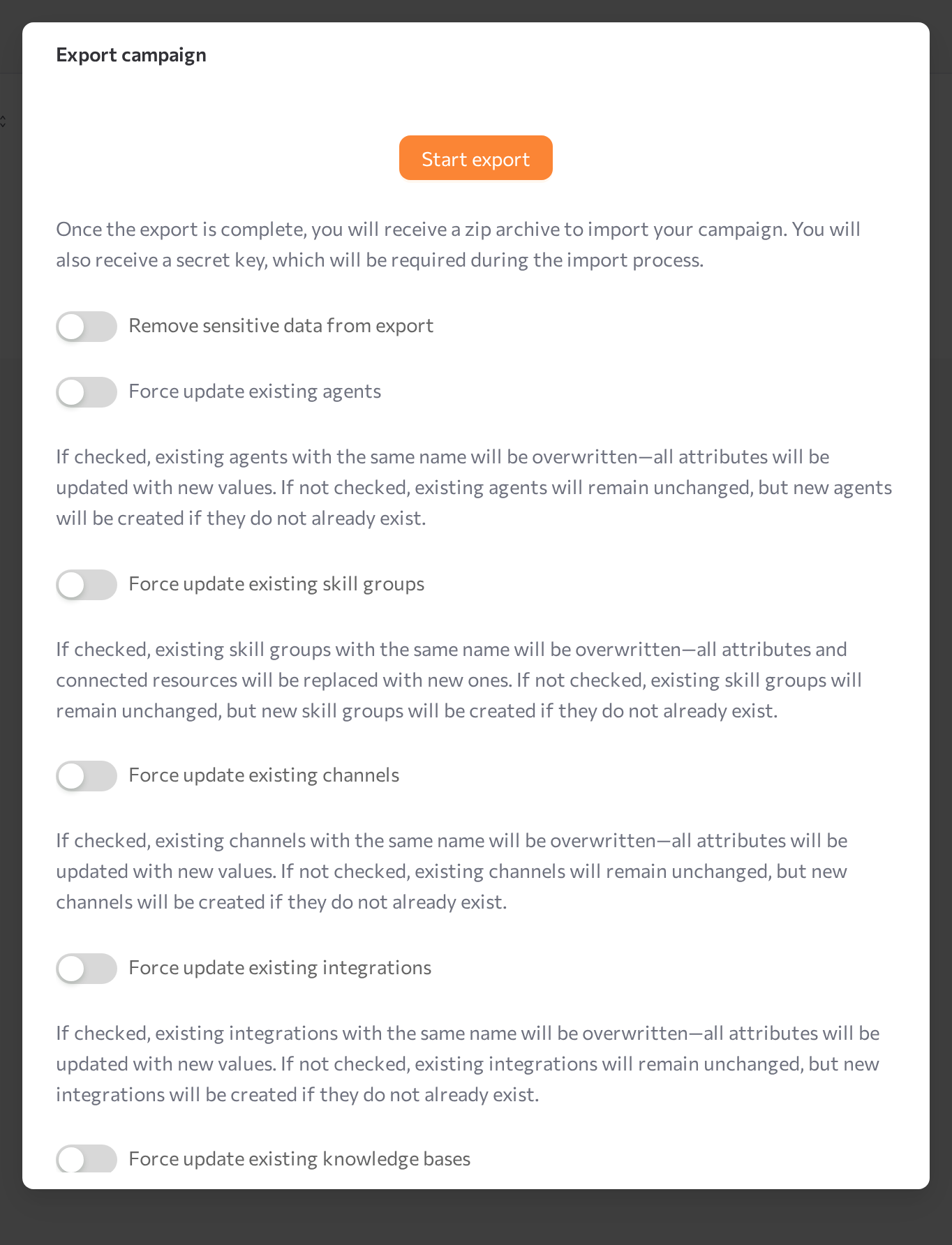
  • In the campaign header, open the menu for Rename and Export campaign. You can also use Edit on the row in the campaign list to change both Name and Description. Names must stay unique.
  • A previously exported campaign can be imported back from the list with Import campaign.
  • To change fields, flows, or data of an active campaign, click Stop first.
  • To delete a campaign, use the delete action on its row in the campaign list and confirm in the Delete Campaign dialog. Deleting cannot be undone.

Common issues

  • "Campaign name is required" or "A campaign named '…' already exists". Enter a name; campaign names are unique per workspace.
  • Activation fails with "Fill in required fields for: …". The listed nodes have incomplete settings — open each one and fill in the required fields.
  • Activation fails with a flow structure message. Check the flow against the validation rules: at least one trigger, at least one action, every trigger leads onward, no cycles, and every branch except an unconnected Else ends in an action.
  • A trigger cannot be added — "… can be used only once per flow". That trigger type is already on the canvas; connect from the existing node instead.
  • The workflow editor is read-only. The campaign is Active. Click Stop, edit, then Start again.
  • An agent is missing from the Agent list in an action. The agent has no channel of the matching type attached. Attach the channel on the agent page first.
  • A field does not appear in the Field Check Property list. The field must exist on the Data tab; for field-to-field comparison, the types must match.
  • "You can only upload CSV files!" The file extension is not .csv — save Excel sheets as CSV first.
  • "File must be smaller than 4GB!" Split the file into smaller parts.
  • An upload is marked Failed. At least one row failed; the other rows are still imported. Download the errors report, fix the listed rows, and upload them again. Repeated type errors usually mean a Type mismatch on the Data tab.
  • The campaign shows Error. Hover over the status tag to read the message.
  • Settings > Channels — connect the channels campaigns send through
  • Agents — create and manage the AI agents that handle conversations
  • Simple mode — attach channels to an agent
  • Sessions — read the conversations that communications start
  • 360 View — the customer profiles behind Customer Profile fields
  • Dashboards — portal-wide analytics
  • Python campaigns — the code-based campaign system

Was this article helpful?