Inbound Customer Service Agent
In this tutorial you build a complete inbound customer service setup in Flametree: an AI agent that answers questions on your website, collects customer details, and passes the conversation to a person when needed.
The example company is EventHub, a fictional business that runs online events such as webinars and workshops. By the end you have:
- An Inbound Agent with instructions and knowledge sources.
- Conversation results and human handoff configured.
- A web widget you can embed on any site.
- A tested conversation — reviewed in Sessions, answered and resolved in Human Agents, and counted in Analytics.
Plan 30–45 minutes. Each stage gives only the steps you need and links to the page that covers that screen in full.
Before you start
- You are signed in to the portal — see Sign up and sign in.
- Your role allows creating and editing agents. If the Create new agent button is disabled, ask your administrator.
- For the escalation stages you act as the human agent yourself — no second account is needed.
Stage 1: Create the agent
- In the left menu, go to AI Agents > Agents.
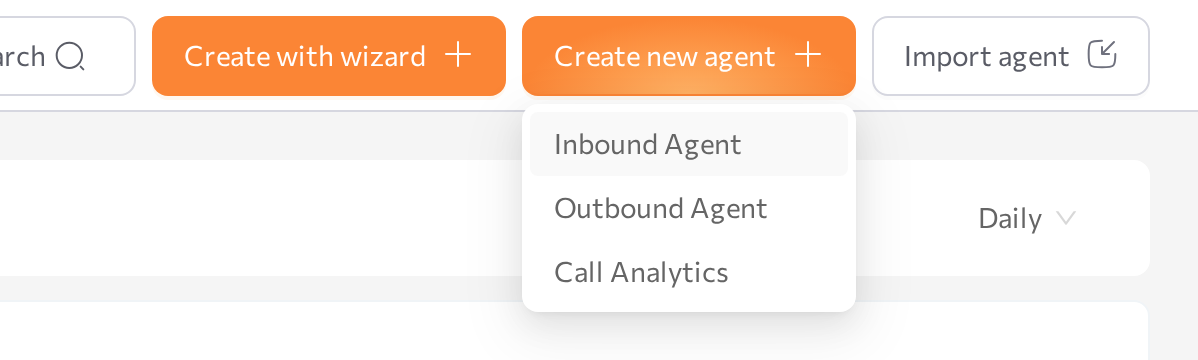
- Click Create new agent and select Inbound Agent — the type for conversations where customers write first.
- Enter
EventHub Assistantin the Agent name field and click Create.
The agent configuration page opens in Simple mode, with the Instructions, Knowledge Sources, Channels, and Conversation Results tabs on the left and the Playground panel on the right.
Click Save in the upper-right corner after you change any tab. Saving applies the changes to the live agent and restarts it automatically.
Creating and managing agents in detail: Agents.
Stage 2: Write the instructions
Open the Instructions tab and fill in the three required fields and the welcome message with the EventHub texts below.
Identity & Role
You are Ted, a helpful AI assistant for EventHub. EventHub organizes online events such as webinars, workshops, and educational sessions.
You help people learn about upcoming events and register for them.
Speech Style & Tone
Use a friendly and professional tone. Always introduce yourself.
Keep responses short — 1–2 sentences when possible.
Always reply in the same language as the customer.
Primary Task
Your main task is to help customers register for events.
Guide them through the registration process, ask for the required details, and confirm their registration.
If a question is outside event registration, politely redirect the conversation back to the event.
In addition to name and email, also ask for the phone, and preferred date of the event.
Welcome message
Hello! I can help you register for our upcoming events.
Would you like to see what events are available?
Click Save.
What to write in each field: Simple mode.
Stage 3: Turn on human handoff
Still on the Instructions tab:
- Switch Allow human handoff on.
- In Handoff Conditions, describe when the agent should pass the conversation to a person:
Transfer the conversation to a human agent when the customer explicitly asks to talk to a person,
when the customer wants a refund, or when you cannot answer the same question after two attempts.
- Click Save.
When a condition is met during a conversation, the session is routed to the Human Agents workspace — you handle that side in Stage 9.
If the toggle is unavailable, the agent's workflow was modified in Advanced mode — see Simple mode for how to restore it.
Stage 4: Add knowledge sources
Open the Knowledge Sources tab and give the agent something to answer from. For EventHub, fill in three sub-tabs.
-
On Core, enter the facts the agent should always consider, then click Save:
EventHub hosts short online learning events such as webinars and workshops.
Events usually last 60–90 minutes and are held online via Zoom. Each event has a limited number of seats (100 participants).
Registration requires name and email address. After registration, participants receive a confirmation email with the event link.
Participation in events is free, but registration is required. -
On FAQs, click Create FAQ and add two question-and-answer pairs:
Question: What happens if an event is already full?
Answer: If an event reaches the limit of 100 participants, you can join the waiting list. If a spot becomes available, you will receive an email invitation to register.

Question: What if I register but cannot attend the event?
Answer: If you cannot attend the live session, you will automatically receive a recording of the event by email within 24 hours. -
On Plain Text, click Create new text and paste the event catalog:
Upcoming Events

AI Basics for Beginners
A beginner-friendly introduction to artificial intelligence and its real-world applications.

Time Management Masterclass
Practical strategies for prioritizing tasks and improving daily productivity.

Introduction to Data Analytics
A short overview of how organizations collect, analyze, and use data to make decisions.
If sources of a type already exist in your tenant, the sub-tab offers Connect instead — connecting reuses the shared source without copying it. Wait for each source to show the Ready status; no restart is needed.
All source types and indexing details: Knowledge Sources.
Stage 5: Connect the web widget
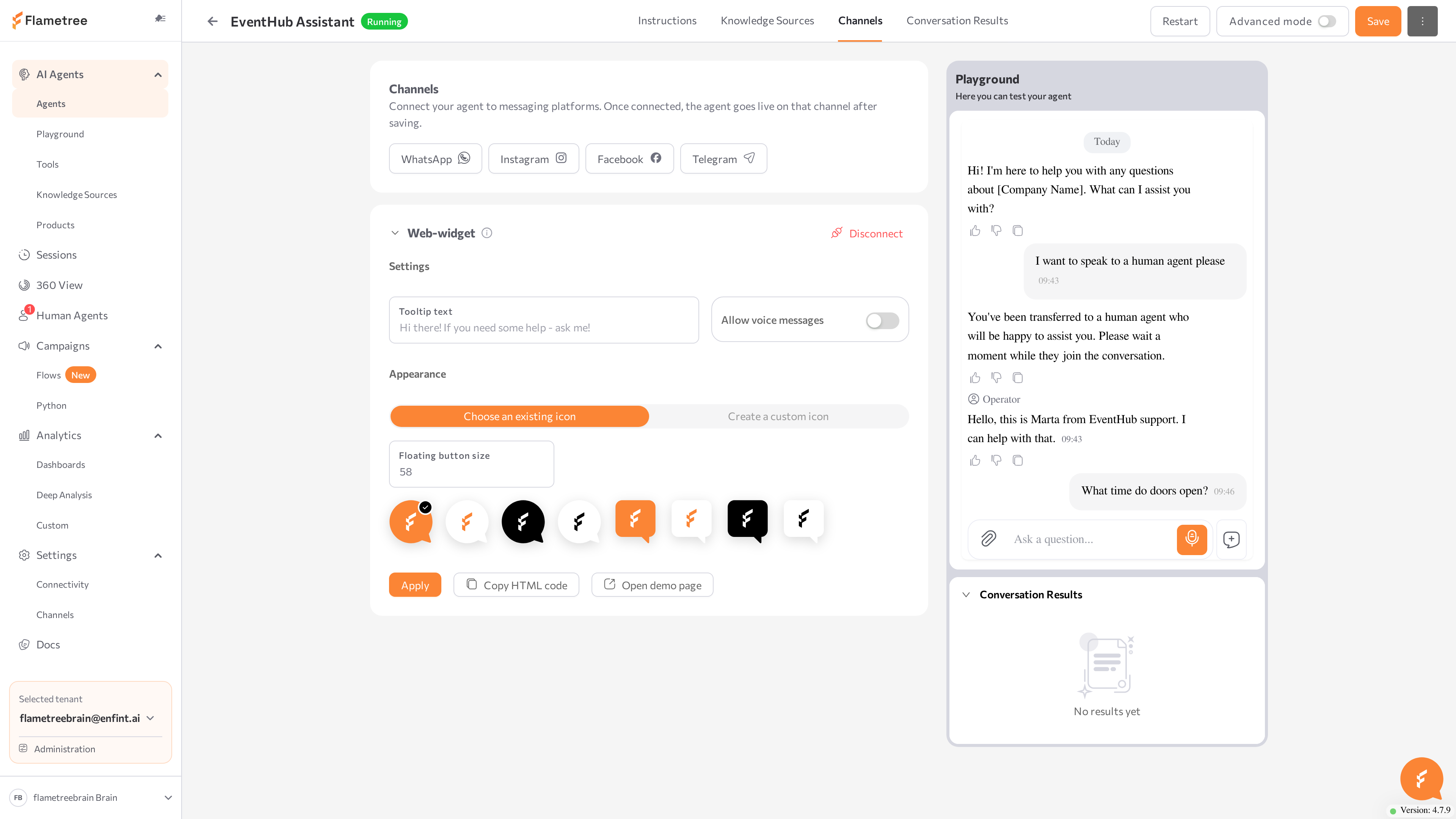
- Open the Channels tab and click Web-widget.
- Expand the widget row, adjust the appearance options if you like, and click Apply, then Save.
- Click Open demo page to try the widget on a hosted test page — no website changes needed.
- To put the widget on your site, click Copy HTML code and paste the snippet immediately before the closing
</body>tag. In website builders, use the custom HTML or script block.
Embed modes, appearance options, and page-side controls: Web Widget. Messaging channel connections are managed centrally in Settings > Channels; the agent's Channels tab attaches channels to this agent.
Stage 6: Choose what the agent collects
The Primary Task tells the agent to ask for a name, email, phone, and preferred date — now define those as conversation results, so they are captured as structured data.
- Open the Conversation Results tab.
- In the Standard Information fields, toggle on Name, Email, and Phone.
- Click Add something else and create a custom field: What to look for —
Preferred event date; How to recognize it —The date on which the customer wants to attend an event. Keep Any value selected and click Add field. - Click Save.
Standard fields, custom fields, and capture options: Simple mode.
Stage 7: Test in the Playground
Use the Playground panel on the right side of the agent page — it always chats with the last saved version of the agent.
- Ask a knowledge question:
What happens if the event is full?The agent should answer with the waiting-list policy from your FAQs. - Start a registration:
I want to register for the AI Basics event.The agent should ask for your name, email, phone, and preferred date. - Provide the details and watch the Conversation Results block under the chat fill in live.
- Test the escalation: write
I want to talk to a human.The agent acknowledges the transfer and stops answering — the conversation now waits for a person.
After any configuration change, click Save and retest: the panel starts a new test session against the saved configuration.
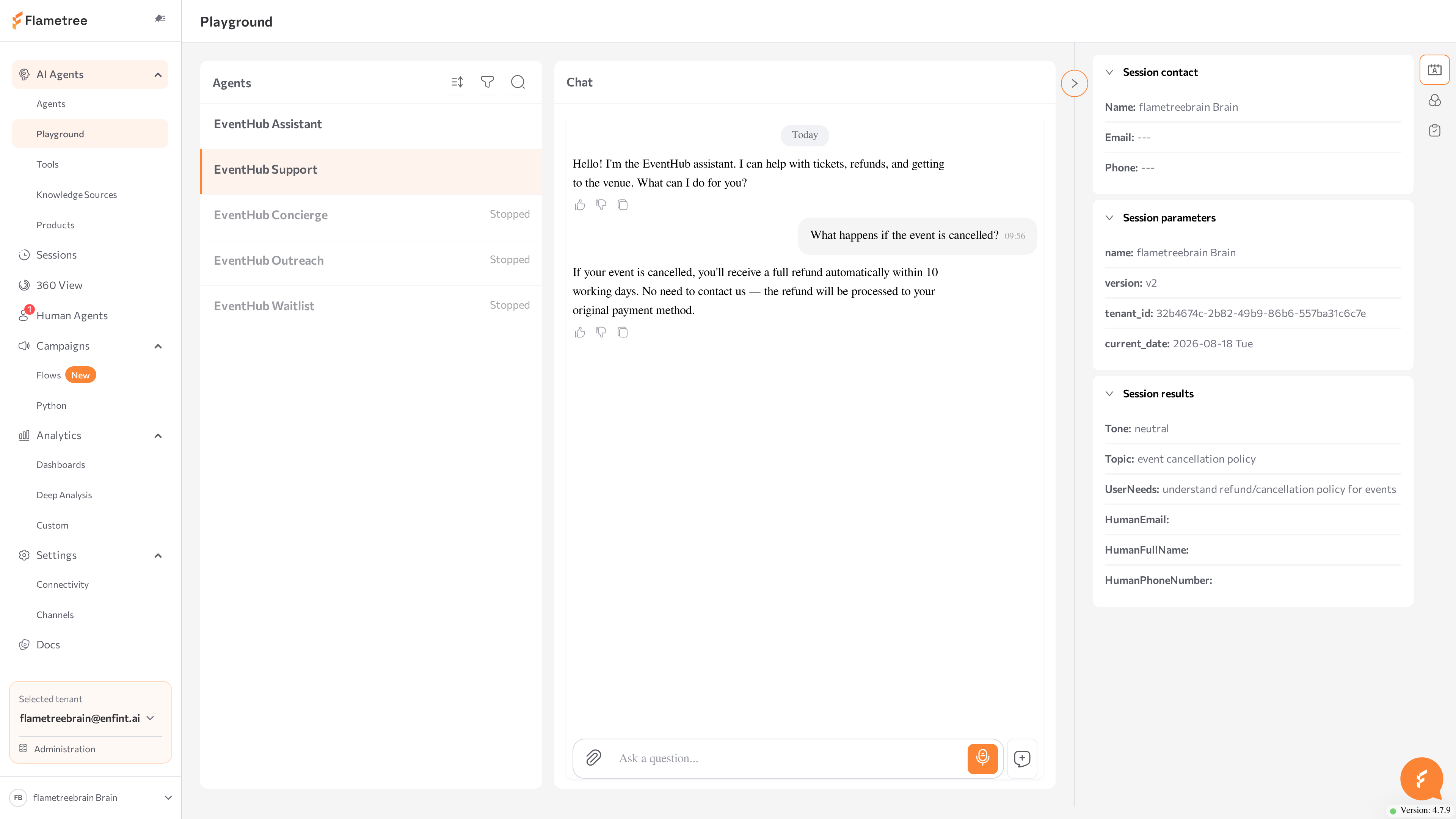
Panel states and testing patterns: Playground.
Stage 8: Review the session in Sessions
Every conversation — including Playground tests — is recorded as a session.
- In the left menu, open Sessions.
- Click Search, pick your agent in the Agents filter of the Session Filters dialog, and click Apply.
- Open the test session: read the messages, check the collected values under Session results in the Parameters & results panel, and find the Transfer to human agent marker in the chat.
You can also escalate any active session manually from here with the Hand over to the operator button under the chat.
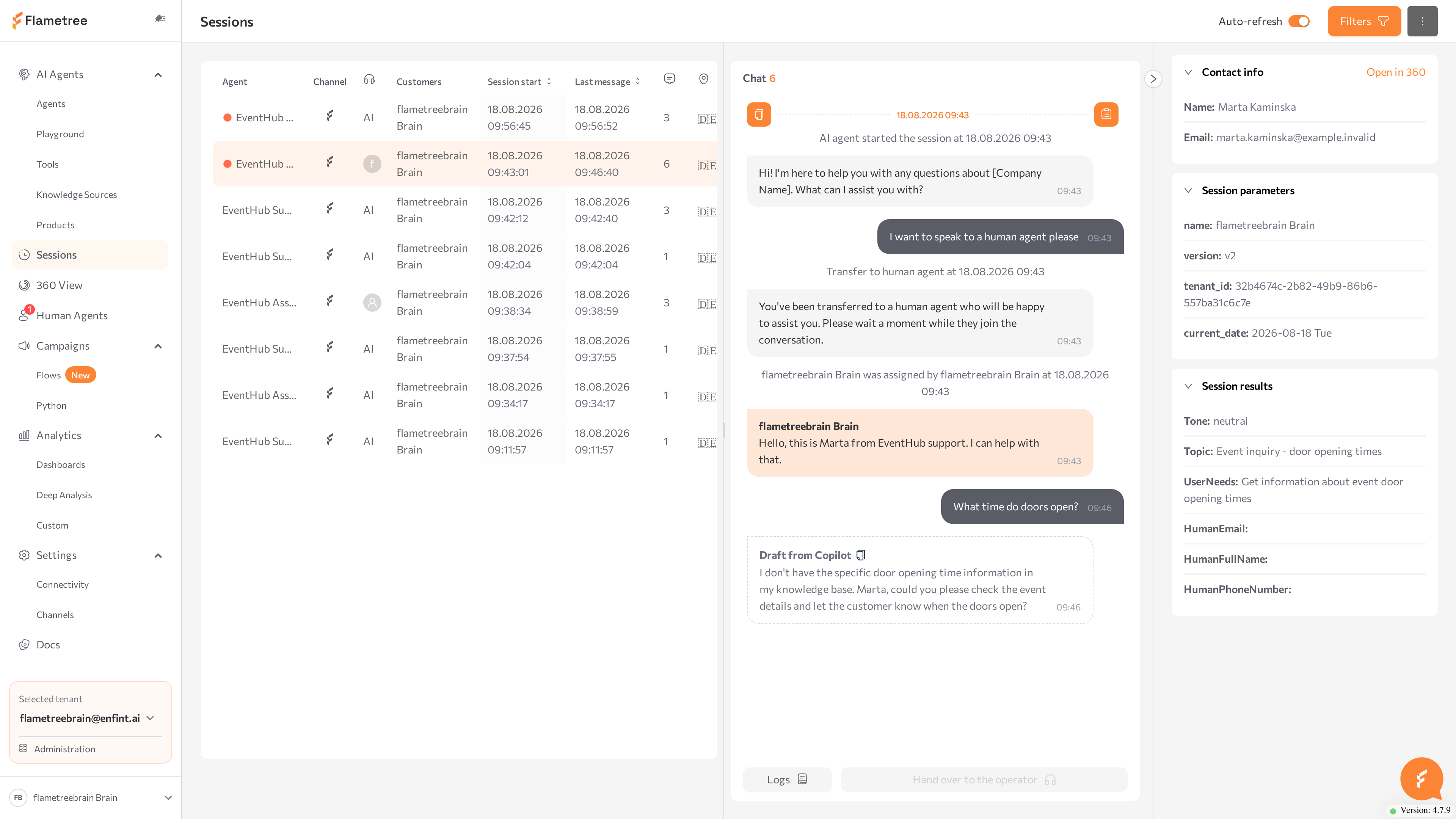
Filters, logs, and the anatomy of a session: Sessions.
Stage 9: Answer as a human agent
The conversation you escalated in Stage 7 is now waiting in the operator workspace.
- In the left menu, open Human Agents.
- Switch to Human Agent view and look in the Unassigned group; AI Agent view shows the same conversations grouped by agent.
- Open the conversation, click Assign in the chat header, and pick Me. The message input appears, and Copilot mode is on by default — the AI drafts replies that you can copy, edit, and send.
- Reply to the customer. Your message is delivered in the same channel and labeled with your name in the history.
- When the issue is handled, click Resolve and confirm.
Claiming, Copilot drafts, private notes, and resolving: Human Agents.
Stage 10: Check the dashboard
- In the left menu, open Analytics > Dashboards and select the Agents tab.
- Expand the filter panel, set the Lookup Period, pick your agent in the Agent filter, and click Apply.
- Review the charts: session volume, sessions transferred to and resolved by human agents, unique users, and average messages per session. Your test session and the handover you resolved in Stage 9 are part of these numbers.
How to read each chart: Dashboards.
What you built
- An agent that answers EventHub questions in the Playground and the web widget, and captures a name, email, phone, and preferred date as conversation results.
- A handoff path: escalation phrases move the conversation to Human Agents, where you replied and resolved it.
- Visibility: the conversation in Sessions and the activity on the Agents dashboard.
To reach customers first instead of waiting for them, continue with the Outbound WhatsApp Campaign tutorial.
Common issues
- The agent answers EventHub questions generically. A knowledge source is missing or not indexed yet — check the status badges on the Knowledge Sources tab and wait for Ready.
- The Playground ignores your latest edits. You are chatting with the previously saved version — click Save changes in the panel.
- The agent never hands over. Check that Allow human handoff is on and that your Handoff Conditions cover the test phrase. If the toggle is unavailable, the workflow was modified in Advanced mode.
- You cannot reply in Human Agents. The conversation is unassigned — the message input appears only after you click Assign and pick an owner.
- The widget does not appear on your site. Check that the snippet sits immediately before
</body>, and see the checks in Web Widget.
Related pages
- Quick start — a shorter first-agent walkthrough
- Simple mode — every field on the agent page
- Knowledge Sources — the tenant-wide source library
- Web Widget — embed options and page-side controls
- Sessions — find and read conversations
- Human Agents — the operator workspace
- Dashboards — agent and campaign analytics
- Outbound WhatsApp Campaign — the companion outbound tutorial