Quick Start
Build and test your first AI agent — from an empty workspace to a working conversation in the Playground panel. Part 1 gets you a first answer with two fields filled in. Part 2 turns that agent into something you'd put in front of customers.
Click Create with wizard on the Agents screen to start from a ready-made template instead of a blank agent — see Create an Agent with a Wizard. This guide builds an agent from scratch.
Before you start
- A Flametree account. If you don't have one, see Sign up and sign in.
- The Tenant Admin role. If you registered the tenant yourself, you already have it.
- A few minutes for Part 1, and around ten more for Part 2.
Part 1: Get your first answer
Create the agent
- In the left menu, go to AI Agents > Agents.
- Click Create new agent in the upper-right corner.
- Select Inbound Agent from the dropdown. This type replies to messages customers send first.
- In the Create new Inbound Agent window, enter a name in the Agent name field and click Create.
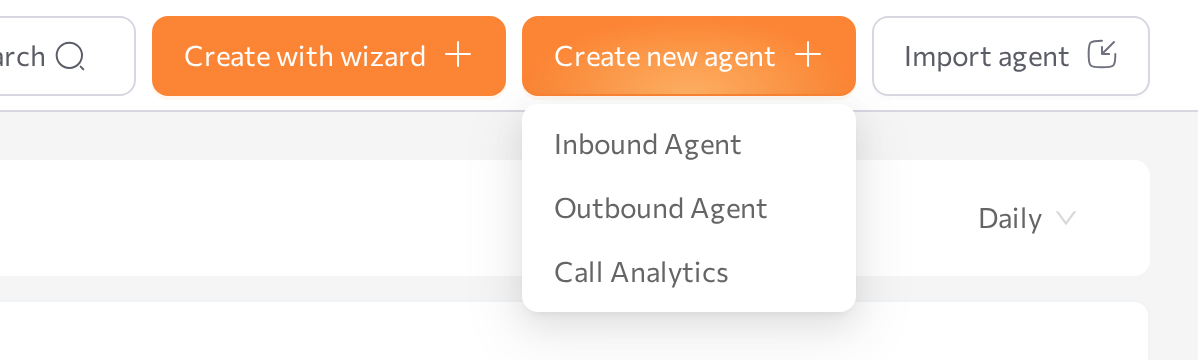
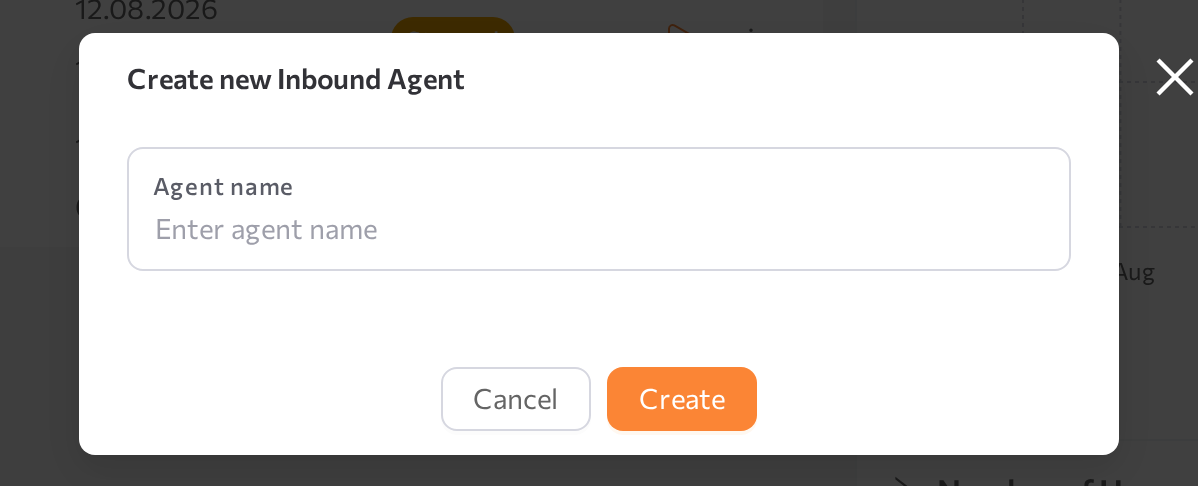
Expected result: the agent page opens on its General tab, alongside Knowledge, Capabilities, Channels, Workflow, and Settings, with a Playground panel open on the right. The agent starts Stopped — you'll start it once it has something to say. For the full tour of this page, see Configure an agent.
Tell it who it is and what to do
On the General tab, under Behavior, fill in two fields and leave the rest for later:
| Field | What to write | Example |
|---|---|---|
| Instructions | What the agent must accomplish in every conversation. | Help customers register for events. Guide them through registration, ask for the details you need, and confirm. If a question is outside event registration, redirect the conversation politely. |
| Welcome message | A toggle that opens a dialog for the first message customers see. The portal sends it exactly as written — the agent doesn't rephrase it. | Hello! I can help you register for our upcoming events. Would you like to see what's available? |
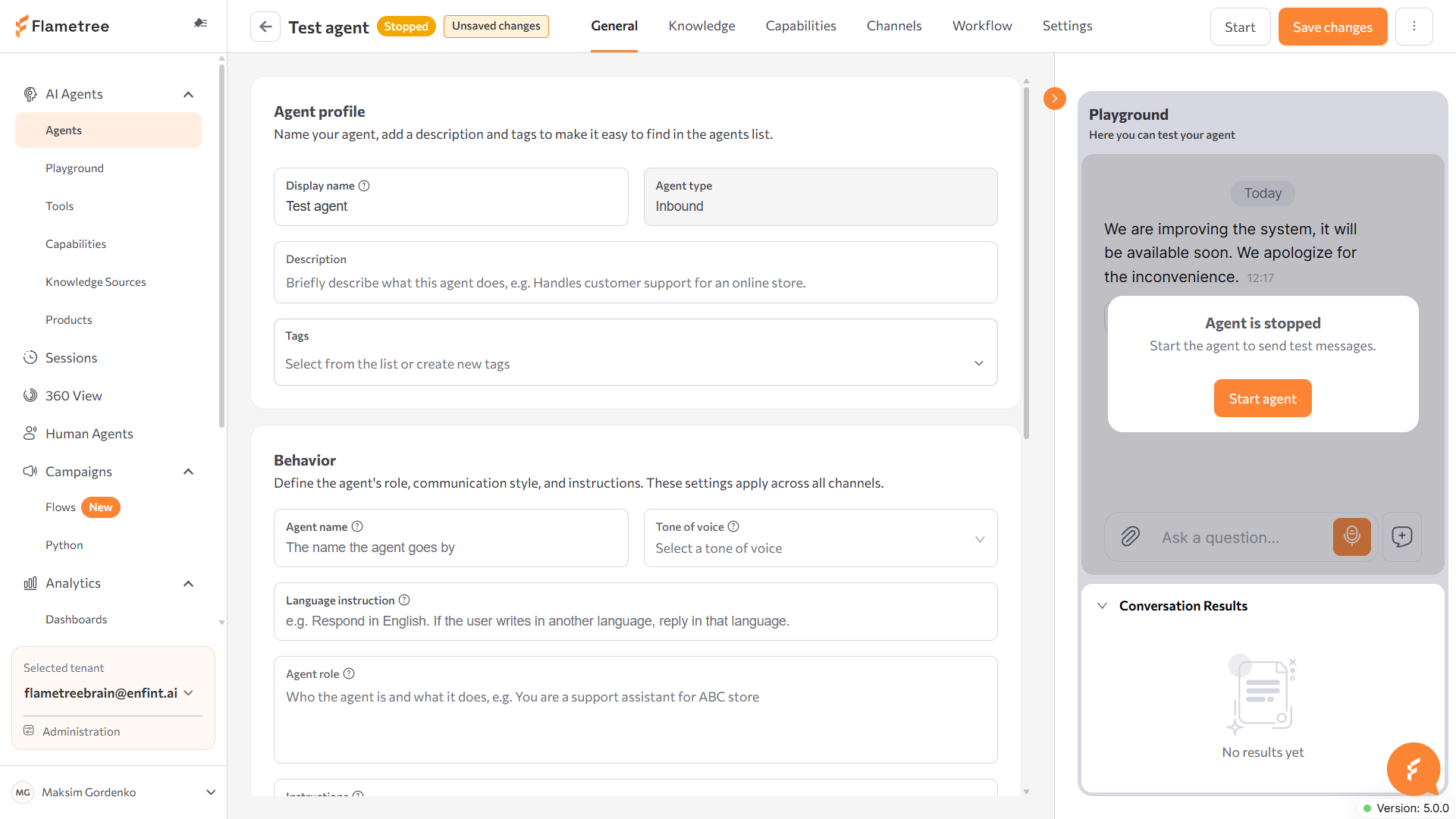
Click Save changes in the header.
Start it and talk to it
The agent has never run, so there's nothing to restart yet — just start it:
- In the Playground panel on the right, click Start agent (or click Start in the header).
- Once the status reaches Running, send it a greeting.
Expected result: the agent greets you with your welcome message and stays on the task you described.
Part 2: Turn it into a working agent
An agent this small already holds a conversation, but it doesn't know your business yet and isn't collecting anything. Do the following in any order. The agent is running now, so after each change click Save changes, then click Restart when the header — or the Playground panel itself — asks for it.
Give it facts to answer from
Open the Knowledge tab and fill in Core — the short, essential facts included with every answer:
EventHub hosts short online learning events such as webinars and workshops. Events last 60–90 minutes and run online. Each event is limited to 100 participants. Registration requires a name and an email. Participation is free.
For larger material — Q&A pairs, documents, websites, videos — see Knowledge Sources.
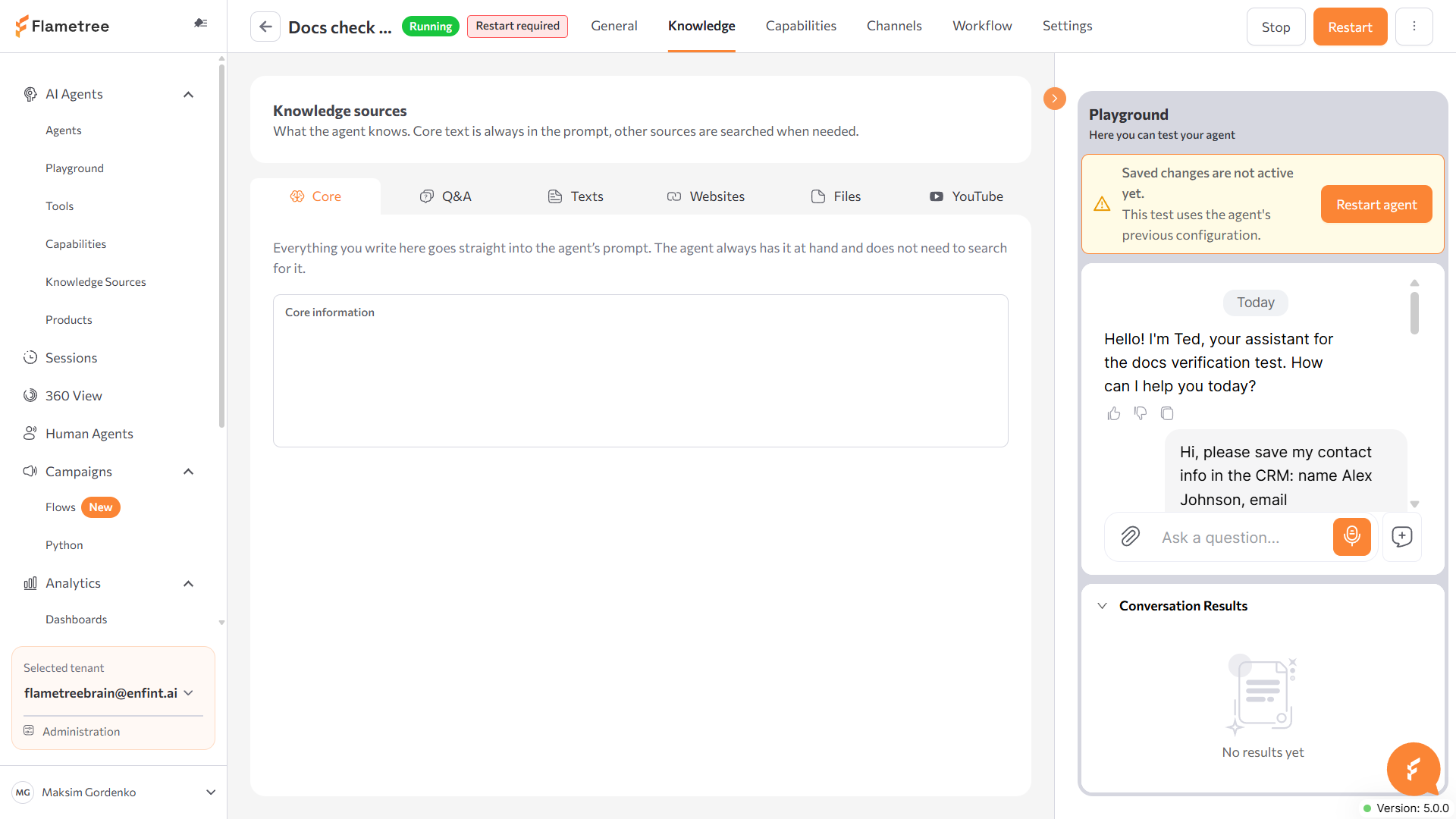
Verify: restart the agent if asked, then ask it in the Playground something only your Core text answers, such as how long an event lasts.
Decide what it collects
Still on the General tab, scroll to Conversation Results:
- Click Add something else.
- In the What Should the Agent Find Out? window, fill in What to look for (the field name) and How to recognize it (what tells the agent to capture it).
- Choose Match to options for a fixed list of answers, or Any value for open-ended ones.
- Click Add field, then Save changes.
The mechanism is the same one used in Conversation Results — see that page for the full field-by-field description.
Verify: run a short registration in the Playground and watch the values appear under Conversation Results in the panel.
Fill in the persona
Still under Behavior, add Agent role (who the agent is and what it represents) and pick a Tone of voice preset to round out how it introduces itself. See Configure an agent for every field on this tab, including Language instruction and Use contact data.
The Channels tab attaches channels your tenant has already set up in Settings > Channels — it doesn't create new ones. You don't need a channel to test in the Playground, so leave this tab until the agent behaves the way you want.
When the answers are wrong
Adjust Instructions or Core, click Save changes, and restart when asked — small wording changes there move the answer more than anything else. If the agent still behaves the old way after restarting, check its status in Agents. For other symptoms, see Troubleshooting.
What's next
- Connect a web widget and put the agent on your site.
- Add more knowledge sources for deeper answers.
- Give it custom tools or skills in Capabilities, or branch its conversation on the Workflow canvas.
- Review sessions once real customers start chatting.
- Set up human handoff so operators can take over.