Sign Up and Sign In
This page explains how to create a Flametree account, how to sign in, and what to do on your first login if a teammate invited you.
Create your account
If your company does not use Flametree yet, register first. Registration creates both your personal account and your organization's workspace.
- Open the portal. The sign-in screen opens.
- Follow the registration link on the sign-in screen.
- Choose how to register:
- With Google or With Apple — pick your account and confirm.
- With email — complete the registration form. All fields are required:
- First name — your first name. You can use a nickname, but the field cannot be empty.
- Last name — your last name.
- Email — your work email address.
- Password and Confirm Password — a secure password, entered twice to catch typos.
- Check By signing up, you agree to our Terms of Service and Privacy Policy, then submit the form.
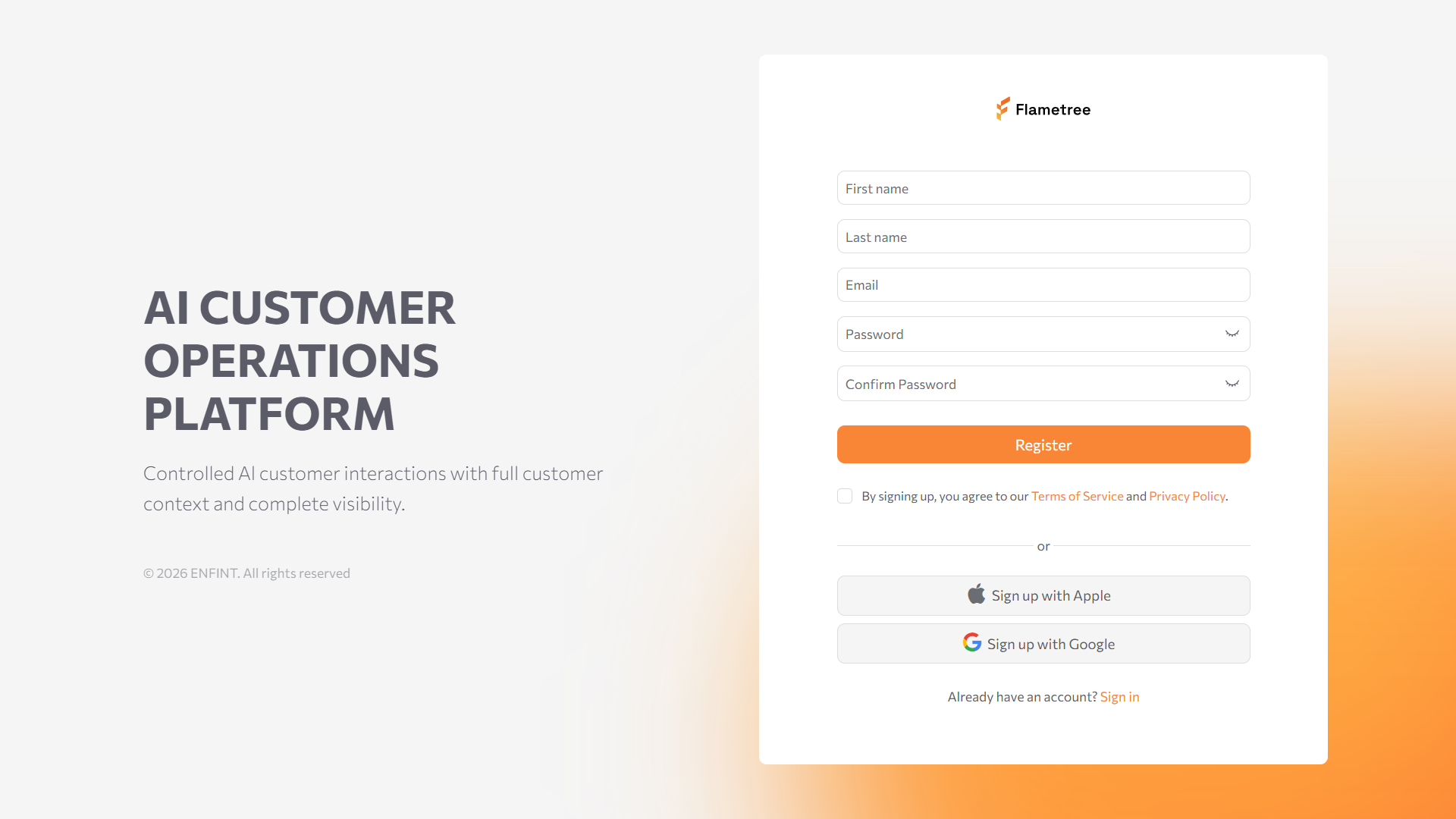
Expected result: Flametree creates your first workspace — called a tenant — and signs you in. You receive the Tenant Admin role, which lets you manage agents, users, billing, and integrations.
New tenants start on a trial plan so you can build and test agents right away. Check your current plan and usage on the Billing tab of your Profile.
Sign in
- Open the portal.
- Enter your email and password, or use the Google or Apple sign-in option if you registered that way.
- Confirm to sign in.
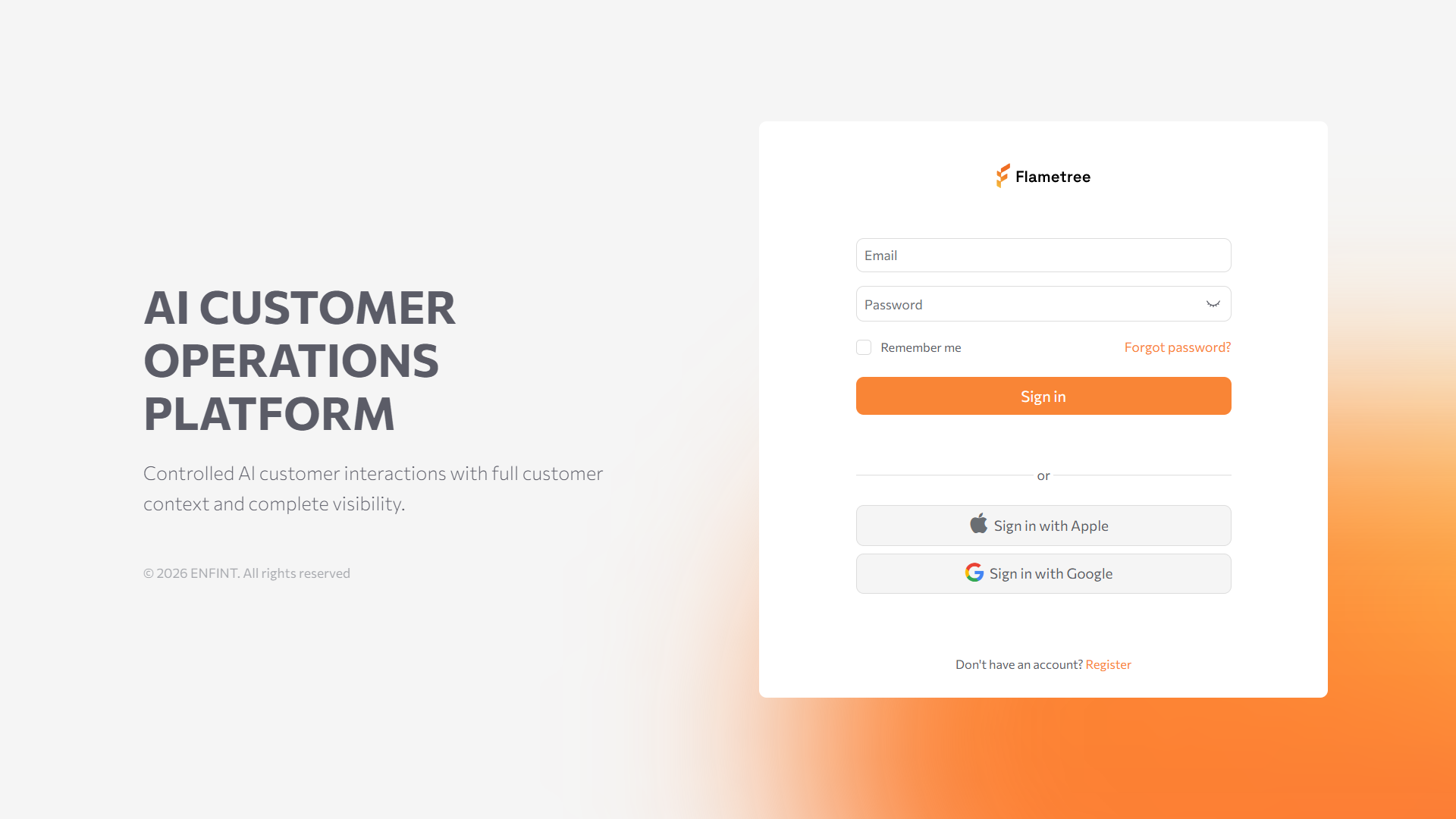
You land in your tenant's workspace. What you see in the left menu depends on your role.
First login for invited users
If a Tenant Admin added you to an existing tenant, they set a temporary password for you. On your first login:
- Open the portal.
- Enter your email and the temporary password your Tenant Admin gave you, then sign in.
- When prompted, set a new secure password of your own and submit it.
- Check your inbox for the email verification message and follow its instructions to verify your email.
Expected result: you are redirected into your organization's workspace. For what to do next, ask your Tenant Admin — your role determines which screens you can use.
Your account can be granted access to more than one tenant, each with its own role — see See your tenants. If you need access to a different organization's workspace and don't have it, ask that organization's Tenant Admin to add you.
Sign out
- Click your name at the bottom of the left menu to open your Profile page.
- Click the logout button in the top-right corner of the Profile page.
Common issues
- You did not receive the verification email. Check your spam folder. If it is not there, ask your Tenant Admin to re-add you, or contact support.
- Your account exists but you see "permission denied" screens. Your role limits what you can open. Ask your Tenant Admin to review your role under Administration > Users.
Related pages
- Key concepts — tenants, users, and roles explained.
- Manage users and roles — invite teammates and manage roles (Tenant Admin only).
- Profile and Billing — your account details and plan.