Outbound WhatsApp Campaign
In this tutorial you launch an outbound WhatsApp campaign in Flametree: a visual flow sends an approved WhatsApp template message to every contact you upload, and an AI agent takes over the conversation when a contact replies.
The example continues with EventHub, the fictional online-events company from the inbound tutorial — this time you invite a contact list to upcoming events. By the end you have:
- A running WhatsApp channel connection.
- An outbound agent attached to it.
- A campaign with custom data fields, an active flow, and an uploaded participant list.
- Per-contact communication statuses and a campaign dashboard.
Plan about an hour in the portal, plus Meta-side setup time if WhatsApp is not connected yet. Each stage gives only the steps you need and links to the page that covers that screen in full.
WhatsApp requires the first message of a business-initiated conversation to be a pre-approved template. Free-form messages are allowed only after the customer replies, within a 24-hour window — which is exactly when your AI agent takes over.
Before you start
- A WhatsApp Business API setup on the Meta side, with the credentials at hand — see WhatsApp for the walkthrough.
- At least one approved WhatsApp message template.
- A contact list you can save as a CSV file, with at least a phone number per contact.
- A role that allows managing settings, agents, and campaigns. If a button in these stages is disabled for you, ask your administrator.
Stage 1: Connect the WhatsApp channel
Channel connections are created once, centrally, and then attached to agents.
- In the left menu, go to Settings > Channels.
- Select WhatsApp in the channel list and click Add.
- In the New connector panel, enter a Name and fill in the credentials from your Meta app.
- Click Save, then Start in the panel header. Wait until the status dot turns green — RUNNING.
Meta prerequisites, credential fields, and troubleshooting: WhatsApp.
Stage 2: Prepare the agent
The campaign sends messages through an agent, and a flow's Agent list offers only agents that have a channel of the matching type attached.
- Go to AI Agents > Agents, click Create new agent, and select Outbound Agent — the type for conversations the agent starts. Name it
EventHub Outreachand click Create. - Fill in the Instructions tab — identity, tone, and a task focused on inviting contacts to EventHub events and answering their questions — and add knowledge sources as needed. See Simple mode.
- Attach the WhatsApp connection from Stage 1 to the agent — see Connect a channel to an agent in Settings > Channels — and save.
- Start the agent and wait for the Running status.
Stage 3: Create the campaign
- In the left menu, go to Campaigns > Flows.
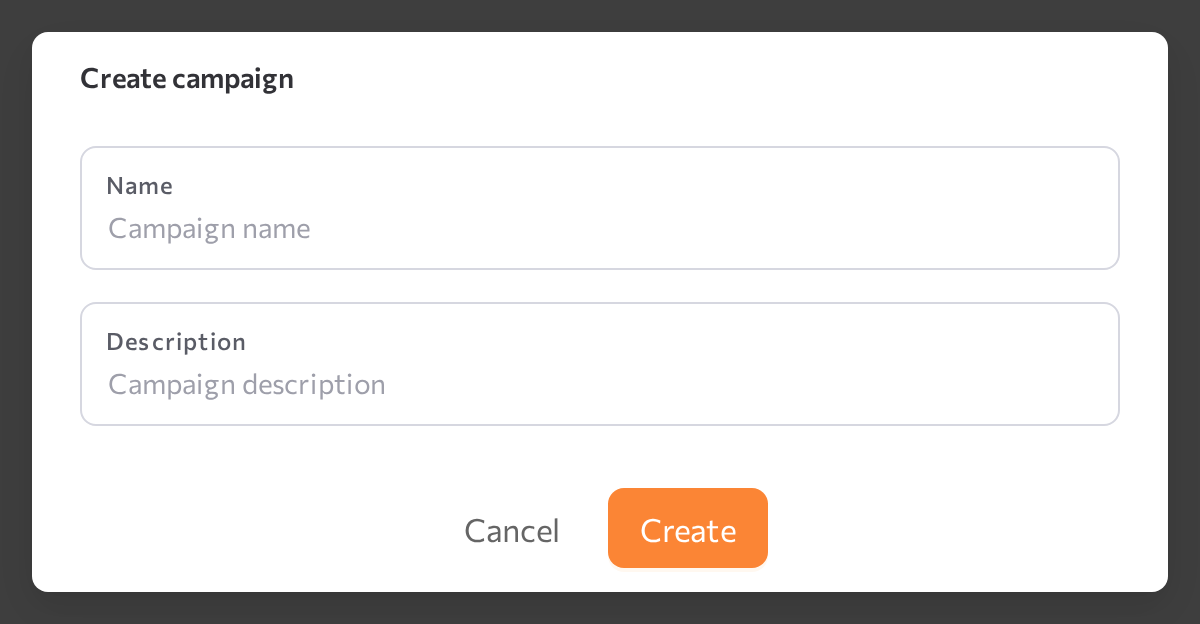
- Click Create campaign.
- Enter the Name
Spring Event Invitationsand an optional Description, then click Create.
The campaign appears in the list with status Inactive — nothing runs yet. Double-click the row to open it: the campaign page has five tabs — Data, Workflow, Uploads, Participants, and Analytics.
The campaign screen in full: Flows.
Stage 4: Define the participant fields
The Data tab decides which CSV columns you can import and which properties the flow can use. The system Customer Profile fields, such as Name, Email, and Phone, are already there with Import enabled.
- Open the Data tab and click Manage fields.
- Click Add field, fill in the Title and Name, and pick the Type. Create two fields:
preferred_event— typestring: which event the contact is interested in.invite_date— typedate: the day the invitation should go out.
- Close the dialog. In the fields table, check Import and Required for both new fields — the flow and the template message rely on them, so a row missing one should fail at upload instead of entering the campaign. Required can be toggled only for your own importable fields; system fields such as Phone are locked. Every row still needs a phone number — a contact without one cannot receive a WhatsApp message.
Field levels, types, and validation rules: Flows.
Stage 5: Build the flow
- Open the Workflow tab and click New flow.
- From the node palette in the Settings & Nodes panel, drag three nodes onto the canvas and connect them in order:
- Participant Created (trigger) — fires when a participant is added to the campaign.
- Field Check (condition) — click the node and set Property to Phone and Operator to is set.
- WhatsApp Communication (action) — connect it to the condition's Match output.
- Click the WhatsApp Communication node and fill in its settings:
- Communication Name — a unique name for this send, for example
SPRING_INVITE. - Agent —
EventHub Outreachfrom Stage 2. - Agent Channel — the WhatsApp connection from Stage 1.
- Communication Date and Time — under Use Date and Time from, pick the
invite_datefield, or Today to send as soon as possible. - Communication Hours — set the From / To window in which sending is allowed, or enable Best time to contact.
- Communication Duration — how many hours the communication stays open before it is closed.
- Customer Context — add
preferred_event, so the agent knows which event each contact cares about when the conversation starts.
- Communication Name — a unique name for this send, for example
The editor saves automatically a few seconds after your last change; click Save in the Settings & Nodes panel to save immediately. All triggers, conditions, and actions: Flows.
Stage 6: Set the template message
Still in the WhatsApp Communication settings:
- Click Set a template message.
- Pick one of the approved templates available for the selected channel.
- Map the template's variables to participant fields or static values — for example, the greeting variable to Name and the event variable to
preferred_event. - Confirm. The button changes to Change template, so you can switch templates later.
Map variables only to fields every participant is guaranteed to have — mark custom fields Required on the Data tab — or use static values.
Templates themselves are created and approved on the Meta side; in the flow you only select one and map its variables. See WhatsApp.
Stage 7: Activate the flow and start the campaign
- In the Flows panel on the Workflow tab, open the ⋯ menu on your flow and click Activate.
- If activation fails, fix what the message reports: every required node setting must be filled, and the flow structure must be valid — at least one trigger, and every branch except an unconnected Else ending in an action.
- Click Start in the campaign header. The status tag changes to Active.
The flow now shows an Active badge, and the campaign is running. Only active flows process participants — and only while the campaign itself runs.
The Participant Created trigger fires at the moment a participant is added — and only while the campaign is Active. Participants uploaded while the campaign is stopped never fire it, and starting the campaign later does not fire triggers for them retroactively. Start the campaign first, then upload.
Stage 8: Upload the participants
- Prepare the CSV file: column headers must match the fields defined on the Data tab, only fields with Import checked are read, and every row needs a value in the Phone column. Save spreadsheets as CSV first.
- Open the Uploads tab and click Upload data.
- In the Upload Data dialog, drag the file into the drop zone — CSV only, one file at a time, up to 4 GB — and click Upload.
- Watch the progress in the uploads table. When the upload completes, check the participant counts. If some rows failed, download the errors report, fix those rows in your source file, and upload the corrected file — the other rows are already imported.
CSV rules and error reports: Flows.
Stage 9: Monitor the results
Because the campaign is already Active, the trigger fires for each participant as the upload adds them, and communications are scheduled and sent according to your flow.
- Open the Participants tab and click the count in a participant's Communications column. The communication moves through Planned, Started, Delivered, and Read, and ends as Replied or Completed — or as NoResponse, Canceled, Skipped, or Failed. Hover over a status tag to read its message.
- When a contact replies, the AI agent picks up the conversation. Click Go to session in the communications list to read it — replies also appear on the Sessions screen like any other conversation, and escalations land in Human Agents if the agent allows handoff.
- Open the Analytics tab for the campaign dashboard: participant totals, communication volume over time, and the breakdown of outcomes by status. For reporting across campaigns, use Dashboards.
While the campaign is Active, the active flow is read-only and flows cannot be activated or deactivated. Stop the campaign to edit fields, flows, or data, then Start it again — Stop is also how you pause a campaign.
Expected result
- Every participant with a phone number, uploaded while the campaign is Active, receives the template message on WhatsApp on the date in
invite_date, inside the allowed hours. - Contacts who reply chat with your AI agent, and each conversation is linked to its participant.
- The Participants tab shows per-contact statuses, and the Analytics tab shows the campaign totals.
Common issues
- Your agent is missing from the Agent list in the action. The agent has no WhatsApp channel attached — attach it on the agent's page and save (Stage 2).
- The Agent Channel list marks the connection as inactive. The channel is stopped or failed — open Settings > Channels, check the status and logs, then Stop and Start it.
- Activation fails with "Fill in required fields for: …". The listed nodes have incomplete settings — open each one and finish the configuration.
- Participants are imported, but no communications appear. They were uploaded while the campaign was stopped — the Participant Created trigger fires only at upload time and only while the campaign is Active, and starting the campaign does not fire it retroactively. Start the campaign before uploading (Stage 7).
- Communications stay in Planned. The campaign was stopped after they were created — Planned communications are sent only while the campaign is Active — or the base date is in the future, or the Communication Hours window has not opened yet.
- "You can only upload CSV files!" The file extension is not
.csv— save spreadsheets as CSV first. - An upload is marked Failed. At least one row failed; the rest are imported. Download the errors report, fix the listed rows, and upload them again.
- The flow editor is read-only. The campaign is Active — click Stop, edit, then Start again.
- The campaign status shows Error. Hover over the status tag to read the message — often a channel or agent problem.
Related pages
- Flows — the full campaign reference: data, workflow, uploads, participants, analytics
- WhatsApp — channel setup and Meta prerequisites
- Settings > Channels — manage channel connections
- Simple mode — configure the agent that handles replies
- Sessions — read the conversations replies start
- Human Agents — handle escalations from campaign conversations
- Dashboards — cross-campaign reporting
- Inbound Customer Service Agent — the companion inbound tutorial