Dashboards
Analytics > Dashboards gives you ready-made performance reports for your AI agents and outbound campaigns, with no report building required. Open the page from Analytics > Dashboards in the left menu.
Use it to:
- Run daily or weekly health checks — is conversation volume normal, are handovers to human agents growing?
- Confirm sessions and engagement behave as expected after you change an agent.
- Review how your outbound campaigns progress and how people respond.
- Prepare management reports across agents and campaigns.
The page has two tabs — Flametree remembers which one you opened last and returns you to it on your next visit:
- Agents — session volume, messaging activity, automation coverage, and escalations for your AI agents.
- Campaigns — how your outbound campaigns progress.
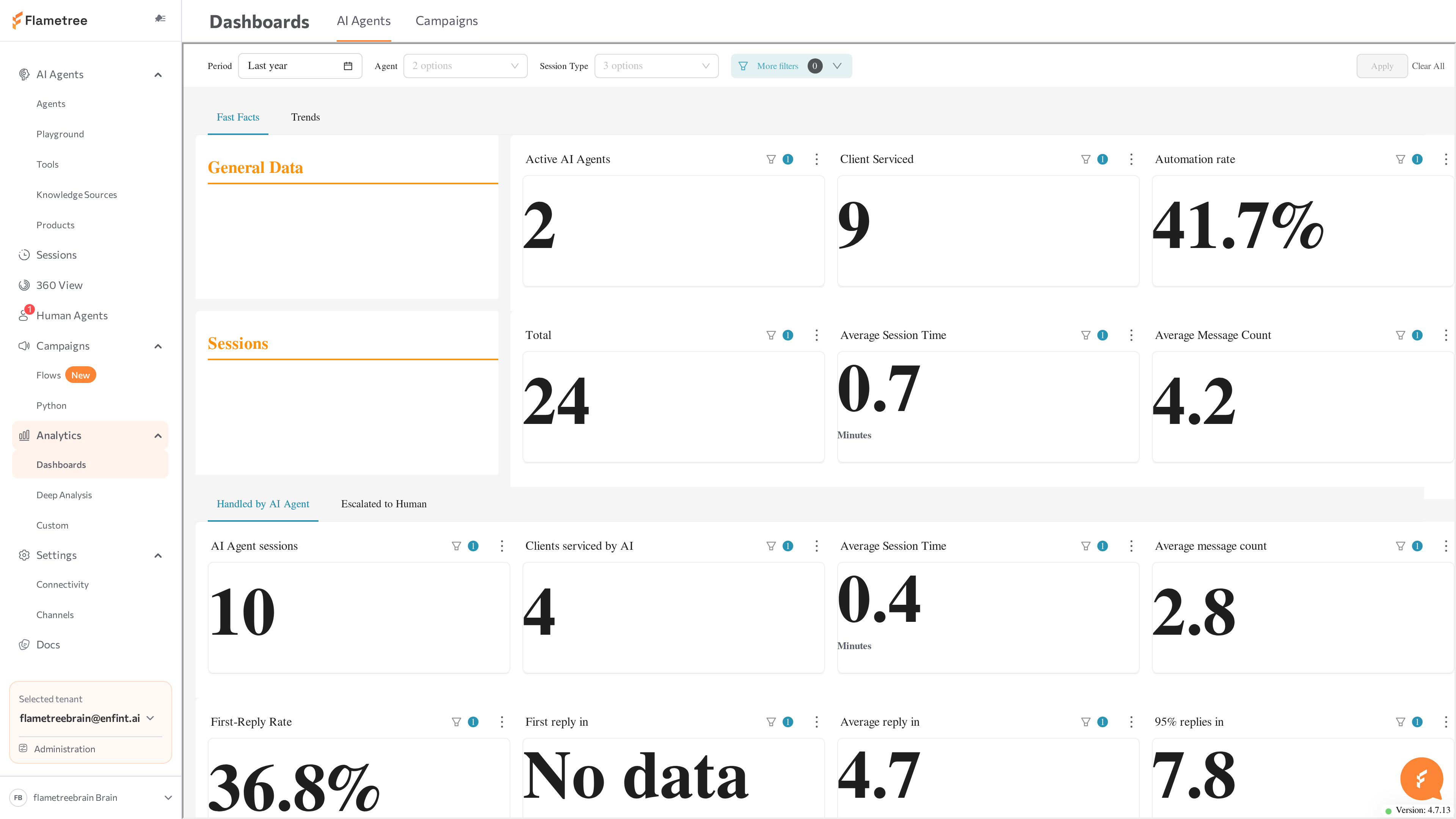
Dashboards are rendered by an embedded analytics engine (Apache Superset). All data is filtered to your tenant — you only ever see your own organization's data. All charts on this page show data in UTC. The standard dashboards require no setup.
Before you start
- You are signed in to the portal. The Analytics menu is visible to the Tenant Admin and Tenant Operator roles — if you don't see it in the left menu, ask your administrator.
- There is data to show: at least one agent has handled conversations (for the Agents tab), or at least one campaign has run (for the Campaigns tab).
Open and filter a dashboard
- In the left menu, go to Analytics > Dashboards.
- At the top of the page, select the Agents or Campaigns tab.
- Expand the filter panel — it is collapsed by default — adjust the filters, and click Apply.
The charts reload and show only the selected agents or campaigns within the chosen period.
Both tabs use the same filter panel:
| Filter | What it does |
|---|---|
| Lookup Period | The date range the charts cover. |
| Timegrain | The time grouping for trend charts — for example, day, week, or month buckets. |
| Agent (Agents tab) | Limits the charts to one or more agents. Leave empty to include all agents. |
| Campaign Name (Campaigns tab) | Limits the charts to one or more campaigns. Leave empty to include all campaigns. |
Filters are not applied automatically. After changing any filter, click Apply to refresh the charts.
Read the agent dashboard
The Agents tab shows how your AI agents perform over time: how many conversations they handle, how many people they talk to, how often conversations move to human agents, and how long conversations run. Use it to spot trends — for example, a growing share of human-agent transfers after an instruction change, or a drop in sessions after a channel issue.
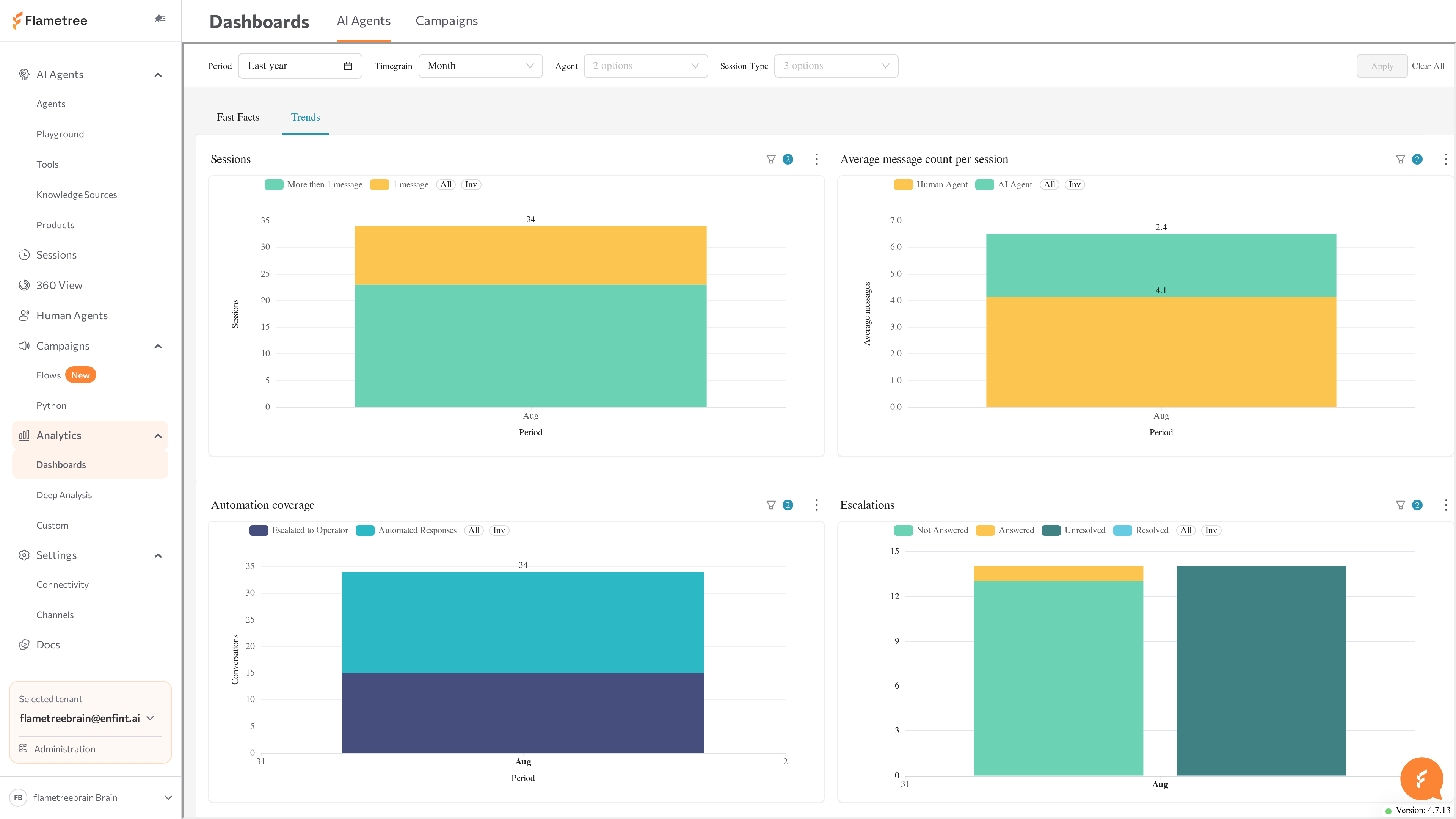
Within the Agents tab, results are split across two sub-tabs — Fast Facts (single-number summary tiles for the selected period) and Trends (the four charts below, each broken down by the selected Timegrain).
Sessions (UTC)
How many conversations your agents handled in each period, split by engagement:
- More then 1 message — sessions where the customer sent more than one message.
- 1 message — sessions where the customer sent only one message before the conversation ended. Comparing this series with the total shows how many sessions were "empty" opens.
Average message count per session (UTC)
The average number of messages exchanged per session, split by who sent them:
- AI Agent — average messages sent by the AI.
- Human Agent — average messages sent by a human operator.
Very low values can mean customers drop off immediately; unusually high values can indicate the agent loops or fails to resolve requests, prompting customers to repeat themselves.
Automation coverage (UTC)
How much of the conversation volume the AI handled on its own:
- Automated Responses — conversations the AI handled without a human.
- Escalated to Operator — conversations handed over to a human agent.
Escalations (UTC)
How escalated conversations were handled, once transferred to a human agent:
- Not Answered, Answered — whether a human agent responded to the escalation.
- Unresolved, Resolved — the outcome of an answered escalation.
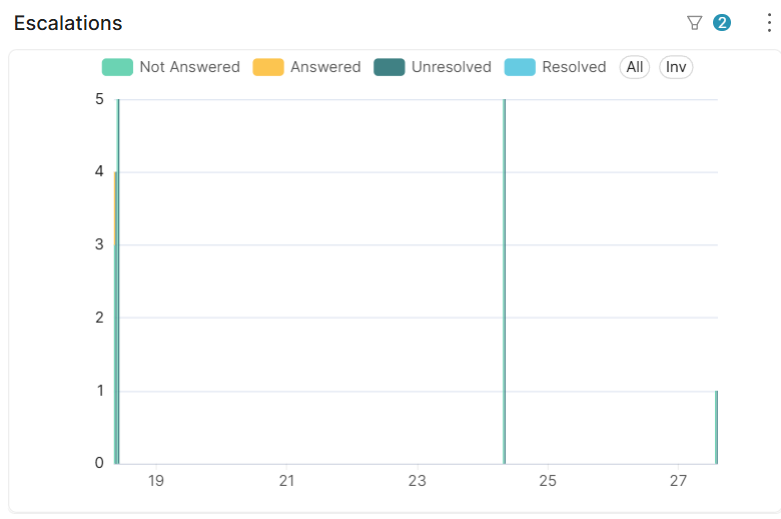
A persistent gap between escalated conversations and answered ones can mean handovers arrive when no operator is available — but operators may also close a session without replying, for example when the other side is a bot. Review your team's coverage in Human Agents.
Each agent also has an analytics panel on its own page in AI Agents, with Number of sessions, Number of Human Agent sessions, Number of unique users, and Average messages per session charts scoped to that agent, and a quick Daily / Weekly / Monthly period switch. Its chart set is its own — it doesn't mirror the Trends tab above. Use the Dashboards page when you need to compare agents or report across the whole tenant.
Read the campaign dashboard
The Campaigns tab shows how your outbound campaigns progress: how the selected campaigns' participants are being processed and how their communications develop. The participant and communication statuses behind the numbers are described on the Participants page.
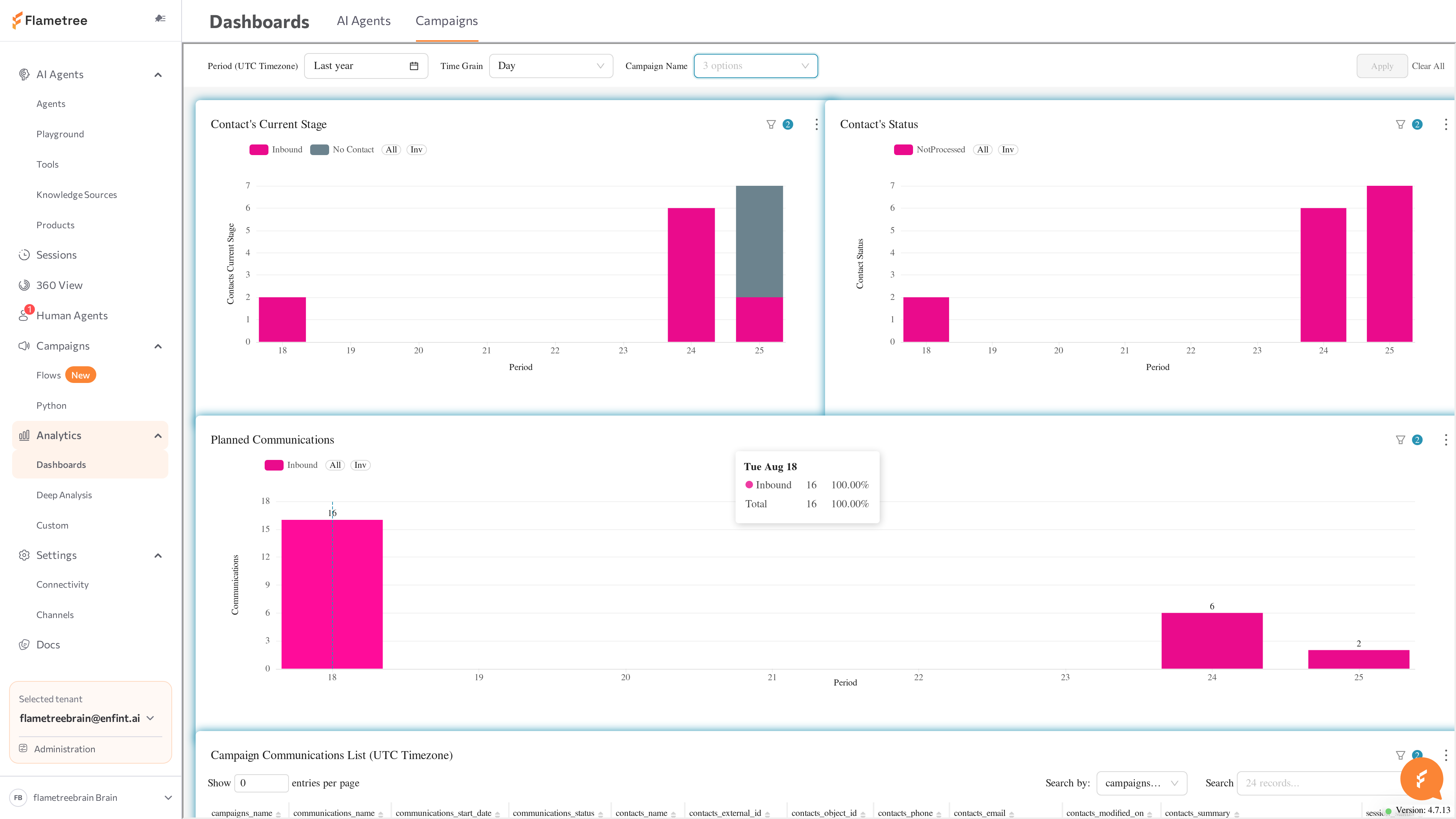
Each campaign under Campaigns also has its own Analytics tab with a dashboard scoped to that campaign. Use Analytics > Dashboards when you compare campaigns or report across the tenant.
Common issues
- The dashboard does not load. The standard dashboards are configured per environment; if a tab fails to load, the analytics engine may not be set up yet — contact your administrator.
- Charts are empty. Check the Lookup Period — there may be no sessions or campaign activity in the selected range. Also confirm you clicked Apply after changing filters.
- Recent periods look artificially low. With a weekly or monthly Timegrain, the current bucket is still incomplete — it fills up as the period progresses.
- Numbers differ from the Sessions list. Dashboards count sessions in time buckets, so a session near a bucket boundary can fall into a different period than you expect.
- Human Agent charts stay at zero. Your agents may have no human handoff configured — see Allow human handoff in Simple mode.
- Many communications are Failed. Participants may be missing the contact details required by the chosen channel, or the channel connection in Settings > Channels is stopped.
- A campaign is running but its charts stay empty. Communications can remain in Planned status while the campaign schedule delays sending — check the campaign's status on its page under Campaigns.
Related pages
- Deep Analysis — AI-driven categorization of conversations
- Custom dashboards — embed your own dashboards in the portal
- Sessions — open the individual conversations behind the numbers
- Human Agents — the operator workspace behind the handover metrics
- Campaigns — build and run the campaigns the Campaigns tab reports on
- Simple mode — configure human handoff and conversation results
- Settings > Channels — the channel connections campaigns send through