Deep Analysis
Analytics > Deep Analysis shows what happens inside your conversations, at scale. An analysis configured for an AI agent or a campaign evaluates every conversation with a language model against metrics you define — for example customer satisfaction, issue resolution, or request type — and this screen turns the results into dashboards you can drill into, down to the individual chat. Open the screen from Analytics > Deep Analysis in the left menu.
Use it to:
- See why customers contact you and how those reasons trend over time.
- Find problem conversations — dissatisfied customers, unresolved issues — and read them.
- Review campaign outcomes per contact and export the contacts behind any result.
- Answer business questions the standard reports can't: Dashboards counts sessions and messages, while Deep Analysis classifies the content of each conversation.
Before you start
- You are signed in to the portal. The Analytics menu is visible to the Tenant Admin and Tenant Operator roles — see Roles & permissions.
- An analysis is configured for the agent or campaign you want to inspect, and a calculation has run at least once — see Configure an analysis. Until then the screen shows No data available.
- Viewing results requires no special setup beyond that. Configuring or running an analysis requires a role that can edit the agent or the campaign.
Find your way around
Everything on the screen comes from the analysis configuration of the selected agent or campaign: the tabs, the charts, and the category names. The header controls select whose results you see and for which period.
| Control | What it does |
|---|---|
| Analytics type | Agents — analyses that run over an agent's sessions. Campaigns — analyses that run over a campaign's contacts. |
| Select agent / Select campaign | The agent or campaign whose results you view. Type to search by name. The control switches with the analytics type. Archived agents stay in the list, marked [Archived] before the name, so their history remains available — see Archive an agent. |
| Start date / End date | The period to show. Defaults to the last month. |
| Granularity | Day, Week, or Month — how trend charts group results over time. Defaults to Week. |
| Share (share icon) | Copies a link to the current view. See Share a dashboard view. |
Below the header, a row of tabs groups the charts by topic — the tabs are defined in the analysis configuration, so each agent or campaign can have a different set. The first tab opens when you select an agent or campaign.
Your filters and active tab are part of the page URL, and the screen restores your last view when you return to it.
You can also land here pre-filtered: the View Deep Analysis button on the Agents list opens this screen for the selected agent.
Dates use your tenant timezone. A campaign analysis evaluates all conversations with each contact together, so campaign results count contacts rather than sessions.
Read the charts
Tabs show the charts defined in the analysis configuration: trend charts and summary cards.
Trend charts
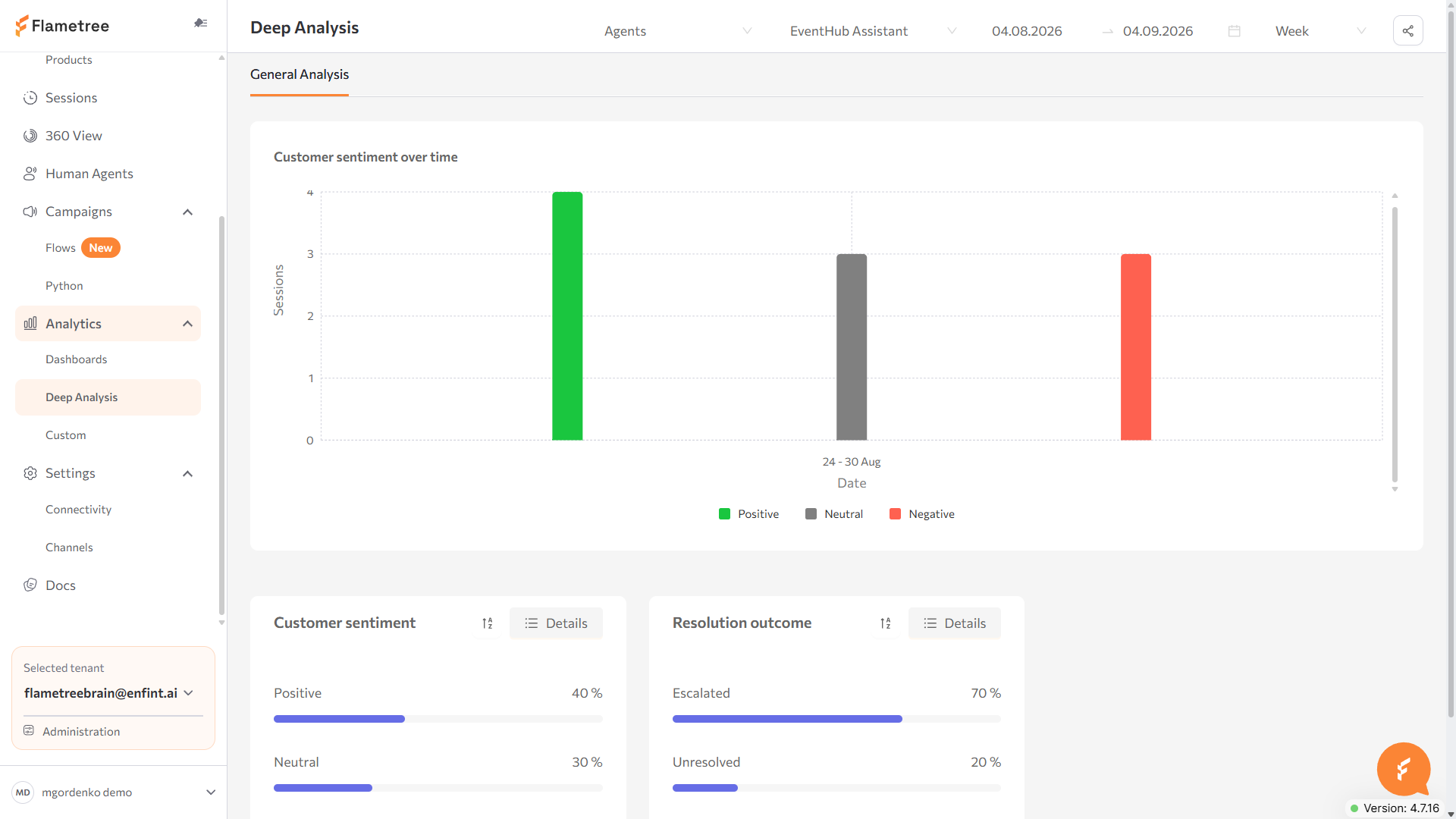
Trend charts at the top show how category counts change over time — one bar or line series per category value, grouped by the selected granularity. The vertical axis counts Sessions for an agent analysis and Contacts for a campaign analysis. Series colors come from the colors assigned to category values in the configuration; values without an assigned color get one automatically.
- Hover over a period to see the exact values, sorted from largest to smallest.
- Click a legend entry to hide or show that series; hidden entries are struck through. Click again to bring a series back.
- Long periods at Day granularity scroll horizontally inside the chart.
Summary cards
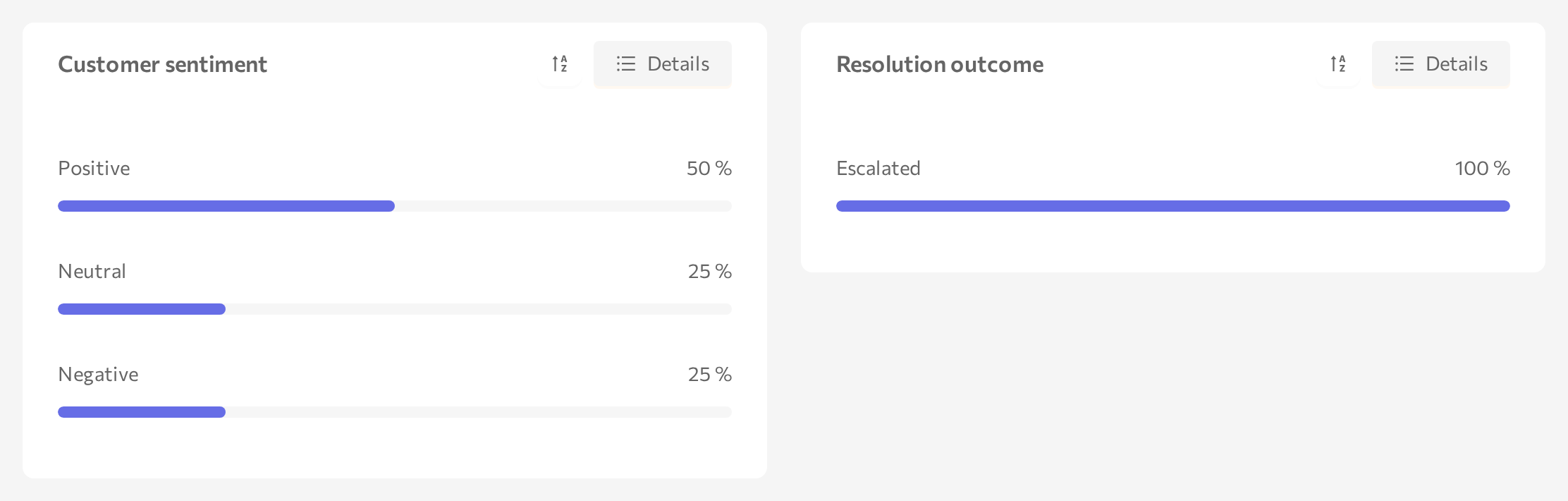
Summary cards below the trends aggregate the whole selected period. Each row is one category value with its total — a count or a percentage, depending on the configuration — and a proportional bar.
- Hover over a row name to read the category description from the configuration.
- Click the sort button in the card header to order rows by value, ascending or descending.
- Click Details to open the conversations behind the card — see the next sections.
Open the sessions behind a number
For an agent analysis, the Details view connects every number to the real conversations it was calculated from.
- On a summary card, click Details. A full-screen view opens with three panels: Category, Sessions, and Chat. Drag the dividers to resize the panels.
- In Category, click a value — for example, a satisfaction level. If the configuration breaks a category down further, sub-entries appear under it; click one to narrow the selection. Until you pick a category, the middle panel shows Select a metric to view sessions.
- The Sessions panel lists the matching sessions, with the count next to the panel title. Each row shows the customer name, start time, country flag, and channel icon — hover over the icon to see the channel name. When the configuration attaches an explanation text to each conversation, it appears under the row. Click Load more at the bottom to fetch more sessions.
- Click a session to read it in the Chat panel.
- Use the buttons in the Chat header — both open in a new browser tab, so you keep your place in the analysis:
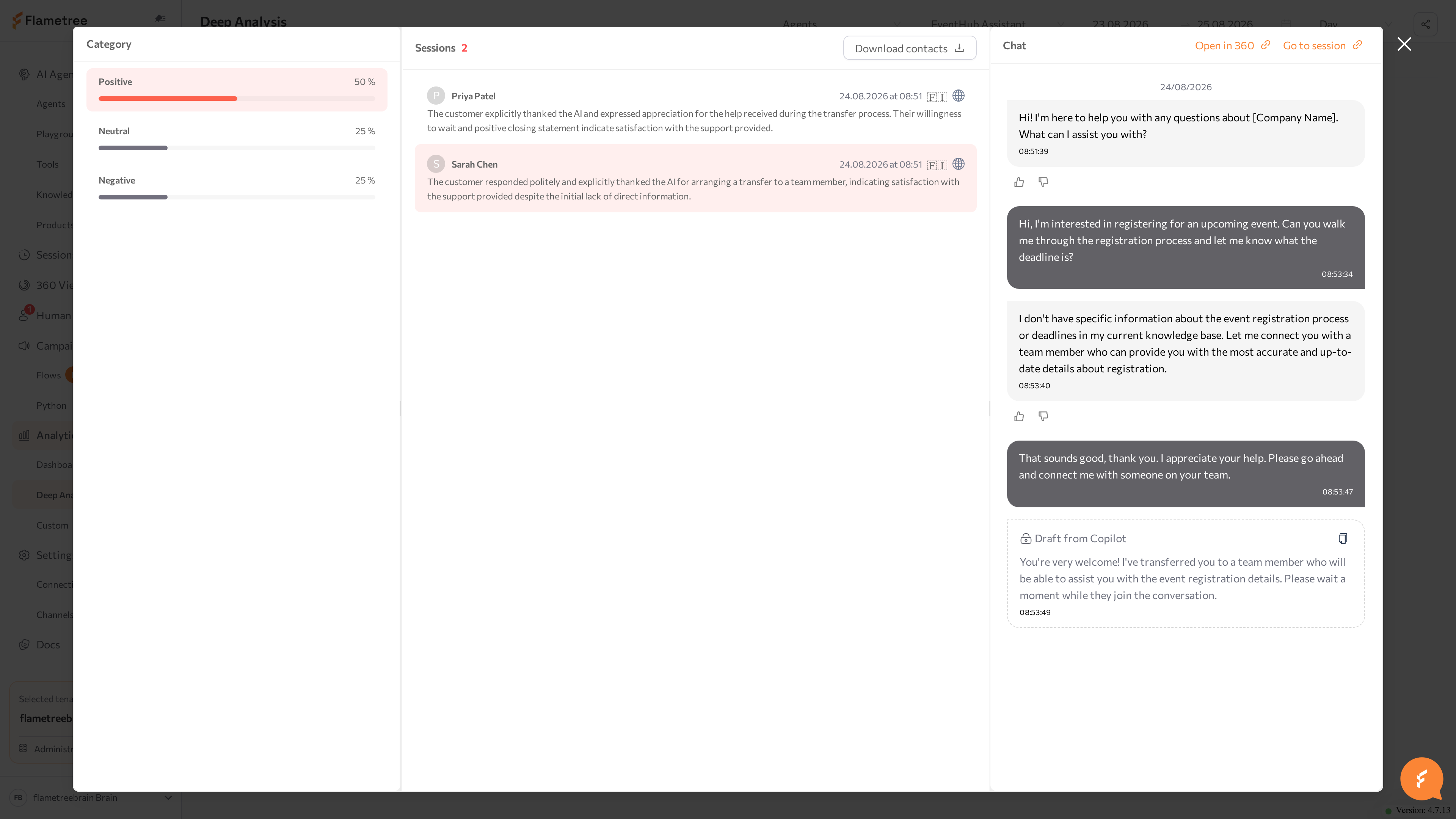
This is the everyday workflow: spot an unusual number on a chart, open Details, and read three or four of the underlying conversations before deciding whether to change the agent's instructions or knowledge.
Open the contacts behind a campaign result
A campaign analysis evaluates each contact's conversations together, so the drill-down adds one more level.
- On a summary card, click Details. The view opens with four panels: Category, Contacts, Communications, and Chat.
- In Category, click a value. The Contacts panel lists the contacts in that category, with the count next to the panel title.
- Click a contact. The Communications panel lists that contact's conversations — start time, channel icon, and a short summary when one was recorded.
- Click a communication to read it in the Chat panel. Go to session and Open in 360 work the same way as for agent sessions.
If a contact has no recorded conversations, the panel shows This contact has no communication.
Export contacts
Turn any analysis category into a contact list — for example, everyone who reported an unresolved issue, ready for a follow-up campaign.
- Open Details on a summary card and select a category.
- In the Sessions panel (agent analysis) or Contacts panel (campaign analysis), click Download contacts.
- The portal downloads a CSV file with the contacts behind the listed conversations.
The export covers the rows currently loaded in the list — click Load more first if you want the full set for a large category.
Share a dashboard view
The analytics type, agent or campaign, period, granularity, and active tab are all part of the page URL, so a colleague who opens your link sees exactly what you see.
- Set the filters and open the tab you want to share.
- In the header, click the share button (its tooltip reads Share dashboard).
- The message Dashboard link copied to clipboard! confirms the link is ready to paste.
The link opens inside the portal, so the recipient needs a portal account in your tenant.
Configure an analysis
Dashboards on this screen are produced by an analysis configuration — a YAML document attached to an agent or a campaign. The configuration defines three things:
- Schedule — when the analysis runs and how many days of conversation history it processes. Conversations are evaluated once; later runs pick up only new ones.
- Metrics — what to extract from each conversation:
- LLM-based fields — a language model evaluates the conversation against classification criteria you write. A field can be a category with a fixed set of values (each value gets a display name and a chart color), free text, a yes/no flag, or a list.
- Code-based fields — a single-line Python expression over the conversation data, with no language model involved. Typical uses: break results down by channel or by a UTM tag from the session parameters.
- Visualization — the tabs and charts you see on this screen: trend charts (bars or lines over time) and summary cards, each bound to the metrics it displays.
A minimal working configuration — daily analysis of the last 30 days that classifies each conversation by customer satisfaction and shows the distribution as one summary card:
scheduling_rules:
  cron_exp: "0 0 * * *"
  depth: 30

analysis_types:
  - id: "BasicSatisfaction"
    order: 0
    description: "Analyze customer satisfaction from conversation tone"
    prompt_template: |
      # Task
      {task}
      # Chat history
      {chat_history}
      # Response JSON schema
      {formatting}
    prompt_parts:
      task: |
        Determine if the human was satisfied with the chatbot interaction.
    llm_metrics:
      - id: "user_satisfaction"
        name: "Customer Satisfaction"
        kind: "llm"
        type: "Literal['satisfied','neutral','dissatisfied']"
        description: "Overall customer satisfaction level"
        values:
          - id: "satisfied"
            name: "Satisfied"
            color: "green"
          - id: "neutral"
            name: "Neutral"
            color: "gray"
          - id: "dissatisfied"
            name: "Dissatisfied"
            color: "red"
        prompt: |-
          Classify human satisfaction:
          - satisfied: Human expressed gratitude, positive feedback, or achieved their goal
          - neutral: Human completed interaction without clear positive/negative sentiment
          - dissatisfied: Human expressed frustration, complaints, or left unsatisfied
          Return exactly one label: satisfied, neutral, or dissatisfied — nothing else.

visualization:
  tabs:
    - id: "satisfaction_overview"
      title: "Customer Satisfaction"
      plots:
        - id: "satisfaction_summary"
          kind: "summary"
          type: "detailed_bars"
          title: "Satisfaction Distribution"
          metrics:
            - id: "user_satisfaction"
              features:
                - id: "unit"
                  aggregation: "sum"
Indent with exactly two spaces, and define each classification value with explicit criteria, as in the example — vague prompts produce inconsistent classifications. This page describes what a configuration contains; the field-by-field YAML format is not covered here.
For an agent
- Open the agent in Advanced mode and scroll to the Analytics section.
- Edit the YAML in the editor. The current calculation status appears next to the section title — hover over the question icon next to it to read the status message.
- Run the calculation with the buttons in the section header:
- Recalculate — saves the configuration and reprocesses all sessions from scratch. Use it after you change metric definitions.
- Continue calculation — saves the configuration and processes only sessions not yet analyzed.
- Stop — halts a calculation in progress; it is available only while the status shows a calculation running.
For a campaign
- Open the campaign on the Python campaigns screen and go to its Settings tab.
- Click Set YAML analytics. The YAML Analytics dialog opens with the current Status and its message.
- Click Upload YAML to load a configuration file (Download YAML retrieves the current one).
- Run the calculation with Recalculate or Continue calculation, or halt it with Stop — the buttons behave the same as on the agent page.
Start small: one category metric with three or four clearly defined values, one trend chart, one summary card. Run Recalculate, read a handful of sessions in the Details view to confirm the classification matches your judgment, then extend the configuration.
Common issues
- The screen shows "No data available." No analysis is configured for the selected agent or campaign, or no calculation has run yet. Configure the analysis and run Recalculate or Continue calculation.
- Recent conversations are missing from the charts. The analysis runs on the schedule in its configuration, so the newest conversations may not be evaluated yet — run Continue calculation to process them now. Also check that the End date includes today.
- Older conversations are missing. The configuration limits how many days of history the analysis processes; conversations older than that are not evaluated. Conversations are also only shown within the selected Start date and End date.
- The Details view shows "Select a metric to view sessions". Click a category value in the Category panel first; the session list loads for the selected category only.
- The calculation status shows an error. Read the status message — hover over the question icon next to the status in the agent's Analytics section, or read the message in the campaign's YAML Analytics dialog — then correct the configuration and run Recalculate.
- Stop does nothing or is unavailable. Stop is enabled only while a calculation is in progress.
- The tabs changed after you switched agents. Tabs belong to each configuration, so switching the agent or campaign loads that configuration's tabs and opens the first one.
- A series is missing from a trend chart. Check the legend — a struck-through entry is hidden. Click it to show the series again.
Related pages
- Dashboards — ready-made volume and outcome reports with no configuration
- Advanced mode — the agent's Analytics section where the configuration lives
- Python campaigns — attach an analysis configuration to a campaign
- Sessions — read sessions, results, and logs
- 360 View — the customer profile behind an analyzed conversation
- Agents — the View Deep Analysis button on the agent list
- Deep Analysis YAML reference — the configuration field reference