Portal Tour
This page shows you around the Flametree portal: the left menu, your profile, the patterns shared by list screens, and what status labels and the main buttons mean.
The left menu
The left menu is collapsed to icons by default. Hover over it to expand it, and click the pin icon at the top to keep it open.
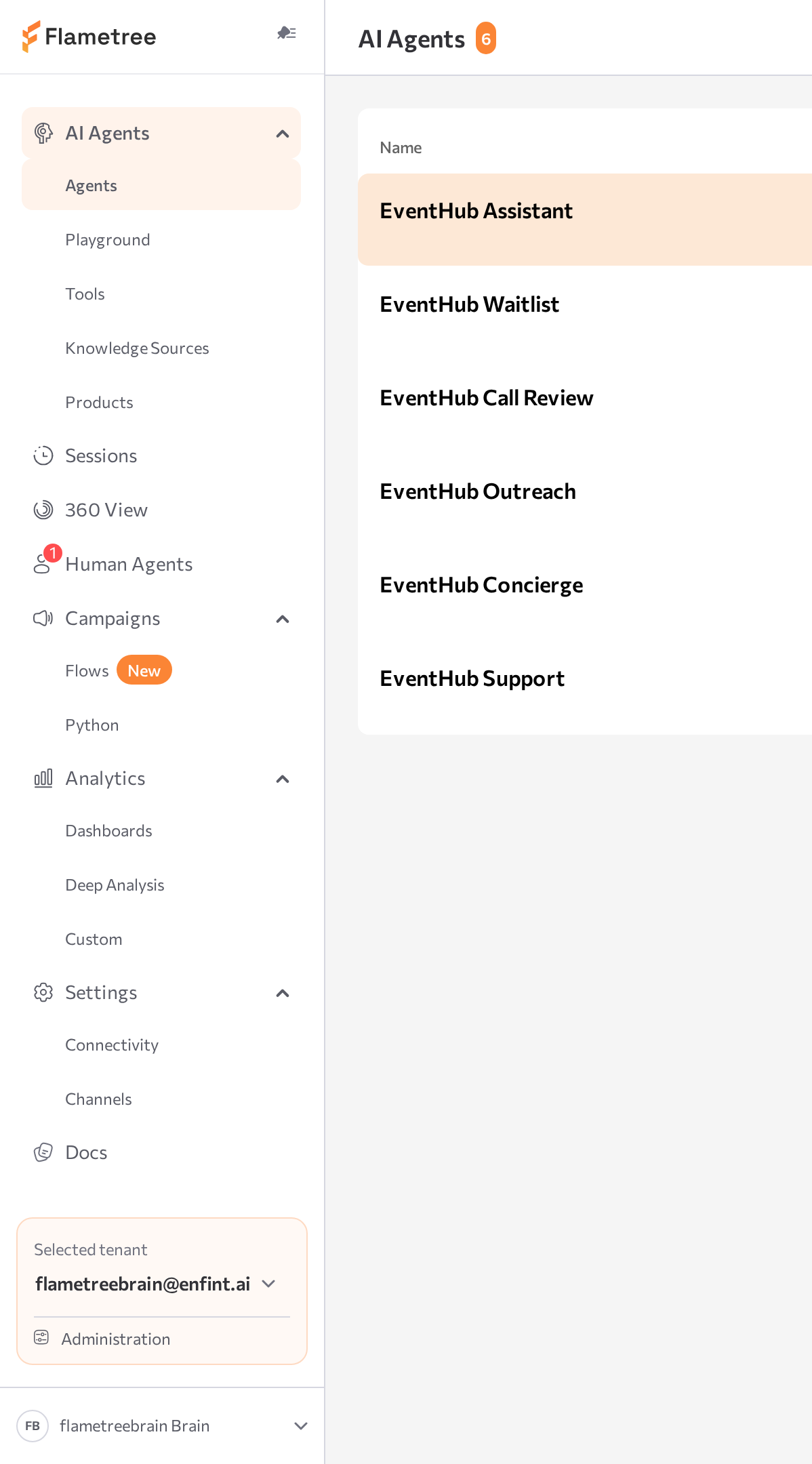
From top to bottom:
| Menu item | What you find there |
|---|---|
| AI Agents | Agents (your agent list), Playground (test agents), Tools (extend agents with actions), Knowledge Sources (the tenant knowledge library), Products (product catalogs; shown only if enabled for your tenant) |
| Sessions | Every conversation across all agents and channels |
| 360 View | Customer profiles with full communication history |
| Human Agents | The operator workspace for live and escalated conversations |
| Campaigns | Flows (visual campaign builder) and Python (code-based campaigns) |
| Analytics | Dashboards, Deep Analysis, and Custom dashboards |
| Settings | Connectivity (models and integrations), Channels (connect WhatsApp, Telegram, web widget, email, voice) |
| Docs | Opens this documentation in a new tab |
The menu adapts to your role. For example, a Tenant User sees only the Playground, while Tenant Admins see everything. For the full matrix, see Roles and permissions.
The Human Agents icon shows a badge with the number of operator sessions waiting for attention. The same counter appears on the browser tab icon, so you notice new conversations even when Flametree is in a background tab.
Tenant selector
Below the main menu, the tenant selector shows your current tenant and, if you have the Tenant Admin role, an Administration row — tenant profile, billing, and (for admins with access to more than one tenant) the rest of the tenants and users you manage. See Administration.
Profile menu
Click your name at the bottom of the left menu to open your Profile page. It has two tabs:
- Account — your personal information and tenant organization details. You cannot change your password here — password management is handled on the sign-in screen.
- Billing — your plan, trial status, and session usage.
The Profile header also contains:
- The logout button — signs you out of the portal.
- Clear base cache / Clear all cache — fixes interface glitches or stale data. Start with Clear base cache (keeps you signed in); use Clear all cache for persistent issues (it signs you out).
Common screen patterns
Most list screens (Agents, Sessions, Knowledge Sources, Campaigns) share the same layout:
- Header with a counter — the title shows how many items match your current filter out of the total.
- Tabs for quick filters — for example, the Agents screen has All and Running tabs.
- Search — filters the list as you type (on the Agents screen, by name or description).
- Primary actions on the right — for example Create new agent, Create with wizard (if wizards are enabled for your tenant), and Import agent.
Row actions
Each row in a table has quick actions:
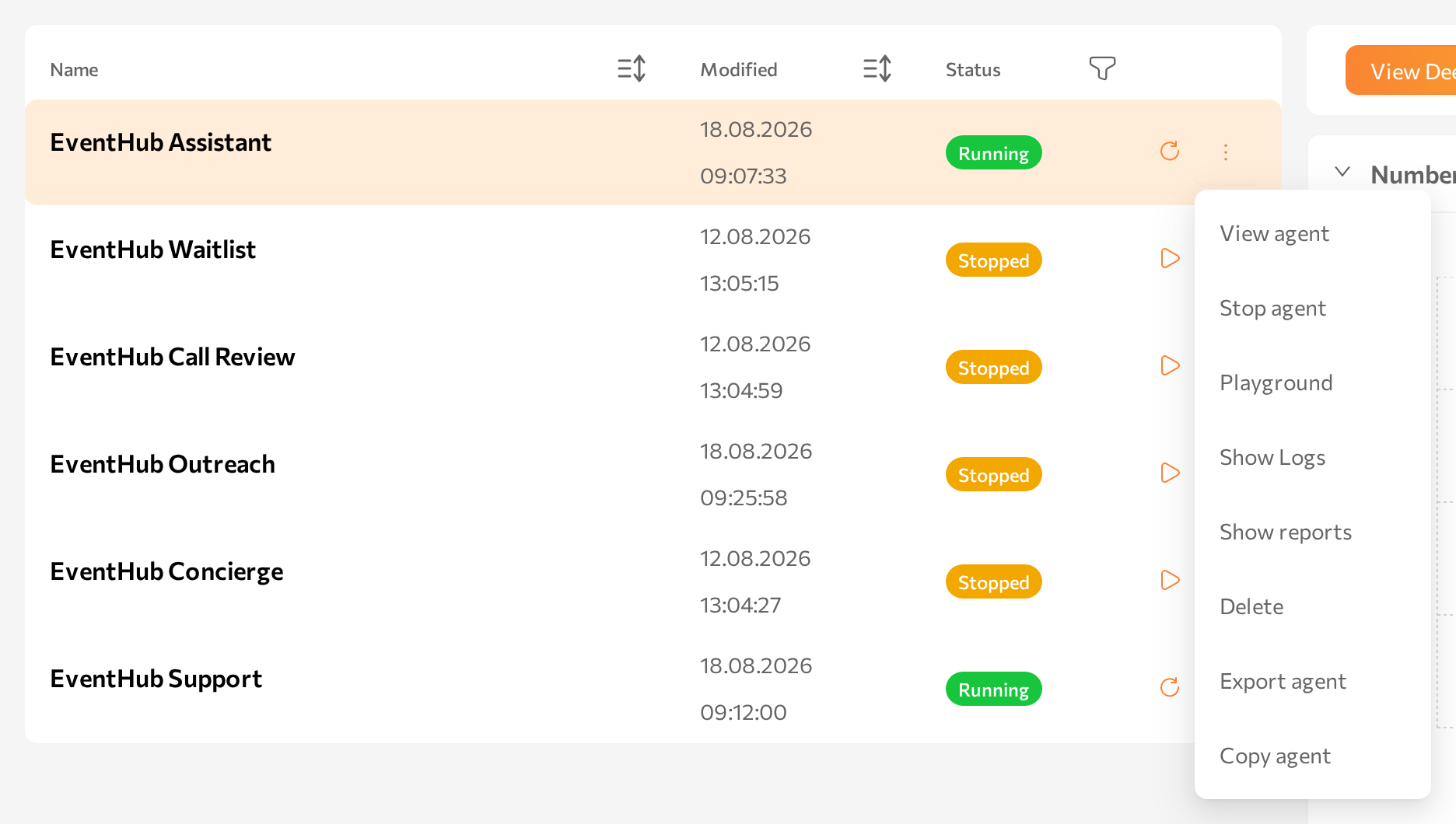
- A start/stop icon button — starts a stopped agent or stops a running one.
- A ⋯ (more) menu with the remaining actions. For an agent these are: View agent, Start agent / Stop agent / Force stop agent (depending on status), Playground (only while the agent is Running), Show Logs, Show reports, Delete (with a confirmation prompt), Export agent, and Copy agent. (Rename appears in this menu only on the agent's own page, not on the Agents list.)
Status labels
Colored status tags appear throughout the portal. For agents:
| Status | Meaning |
|---|---|
| Running (green) | The agent is live and handling conversations |
| Stopped (blue) | The agent is saved but not handling conversations |
| Starting / Stopping (purple) | A transition is in progress — wait a few seconds |
| Creating | The agent is being created |
| Error (red) | The agent failed to start or crashed — check Show Logs |
Other areas use similar tags: knowledge sources show indexing progress, and campaigns show whether they are running or hit an error.
Save, start, and stop
These three controls follow the same logic everywhere:
- Save — applies your configuration changes. On the agent page, always click Save in the upper-right corner after editing a tab.
- Start — brings an agent online. A started agent answers customers on its attached channels.
- Stop — takes it offline. Existing data is kept; the agent stops responding.
Channels have their own start/stop status, managed in Settings > Channels. An agent can be running while its channel is stopped — customers reach the agent only when both are running.
Related pages
- Quick start — apply the tour by building your first agent.
- Sessions — the screen you'll use most after going live.
- Settings > Channels — connect and manage channels.