Python Campaigns
Flows is the visual builder and the default choice for most outbound scenarios — it covers most needs without programming and can still run custom Python in individual steps. Python campaigns are the code-based builder for scenarios that need code-level control. Choose by task complexity — neither builder replaces the other.
A Python campaign processes a list of contacts through stages — each stage ties a communication channel to an AI agent — and decides what happens to each contact with strategies: Python scripts that run at fixed points in the campaign lifecycle. Open the screen from Campaigns > Python in the left menu.
Compared with Flows, Python campaigns trade the visual editor for code-level control. Choose Python when your scenario needs what flows don't offer:
- Transform contact data at import time — for example, merge duplicates or set initial stages before anything is sent.
- React to every agent message inside an active conversation in real time — for example, update the contact status or extend a conversation timeout.
- Implement fully custom scheduling, retry, or rate-limiting logic in code.
Before you start
- At least one AI agent is configured for the channel you plan to use — see Agents.
- The channel connection or integration the campaign sends through is set up — see Settings > Channels.
- Contact data is prepared as a CSV, JSON, or JSONL file.
- Someone on your team writes Python: strategies are code files you upload to the portal.
- You are signed in to the portal with a role that allows managing campaigns.
Find your way around
The Python screen shows the campaign list on the left and a performance panel for the selected campaign on the right. The All / Running tabs above the list filter it by status, the search field matches the campaign name and description, and the header holds the Create campaign and Import campaign buttons.
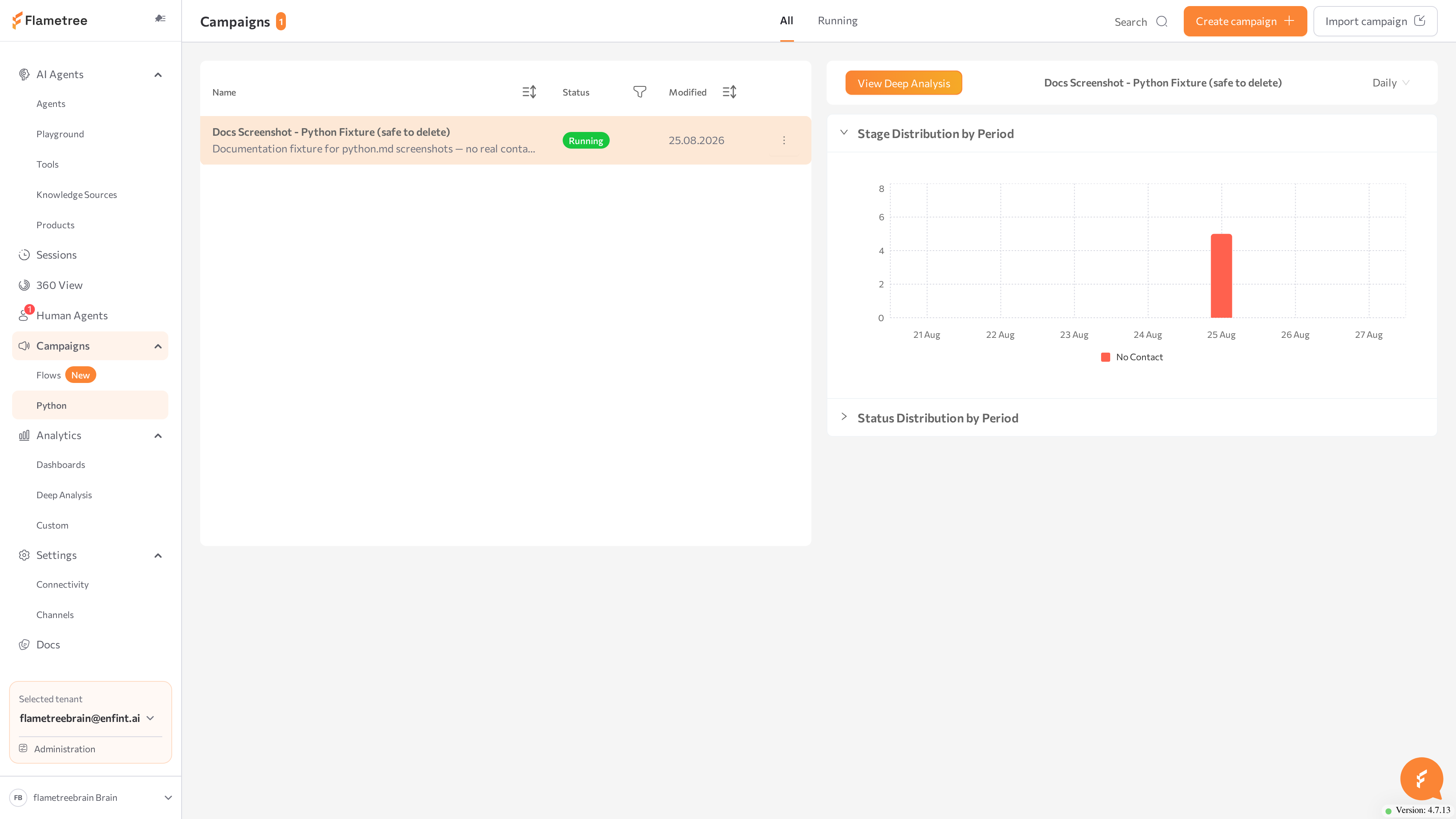
Each campaign has a status tag:
| Status | Meaning |
|---|---|
| Created | The campaign exists but is not ready to run — contacts or strategies are still missing. A running campaign also drops back to Created if the agent one of its stages uses is archived. |
| Configured | The campaign has contacts and a Data Load strategy and is ready to start. |
| Running | The campaign is processing contacts and sending communications. |
| Error | The campaign cannot proceed. Open the campaign and read Show Logs in the more-actions menu to find the cause. |
Double-click a campaign row to open it; a single click selects it for the performance panel on the right. The campaign page has four tabs and a header with the Start / Stop button, the Save button, and a more-actions menu with Rename, Export campaign, Show Logs, and Delete.
| Tab | What you manage |
|---|---|
| Stages | The communication steps: channel, agent, and message settings per stage. |
| Strategies | The Python scripts that control the campaign logic. |
| Contacts | The contact list, each contact's stage, communications, and outcome. |
| Settings | The language model, YAML analytics, and campaign result definitions. |
A typical setup order:
- Create the campaign.
- Add stages on the Stages tab.
- Upload strategy scripts on the Strategies tab.
- Upload contacts on the Contacts tab.
- Click Start and track progress on the Contacts tab.
Create a campaign
- In the left menu, go to Campaigns > Python.
- Click Create campaign.
- In the Create campaign dialog, enter a Name and a Description (both required).
- Click Create.
The campaign appears in the list with status Created. To copy a campaign between environments, use Export campaign in the more-actions menu — it produces a ZIP archive and a secret key — and Import campaign on the list screen, which asks for the Secret Key and the ZIP file.
Configure stages
A stage describes one kind of communication: which channel to use, which agent handles the conversation, and channel-specific settings such as a message template. Stages don't run in a fixed order — your strategy code moves contacts between stages by name, so name stages clearly (for example, with a sequence number).
Add a stage
- Open the campaign and go to the Stages tab.
- Click Add Stage.
- In the Create Stage dialog, enter a Name and a Description (both required).
- Select the Channel, then complete the fields for that channel — see the table below.
- For channels with an agent, select the Agent. The list offers only agents whose integrations or channels match, grouped into Agents with integration and Agents with channel. If asked, also select the Agent channel.
- Click Save.
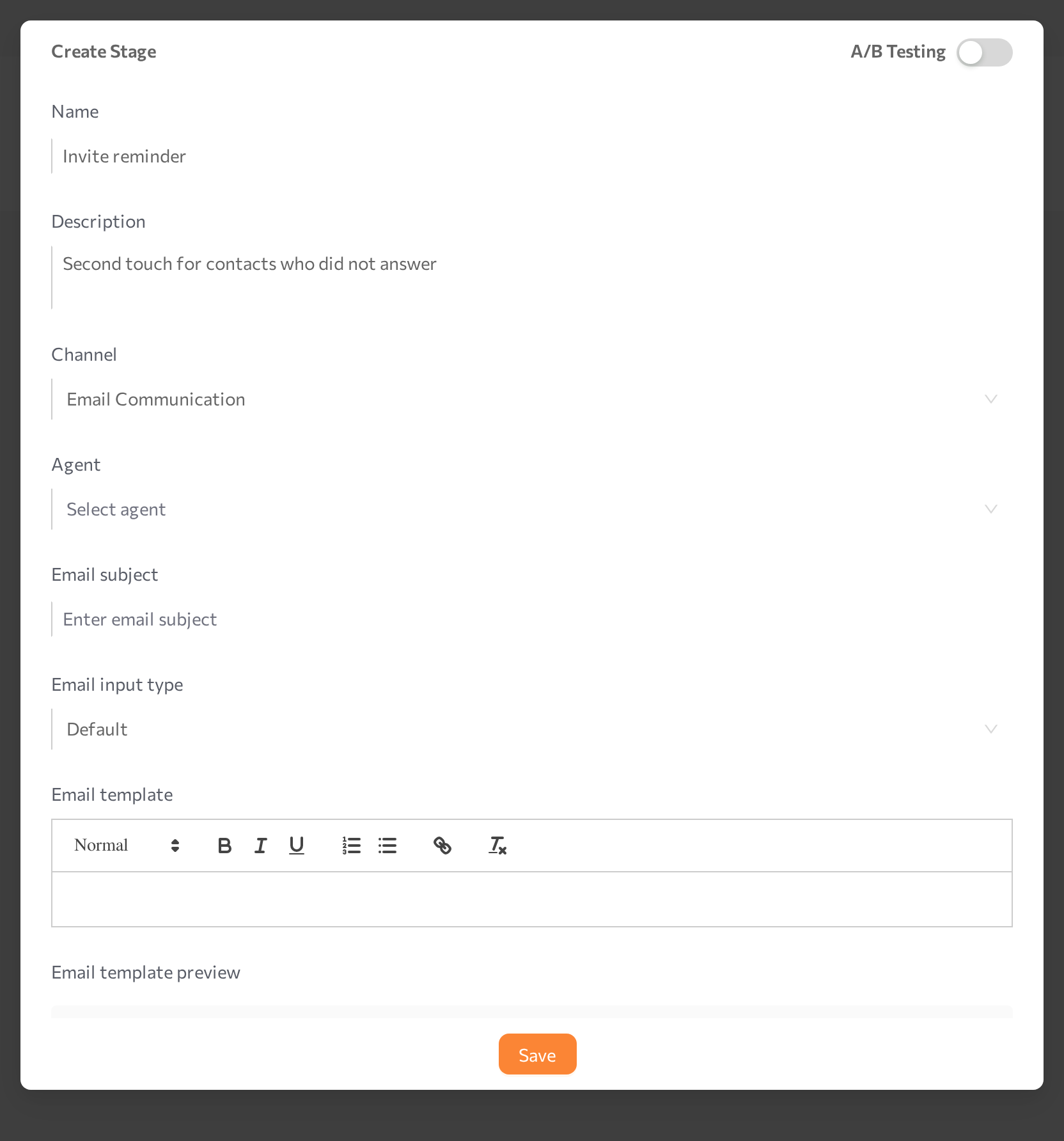
| Channel | Used for | Channel-specific fields |
|---|---|---|
| Email Notification | One-way emails — no agent replies | Integration, Email subject, Email input type (Default or Html), Email template with a preview |
| Email Communication | Two-way email conversations with an agent | Email subject, Email input type, Email template with a preview |
| WhatsApp Business messaging with approved templates | Start state (required), Template Name (required) — the approved WhatsApp template | |
| MessageBird (Whatsapp) | WhatsApp through the MessageBird platform | Project ID, Version, Start state (required) |
| MessageBird Webhook (Whatsapp) | WhatsApp through a MessageBird webhook | — |
| Telegram | Telegram messaging | Start phrase — the first message the agent sends |
| Infobip | Messaging through Infobip | Start phrase |
| Twilio | Voice calls through Twilio | Start state (required) |
| SIP (Session Initiation Protocol) | Voice calls over SIP | — |
| Mobile Push | Push notifications — only agents with a push notification configuration are listed | — |
| Human | Manual handling by a person | — |
| No Communication | A terminal stage that ends the sequence without contact | — |
Start state refers to a state in the agent's workflow (see Advanced mode); your strategy code and the agent configuration define which states exist.
To edit or remove a stage, use the pencil and bin icons on its row. Deleting asks for confirmation.
Test variants with A/B testing
A stage can carry alternative configurations — for example, two channels or two templates picked with weighted probability.
- In the Create Stage or Edit Stage dialog, switch on the A/B Testing toggle in the title bar. The form splits into a Control Group and an Experimental Group.
- For each group, set a Label and a Weight (both required), then configure the channel fields as usual.
- Click Save.
Upload strategy scripts
Strategies are Python functions that the campaign engine calls at fixed points. Each strategy receives the contact, can read and change its data, set its current stage and outcome status, plan or cancel communications, store campaign results, and call external APIs.
| Type | Runs | Typical use |
|---|---|---|
| Data Load | When contacts are loaded or updated | Initialize contact data, handle duplicates, plan the first communication. |
| Aggregation | When a communication finishes | Read the conversation results, set the outcome, schedule the follow-up. |
| Contact answer intermediate analysis | After each answer from the contact (optional) | Update the contact in real time during a conversation — for example, extend the communication window while the customer is engaged. |
A campaign can have one strategy of each type. A Data Load strategy is required for the campaign to run; Aggregation is needed for any multi-step sequence.
The code itself is written outside the portal and uploaded as a file:
- One self-contained
.pyfile per strategy — no custom modules or external packages, only the Python standard library. - The file can contain several functions; the Function name field tells the campaign which one to call.
- If a strategy raises an exception, the contact is left unchanged — log generously and handle errors in code.
Add a strategy
- Open the campaign and go to the Strategies tab.
- Click Add Strategy.
- Enter a Name and a Description (both required).
- Select the Type — each type can be used once per campaign.
- Enter the Function name — the exact name of the function in your file.
- Under Upload file, click Upload file and choose the
.pyfile. - Click Save.
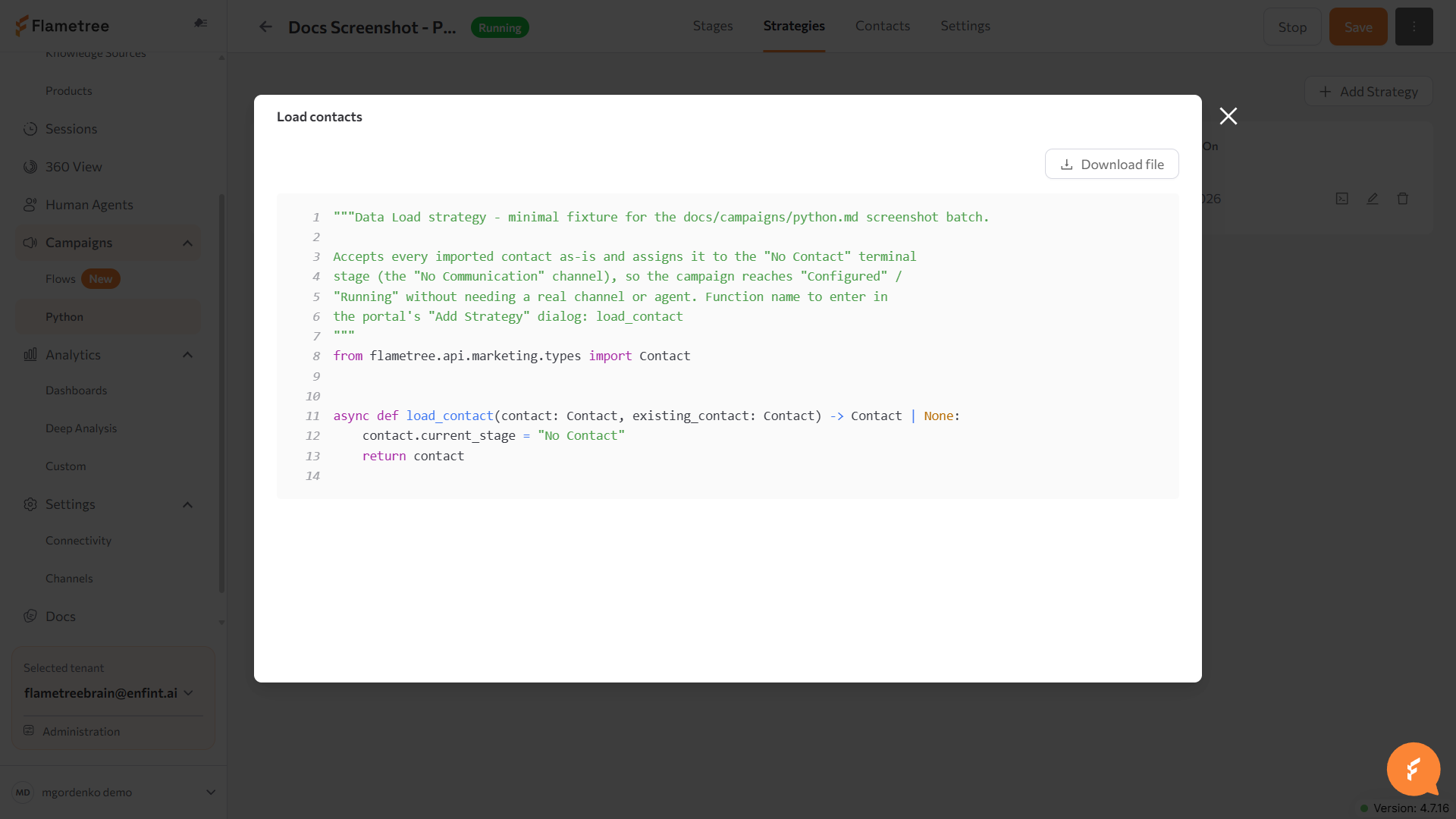
To inspect the uploaded code, use the Show code action on the strategy row — the viewer highlights the code and offers Download file. To update the logic, edit the file locally, then use Edit strategy and Replace file.
Upload contacts
Contacts are the audience of the campaign. Prepare a CSV, JSON, or JSONL file with these columns (header names are matched case-insensitively):
| Column | Description |
|---|---|
object_id | Identifier of the campaign subject — for example, a contract or order. |
external_id | Identifier of the person in your system. |
name | Contact name. |
email | Email address. |
phone | Phone number with country code. |
Every contact needs at least an email or a phone number. Any additional columns — amounts, due dates, custom attributes — are imported as parameters and become available to your strategies and agents.
object_id,external_id,name,email,phone,amount_due,due_date
C-1001,U-501,John Doe,john@example.com,+12025550123,250,2026-07-01
C-1002,U-502,Jane Smith,jane@example.com,+12025550124,480,2026-07-03
To upload:
- Open the campaign and go to the Contacts tab.
- Click Upload new contacts and choose the file.
- Wait for the Contacts uploaded successfully confirmation.
Each imported row runs through your Data Load strategy, which also decides how to handle rows that match an existing contact. Uploading a new file to a running campaign is how you add or update contacts.
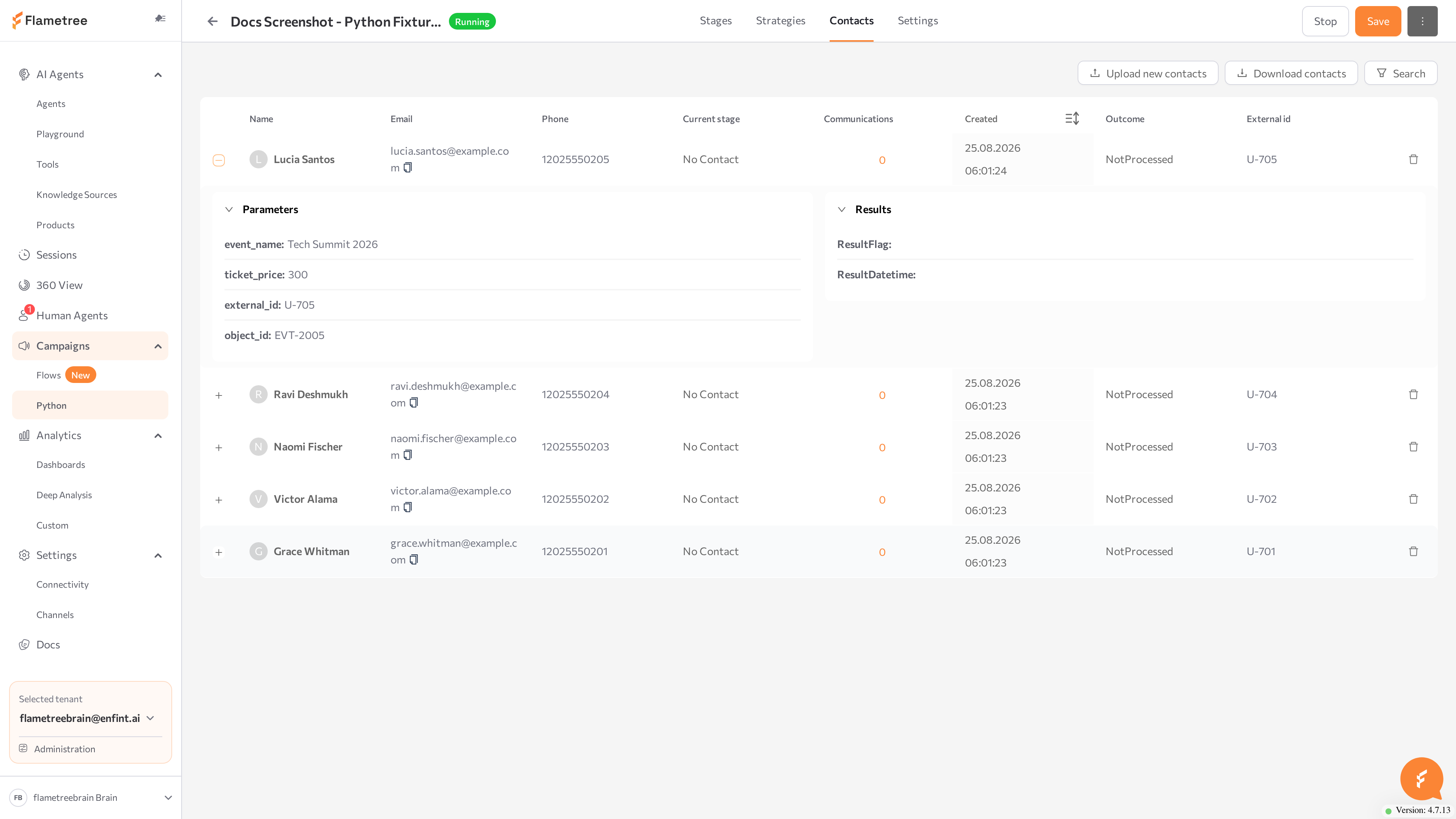
The contacts table shows Name, Email, Phone, Current stage, Communications (a count you can click), Created, Outcome, and External id. Expand a row to see the contact's Parameters (imported data) and Results (collected campaign results). Click Search (the filter icon) to open Contact Filters — filter by name, email, phone, outcome status, creation date, or external ID — and Load More to page through long lists. Download contacts exports the current list as a CSV file.
Start and stop the campaign
- Open the campaign. Check that stages, strategies, and contacts are in place — the status tag shows Configured when the campaign is ready.
- Click Start in the header.
While the campaign is Running, communications start in their planned time windows. A planned communication that misses its window is marked Missed instead of being sent late, so contacts don't receive outdated messages.
- Click Stop to pause processing. There is no separate restart action — click Stop, then Start.
- If the status is Error, the button reads Force stop: stop the campaign, find the cause with Show Logs in the more-actions menu, fix it, and start again.
- Start stays unavailable until the campaign has contacts.
Review results
Your strategies record two kinds of results: an outcome status per contact and named campaign result values.
Contact outcomes
The Outcome column on the Contacts tab shows the status your strategies assign:
| Outcome | Meaning |
|---|---|
| NotProcessed | No strategy has set an outcome yet — the initial value. |
| Success | The campaign goal was achieved for this contact. |
| Positive | Progress toward the goal. |
| Uncertain | No clear outcome. |
| Negative | The campaign was unsuccessful for this contact. |
| Error | A technical error occurred. |
Communication history
Click the number in the Communications column to open the communications dialog for a contact. Each row shows Name, Status, Session status, Channel, Result, Agent, Start date, and Finish date. Communication statuses are Planned, Started, Completed, Interrupted, Error, and Missed. Once a conversation exists, Go to session opens it in Sessions in a new tab — the fastest way to read what was actually said.
Define campaign results
Campaign results map values your strategy code stores to named fields shown in the portal and in 360 View.
- Open the Settings tab and find the Campaign Results section.
- Click Add results (or Update results if results are already defined).
- For each result, fill in the Code (the key your strategy writes), a display Name, and a Description. Click Add another for more rows.
- Click Save.
Monitor performance
- List panel — select a campaign on the Python list screen to see its charts on the right: Stage Distribution by Period and Status Distribution by Period, with a period selector. Click View Deep Analysis to open the campaign in Analytics.
- YAML analytics — on the Settings tab, Set YAML analytics opens a dialog where you Upload YAML with custom metric definitions (and later Download YAML). The dialog shows the analysis Status with a Stop button while it runs, plus Recalculate (re-applies the full updated file to previous sessions) and Continue calculation (processes only conversations not yet analyzed). Results appear in Deep Analysis.
- LLM Settings — also on the Settings tab, select the language model integration the campaign uses.
- Logs — open the more-actions menu in the campaign header and click Show Logs to read the campaign engine log, including strategy output.
Migrate to Flows
There is no automatic converter — you rebuild the campaign in Flows and move the audience over. The existing Python campaign keeps working while you build its replacement. Conceptually, the pieces map like this:
| Python campaign | Flows equivalent |
|---|---|
| Contact | Participant |
| Imported contact columns and parameters | Participant fields defined on the Data tab |
| Stage (channel + agent + template) | A communication action: WhatsApp Communication, Telegram Communication, Email Communication, or Voice Communication |
| Data Load strategy | Participant Created and Participant Updated triggers, followed by conditions and actions |
| Aggregation strategy | Communication Ended trigger with Field Check conditions on the communication results |
| Contact answer intermediate analysis strategy | Communication Updated and Incoming Session triggers |
| Outcome status and campaign results set in code | Participant fields set with Update Field; Communication Results properties in conditions |
| Custom logic with no node equivalent | Python Custom Action and Python expressions in conditions and Update Field |
A practical path:
- Create a Flows campaign and define the participant fields to match your contact columns and parameters.
- Rebuild each stage as a communication action, and re-express the strategy logic as triggers, conditions, and actions.
- Use Download contacts on the Python campaign to export the audience as CSV, adapt the headers to the new field names, and upload it on the Uploads tab.
- Test the flow with a small batch, then stop the Python campaign.
Scheduling logic usually gets shorter: time windows and send dates that strategies computed in code are covered by Communication Date and Time and Communication Hours on the communication actions.
Common issues
- Start is unavailable. The campaign has no contacts yet, or your role lacks the permission to start campaigns. Upload contacts first.
- The campaign stays in Created. It becomes Configured only when it has both contacts and a Data Load strategy. Check the Contacts and Strategies tabs.
- A running campaign dropped to Created on its own. The agent used by one of its stages was archived. The stage list marks it Agent:
[Archived] <agent name>. Restore the agent, or pick a channel with an active agent (or one with no agent), before starting the campaign again — see Archive an agent. - Add Strategy is disabled. Each strategy type can be used once and all types are taken — edit an existing strategy and use Replace file instead.
- The agent you need is missing from the Agent list in a stage. The list shows only agents that match the selected channel — agents with the right integration or with a channel of that type attached. Configure the agent's channel first, then return to the stage.
- "Another upload is still in progress, please try again in few minutes". Contact uploads run one at a time; wait for the current upload to finish.
- Communications are marked Missed. They were not started within their planned time window, and Flametree does not start them late. Review the scheduling logic in your strategies.
- A contact never changes outcome or stage. The outcome stays NotProcessed until a strategy sets it — check that your Aggregation strategy handles the session results you expect, and read Show Logs for strategy errors. A strategy that raises an exception leaves the contact unchanged.
Related pages
- Flows — the visual builder for campaigns
- Sessions — read the conversations behind each communication
- 360 View — campaign results in the customer profile
- Deep analysis — LLM-based metrics from YAML analytics
- Agents — configure the agents your stages use
- Settings > Channels — manage the channel connections campaigns send through
- Python campaign reference — stages, strategy scripts, and results fields