Custom Dashboards
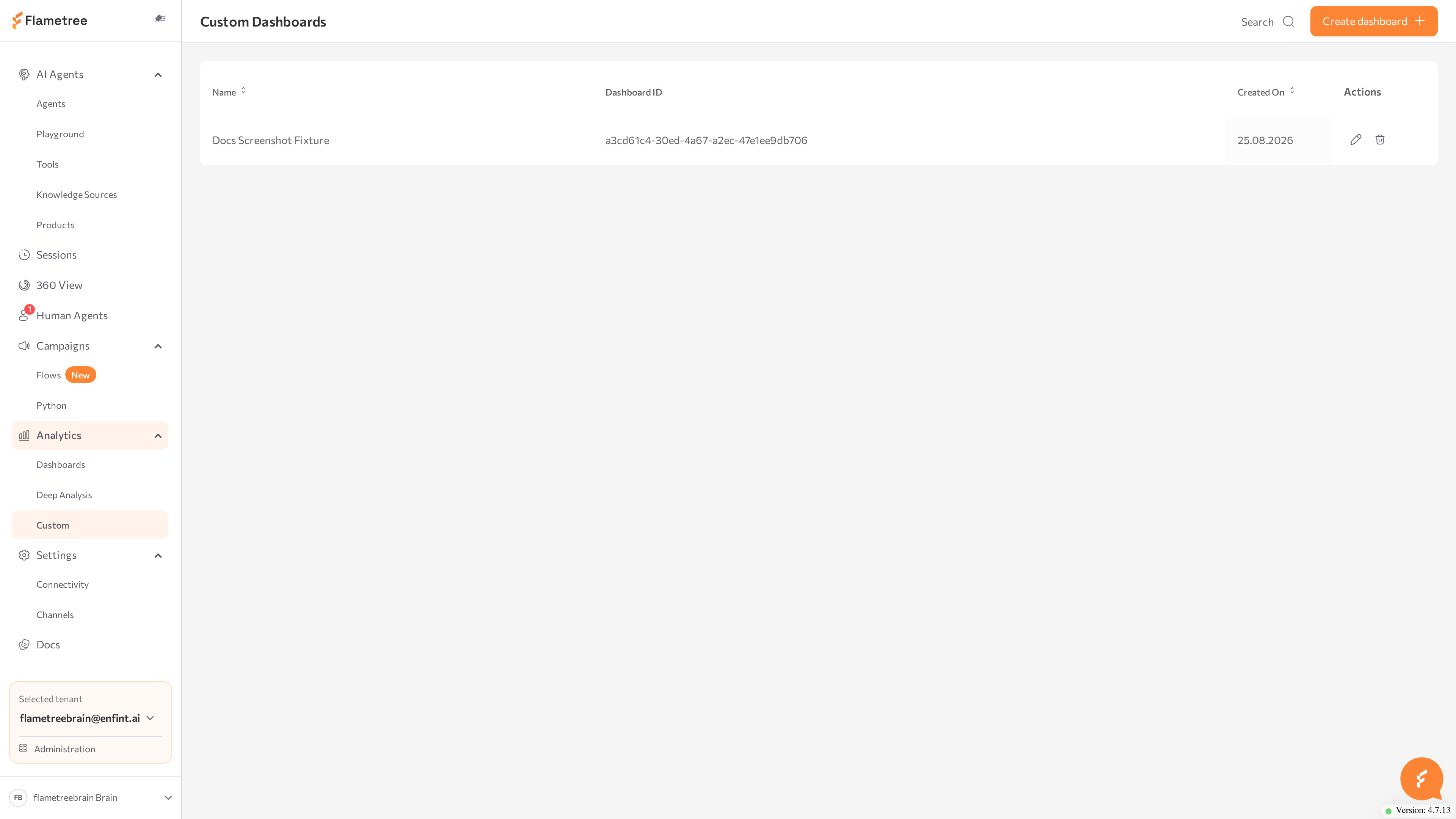
Analytics > Custom brings your own BI dashboards into Flametree. The built-in Dashboards cover standard agent and campaign reporting; custom dashboards are for reports built specifically for your organization in the embedded analytics engine — the same engine that renders the built-in dashboards. Open the page from Analytics > Custom in the left menu.
Use it to:
- Keep specialized reports — for example, finance, SLA, or quality reviews — next to your standard analytics.
- Open BI reports in the portal, with no separate sign-in to the analytics engine.
- Share one report list with everyone on the team: entries are visible across your tenant.
The screen itself stays thin: it keeps a list of registered dashboards and displays each one on its own page. Building and changing dashboard content happens in the analytics engine, not in the portal.
Before you start
- You are signed in to the portal. The Analytics menu is visible to the Tenant Admin and Tenant Operator roles — see Roles & permissions. What you can do on this screen depends on your role.
- The dashboard you want to add already exists in the analytics engine, and embedding is enabled for it.
- You have the dashboard's ID. Whoever builds the dashboard finds it in the dashboard's embedding settings in the analytics engine. If you don't have an ID, ask your administrator or the team that prepares dashboards for your organization.
View a custom dashboard
- In the left menu, go to Analytics > Custom. The Custom Dashboards list opens.
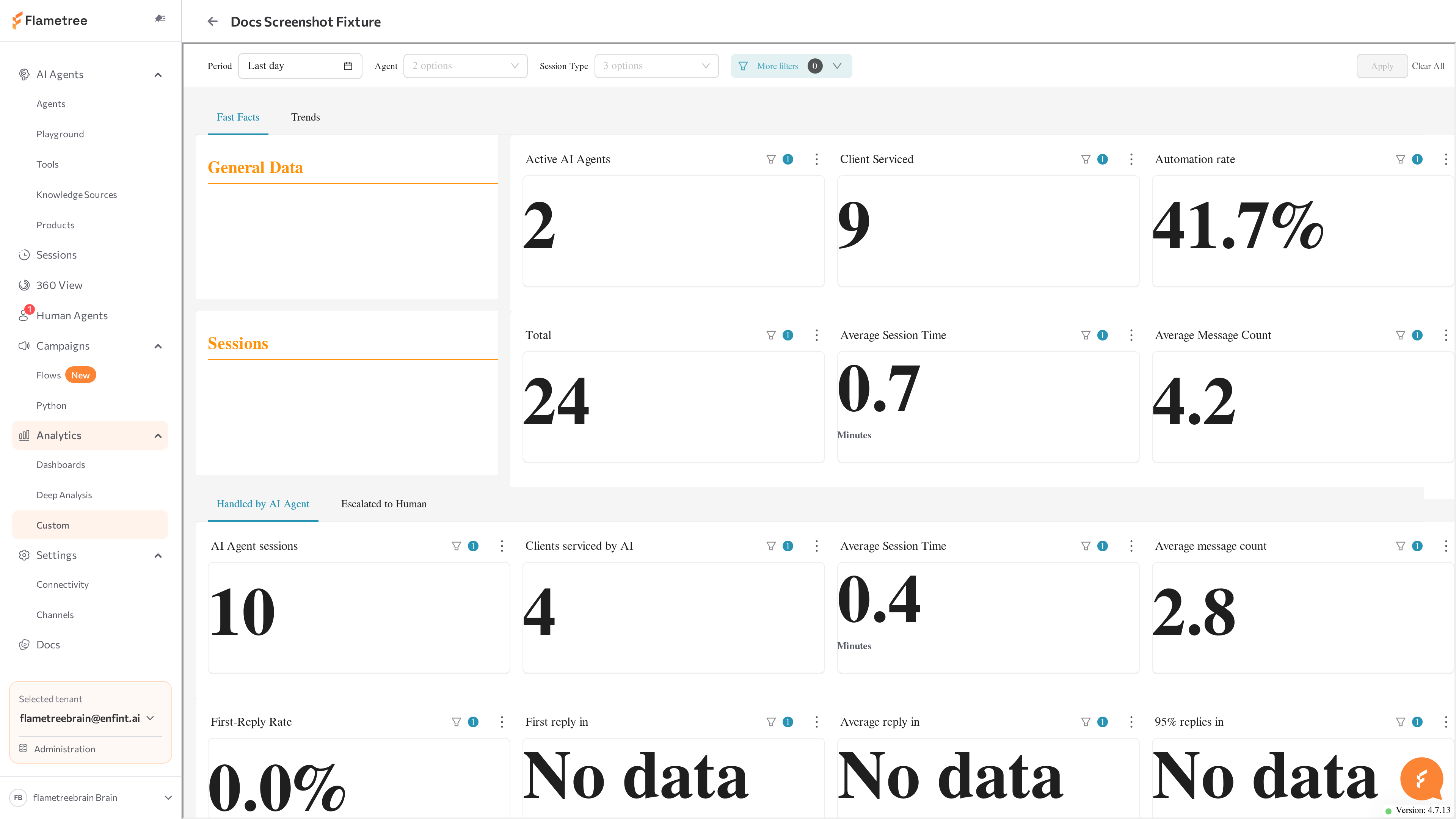
- Click a row. The dashboard opens on its own page, with the entry's name in the page header.
- To return to the list, click the back arrow next to the name.
The list has three columns:
| Column | Description |
|---|---|
| Name | The display name of the entry. |
| Dashboard ID | The embedding ID the entry points to. |
| Actions | Edit (pencil) and delete (bin) buttons for the entry. |
Clicking anywhere else in a row opens the dashboard. If the list grows beyond one page, page controls appear under the table.
Everything on the dashboard page below the header is the embedded dashboard itself:
- The charts, tables, and filters are defined in the analytics engine. The portal adds no filters of its own.
- If the dashboard has a filter panel, it starts collapsed — expand it inside the dashboard area.
- The dashboard's own title is hidden; the entry's Name in the page header identifies it instead.
While the dashboard is prepared, the page shows a loading indicator.
Add a dashboard
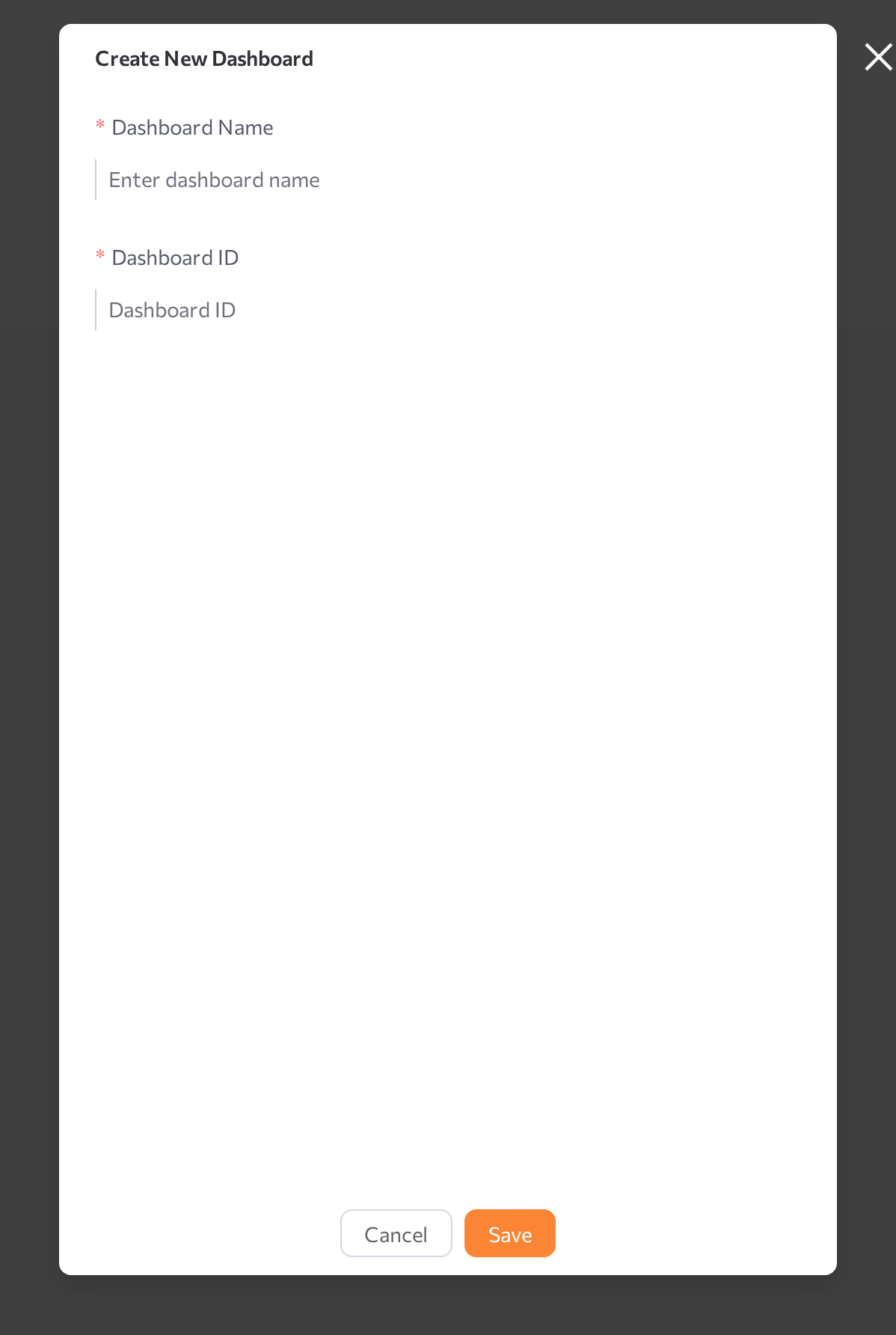
- On Analytics > Custom, click Create dashboard in the page header.
- In the Create New Dashboard window, fill in both fields — both are required:
- Dashboard Name — the display name shown in the list and in the page header when the dashboard is open. For example, "Q3 Financials".
- Dashboard ID — the embedding ID of the dashboard in the analytics engine.
- Click Save. The message Dashboard created successfully appears, and the new entry shows in the list.
Adding an entry registers an existing dashboard — it does not create one. If the ID does not point to a dashboard with embedding enabled, the entry still appears in the list, but its page cannot load.
The entry is shared: every user in your tenant who can open Analytics > Custom sees it. Entries are not linked to a specific agent or campaign — to scope the data, the dashboard itself must define the filters.
Give entries names your teammates recognize. The list is shared, and the Dashboard Name is the only label shown in the page header when the dashboard is open.
Edit a dashboard entry
- In the list, click the edit (pencil) icon in the Actions column.
- In the Edit Dashboard window, change the Dashboard Name, the Dashboard ID, or both.
- Click Save. The message Dashboard updated successfully confirms the change.
Renaming changes only how the entry is labeled in the portal. Changing the Dashboard ID points the entry at a different dashboard — the next time someone opens it, the other dashboard loads.
Delete a dashboard entry
- In the list, click the delete (bin) icon in the Actions column.
- In the confirmation prompt Are you sure you want to delete this dashboard?, click Yes.
The message Dashboard deleted successfully appears, and the entry disappears for everyone in the tenant. Deleting affects only the portal list — the dashboard itself stays untouched in the analytics engine, and you can register it again later with the same ID.
Common issues
- The dashboard page never finishes loading. The embedded analytics engine may not be configured for your environment yet. Contact your administrator.
- The page shows "Something went wrong. Please try again later." The dashboard could not be loaded. Open the entry's Edit Dashboard window and check the Dashboard ID — the dashboard may have been deleted in the analytics engine, or embedding may be disabled for it. Ask the dashboard owner to confirm both.
- The dashboard loads but shows no data, or an error inside the dashboard area. Content inside the dashboard area comes from the analytics engine. Check the filters defined in the dashboard — for example, the date range — or contact the dashboard owner.
- Creating or saving an entry fails. Both fields are required; fill them in and click Save again. If the Failed to create dashboard message persists, try again later or contact your administrator.
- A dashboard you didn't add appears in the list. This is expected — the list is shared across your tenant, so entries added by teammates appear for everyone.
- You don't see Analytics > Custom in the menu. Your role doesn't include the Analytics section — see Roles & permissions.
Related pages
- Dashboards — built-in agent and campaign reports, no setup required
- Deep Analysis — AI-driven categorization of conversations
- Sessions — open the individual conversations behind the numbers
- Roles & permissions — which roles can open Analytics